Stick Drift Tester Check the left and right analog sticks for movement while you are not touching them. The test records the controller values available through your browser and helps you spot center offset, input jitter, and steady movement in one direction.
Connect your controller, press any button, and leave both sticks untouched when the test begins.If You want to check to Test complete Controller Test with Our free Gamepad Tester.
What Is a Stick Drift Tester?
A stick drift test checks whether an analog stick reports movement when it should be resting near its center position.
Drift can make a character walk, a camera turn, or a menu selection move without your input. The movement may be steady, intermittent, or visible only in games with a small dead zone.
This test reads the normalized axis values supplied by your browser. Under the W3C Gamepad specification, gamepad axes are normalized to values between -1.0 and 1.0. A centered stick is expected to rest near zero, but a small nonzero reading does not prove that a controller is defective.
The pattern matters more than one spike.
How to Test a Controller for Stick Drift
- Connect the controller to your computer with USB or Bluetooth.
- Open this page in a supported browser.
- Press any controller button so the browser can detect the device.
- Place the controller on a flat, stable surface.
- Remove your thumbs from both analog sticks.
- Select Start Stick Test.
- Do not touch or move the controller during the 10 second resting test.
- Review the left-stick and right-stick results separately.
- Run the test again to see if the same pattern returns.
Use USB for the first test when your controller supports it. You can then repeat the check over Bluetooth and compare the results.
Before You Start
Close games, controller remapping programs, emulators, and input tools that may change the controller mapping.
Do not rest the controller on a couch, bed, or uneven surface. Small movements during the test can look like controller input.
If the stick was just released, wait a moment before starting. This gives the mechanism time to return to its resting position.
How Should You Read the Results?
Start with the movement pattern, not a single number.
A brief spike may happen when the stick returns to center or when the controller is moved. A repeated pull in the same direction is more useful evidence of drift. Small values that jump randomly around the center may be input noise rather than directional drift.
Use these result fields together:
| Result | What it shows |
|---|---|
| Current X and Y | The stick’s position at that moment |
| Distance from center | How far the combined X and Y position is from zero |
| Median | The typical resting value during the test |
| 95th percentile | A value that most recorded samples stayed below |
| Maximum | The largest movement recorded |
| Dominant direction | The direction in which movement appeared most often |
| Samples beyond dead zone | How often movement crossed your selected limit |
| Repeat agreement | Whether later tests showed a similar pattern |
No single reading can confirm every controller problem. Test again before deciding that the stick needs repair.
Is It Drift, Jitter, Center Offset, or Snap Back?
These patterns can feel similar in a game, but they do not mean the same thing.
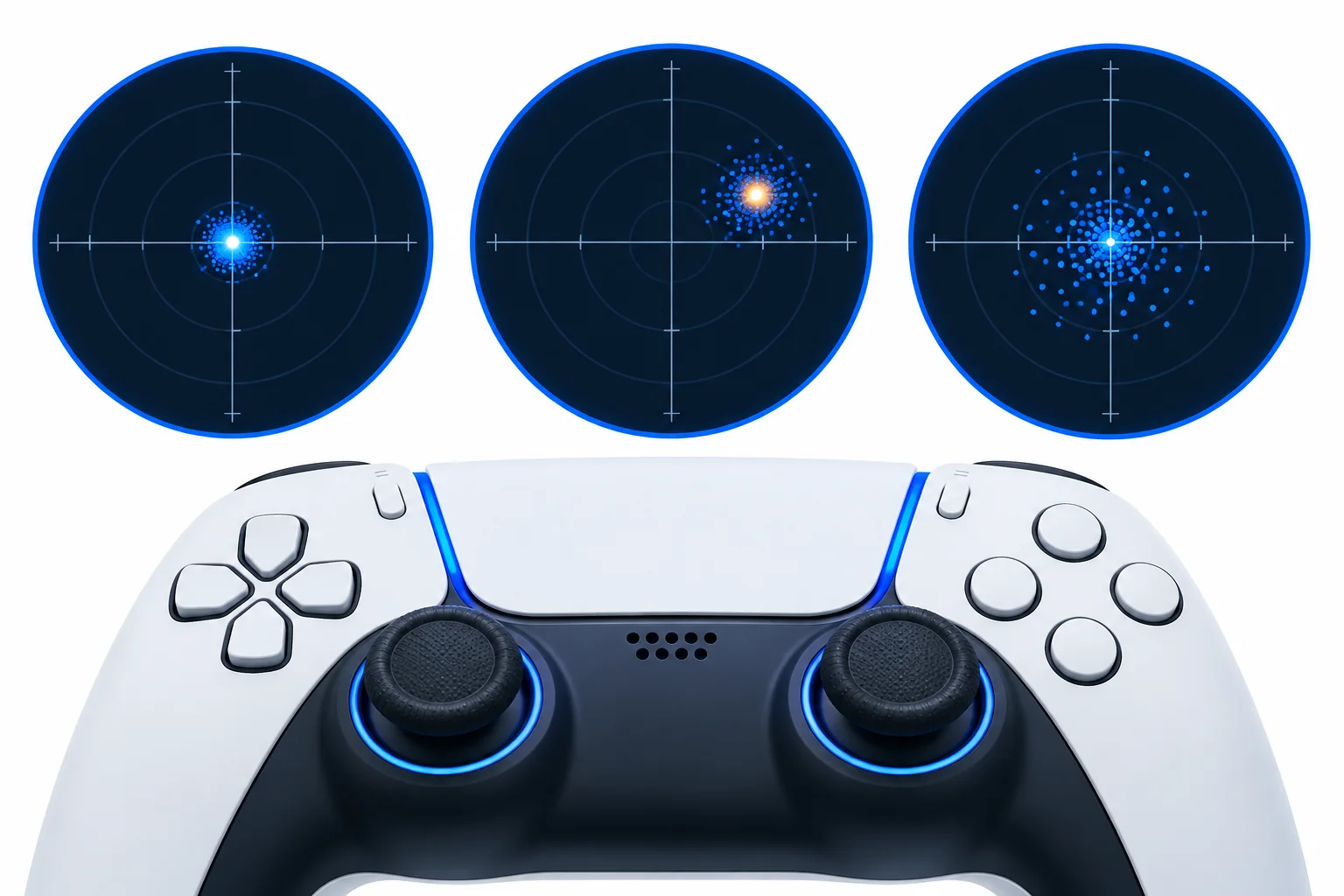
Directional Drift
Directional drift is a repeated or steady input toward one side while the stick is untouched. A character may keep walking left, or the camera may slowly turn upward.
A stable direction across several tests is stronger evidence than one short movement.
Input Jitter
Jitter appears as small, rapid changes around the center. The direction may change often instead of pulling toward one side.
Possible causes include sensor noise, a loose connection, wireless interference, mechanical wear, or movement of the controller during testing. A browser test can show the pattern but cannot identify the exact physical cause.
Center Offset
Center offset means the stick settles away from normalized zero after you release it. The position may remain stable but slightly off center.
Do not automatically hide this offset by treating the observed resting position as the new center. Doing that could conceal the issue you are trying to measure.
Snap Back
Snap back is a brief movement in the opposite direction after the stick is released. It can create a large short spike even when the stick later settles near the center.
Repeat the motion and check whether the same opposite spike appears again.
Does a Nonzero Stick Value Always Mean Drift?
No. A small nonzero value does not automatically mean that a controller has harmful drift.
Analog sticks use physical parts, and exact zero may not be reported at every moment. Browser mapping, controller firmware, calibration, connection quality, and normal sensor variation can also affect the value.
What matters is whether the input:
- Appears while the stick is untouched
- Continues for more than a moment
- Returns during repeated tests
- Pulls in a consistent direction
- Crosses the dead zone used by your game
- Causes unwanted movement during actual play
Here’s what you’re looking for: repeatable movement that matches the problem you see in a game.
How Much Stick Drift Is Too Much?
There is no single browser value that marks every controller as good or bad.
Games use different dead zones and response curves. A controller may feel normal in a racing game with a larger dead zone but move on its own in a shooter that uses a smaller one. Controller makers also do not publish one universal failure threshold for every model.
Use the adjustable threshold as a comparison tool, not as a manufacturer warranty standard.
Change the threshold to see how the same resting input may behave under different game settings. Do not label a controller as defective from this number alone.
Why Does My Controller Drift in One Game but Not Another?
Games can apply different dead zones, sensitivity settings, response curves, and controller profiles.
A larger dead zone ignores more movement near the center. A smaller one responds sooner, which can make low-level movement visible. Steam Input, emulator profiles, accessibility settings, and in-game remapping can also change how stick input is handled.
If the controller works here but drifts in only one game:
- Restore that game’s controller settings to their defaults.
- Check its inner dead-zone setting.
- Confirm that the correct input device is selected.
- Review Steam Input or other remapping profiles.
- Test another game with the same controller.
- Run this test again with remapping software closed.
Should You Test With USB or Bluetooth?
Start with a wired USB connection when one is available. It gives you a useful baseline without depending on the wireless link.
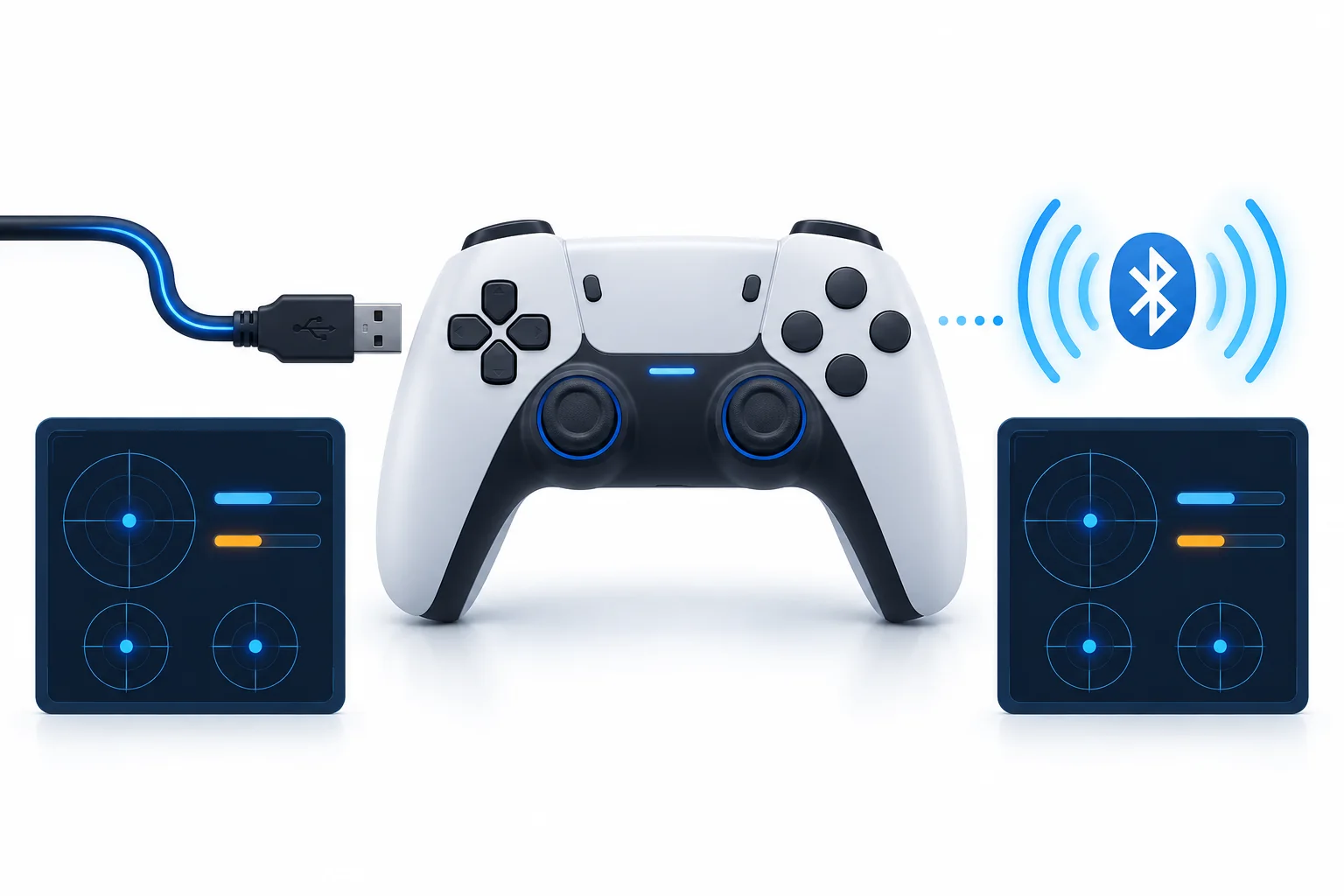
Then repeat the same test over Bluetooth. If the unwanted movement appears in both tests and follows the same direction, the pattern is less likely to come only from the wireless connection.
If it appears only over Bluetooth, check the controller battery, pairing status, nearby wireless devices, and firmware. This difference does not prove that Bluetooth is the cause, but it gives you a clear next step.
Some controllers expose different names, mappings, or features depending on the connection method.
Why Should You Run the Test More Than Once?
One test can be affected by a bumped desk, a recent stick movement, a connection change, or a short input spike.
Run at least three checks under the same conditions. Compare:
- The direction of movement
- The median resting value
- The 95th percentile
- The maximum value
- The percentage of samples beyond your selected dead zone
- Differences between the left and right sticks
Repeatable results are more useful than one unusually high reading.
What Should You Do After Detecting Unwanted Movement?
Follow the path that matches your result.
Movement Appears in the Same Direction Every Time
Repeat the test without touching the controller. If the direction remains consistent, update the controller firmware and use the maker’s official calibration or troubleshooting steps when available.
Values Jump Around the Center
Place the controller on a solid surface and test it over USB. Close controller software running in the background. Compare the new result with the Bluetooth test.
The Stick Is Centered Here but Drifts in One Game
Check that game’s dead zone, sensitivity, controller profile, and remapping settings. Test another game before changing the hardware.
The Browser Shows the Wrong Stick or Axis
Check whether the tool reports a standard mapping. Close Steam, emulators, virtual-controller drivers, and remapping programs, then reconnect the controller.
The W3C specification allows browsers to determine the order and mapping of controls. Unrecognized or nonstandard devices may not follow the common layout.
The Controller Is Not Detected
Press a button after connecting it. Try another USB cable or port, confirm that the operating system recognizes the controller, and open the page in a browser listed in our verified compatibility table.
Can Controller Calibration Fix Stick Drift?
Calibration can help when the saved center or input range is incorrect. It cannot repair every worn or damaged stick.
Microsoft provides thumbstick calibration through the Xbox Accessories app for supported Xbox controllers. Xbox also states that calibration cannot resolve every problem, including drift caused by normal wear.
Nintendo provides a built-in Calibrate Control Sticks option for Joy-Con and supported Switch controllers. Nintendo recommends service if calibration does not resolve the problem.
For a DualSense controller, Sony recommends checking updates, resetting the controller, and using PlayStation Repairs if the problem remains.
Test before and after calibration under the same conditions. This shows whether the resting pattern changed.
Can Increasing the Dead Zone Fix Stick Drift?
A larger dead zone can stop a game from responding to small movements near the center. It may reduce the effect of drift during play, but it does not repair the stick.
Increasing it too far can make aiming or movement feel less responsive. Use the smallest setting that prevents unwanted movement without making control feel sluggish.
A dead zone can hide movement. It cannot repair hardware.
Can You Fix Drift Without Opening the Controller?
Some problems can be reduced without opening the controller:
- Install official controller and console updates.
- Reset or reconnect the controller.
- Use an official calibration tool when supported.
- Check game dead-zone and remapping settings.
- Compare USB and Bluetooth results.
- Follow the manufacturer’s approved cleaning instructions.
Do not pour cleaning fluid into a controller. Do not open a controller that is under warranty until you have checked the warranty terms. Home repair can damage small parts and may affect service eligibility.
When Should You Repair or Replace a Controller?
Consider official service or qualified repair when unwanted input:
- Returns across several tests
- Appears over both USB and Bluetooth
- Happens in several games
- Remains after updates, reset, and supported calibration
- Regularly crosses the dead zone you need for normal play
- Makes precise movement or aiming difficult
Check the warranty before paying for a repair. Keep your test date, connection method, operating system, browser version, controller model, and repeated results. This record may help explain the problem, but it does not replace the manufacturer’s diagnostic process.
Controller Specific Testing Tips
How to Test Stick Drift on a PS5 Controller
Connect the DualSense controller to a computer with a data-capable USB cable or pair it through Bluetooth. Press a button, place the controller on a flat surface, and run the test without touching either stick.
If repeated tests show the same movement, update the controller software and reset the controller using Sony’s instructions. Contact PlayStation Repairs if the issue remains.
How to Test an Xbox Controller
Connect the Xbox Wireless Controller by USB or Bluetooth and press a button to activate it in the browser. Test both thumbsticks, then repeat the test through the other connection type if available.
For supported models, compare the results before and after using the Xbox Accessories calibration tool. Microsoft notes that normal wear-related drift may not be fixed by recalibration.
How to Test a PS4 Controller
Connect the DUALSHOCK 4 through USB or Bluetooth. Run several untouched tests and compare both analog sticks.
If the result remains abnormal, use Sony’s official reset process. The DUALSHOCK 4 support page directs users to PlayStation Repairs when resetting does not solve the issue.
How to Test Joy-Con Drift
Pair the Joy-Con with a compatible computer and check whether the browser identifies its stick axes correctly. Browser support and mapping can differ from a standard two-stick gamepad.
Confirm the result on the Switch through System Settings > Controllers and Sensors > Calibrate Control Sticks. Nintendo advises service when a Joy-Con still does not respond correctly after the recommended checks.
What About Hall Effect and TMR Sticks?
Hall effect and tunnel magnetoresistance, often called TMR, sticks use magnetic sensing instead of the contact-based sensing found in many traditional stick modules. They can reduce some forms of contact wear, but they can still have center, calibration, assembly, firmware, or mapping issues.
Test them with the same repeatable method. Do not assume that any stick technology guarantees a perfect zero reading.
Browser and Controller Compatibility
Publish only results your team has tested. Do not mark a combination as supported because another website says it works.
| Environment | USB | Bluetooth | Test status | Last checked |
|---|---|---|---|---|
| Chrome on Windows | Not yet tested | Not yet tested | Verification pending | Not yet reviewed |
| Edge on Windows | Not yet tested | Not yet tested | Verification pending | Not yet reviewed |
| Firefox on Windows | Not yet tested | Not yet tested | Verification pending | Not yet reviewed |
| Chrome on macOS | Not yet tested | Not yet tested | Verification pending | Not yet reviewed |
| Safari on macOS | Not yet tested | Not yet tested | Verification pending | Not yet reviewed |
| Chrome on Android | Not yet tested | Not yet tested | Verification pending | Not yet reviewed |
| Safari on iPhone or iPad | Not yet tested | Not yet tested | Verification pending | Not yet reviewed |
| Linux browser combinations | Not yet tested | Not yet tested | Verification pending | Not yet reviewed |
MDN notes that Gamepad API features can vary across combinations of controllers and platforms. Review the MDN Gamepad documentation for browser-level technical information.
How This Online Test Works
After the browser detects a controller, the page reads its exposed axis positions through the Gamepad API.
For a standard mapped controller, the common axis order is:
| Axis | Common control |
|---|---|
| Axis 0 | Left stick horizontal |
| Axis 1 | Left stick vertical |
| Axis 2 | Right stick horizontal |
| Axis 3 | Right stick vertical |
Negative horizontal values normally point left, and positive values point right. Negative vertical values normally point up, and positive values point down.
The distance from center can be calculated from the horizontal and vertical values:
distance = √(x² + y²)
The tool records a series of samples while the sticks are untouched. It then summarizes those samples instead of judging the controller from one reading.
The page reads normalized values exposed by the browser. It does not receive untouched internal sensor data or direct firmware measurements.
What an Online Controller Test Cannot Confirm
This page can show the input reported to the browser. It cannot:
- Identify the exact damaged part inside the controller
- Confirm that a potentiometer, spring, circuit board, or stick module has failed
- Measure the controller’s hardware polling rate from animation frames
- Reproduce every game’s dead zone and response curve
- Decide whether a controller qualifies for warranty service
- Guarantee that calibration or cleaning will fix the problem
- Replace the manufacturer’s diagnostic or repair process
- Prove that a controller is defective from one nonzero value
Use the results as evidence of an input pattern, not as a final hardware diagnosis.
FAQS
How do I know if my controller has stick drift?
Leave both sticks untouched and run the test more than once. Repeated movement in the same direction, especially when it matches unwanted movement in several games, is stronger evidence than one short spike.
What should a controller read when the sticks are centered?
The values should rest near normalized zero. Small nonzero readings can occur, so review the size, direction, duration, and repeatability of the movement instead of expecting a perfect zero at every sample.
Is a small amount of analog-stick movement normal?
Small variations can occur. They become important when they repeatedly cross a game’s dead zone or cause movement you did not request.
What is the difference between drift and jitter?
Drift usually pulls in a consistent direction. Jitter changes rapidly around the center and may not have one steady direction.
Why does my controller pass here but drift in a game?
That game may use a smaller dead zone, a different response curve, or a separate controller profile. Steam Input, an emulator, or remapping software may also alter the input.
Can I check a PS5 controller on a PC?
Yes, if the browser and operating system detect the DualSense controller. Connect it through USB or Bluetooth, press a button, and confirm that the correct stick axes respond.
Can I test an Xbox controller online?
Yes. Connect it to a compatible computer through USB or Bluetooth. Press a button to activate browser detection, then test both thumbsticks while they are untouched.
Can I test Joy-Con drift in a browser?
A browser may detect paired Joy-Con, but mapping and support can vary. Confirm the result with the calibration screen built into the Nintendo Switch.
Is USB more accurate than Bluetooth?
USB provides a useful comparison because it removes the Bluetooth link from the setup. A browser test still reads values processed by the operating system and browser, so USB should not be described as a direct raw hardware measurement.
Can dead-zone settings remove drift?
A larger dead zone can ignore small unwanted movement during play. It does not repair the controller or stop the stick from producing that input.
Will calibration fix my controller?
Calibration may correct certain center or range problems. It may not fix mechanical wear. Follow the instructions from the controller maker and test again afterward.
How many times should I run the test?
Run it at least three times under the same conditions. Repeatable direction and resting values provide better evidence than a single run.
Is this result enough for a warranty claim?
The report can document what the browser observed, but the manufacturer decides what evidence is required. Save the controller model, date, connection type, system, browser, and repeated results, then follow the official support process.
Check Both Analog Sticks Again?
Place the controller on a stable surface, keep your hands off the sticks, and repeat the test. Compare the new result with the first run before changing any settings or arranging a repair.