Check your controller’s stick center, movement range, triggers, and other inputs directly in your browser. No controller software is needed for the basic browser test.
Connect your controller, leave the sticks alone, then move them through their full range. The tester reads the values reported by your browser and helps you spot problems such as an off-center stick, unwanted movement, limited range, or uneven input.
If you’re trying to figure out whether your controller actually needs calibration, start with the test below.
Quick test:
- Connect your controller with USB or Bluetooth.
- Press a button if the browser does not detect it immediately.
- Leave both sticks untouched for a few seconds.
- Move each stick slowly through its full range.
- Check the center position, axis values, and maximum movement.
- Test the triggers and buttons before finishing.
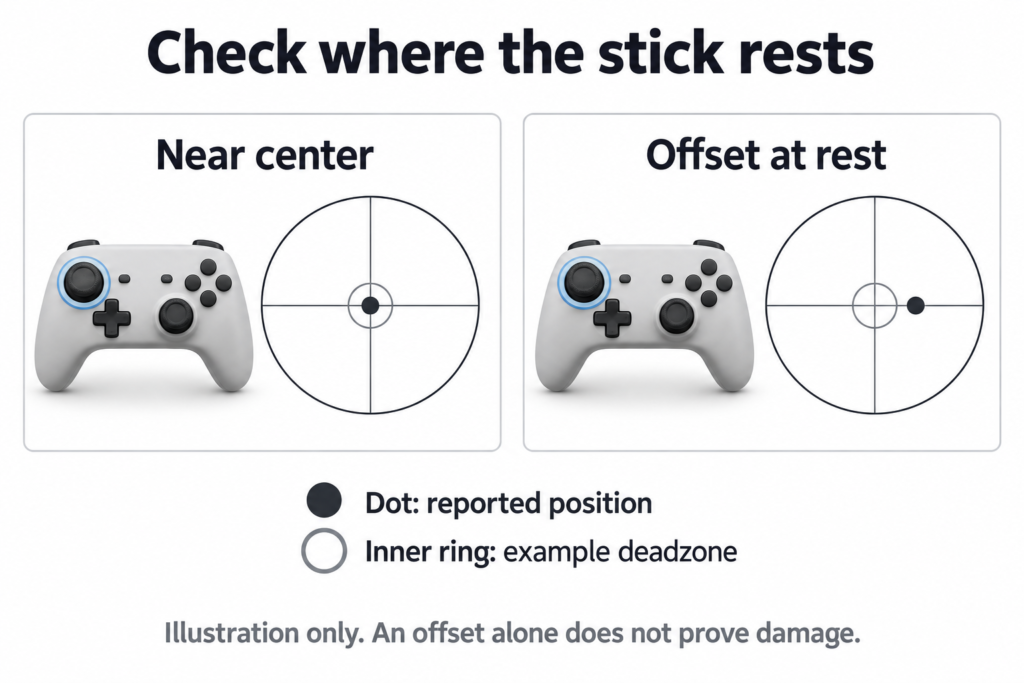
The browser Gamepad API gives a webpage access to the connected controller’s buttons, axes, connection state, mapping, and other input information. Browser support can vary by controller and platform, so the numbers shown by an online tester are the values exposed to the browser rather than a direct read of every part of the controller hardware.
What Is a Controller Calibration Tester?
A controller calibration tester checks how your gamepad reports its inputs.
For analog sticks, the useful things to check are the resting position, movement on the X and Y axes, and how far the stick travels in different directions. You can also check analog triggers and buttons.
Think of it as a quick health check before you start changing settings or replacing parts.
A calibration test can help answer questions such as:
- Is the stick sitting near its neutral position?
- Does it move when I am not touching it?
- Does it reach the expected range?
- Does one direction travel less than another?
- Are the triggers reporting their full range?
- Is the problem coming from the controller or from a game’s settings?
The browser does not receive some magical “calibrated” value. It reads the controller state exposed through the Gamepad API. For standard gamepad input, stick axes are represented as floating-point values between -1.0 and 1.0.
How Do I Test My Controller Calibration?
Start with the sticks at rest.
Connect the controller and keep your hands off both analog sticks. Watch the center readings for several seconds. A good test should look for movement or changing values instead of checking only one instant.
Next, move the left stick slowly around its full edge. Repeat the same test with the right stick.
Then check the triggers from a light press to a full pull.
Finally, press every button once.
This gives you a much better picture than simply checking whether the buttons light up.
Step 1: Connect the controller
USB is a good choice when you are troubleshooting because it removes one possible wireless connection problem.
Bluetooth can also work when your browser and controller expose the device correctly.
If nothing appears, press a controller button. Some browsers only expose an already-connected gamepad to the page after the user interacts with it. MDN documents this behavior for the Gamepad API, including differences between browsers.
Step 2: Check the resting position
Put both sticks in their natural resting position.
Do not push them toward the center manually.
The tester should record what the controller reports when you are not touching the sticks.
If the value moves around while the stick is untouched, you may be seeing drift or jitter.
Step 3: Check the full range
Move the stick slowly:
Up
Down
Left
Right
Then roll it around the outside edge.
This checks whether the controller reports movement across the full area of the stick.
Do not judge a controller from one number alone. Different controllers and software can expose input differently.
Step 4: Check the triggers
Pull each trigger gradually rather than slamming it down immediately.
Analog triggers can report values between 0.0 and 1.0 through the Gamepad API, where 0.0 represents no input and 1.0 represents a fully pressed analog button.
Step 5: Test the buttons
Press each button once.
Check for:
- A button that does nothing
- A button that stays pressed
- A button that needs several presses
- A trigger that does not reach its full range
- A stick click that is not detected
How Do I Know If My Controller Needs Calibration?
A controller is worth investigating when its reported input does not match what you are physically doing.
For example, leave the left stick untouched. If the tester repeatedly sees movement away from center, that is more useful information than simply saying “the controller feels weird.”
You should also investigate if:
- The stick does not settle near its normal center
- The reported position jumps around at rest
- One side reaches a noticeably smaller range
- A trigger does not reach its expected upper end
- A button fails to register consistently
- The controller behaves differently between applications
A small center offset does not automatically mean the controller is broken. What matters is how large, stable, and noticeable the offset is and how the game handles its deadzone.
What Should a Calibrated Controller Look Like?
There is no single universal number that proves every controller is perfectly calibrated.
A controller should report a stable neutral position when the sticks are untouched and show consistent movement as you move them through their range.
The exact values depend on the controller, operating system, browser, drivers, and input path.
For that reason, avoid treating a single threshold as a universal pass/fail rule.
A better test looks at several things together:
Center: Does the stick stay near its resting position?
Stability: Does that position remain reasonably steady?
Range: Does the stick respond across its movement area?
Direction: Do X and Y movement follow the direction of the physical stick?
Triggers: Do the analog triggers respond throughout their travel?
Buttons: Does each input register when pressed?
What Does the Center Value Mean on a Controller Test?
The center value is the input your controller reports when you are not intentionally moving the stick.
The Gamepad API represents an axis with values between -1.0 and 1.0. The exact neutral value can vary in the real input data, so the useful question is not simply “Does it say zero?”
Instead, watch whether the stick remains close to its resting position or keeps moving while your hand is off it.
A stable small offset can behave differently from an offset that keeps changing or produces visible unwanted movement.
Why Is My Controller Stick Not Centered?
There are several possible reasons.
The stick mechanism may have normal manufacturing variation, the sensor may have wear, the controller may be reporting an offset, or software may be applying its own processing.
A calibration setting can sometimes compensate for an offset, but compensation is not the same thing as repairing a worn joystick.
If the stick physically returns to the center but the reported position remains offset, a software or calibration issue is worth checking.
If the stick continues to report movement after repeated testing, stick wear becomes a more important possibility.
Can Controller Calibration Fix Stick Drift?
Sometimes calibration or a larger deadzone can hide a small center offset. It cannot repair a physically worn joystick.
This distinction matters.
Calibration changes or establishes how a system interprets controller input.
Deadzone tells software to ignore a region around the center.
Stick drift describes unwanted stick input while the stick is supposed to be at rest.
If the underlying sensor or joystick mechanism is worn, changing the software response may only mask the problem.
That is why testing the controller first is useful.
What’s the Difference Between Calibration and Stick Drift?
Calibration is about how the input is interpreted.
Drift is unwanted movement being reported while the stick is supposed to be still.
For example, imagine you leave the right stick untouched and the browser keeps receiving a small rightward input.
That is evidence of an off-center resting signal.
The cause could be related to calibration, software processing, deadzone settings, or physical wear. The test tells you what the controller is reporting; it does not by itself identify every possible hardware cause.
What Is Controller Deadzone?
A deadzone is a region around the center of an analog stick where small movements are ignored.
Steam Input, for example, exposes deadzone settings for analog inputs and describes the deadzone as the central region that is ignored.
Deadzone settings can be useful when a stick has a small amount of unwanted movement.
But increasing the deadzone also means ignoring some real stick movement near the center.
That creates a tradeoff.
A very large deadzone can make a stick feel slow or less responsive around the center.
How Do I Test My Controller’s Deadzone?
First measure the stick at rest.
Then slowly move it away from center.
Watch when the reported movement becomes meaningful to the game or tester.
The important point is that an online tester and a particular game may not use the same deadzone.
Steam Input has its own configurable deadzone system, while individual games can also apply their own input processing. Steam’s documentation specifically notes that games can apply their own deadzones to controller output.
So if your controller looks fine in the browser but drifts inside one game, check that game’s controller settings before blaming the hardware.
What Is Controller Circularity?
Circularity describes how evenly an analog stick reaches its outer range as you rotate it around the edge.
Imagine drawing a circle with the stick.
A perfectly even response would produce a fairly consistent shape. Real controllers can produce shapes that are less even because of the stick mechanism, gate design, sensor behavior, software processing, or other factors.
Circularity is different from drift.
Drift: What happens when you leave the stick alone.
Circularity: What happens when you push the stick to its outer range and move it around the edge.
That distinction is useful when diagnosing a controller because a stick can have little or no resting drift while still showing uneven outer movement.
Is a Small Stick Offset Normal?
A small offset does not automatically mean your controller is defective.
Analog sticks are physical input devices, and the value reported by the controller can vary around the neutral position.
The better question is whether the offset creates unwanted movement in the game.
Test the stick several times instead of relying on one reading.
If the value is stable and your games behave normally, there may be no practical problem.
If the value changes constantly while untouched, or your character/camera moves on its own, investigate the issue further.
Why Is My Controller Not Reaching 100% Input?
The number shown by a tester represents the input exposed to the browser. It does not necessarily mean that the physical stick itself has literally traveled “100%” in every possible direction.
Possible causes include:
- The stick’s physical travel
- Sensor characteristics
- Controller firmware
- Operating-system processing
- Browser mapping
- Software deadzones
- The way the controller exposes its input
The Gamepad API reports stick axes as normalized values between -1.0 and 1.0, but the actual values a browser receives depend on the controller and input path.
Do not replace a controller just because one axis does not display a perfect number.
Test all directions and compare the behavior.
How Do I Calibrate a PS5 Controller?
The first step is to determine what kind of calibration problem you actually have.
For a PS5 DualSense, you can test the controller on a computer using a browser-based tester and inspect the stick center, movement range, buttons, and triggers.
If you are troubleshooting the controller on PlayStation hardware, use Sony’s official support and reset procedures for the specific controller.
Sony’s support documentation provides controller troubleshooting and reset information, and its hardware support section also provides repair guidance when controller problems continue.
A browser tester should be treated as a diagnostic step, not as a replacement for the manufacturer’s firmware or hardware procedures.
How Do I Test PS5 Controller Stick Calibration on PC?
Connect the DualSense to your PC with USB or Bluetooth.
Open the tester in a supported browser and press a controller button if it is not detected.
Then:
- Leave both sticks untouched.
- Watch their resting values.
- Move the left stick through its full range.
- Repeat with the right stick.
- Pull both triggers.
- Press every button.
This gives you a quick picture of what the PC and browser are receiving from the controller.
Steam can also change how controller input reaches a game through Steam Input. Valve describes Steam Input as a software layer that receives controller input and translates it according to the player’s configuration before passing it to the game.
That is one reason a controller can behave differently in a browser, Steam, and an individual game.
How Do I Calibrate an Xbox Controller?
Start by testing the controller before changing settings.
Connect it to your PC, open the tester, and check the resting position and full stick movement.
If the controller behaves differently in a specific game, check that game’s controller settings as well.
Steam supports major controller families, including Xbox controllers and many third-party devices, through Steam Input.
If the issue continues across different applications, use the appropriate Microsoft/Xbox support or controller software for your specific model.
Can I Calibrate a Controller Online?
You can test and measure controller input online using a browser.
That does not mean every browser-based tester can permanently calibrate the controller itself.
A web page using the Gamepad API can read controller buttons and axes exposed to the browser.
Some specialized tools may provide software adjustments or use additional browser technologies for particular controllers, but support varies.
So when you see “online controller calibration,” check what the tool actually does.
There is a big difference between:
Reading input
Applying a software deadzone
Changing a profile
Writing calibration data back to controller hardware
Do not treat those as the same operation.
Can I Calibrate a Controller Without Installing Software?
For testing, yes.
A browser-based tester can read supported controller input through the Gamepad API without requiring a separate desktop application. The API is designed to let websites access gamepad state, including buttons and axes.
For actual hardware or firmware calibration, however, a browser may not have the permissions or controller-specific support required.
That is why this page should be used as a diagnostic test first.
Why Does My Controller Work but Still Fail Calibration?
“Works” and “calibrated” are not the same thing.
A controller may successfully connect, open menus, and play a game while still showing an offset stick, uneven range, or trigger issue.
Games also process controller input differently.
For example, Steam Input can sit between the physical controller and a game and translate the incoming input according to its configuration.
So test the controller at the input level first.
Then check the software layer where the problem actually appears.
Why Is My Controller Drifting After Calibration?
If drift comes back after calibration, the calibration may not have addressed the underlying cause.
Check the stick again with your hands completely off it.
Then compare:
Browser test: Does the stick report movement at rest?
Game test: Does the character or camera move?
Deadzone: Does increasing the game’s deadzone stop the movement?
If the browser shows a changing center position across repeated tests, investigate the controller itself.
If the browser looks stable but one game still moves, check the game’s settings and any input software between the controller and game.
Does Calibration Work for Hall Effect Controllers?
Hall effect sticks use magnetic sensing rather than the traditional contact-based sensing used in potentiometer joystick modules.
That does not mean every Hall effect controller needs no calibration.
The controller still has to report its stick position correctly, and its firmware or software may have its own calibration process.
An online tester can check the input it receives from the controller.
It cannot assume the sensor technology from the stick’s behavior alone.
If your controller manufacturer provides a calibration utility, compare its procedure with the browser test rather than assuming the two are performing the same job.
Does Calibration Work for TMR Joysticks?
TMR, or tunneling magnetoresistance, is another magnetic sensing approach used in some modern joystick replacements and controllers.
The same rule applies: sensor type does not automatically tell you whether the controller is calibrated correctly.
Use the tester to inspect the actual input.
Then follow the controller or joystick manufacturer’s calibration procedure if one exists.
For a replacement joystick, it is especially useful to test the controller after installation and compare the center and range before deciding whether the repair was successful.
Why Isn’t My Controller Detected by the Calibration Tester?
Try these steps in order:
- Connect the controller with USB.
- Make sure the cable supports data, not only charging.
- Press a controller button.
- Refresh the page.
- Close software that may be taking control of the device.
- Try another supported browser.
- Reconnect the controller.
- Test another USB port if you are using a wired connection.
Browser behavior can differ.
MDN notes that a gamepad may become visible to a page after user interaction, and Firefox has additional exposure behavior for privacy reasons.
If the controller works in Windows or another application but not in the browser, the issue may be related to browser exposure or mapping rather than a dead controller.
Does Controller Calibration Work on Chrome, Edge, Firefox, and Safari?
Browser support for the Gamepad API is broad, but the exact behavior can vary by browser, operating system, controller, and connection method.
The Gamepad API is widely available, but MDN specifically notes that some features have varying levels of support.
If your controller is not detected:
First choice: Try a current version of Chrome or Edge.
Then: Try another supported browser.
Also: Press a controller button after opening the page.
For troubleshooting, USB can make the setup easier because it removes Bluetooth pairing from the equation.
Can a Controller Be Calibrated on PC?
It depends on what you mean by “calibrated.”
A PC can read controller input, apply software settings, and in some cases use manufacturer-specific tools to change how the controller behaves.
Steam Input, for example, provides controller configuration and deadzone controls as part of its input system.
A browser tester has a different job.
It measures the controller data available to the browser so you can see what is happening before changing software settings.
Controller Calibration on Steam
Steam Input can change how controller input is interpreted before it reaches a game.
Valve’s documentation describes Steam Input as a system for configuring and translating controller input, and its settings include deadzone controls for analog inputs.
This matters when troubleshooting.
Suppose your browser test looks normal, but a game on Steam feels like the stick is drifting.
Do not immediately assume the controller is broken.
Check the game’s controller settings and Steam Input configuration.
Different software layers can produce different results from the same physical controller.
Controller Calibration on Windows
Windows can see a controller through its own input stack, while a browser receives controller data through the browser’s Gamepad API.
Those layers are related but are not identical.
If you are troubleshooting a PC controller, test it in more than one place:
- Browser tester
- Windows/controller settings
- Steam Input, if you use Steam
- The game where the problem occurs
This helps narrow down where the behavior changes.
PS5 Controller Calibration
For a PS5 controller, separate three things:
Controller hardware: The physical sticks, triggers, buttons, and sensors.
Console or PC software: The system interpreting the controller.
Game settings: Deadzone, sensitivity, response curves, and other controls.
Sony provides official hardware support and troubleshooting resources for PlayStation controllers.
Use the browser test to collect useful input information, then use Sony’s support process if the controller continues to show a hardware problem.
Xbox Controller Calibration
Xbox controllers can also be tested through a browser when the computer and browser expose the controller through the Gamepad API.
Check the stick at rest first.
Then check full movement, triggers, and buttons.
If the problem appears only inside one game, look at that game’s deadzone and controller settings before replacing the controller.
Steam Input also supports Xbox controller families and other major controller types.
Nintendo Switch Controller Calibration
Switch Pro Controllers and other compatible gamepads may appear to a PC through browser gamepad support.
The same diagnostic process applies:
Connect → detect → check center → check range → check buttons → check triggers.
Do not assume that a browser test performs Nintendo’s own hardware calibration procedure.
It is measuring the input exposed to the computer.
How Accurate Is an Online Controller Calibration Test?
An online tester can be useful for checking the input values exposed to the browser, but it has a measurement boundary.
The Gamepad API gives the page access to controller state such as axes and button values.
The browser does not necessarily expose every detail of the controller’s physical electronics.
The operating system, driver, controller firmware, browser mapping, connection type, and game software can all affect what you see.
So the correct way to describe an online test is:
It measures the controller input available to the browser.
That is useful for diagnosing behavior, but it should not be presented as a laboratory measurement of the physical sensor.
What Does a Calibration Test Actually Measure?
A good browser test can inspect several parts of controller input.
Stick center
The resting X and Y values while the stick is untouched.
Stick range
The values reached while moving the stick through its available travel.
Stick movement
Whether the X and Y axes respond as expected when you move the stick.
Circularity
How evenly the stick reaches its outer range while you rotate it around the edge.
Trigger input
Analog trigger values from no press through a full pull.
Buttons
Whether the browser receives button presses.
The Gamepad API exposes these controller states through standardized interfaces, although the exact device mapping can vary.
Controller Calibration Test Methodology
A useful test should explain how its result was produced.
For this tester, the basic measurement process is:
Rest: The controller is left untouched so the tester can observe the stick’s reported neutral position.
Movement: Each analog stick is moved through its range so the tester can observe the X and Y axes.
Edge movement: The stick can be rotated around its outer edge to inspect the shape and consistency of its reported range.
Triggers: Each analog trigger is pressed through its travel.
Buttons: Individual button inputs are checked for registration.
The browser reads the gamepad state through the Gamepad API. The API exposes axes and button information to the webpage rather than giving the page unrestricted access to the controller’s internal hardware.
That limitation is important.
A trustworthy result should tell you what was measured instead of pretending the browser can see things it cannot.
Why Test Before Changing Deadzone Settings?
Because changing the deadzone first can hide the original problem.
Suppose a stick is reporting a small unwanted movement.
Increasing the deadzone may stop the character from moving, but the underlying controller input has not necessarily changed.
Test first.
Record the result.
Then change the software setting if necessary.
Run the test again.
This gives you a before-and-after comparison instead of guessing.
What If My Controller Passes the Test but Feels Wrong in a Game?
Check the game’s own settings.
Look at:
- Deadzone
- Sensitivity
- Response curve
- Controller layout
- Steam Input configuration
- Other controller software
Steam Input can translate controller input before a game receives it, so the input shown by a browser can differ from what a particular game does with that input.
If the browser test is stable but the game behaves badly, the next step is to troubleshoot the game’s input path.
What If My Controller Fails the Test?
Do not immediately throw it away.
First repeat the test.
Try USB if you were using Bluetooth.
Restart the browser.
Test another browser.
Then check the controller in another application or game.
If the same problem appears in several places, you have stronger evidence that the controller itself needs attention.
If the problem appears only in one game, focus on that game’s settings first.
Should I Replace My Controller If It Has Stick Drift?
Not necessarily after one test.
First confirm the behavior.
Leave the stick untouched and run the test several times.
If the resting value repeatedly moves enough to cause unwanted input, then investigate cleaning, software settings, warranty support, or hardware repair depending on the controller.
If the controller is under warranty, document the problem before opening it.
A screenshot or exported test result can also be useful when explaining what the controller is doing.
How to Test a Controller Before Buying a Used One
A calibration test can be useful when checking a used controller.
Test:
- Left stick at rest
- Right stick at rest
- Full left-stick range
- Full right-stick range
- Both triggers
- Face buttons
- Shoulder buttons
- D-pad
- Stick clicks
Do not only press each button once.
For analog sticks, watch the values while the stick is untouched and while you move it slowly.
A controller that looks fine during a quick button check may still have a stick problem.
Controller Calibration for Competitive Gaming
Competitive players tend to notice small changes in stick behavior more quickly because aiming and movement depend heavily on predictable analog input.
That does not mean every small numerical difference matters during a match.
The useful question is whether the difference changes your actual control.
Test the stick at rest, check its range, then compare the result with the game’s deadzone and sensitivity settings.
If the controller is stable but the game still feels off, the issue may be the game’s input settings rather than the controller itself.
Hall Effect vs Potentiometer Controllers
The sensing technology can matter when diagnosing a controller, but the test result still comes first.
Traditional potentiometer joystick modules measure position through electrical resistance that changes with movement.
Hall effect designs use magnetic sensing.
TMR joystick modules use another magnetic sensing method.
These designs have different hardware characteristics, but a browser tester does not need to guess the sensor type to check the controller’s reported input.
Look at the behavior:
Does it stay near center?
Does it respond smoothly?
Does it reach the expected range?
Does it behave consistently?
Those observations are more useful than assuming a sensor type automatically guarantees perfect results.
Controller Calibration vs Controller Repair
These are different jobs.
Testing tells you what the controller is reporting.
Calibration can change how a system interprets or compensates for input.
Deadzone adjustment ignores a selected area around the center.
Repair replaces or fixes physical hardware.
An online tester belongs primarily in the first category.
It helps you collect evidence before deciding what to do next.
When Should I Use a Stick Drift Tester Instead?
Use the Stick Drift Tester when your main question is:
“Does my controller move by itself when I leave the stick alone?”
The Calibration Tester is broader.
It can look at center position, range, triggers, buttons, and other input behavior.
If the center test shows unwanted movement, move to the dedicated drift test for a longer or more focused measurement.
When Should I Use a Deadzone Tester?
Use a Deadzone Tester when the question is:
“How much of my stick’s center movement is being ignored?”
Deadzone behavior matters because games and input software can filter small analog movements.
Steam Input, for example, provides configurable deadzone controls for analog input.
Deadzone Tester
When Should I Use a Joystick Tester?
Use the Joystick Tester when you want a closer look at one or both analog sticks.
It is useful for checking:
- Center position
- X-axis movement
- Y-axis movement
- Range
- Stick response
- Possible drift
Joystick Tester
When Should I Use a Trigger Tester?
Use the Trigger Tester when an LT, RT, L2, or R2 input does not feel right.
An analog trigger is not simply on or off. The Gamepad API can expose its current analog value, normally from 0.0 to 1.0.
That lets you see whether the trigger responds through its travel.
Trigger Tester
Why Use a Browser-Based Controller Calibration Tester?
The biggest advantage is speed.
You do not need to install a large controller utility just to answer a simple question:
“Is my controller actually sending the input I expect?”
Open the page, connect the controller, and test it.
For a PC gamer troubleshooting a PS5, Xbox, Switch Pro, 8BitDo, or generic gamepad, this can be a useful first check before changing drivers, reinstalling software, or opening the controller.
Browser-based tools can also make it easier to compare the same controller across different computers.
FAQS
Can I test my PS5 controller online?
Yes. If your PC and browser expose the controller through the Gamepad API, you can check the DualSense’s sticks, buttons, and triggers from a browser.
Can I test an Xbox controller online?
Yes, when the controller is exposed to the browser as a supported gamepad. You can check its sticks, buttons, and analog triggers.
Can an online tester permanently calibrate my controller?
Not necessarily. A browser tester can read controller input, while permanent calibration may require controller-specific software, firmware support, or hardware tools.
Can calibration remove stick drift?
It can sometimes compensate for a small center offset, but it does not repair physical wear in a joystick mechanism.
Is stick drift the same as bad calibration?
No. Drift describes unwanted movement while the stick is supposed to be at rest. Calibration is about how the input is interpreted or corrected.
What is a normal controller stick center?
There is no single universal number that should be used for every controller. What matters is whether the resting position is stable and whether it causes unwanted input.
Why does my controller show movement when I am not touching it?
Possible causes include stick drift, sensor behavior, calibration, software processing, or other input filtering. Repeat the test and compare the result across applications.
Why does my controller work in Windows but not in the browser?
The operating system and browser use different input layers. Try pressing a button, reconnecting the controller, and testing another browser.
Why does my controller work in the browser but drift in one game?
The game may be applying its own deadzone, sensitivity, response curve, or controller processing. Steam Input can also change how input reaches a game.
Does Bluetooth affect controller calibration testing?
It can affect the connection and the input path. If you are troubleshooting, USB is a useful comparison because it removes Bluetooth from the setup.
Should I test with USB or Bluetooth?
Use USB first when diagnosing a problem. Once the controller behaves correctly over USB, test Bluetooth separately if wireless use is important to you.
Does the tester work with generic controllers?
It can work with generic gamepads when the browser recognizes and exposes them through the Gamepad API. Button mapping and feature support can vary between devices.
Can I test a controller without downloading anything?
Yes, for browser-based testing. The Gamepad API allows a webpage to access supported controller input without requiring a separate controller-testing application.
What does an off-center stick mean?
It means the controller is reporting a position away from its expected neutral area while the stick is at rest. The cause can be calibration, software processing, sensor behavior, or physical wear.
What does circularity mean on a controller test?
Circularity describes how evenly the stick reaches its outer range as you rotate it around the edge. It is a different measurement from resting stick drift.
Why doesn’t my stick reach the same value in every direction?
The reported range can vary because of the controller’s hardware, gate design, sensor, firmware, software processing, or the way the browser receives the input.
Can I use this test for a used controller?
Yes. Test both sticks at rest and through their full range, then check every button and trigger. A short test can uncover problems that are easy to miss during a normal game.
Should I calibrate before testing for drift?
Test first. Changing a deadzone or other setting before measuring can hide the original behavior.
How often should I test my controller?
There is no fixed schedule. Test it when you notice unwanted movement, inconsistent aiming, a trigger problem, a button issue, or unusual input behavior.
What To Do After the Test
Your result should tell you what to investigate next.
Stick moves while untouched: Run the Stick Drift Tester.
Center looks fine but movement feels wrong: Check the Joystick Tester and the game’s deadzone.
Stick range looks uneven: Check the circularity or full-range result.
Trigger does not respond through its travel: Run the Trigger Tester.
One button does not register: Run the Button Tester.
Everything looks normal in the browser but one game behaves badly: Check the game’s controller settings and Steam Input configuration.
The goal is not to give you a scary “good” or “bad” label from one number.
The goal is to show you what your controller is actually reporting so you can decide what to check next.
About This Controller Calibration Tester
This tester uses browser-accessible controller input to inspect the gamepad state available to the page.
The underlying web standard is the Gamepad API, which provides access to controller information such as buttons, axes, connection state, and mapping.
Because the browser receives input after the controller, operating system, drivers, and other software layers, the result should be understood as a measurement of browser-visible controller input.
That is also why this tool does not claim to repair physical joystick wear or replace manufacturer-specific calibration software.
For troubleshooting, that limitation is useful: test what the computer is receiving first, then decide whether the next step is a software setting, a manufacturer tool, or hardware repair.
Related Controller Tests
Check buttons, sticks, triggers, and controller input from your browser.
Check whether an analog stick produces unwanted movement while untouched.
Joystick Tester
Inspect analog stick movement, center position, and range.
Deadzone Tester
Check the center area where small stick movements are ignored.
Trigger Tester
Check analog trigger response and travel.
Check individual controller buttons and stick clicks.
Check whether supported controller vibration or haptic feedback responds.
Final Check
If your controller feels wrong, don’t guess.
Test it.
Leave the sticks alone and check the center. Move them through their full range. Check the triggers and buttons. Then compare the result with the game or software where you noticed the problem.
That simple process can tell you whether you are dealing with a controller input issue, a deadzone setting, or a problem that only appears inside one game.