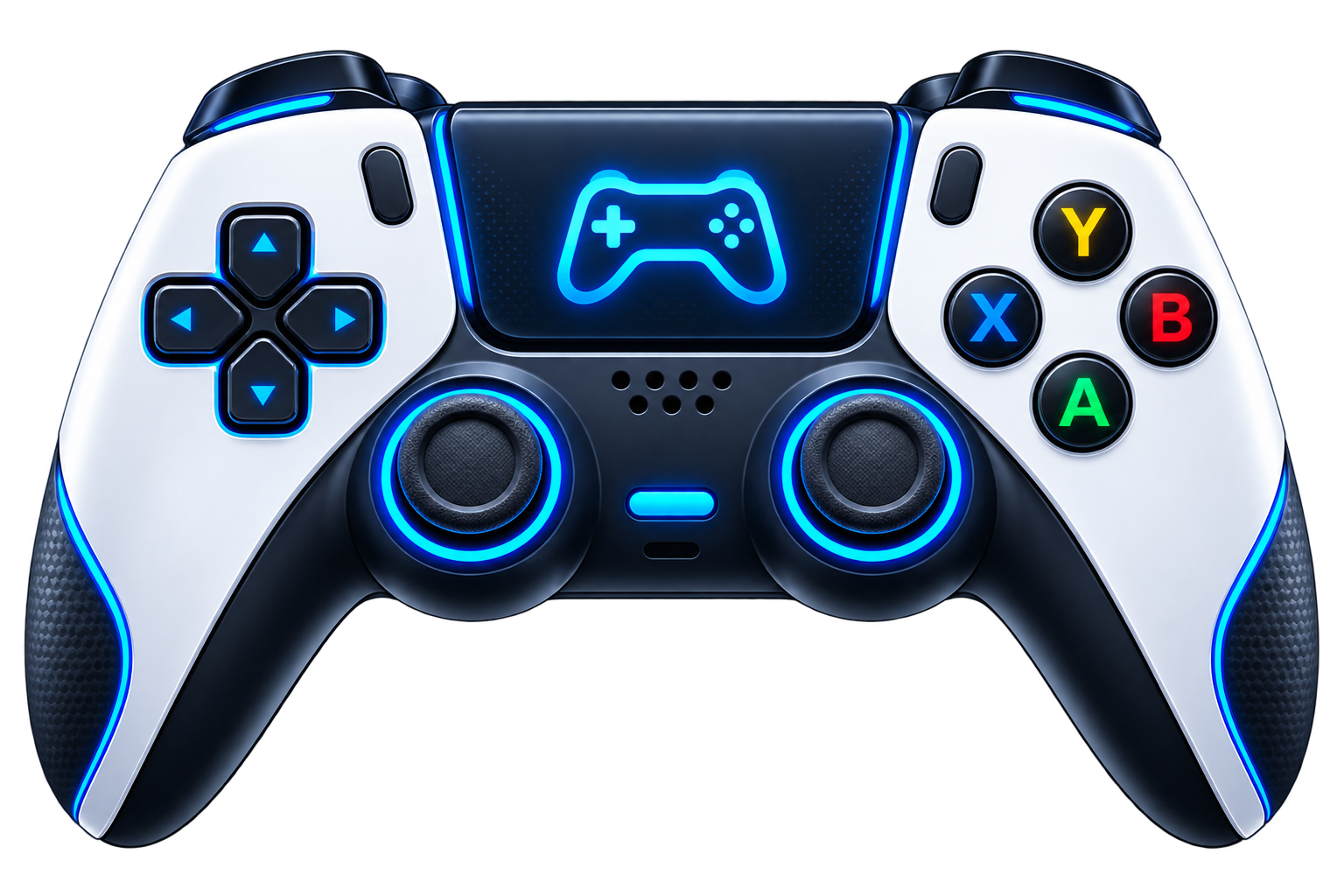
Not sure if a button on your gamepad is actually working? Connect your controller and press each button. The tester shows the input your browser receives, so you can check face buttons, the D-pad, bumpers, triggers, and stick clicks without installing another app Controller Button Tester.
Use the test before opening up your controller or replacing parts. A missing input can point you in the right direction, but it does not always mean the physical button is broken.
Controller Button Tester
Connect your controller and press any button. The matching button lights up instantly.
No controller detected
Connect a USB or Bluetooth controller, click Detect Controller, then press a physical button once to wake it in your browser.
Chrome, Edge and other Gamepad API browsers require a secure HTTPS page.Test Your Controller Buttons Online
Connect your gamepad through USB or Bluetooth, then press a button to start testing. Each detected press should appear on the screen while you hold the button and return to its normal state when you release it.
Browsers read these inputs through the Gamepad API. A button can report whether it is pressed, while analog controls such as many triggers can also return a value between 0.0 and 1.0.
Press Each Button to Check Its Response
Go through the controls one at a time instead of mashing several buttons together.
Check your:
- A, B, X, and Y or Cross, Circle, Square, and Triangle
- D-pad directions
- LB/RB or L1/R1
- LT/RT or L2/R2
- L3 and R3 stick clicks
- Start, Menu, Options, Share, or other buttons exposed by your browser
Press, hold for a moment, and release. If something looks wrong, repeat that button before moving on.
How to Test Controller Buttons
Connect Your Controller
Plug a wired controller into your PC or connect a wireless controller through Bluetooth. Make sure the controller is powered on.
Press a Button to Wake the Controller
Some browser and controller combinations may need user interaction before the gamepad becomes available to the page. Press a button after connecting it, then check whether the tester recognizes the device. The Gamepad API provides connection information and lets a webpage read the current state of recognized controllers.
Test Every Button
Start with the face buttons and work around the controller. Test the D-pad, shoulder buttons, triggers, and stick clicks separately.
This makes it much easier to spot one input that behaves differently from the rest.
Repeat Any Button That Looks Wrong
One missed press isn’t enough to call a button dead.
Press it a few more times. Disconnect and reconnect the controller if needed. If you’re using Bluetooth, you can also compare the result over USB.
What Does a Controller Button Test Check?
The test checks the controller input that your web browser can see. The Gamepad API represents the controller’s available buttons as GamepadButton objects, including their pressed state and, where supported, their input value.
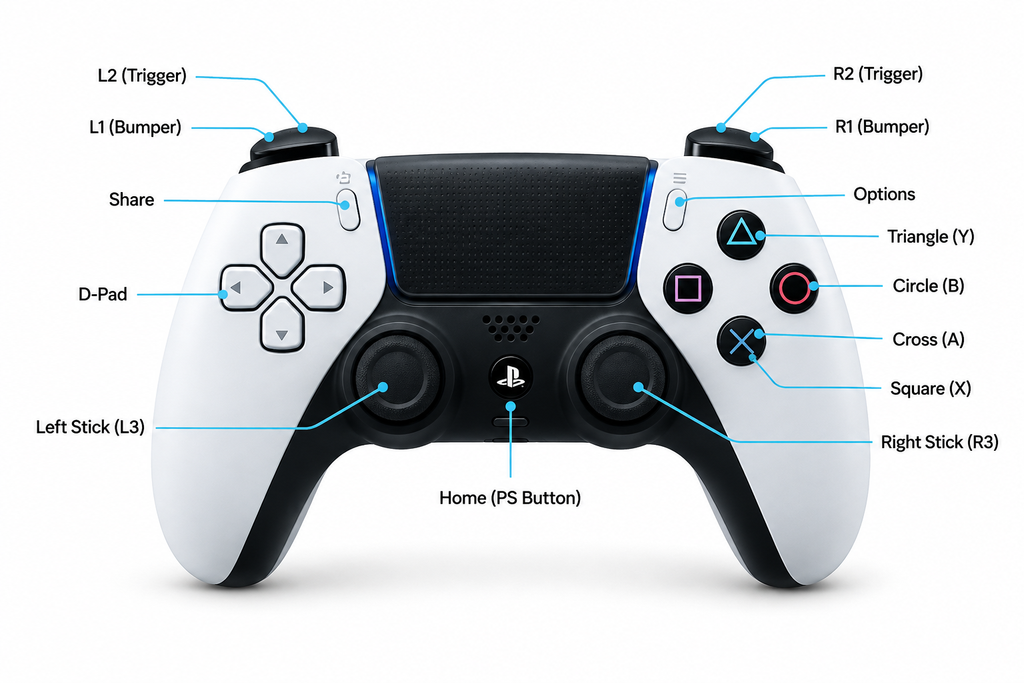
Face Buttons: A, B, X, Y and PlayStation Symbols
On an Xbox-style layout, these are usually A, B, X, and Y.
On a PlayStation controller, you’ll know them as Cross, Circle, Square, and Triangle.
Press each one separately and check that the matching input appears and releases normally.
D-Pad
Test Up, Down, Left, and Right one at a time.
If three directions register but one does not, repeat the missing direction before troubleshooting the controller.
Bumpers: LB, RB, L1 and R1
Press the left and right shoulder buttons several times. Check that each press starts and stops when expected.
Triggers: LT, RT, L2 and R2
Triggers can behave differently from ordinary digital buttons. The Gamepad API can report an analog button value from 0.0 to 1.0, allowing supported triggers to show more than a simple on/off state.
Stick Clicks: L3 and R3
Push each analog stick straight down until it clicks.
Moving the stick and clicking the stick are separate inputs, so don’t confuse an L3 or R3 problem with stick movement or drift.
How Do I Know If All My Controller Buttons Are Working?
Press and release every control one at a time. A normal button should register when pressed and stop registering when released.
Pay closer attention if a button:
- never appears
- stays active after release
- responds only sometimes
- reports unexpected input
- appears to register more than expected
Repeat the test before deciding there is a hardware fault.
What Does a Working Controller Button Look Like?
A basic digital button has two states from the browser’s point of view: pressed or not pressed. The Gamepad API exposes this through the pressed property.
For analog buttons, the browser may also receive a changing value. This is why a trigger can provide more information than a simple yes/no button state.
The key thing to look for is consistency. Press it, see the input. Release it, see the input return.
Why Is One Button on My Controller Not Working?
First, test that button several times while the other controls are working.
If only one control fails to register, the problem may involve the button itself. But don’t jump straight to opening the controller. Connection, driver, mapping, browser, and software differences can also affect what you see.
Try reconnecting the gamepad and testing again.
The Button Doesn’t Register
Check whether other buttons respond.
If nothing works, start with the connection rather than the individual button. If every other input works and the same button repeatedly fails, you’ve narrowed the problem down considerably.
The Button Stays Pressed
Release the physical button and watch its on-screen state.
If the tester continues to receive an active input, reconnect the controller and test again. A persistent input deserves further troubleshooting, but a browser test alone cannot tell you which internal component caused it.
One Press Seems to Register More Than Once
Repeat the press slowly.
Unexpected repeated input can come from the controller or from the software/input path. Compare several presses before treating it as a physical switch problem.
The Button Works Sometimes
Intermittent problems are easier to spot if you test the same button repeatedly.
Try normal presses, light presses, and presses from the angle you usually use while gaming. If the behavior changes, record what happens before attempting a repair.
Why Does My Controller Work in the Tester but Not in My Game?
A successful browser test means the browser is receiving controller input. It does not guarantee that every game will use that input correctly.
A game can have its own controller support, button bindings, input mode, or configuration. Software such as Steam can also sit between a controller and a game.
This isn’t just theoretical. Gamers report cases where their controllers work in online testers or other games but fail inside one specific title.
If your buttons work here but not in a game, check:
- the game’s controller settings
- button bindings
- Steam Input settings, if applicable
- whether the game supports your controller
- other controller or remapping software
- whether the same controller works in another game
That helps separate a browser-detected hardware input from a game-specific problem.
Why Isn’t My Controller Button Detected?
Start with the simple stuff.
Reconnect the controller, make sure it has power, and press a button. If you’re using USB, try another port or a known data-capable cable. For Bluetooth, disconnect the gamepad and pair it again.
Controller support can also differ across platforms and devices. MDN notes that Gamepad API features can vary depending on the controller and platform combination.
If the controller works in one program but not in your browser, that difference matters. Some software can translate or remap controller input before passing it to a game, while the browser may see a different input path. Users have reported exactly this kind of behavior with Steam and browser-based testers.
Why Does My Controller Show the Wrong Button Name?
The label printed on your controller and the data reported to a browser aren’t always the same thing.
The Gamepad API has a mapping property. When a browser can map a device to the known standard layout, that property is reported as standard. Other controllers may not follow the layout you expect.
That matters with generic gamepads and controllers using different physical labels.
For example, PlayStation uses Cross, Circle, Square, and Triangle, while Xbox-style controllers use A, B, X, and Y.
So if an unusual controller shows a number or unexpected label, test what happens when you physically press the button instead of relying only on its displayed name.
Can I Test PS5 Controller Buttons Online?
A DualSense connected to a compatible computer and browser may expose its standard gamepad inputs for browser testing.
Work through the Cross, Circle, Square, and Triangle buttons, then test the D-pad, L1/R1, L2/R2, and L3/R3.
Keep in mind that browser support for a controller feature is not the same as the controller supporting that feature itself. Some hardware features may not be available through a particular browser, operating system, or connection.
Can I Test Xbox Controller Buttons Online?
If your Xbox controller is recognized by the browser, press A, B, X, and Y first. Then check LB, RB, LT, RT, each D-pad direction, and the left and right stick clicks.
Older or third-party Xbox-style controllers can expose their controls differently, so focus on the actual input shown by the test rather than assuming every model has identical browser behavior.
Can I Test PS4 Controller Buttons Online?
You can check the browser-visible inputs from a DualShock 4 when the controller, operating system, and browser combination exposes them through the Gamepad API.
Test Cross, Circle, Square, Triangle, the D-pad, L1/R1, L2/R2, and both stick clicks.
If a system button doesn’t appear, don’t assume it is broken just from that result.
Can I Test Nintendo Switch and Generic Gamepads?
Many controllers can work with the web Gamepad API, but button layouts aren’t identical.
MDN specifically warns developers not to assume that the expected button on one controller will match what they receive from another type of gamepad.
That’s especially important with generic USB controllers, third-party pads, and devices that do not expose a standard mapping.
Press each physical control and watch what the tester reports.
What Is the Gamepad API and How Does Button Testing Work?
The Gamepad API is a browser interface for reading compatible game controllers. A webpage can access recognized gamepads and inspect information such as connection state, buttons, axes, device ID, and mapping.
For button testing, two pieces of data are especially useful.
pressed tells the page whether a button is currently pressed.
value can show the level of an analog button, such as a trigger, from 0.0 to 1.0.
This is why an online tester can react as you press controls without needing to know what’s physically happening inside the controller.
Can a Controller Button Tester Tell If a Button Is Physically Broken?
Not by itself.
The tester can show whether the expected button input reaches the browser. It cannot look inside the controller and identify a damaged membrane, dirty contact, broken switch, loose cable, worn part, or another internal fault.
Think of the result as evidence.
If every button works except one and the same input fails after repeated tests, you have useful information for the next troubleshooting step. You still need more evidence before saying exactly which physical part has failed.
How to Fix a Controller Button That Isn’t Responding
Start with the least invasive checks.
Reconnect the controller and run the test again. Try another USB port or cable if you’re wired. If you’re on Bluetooth, pair the controller again. Restarting the browser or testing with another supported browser can also help separate a browser issue from a controller issue.
Next, test the gamepad on another device or in another game.
If the same button consistently fails across different connections, devices, and software, the evidence points more strongly toward the controller itself. At that point, follow the manufacturer’s troubleshooting or repair guidance for your model rather than opening the controller based on one browser test.
Why Is My Controller Button Pressing by Itself?
Watch the tester without touching that button.
If an input remains active or appears unexpectedly, disconnect and reconnect the gamepad, then test again. Check whether the same behavior appears in another program or device.
A browser can show the input it receives, but it cannot tell you on its own whether that input came from a worn contact, controller electronics, mapping software, driver behavior, or another cause.
Why Does My Controller Button Register Twice?
Press the button slowly several times and watch each result.
If one physical press repeatedly appears as unexpected multiple actions, compare the behavior in another test or game. This helps you tell whether you’re dealing with the controller itself or something further along the software/input path.
Don’t replace parts based on a single odd press.
What Controller Buttons Can a Browser Test?
What you can test depends on what the controller, operating system, connection, and browser expose.
| Control | What to check |
|---|---|
| Face buttons | Press and release |
| D-pad | Test all four directions |
| Bumpers | Press and release |
| Triggers | Check press and analog response where exposed |
| L3/R3 | Press each stick down |
| Menu/Options | Check whether the browser exposes the input |
| Home/Guide/System buttons | May not be available like ordinary gamepad inputs |
The browser can also report axes for controls such as analog sticks. Those axis values normally range from -1.0 to 1.0, but stick movement is better checked with a dedicated joystick or stick test.
USB vs Bluetooth: Which Should I Use for Testing?
Either can be useful when your setup supports it.
If your controller behaves strangely over Bluetooth, compare the same buttons over USB. If it works over USB but not Bluetooth, you’ve learned that the problem may involve the wireless connection or its software path rather than the physical button alone.
Likewise, a USB problem doesn’t automatically mean the controller is bad. Try another data-capable cable and port before drawing that conclusion.
Which Browsers Work With Controller Testing?
The Gamepad API is available across major modern browsers, although support for individual features and controller/platform combinations can vary. MDN lists the core API as widely available while warning that some parts have different levels of support.
For the most useful result, use an up-to-date desktop browser and make sure JavaScript is enabled. If your gamepad isn’t detected, comparing another current browser can be a useful troubleshooting step.
FAQS
Is the controller button test free?
Yes. You can use this page to check browser-detected controller inputs without installing a separate testing program.
Do I need to download anything?
No separate testing app is needed for the browser test. Connect your controller and use the tool on this page.
Can I test a PS5 DualSense controller?
You can test inputs that your browser and operating system expose from a connected DualSense. Some controller-specific features may have different support depending on the platform.
Can I test an Xbox controller?
Yes, when the Xbox controller is recognized by your browser. Check A, B, X, Y, the D-pad, bumpers, triggers, and stick clicks individually.
Can I test a PS4 DualShock 4?
A connected DualShock 4 can be tested when its inputs are available through the browser’s Gamepad API. Browser and operating-system behavior can vary.
Can I test a USB controller?
Yes, if the computer and browser recognize it as a compatible gamepad. If it isn’t detected, try another USB port and a data-capable cable.
Can I test a Bluetooth controller?
Yes, when the controller is paired correctly and exposed to the browser. If you get inconsistent results, reconnect Bluetooth or compare the controller over USB.
Why is one button not responding?
Test it several times first. Then reconnect the controller and compare it in another browser, game, or device. A missing browser input can help locate a problem, but it does not prove by itself that the physical button is broken.
Why does the controller work here but not in my game?
The browser and the game can handle controller input differently. Check the game’s controller support, button bindings, input settings, and any remapping software. Real-world users report controllers working in web testers while failing in individual games.
Why isn’t my controller detected?
Make sure it’s powered on and connected, then press a button. Reconnect USB or Bluetooth if needed. If it works elsewhere but not in the browser, the controller, browser, operating system, or mapping path may be handling the device differently.
More Controller Testing Tools
Once the buttons are checked, test the other parts of your gamepad separately.
Use the Gamepad Tester for an overall input check, the Stick Drift Tester for unwanted analog movement, the controller tester for stick position and range, the Trigger Tester for L2/R2 or LT/RT input, and the Vibration Tester for supported haptic or rumble functions.
Keeping these tests separate makes it easier to figure out which part of the controller needs attention.
Controller Button Test: Quick Answer
A controller button test shows whether your browser receives input when you press a gamepad button. Connect the controller, press and release each control, and watch its on-screen response. If one button doesn’t register or behaves strangely, repeat the test and compare another connection, browser, game, or device before assuming the hardware is broken.