Connect your controller through USB or Bluetooth, then press any button to begin. Check buttons, thumbsticks, triggers and D-pad inputs in your browser. Watch what responds, spot unusual readings, and work out what to check next.
Connect your controller and press any button.
No download. No account required.
How Do I Test My Gamepad Tester Online?
With Free Gamepad tester Connect the controller, press a button, and check each control while watching its on-screen response. Start with ordinary button presses, then check stick movement and trigger travel.
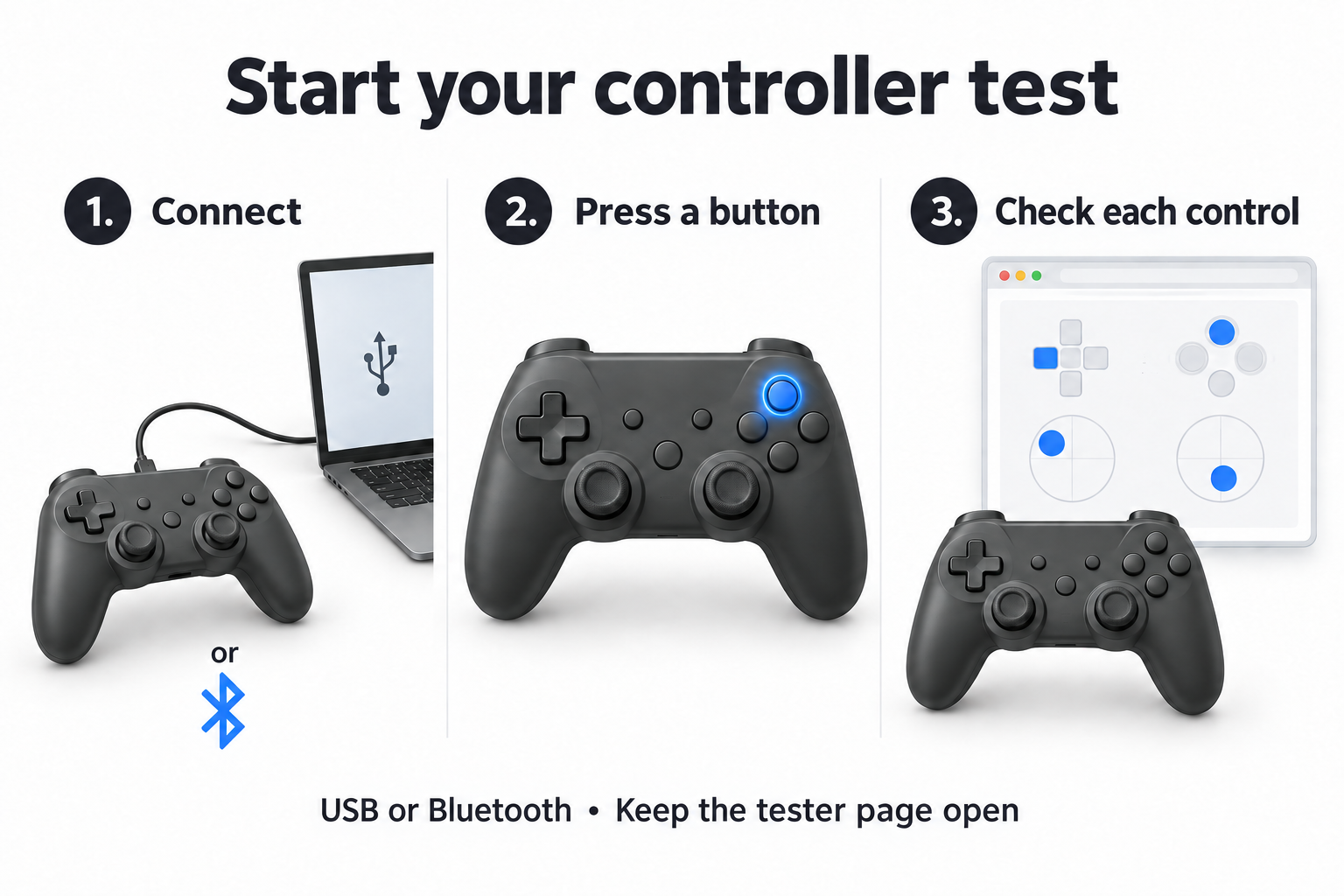
- Connect or pair the controller. Use a USB cable that carries data, or pair through your device’s Bluetooth settings.
- Open the page and press a face button. Some browsers wait for controller input before making the device available.
- Check the buttons. Press and release each face button, bumper, menu button and stick click.
- Test the D-pad. Check up, down, left, right and the diagonal combinations.
- Move both sticks. Push each stick slowly through its range, then rotate it around the edge.
- Release the sticks. Set the controller down and watch whether the markers settle near the center.
- Pull the triggers. Squeeze each one slowly, then release it completely.
- Repeat anything unusual. Check whether the same reading appears again before changing settings.
If the controller does not appear after a button press, check the connection steps farther down this page. Browser detection can require user interaction.
What Does an Online Controller Tester Show?
A browser controller test shows the inputs your computer or phone makes available to the page. You can check whether a button registers, a trigger changes value, or a thumbstick reports movement while untouched.
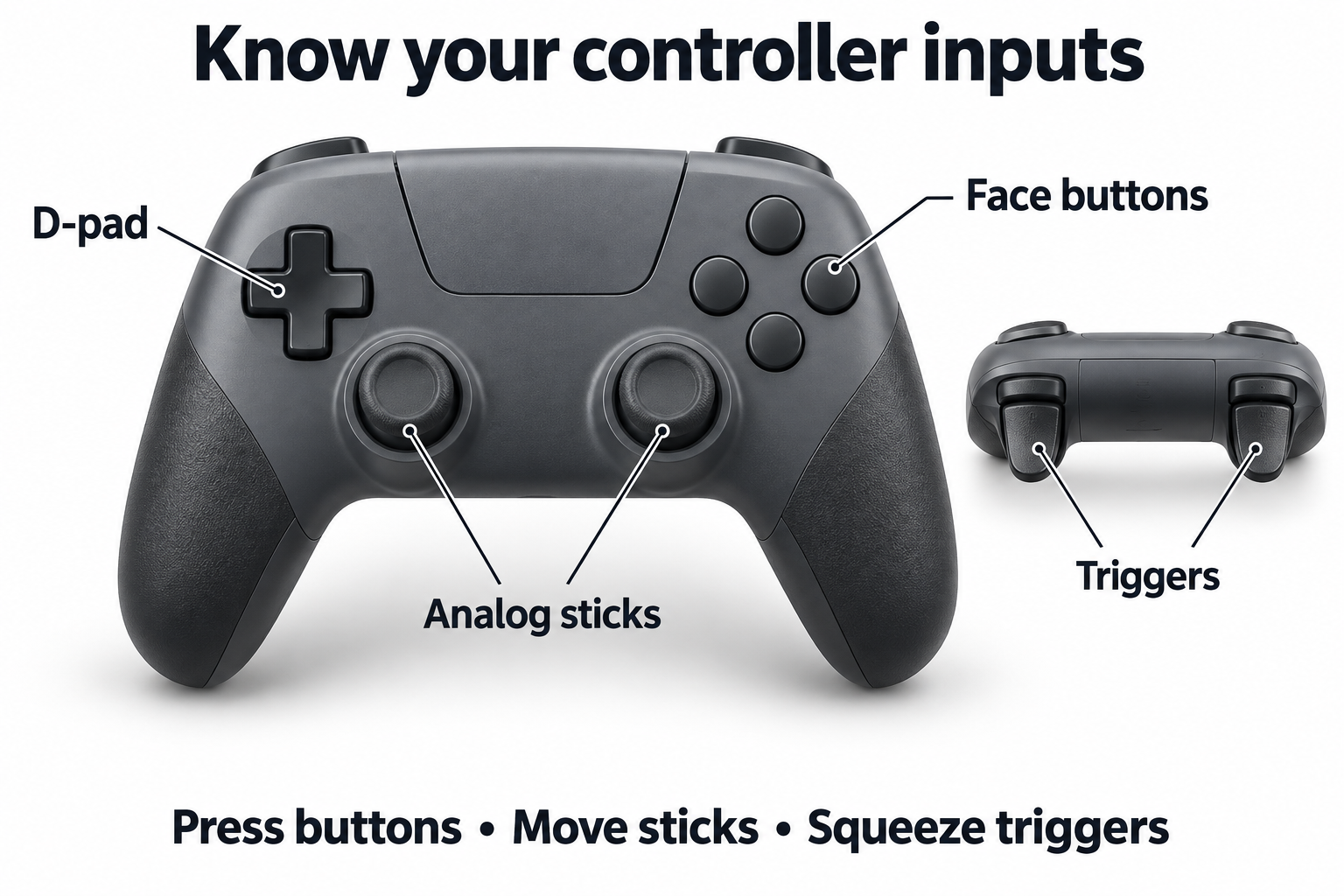
That gives you a useful starting point when your aim feels off, a button stops responding, or your character walks without input. It does not identify the exact broken part inside a controller.
The browser receives this information through the Web Gamepad API. Available features depend on the controller and platform.
Should I Use USB or Bluetooth?
Start with USB if you have a suitable cable. This gives you a wired baseline before you compare wireless behavior.
Repeat the same checks over Bluetooth or a compatible wireless receiver. Keep the browser, settings and test steps unchanged. If a problem appears only with one connection, investigate that connection before assuming the controller has failed.
A charging light does not prove that a cable carries data.
What Should I Look for in the Results?
Watch for a clear connection between your physical action and the displayed input. A pressed button should register and then release. Stick movement should follow your direction. An analog trigger should change as you pull it.
| What you see | What to check next |
|---|---|
| No controller appears | Pairing, cable, operating-system detection and browser support |
| One button does not respond | Button mapping, controller profile and repeated presses |
| A button stays active after release | Physical sticking, a held assignment or remapping settings |
| The wrong button lights up | Standard mapping, raw button indices and controller software |
| A stick reports movement at rest | Repeated resting readings and the game’s deadzone |
| A trigger jumps or stops short | Trigger settings, travel stops and the reported input range |
| Inputs work here but not in a game | Game support, selected controller and Steam Input settings |
| The controller drops out | Cable, battery, pairing, receiver and driver behavior |
A reading tells you what reached the browser. Use it to narrow the problem, then verify the result through another test or the manufacturer’s software.
What Do the Axis Numbers Mean?
An axis describes movement along one direction. A thumbstick normally has a horizontal axis and a vertical axis.
The standard browser layout assigns axes 0 and 1 to the left stick and axes 2 and 3 to the right stick. Axis values are normalized between −1 and 1. Controllers without a standard mapping may arrange these inputs differently.
Use the moving marker to understand direction, then look at the numbers when you need to compare small changes.
Why Does the Wrong Button Light Up?
The browser may be reading a layout that differs from the labels on your controller. A remapping program can also change the input it sends.
Press the same button several times and check whether it consistently activates the same entry. Review the mapping before blaming the button. For a clean comparison, temporarily close remapping software, reconnect, and repeat the test.
How Do I Check My Controller for Stick Drift?
Set the controller on a stable surface and take your thumbs off both sticks. Watch the markers for about ten seconds. Rotate each stick, release it, and repeat the resting check.
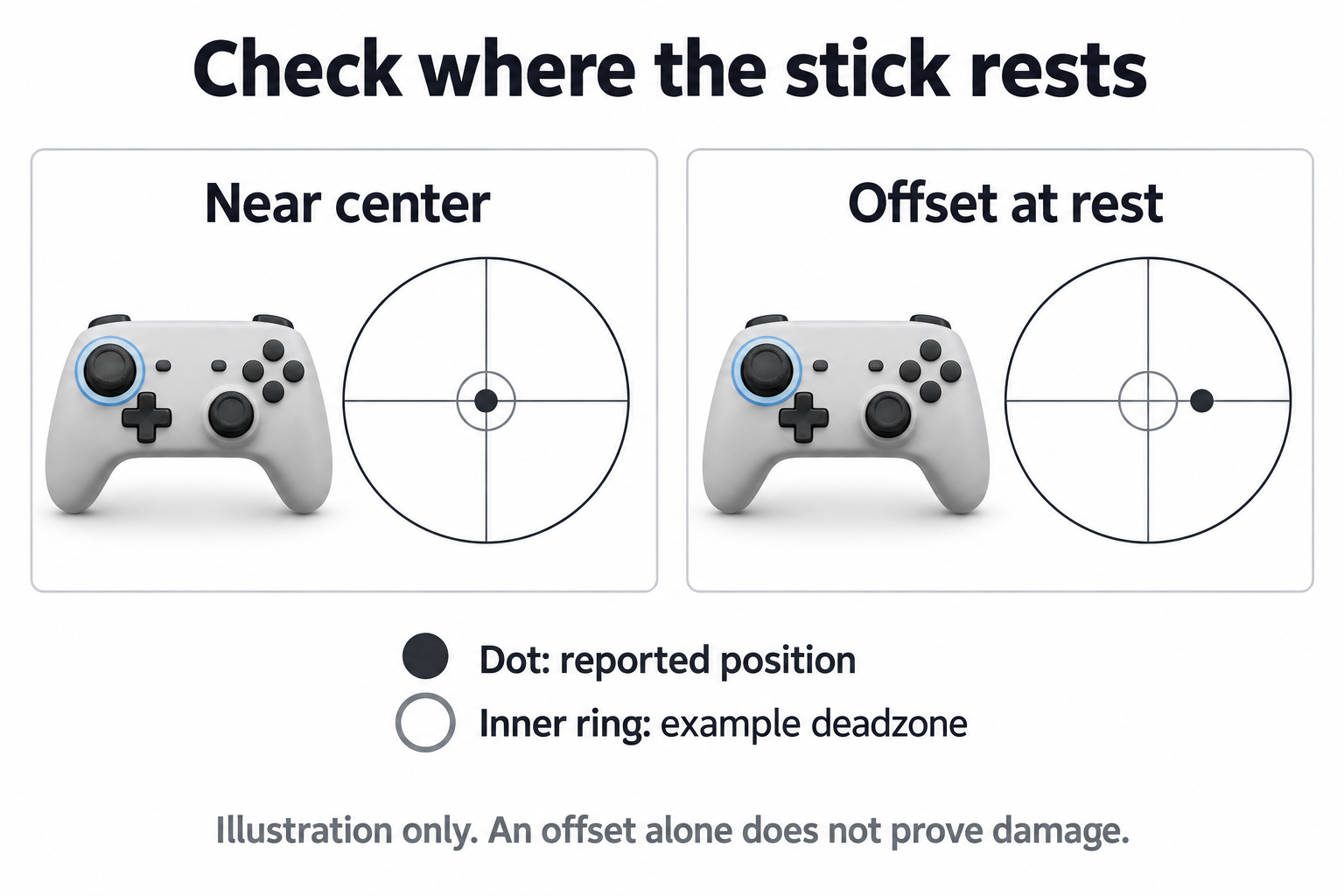
Look for movement that returns across several attempts. Compare that movement with the deadzone used by the game where you notice the problem. Ten seconds is a practical observation period, not an industry pass-or-fail standard.
Is a Small Nonzero Reading a Problem?
A small offset alone is not enough to call a controller defective. The useful question is whether that offset repeatedly produces unwanted movement in your setup.
For example, a small right-stick input may be ignored by one game but move the camera in another with a smaller deadzone. Record what happens after several releases, including the direction of the offset and whether it changes.
Avoid judging every controller against a single preferred resting number.
What Does the Deadzone Setting Do?
A center deadzone ignores a small amount of stick movement around its resting position. Reducing it lets smaller movements affect the game. Increasing it may hide unwanted resting input, but it also means you must move the stick farther before the game responds.
Changing that setting does not repair a worn component.
Deadzone settings can exist in controller software, Steam Input and the game itself. Valve documents deadzone controls and notes that games may apply their own settings.
What Does a Circularity Test Tell Me?
A circularity test traces the outer range reported as you rotate the stick. It can help you notice a direction that does not reach as far as the others.
Read the score alongside the plotted shape and the tool’s formula. Circularity alone does not establish aiming accuracy, response time or overall controller quality. A repeated range problem deserves a closer look, especially if you also notice it in a game.
How Can I Check Buttons, Triggers and Vibration?
Controller Button and D-Pad Tester
Press each control separately before trying combinations. Check press and release behavior, including stick clicks and diagonal D-pad inputs.
For an intermittent problem, repeat the same action several times. A button that works once may still miss later presses.
Extra paddles may repeat existing buttons rather than appear as separate inputs. Check the controller’s own assignments before treating a missing paddle entry as a fault .
Analog Trigger Test
Pull the left trigger slowly from rest to full travel, then release it. Repeat with the right trigger.
When exposed as an analog button, its browser value ranges from 0 to 1. A digital button typically switches between those endpoints. These values describe reported input, not a measurement of finger force.
Before investigating incomplete travel, check whether trigger stops or a short-trigger mode are enabled.
Controller Vibration Test
If a vibration control is available, try a short pulse while holding the controller.
No rumble does not automatically mean a motor is broken. The controller, connection, driver, browser and website must support the requested effect. Check vibration in a supported game or official application before drawing a hardware conclusion.
Basic rumble and adaptive-trigger resistance are separate features.
Which Controllers and Browsers Can I Use?
Compatibility depends on the full setup: controller model, connection, operating system, driver, firmware and browser version.
A brand name on its own is not enough to guarantee support. Start by checking whether your device recognizes the controller, then press a button on this page.
Xbox Controllers
For Xbox Series X|S, Xbox One, Elite and other Xbox-style controllers, check face buttons, bumpers, sticks, D-pad and triggers.
Some devices and software present an Xbox-compatible identity. An Xbox name in the input list does not always identify the physical controller in your hands. Valve explains how Steam Input can emulate an Xbox controller.
PlayStation Controllers
For DualSense and DualShock controllers, begin with the controls exposed by the browser. Touchpad clicks, touch coordinates, motion sensing and advanced haptics are different capabilities and may not all be available.
Sony provides separate connection requirements for computers and mobile devices. See Sony’s US DualSense connection guide when pairing or feature support is unclear.
Nintendo and Third-Party Gamepads
For Switch Pro Controllers, Joy-Con and third-party models, follow the manufacturer’s connection instructions. Devices from brands such as 8BitDo and GameSir may offer several operating modes.
Use the mode intended for your device. Changing modes can change the identification string, button layout and available features.
Browser and Operating-System Support
Check support for the exact feature you need. Reading buttons successfully does not prove that vibration, touch input or other features will work.
Chrome, Edge, Firefox and Safari can differ across Windows, macOS, Linux, Android and Apple mobile devices. Consult the Gamepad API compatibility reference and any published test record for your exact setup.
Why Isn’t My Controller Being Detected?
Press a face button with this page open and active. If nothing appears, check whether the computer or phone recognizes the controller.
Work through these steps:
- Reconnect the cable or wireless receiver.
- Try another USB cable that supports data.
- Charge the controller or replace its batteries.
- Confirm Bluetooth pairing in the device settings.
- Temporarily close controller remapping programs.
- Disconnect other controllers to simplify the test.
- Try another supported browser.
- Check the manufacturer’s firmware and connection instructions.
Change one thing at a time. That makes it easier to identify what fixed the problem.
Why Does My Controller Work Here but Not in a Game?
The browser and the game may use different input paths or settings. If controls respond here, check the game’s controller support, active profile and selected player device.
Steam Input can translate controller actions into gamepad, keyboard or mouse input. That can explain why the same physical control behaves differently between applications. Valve’s Steam Input explanation
Save your current settings before changing them so you can restore the profile.
Why Are My Inputs Inconsistent?
First check whether the issue follows a particular cable, port, connection or application.
Repeat the same button presses and stick movements using one setup at a time. Note any disconnects. If the problem occurs wirelessly, compare it with USB before changing calibration settings.
Do not interpret an on-screen pause alone as proof of wireless packet loss. Browser behavior and system load can also affect what you observe.
How Does the Browser Read My Controller?
The page requests the controller state through the Gamepad API and displays the available buttons and axes. A browser can also expose an identification string, mapping, connection state and update timestamp.
These are readings that have passed through the device’s software and operating system. “Raw data” in a browser interface does not necessarily mean untouched electrical signals from the stick sensors.
Can This Test Measure Polling Rate or Input Lag?
A timing tool may estimate the intervals between updates it observes. That result depends on how the browser exposes and samples those updates.
The API timestamp records when controller data was last updated. It does not provide an independent measurement of when your finger physically started pressing a button. MDN’s timestamp definition
A complete input-lag measurement must account for the controller, connection, software, game and display. A browser timing number should not be presented as that full measurement.
What Can’t an Online Test Confirm?
A browser test cannot inspect internal components or establish every cause of unusual input.
It cannot, by itself, confirm:
- Which internal component has failed.
- Whether a battery is worn out.
- Whether every console-specific feature works.
- Whether a controller is authentic.
- Whether a repair will last.
- The complete delay between a physical action and a displayed frame.
Use the result as evidence for the next check.
Browser Tester, Native App or Console Settings?
Each method serves a different purpose.
| Method | Useful for | Main limitation |
|---|---|---|
| Browser tester | Checking exposed inputs without installing an application | Limited to browser-accessible features |
| Manufacturer application | Supported firmware updates, profiles and device settings | Functions depend on the controller model |
| Console settings | Checking supported controls in the intended console environment | Test options vary by system |
| Physical inspection | Examining worn, loose or damaged components | Requires appropriate tools and repair knowledge |
Nintendo provides an official control-stick calibration process under System Settings → Controllers and Sensors → Calibrate Control Sticks on the listed Switch systems. Nintendo Support
Microsoft provides a thumbstick recalibration feature for supported Xbox Wireless Controllers through Xbox Accessories. Check whether the option is available for your model. Xbox’s recalibration announcement
For supported PlayStation controllers on Windows, use Sony’s PlayStation Accessories documentation for firmware and supported settings.
How Can I Make My Results Easier to Compare?
Use the same controller, browser, connection and settings for each run. Record what you changed between tests.
A useful test note includes:
- Exact controller model.
- USB, Bluetooth or receiver connection.
- Operating system and browser version.
- Remapping software in use.
- The physical action you performed.
- The reading or behavior observed.
- Whether the result repeated.
Write “right stick moved upward after three releases” rather than “controller is bad.” The first description gives a repair technician or support agent something specific to investigate.
Choose the Next Controller Test
Use a focused check for the symptom you found.
- Stick drift test: Observe resting movement over a longer sample.
- Vibration test: Try the effects available in the current environment.
- Button test: Repeat press-and-release checks for missing or stuck inputs.
- Deadzone test: Compare small stick movements with a selected threshold.
- Calibration test: Inspect reported range around the stick’s outer edge.
- Trigger test: Check resting values and progressive travel.
- Polling-rate test: Compare browser-observed update timing where supported.
- Connection stability test: Monitor observed interruptions during repeated use.
Checking a New, Used or Repaired Controller
Before the Return Window Closes
Test every control soon after receiving the controller. Keep your receipt and check the retailer’s return terms. Save a screenshot or short video if a problem repeats.
There is no single return period that applies to every US retailer or purchase.
Before Buying a Used Controller
Check buttons, sticks and triggers, then inspect the shell, ports and physical controls. A successful browser check does not prove battery life, wireless range or condition inside the case.
If possible, test it in a supported game too.
After Cleaning or Repair
Repeat the same checks you ran before the work. Compare the same movements using the same setup.
A better result supports the observation that behavior changed. It does not certify the repair or predict how long the controller will last.
FAQS
Can I Test a Controller Without a Console?
Yes, if a compatible computer or phone recognizes it and exposes its inputs to the browser. This is useful for checking buttons and sticks away from the original console. Some console-specific functions still need the console or supported software.
Can I Use a Gamepad Tester on My Phone?
Possibly. Support depends on the phone, controller, browser and connection. Pair through Bluetooth or use a suitable USB adapter, then press a button. Check the specific inputs that appear; desktop and mobile feature support can differ.
Why Does My Controller Appear Twice?
One entry may represent the physical device and another a virtual controller created by software. Other causes are possible. Temporarily close remapping applications and reconnect. Two entries alone do not prove there are two physical controllers.
Can I Check Double Inputs or Missed Presses?
You can look for repeated or missing reported actions by pressing one button at a time. An input log can help if available. Browser sampling may miss very brief changes, so a clean run does not rule out every intermittent fault.
Does a Centered Stick Prove There Is No Drift?
No. A brief centered reading describes that moment. Repeat the resting check after moving and releasing the stick. Compare the result with the behavior in the game where you noticed the problem.
Can This Page Repair or Calibrate My Controller?
Reading inputs through the standard Gamepad API does not repair parts or write hardware calibration. Use the manufacturer’s supported process when calibration is available, then repeat the test to compare behavior.
Are My Controller Readings Private?
A browser can process controller readings locally, but a website can also collect data. Check this site’s privacy notice for what it stores or transmits, including analytics and advertising data. “No download” alone is not a privacy guarantee.
Test Your Controller Now
Connect your controller and press a button. Check each input, repeat anything unusual, and use the matching diagnostic test for a closer look.