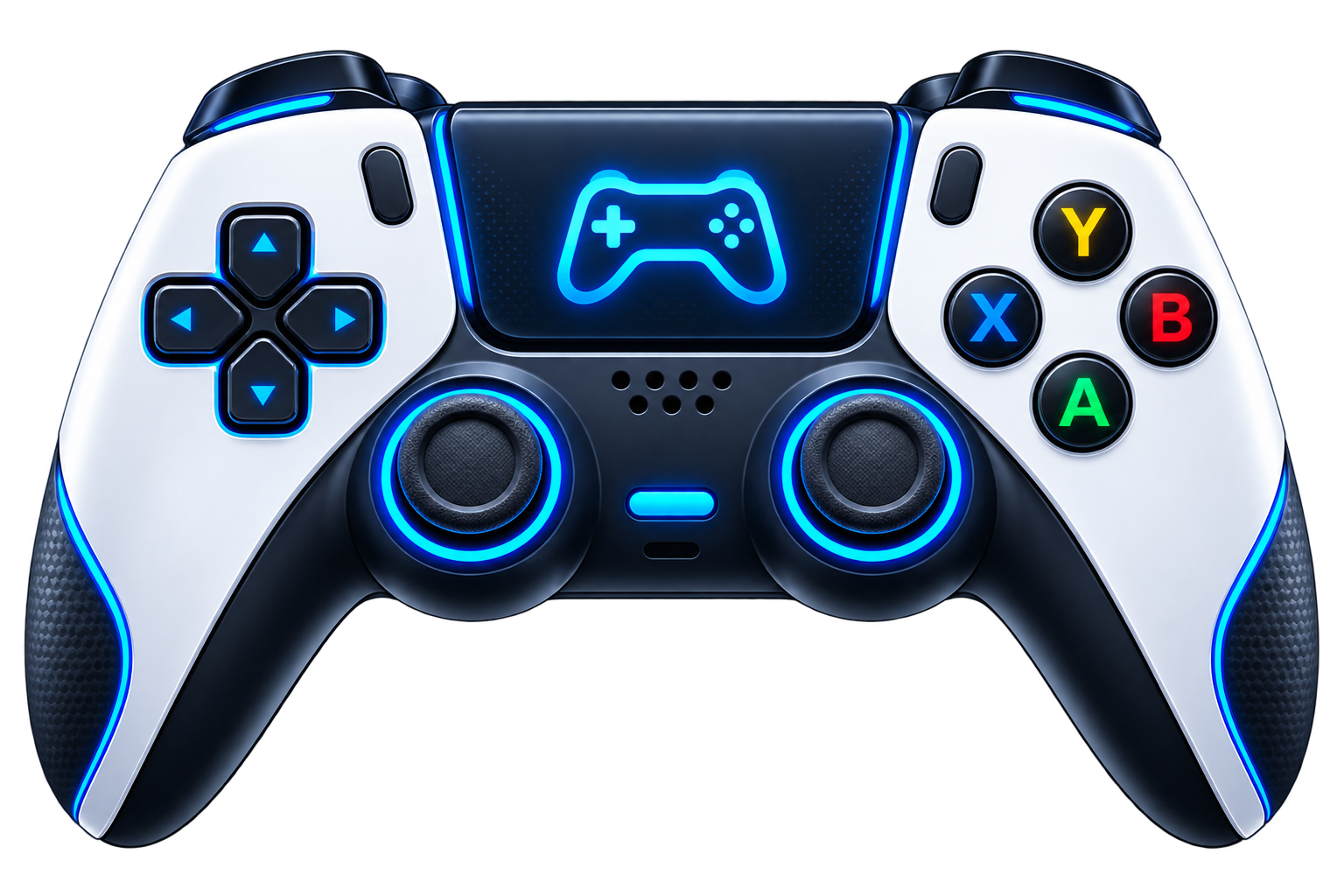
Your Xbox controller connected fine, but is every button actually working? This free tool lets you test your Xbox controller on PC right in your browser. Connect the pad, press any button, and watch every input light up live on an Xbox-style layout: ABXY buttons, bumpers, analog triggers with pressure bars, both sticks with live position dots, the D-pad, and the Guide button.
Works in Chrome and Edge via the Gamepad API. Everything is computed locally in your browser, no input ever leaves your computer. The Xbox Guide button is reserved by the operating system and cannot be read by web pages; test it in the Xbox Accessories app instead.
Why Test in Your Browser Instead of joy.cpl
Windows has a built-in tester. Press Win + R, type joy.cpl, pick your controller, hit Properties, and you get a small window with button lights and axis sliders. It works, one walkthrough notes it gives “real-time feedback on button presses, stick movements, and trigger inputs” (https://www.techbloat.com/how-to-add-an-xbox-controller-to-pc.html), but it is clunky: a tiny dialog from another era with no Xbox button labels. A browser tester does the same job with zero digging through Control Panel, reading your pad through the Gamepad API, the W3C standard browsers use to talk to gamepads (https://www.w3.org/TR/gamepad/). Nothing installs, nothing runs in the background, and your inputs never leave your computer. Keep joy.cpl as a second opinion, if both tools agree a button is dead, it is dead.
How to Test Every Button, Stick, and Trigger
Testing a controller properly takes about two minutes. Rushing it is how a sticky bumper survives until a ranked match. Press everything once, squeeze the triggers slowly from 0.00 to 1.00, move both sticks in slow full circles, and hold opposite inputs together, cheap faults only show up under combined input. If a dot wanders when your thumb is off the stick, that is drift, and our stick drift tester measures it precisely.
What the Xbox Layout Shows You
The visualizer mirrors a real Xbox pad so there is no guessing which input is which.
- ABXY face buttons light up the moment they register. A button that flickers or needs a hard press has a worn switch.
- LB and RB bumpers get their own indicators, bumpers are the most common failure point on well-used Xbox controllers.
- LT and RT analog bars show exact pressure from 0.00 to 1.00, so you can spot a trigger that never quite reaches full pull.
- Left and right stick circles track each stick’s live position. The dot should sit dead center at rest and reach the rim evenly in every direction.
- D-pad shows all four directions independently, which catches the classic fault where diagonals stop registering.
- Guide button: browsers do not expose the Xbox Guide button to web pages, so it will not light up here. Check it in the Xbox Accessories app instead.
USB vs Bluetooth: Which Connection Should You Test With
Test with the connection you play on, because they behave differently. USB gives the cleanest, most consistent readings, no wireless interference, no battery variables. Bluetooth is convenient but adds a small amount of latency and can compress trigger data on some setups. If a button misbehaves on Bluetooth but works perfectly on USB, the controller is fine and the wireless link is the suspect. Our connection stability test can measure exactly how clean that wireless link is over a 30-second window, and the polling rate tester shows whether your connection is actually delivering the reports your PC expects.
Controller Detected But Not Working? Quick Fixes
When the tool shows nothing at all, the problem is usually between the PC and the pad, not the pad itself. Work through these in order:
- Try a different cable, and make sure it carries data. Many USB cables are charge-only and will power the controller while sending zero input. Swap to a known data cable, preferably into a rear motherboard USB port.
- Check Device Manager. Press Win + X, open Device Manager, and look under Xbox Peripherals or Human Interface Devices for warning icons. A yellow triangle means a driver problem, not a controller problem.
- Update the firmware. Install the Xbox Accessories app from the Microsoft Store, connect the controller by USB, and let it check for a firmware update. Outdated firmware causes exactly the “connected but half the buttons don’t work” symptom.
- Re-pair Bluetooth from scratch. Remove the controller from your PC’s Bluetooth device list, then hold the Pair button on the controller and add it again. Pairing corruption survives reboots.
- Disable Steam Input for the test. Steam can grab the controller and remap it before the browser ever sees it. Close Steam or turn off its controller support, then retest.
- Restart with the controller connected. Some PCs only enumerate the gamepad correctly if it is plugged in during boot.
These steps mirror the standard troubleshooting flow for Xbox pads on Windows, including the data-cable check and Bluetooth re-pairing that fix most cases (https://techlasi.com/pc/connect-xbox-controller-to-pc-guide/).
When Testing Points to a Deeper Problem
A full test usually ends in one of three places. If every input lights up cleanly, your controller is healthy, any in-game weirdness is settings, drivers, or the game itself. If one button or trigger misbehaves, you have isolated the fault and can decide between cleaning, repair, or replacement instead of guessing. If the sticks misbehave, run the specialized tools before concluding anything: the deadzone tester measures a stick that will not center, the stick drift tester quantifies wander at rest, and the input lag guide covers delay that feels like brokenness.
FAQs
How do I test my Xbox controller on PC without installing anything?
Connect the controller via USB or Bluetooth, open this page in Chrome or Edge, and press any button. The tester reads your pad through the browser’s Gamepad API and shows every input live — no download, no account.
Why is my Xbox controller connected but not working on PC?
The most common causes are a charge-only USB cable, outdated controller firmware, or Steam Input intercepting the controller. Update firmware through the Xbox Accessories app, use a data cable, and close Steam, then test again.
What is joy.cpl and should I use it instead?
joy.cpl is Windows’ built-in Game Controllers panel (Win + R, type joy.cpl). It shows a basic test window for any connected gamepad. It works fine as a second opinion, but this page gives you an Xbox-specific layout with analog trigger values and stick visualization in one click.
Does this work with Xbox 360 controllers?
Yes. Xbox 360, Xbox One, Xbox Series X/S, and Elite controllers all speak the same standard input language to Windows, so the tester reads them all. Very old third-party 360 pads occasionally report unusual button maps, but the inputs still show up.
Why doesn’t the Xbox Guide button light up in the test?
Browsers deliberately hide the Guide button from web pages, it is reserved by the operating system. This is a browser limitation, not a fault in your controller. Test the Guide button in the Xbox Accessories app instead.
My controller works on USB but not Bluetooth. Is it broken?
Probably not. Bluetooth adds latency and is vulnerable to interference from Wi-Fi routers, phones, and USB 3.0 ports near the receiver. Try re-pairing, move closer to the PC, and update the firmware. If USB is perfect and Bluetooth is flaky, the radio link, not the pad, is the problem.