Wondering how fast your controller talks to your PC? This free controller polling rate test measures your gamepad’s report rate in Hz, live in your browser. Connect your controller, move a stick, and read your number below. One honest note first: browser tools show the update rate your browser sees, which is perfect for comparing connections but not a lab-grade hardware readout.
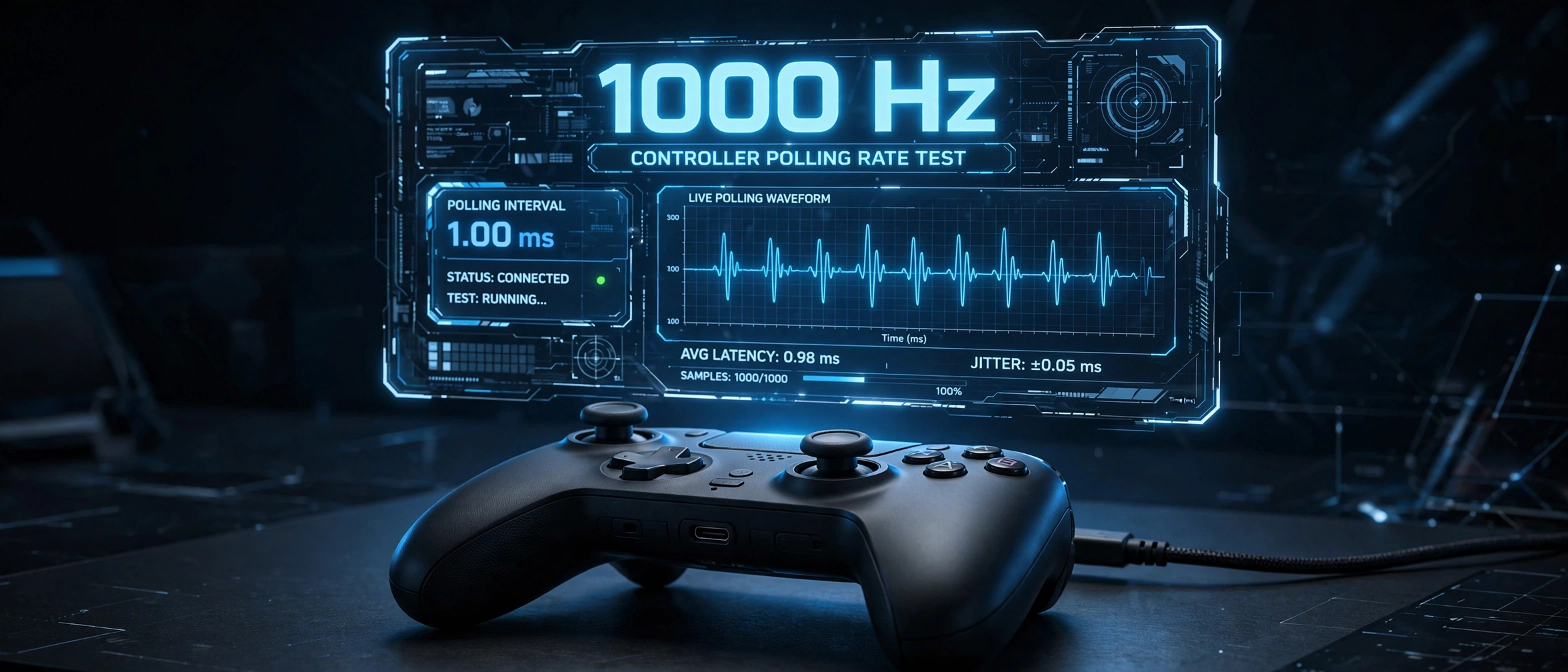
Keep a stick moving while testing. Browsers read gamepad state once per animation frame, so compare connections on the same screen instead of chasing an absolute number.
How to Use This Controller Polling Rate Test
- Connect your controller. A USB cable gives the steadiest reading. Bluetooth works too if that is how you play.
- Open this page in Chrome or Edge, then press any button on the controller. The browser needs that first press to wake up gamepad access.
- Move the left stick in slow, steady circles for 10 to 15 seconds. Keep it moving so the tool has a constant stream of input reports to measure.
- Watch the live Hz number settle. Run it two more times and compare. Change only one thing between runs, like cable versus Bluetooth or one USB port versus another, so you know what caused any difference.
What Is Controller Polling Rate?
Your controller does not send a constant stream of data. It fires off small packets, each one carrying the current state of your buttons, sticks, and triggers. Polling rate is the number of packets it sends per second, measured in hertz (Hz).
125 Hz means 125 reports per second, or one every 8 milliseconds. 1000 Hz means one report every millisecond. A higher number means your PC learns about your inputs sooner. It will not fix your aim by itself, but it removes one slice of delay from the total chain between your thumb and the screen.

What Is a Good Polling Rate for a Controller?
125 Hz is normal for a stock controller and fine for most games. 250 Hz is good and feels snappier in fast shooters. 500 Hz and up is excellent, the kind of number competitive FPS and fighting game players chase.
| Polling Rate | Max Added Delay | Verdict |
|---|---|---|
| 125 Hz | 8 ms | Standard. Fine for casual and most competitive play. |
| 250 Hz | 4 ms | Good. A clear step up in fast games. |
| 500 Hz | 2 ms | Excellent. Competitive-grade responsiveness. |
| 1000 Hz | 1 ms | Best case. Only some controllers reach this on PC. |
Max added delay is the longest your input can wait for the next report. Your average wait is about half of that.
Typical Polling Rates by Controller
Approximate figures from vendor specs and community testing. Your exact number depends on connection, firmware, and PC setup.
| Controller | USB (Wired) | Bluetooth | Notes |
|---|---|---|---|
| PS5 DualSense | ~250 Hz | ~125-250 Hz | Can reach 1000 Hz on PC with DS4Windows |
| PS4 DualShock 4 | ~250 Hz | ~125-250 Hz | Can reach 1000 Hz on PC with DS4Windows or HIDUSBF |
| Xbox Series X/S and Xbox One | ~125 Hz | ~60-125 Hz | No reliable software overclock |
| Xbox Elite Series 2 | ~125 Hz | ~60-125 Hz | Same 125 Hz design as standard Xbox pads |
| Nintendo Switch Pro Controller | ~125 Hz | ~125 Hz | Fixed rate on console and PC |
| 8BitDo Ultimate 2C | Up to 1000 Hz | ~125-250 Hz | 1000 Hz needs wired mode plus 8BitDo software |
Wired vs Bluetooth vs Wireless Dongle
Wired USB is the steadiest option for testing and for play. Plug straight into your PC, not through a hub, and use a data cable, not a charge-only one.

Bluetooth is convenient but slower and less stable. Readings swing with distance, interference, and battery level. Never judge a controller’s top speed from a Bluetooth number alone. Run a connection stability test to see how your connection holds up over time.
The Xbox Wireless Adapter sits between the two for Xbox pads. It holds around 125 Hz, costs about $25, and beats Bluetooth for PC play in both stability and latency.
Third-party 2.4 GHz dongles are a mixed bag. The advertised Hz usually applies only through the included dongle, not over Bluetooth, so test the connection you actually use.
Polling Rate vs Input Lag: Not the Same Thing
Polling rate is one link in a longer chain. After you press a button, the controller scans the input, its firmware packages the report, the report travels over USB or Bluetooth, Windows processes it, the game engine reads it, the GPU renders the frame, and your display shows it. Every step adds delay.
A 1000 Hz polling rate cuts the transport wait to 1 ms, which is real, but it cannot fix a slow display or a heavy game engine. Think of polling rate as report frequency, not a full input lag score. No browser test can measure end-to-end latency either. This page shows how often fresh data reaches your browser, which is the part you can actually compare and improve.
Can You Increase Your Controller’s Polling Rate?
Sometimes. Only on PC, and only over a wired USB connection.
PS5 DualSense and PS4 DualShock 4: yes. DS4Windows can raise the report rate up to 1000 Hz over USB. HIDUSBF, a filter driver, can do the same for many wired HID gamepads. It is unsigned, so Windows asks you to disable driver signature enforcement during install, and you can roll everything back with its “Uninstall Service” option.
Xbox controllers: no reliable path. No mainstream tool raises Xbox polling above its stock ~125 Hz as of 2026.
Bluetooth: no dependable way to overclock. If you want higher Hz, go wired.
Consoles: no. On console the polling rate is set by the console itself.
To check that a change worked, restart your PC, reconnect over USB, and rerun the test above. If the live number sits near your target with a steady interval, the new rate is active.
Why Your Reading Looks Odd
Stuck near 60 Hz: normal on a 60 Hz display. The browser hands the page fresh gamepad data once per animation frame, so the readout tracks your refresh rate. Compare connections on the same monitor instead of chasing the absolute number.
Number jumps around: normal on Bluetooth. Retest over USB for a stable baseline before drawing conclusions. You can also run a connection stability test to compare both connections over time.
Much lower than the box claims: make sure you are wired, in Chrome or Edge, with the stick actually moving. Some pads also slow their reports when idle to save battery, so keep the stick in motion during the test.
No controller detected: press a button first, confirm Windows sees the pad in your Bluetooth or USB devices, and try a different port or cable. If the sticks move on their own while idle, run our stick drift test before blaming the polling number.
FAQS
What is controller polling rate?
It is the number of times per second your controller reports its inputs to your PC, measured in Hz. 125 Hz means 125 reports per second. Higher Hz means fresher input data.
How do I check my controller polling rate?
Connect your controller to your PC, open the test at the top of this page, press any button, then move a stick in circles for 10 to 15 seconds. The live Hz readout is your polling rate as the browser sees it.
What is a good polling rate for gaming?
125 Hz is standard and fine for most games. 250 Hz is good. 500 Hz or higher is excellent and matters most in competitive shooters and fighting games on high-refresh displays.
Is polling rate the same as input lag?
No. Polling rate is how often reports arrive. Input lag is the full trip: controller scan, firmware, transport, Windows, game engine, rendering, and display. Polling rate is one slice of that total.
Can a browser test measure a true 1000 Hz?
Not reliably. The browser reads gamepad state through the Gamepad API, which is tied to the page’s animation frames, so the number reflects the in-browser update rate. Use it to compare connections and spot instability, not to certify hardware.
Why is my Xbox controller stuck at 125 Hz?
That is how Xbox controllers are built. They use ~125 Hz USB report intervals with XInput on Windows, and no mainstream tool can raise it. If you want higher Hz on PC, a DualSense or a 1000 Hz pad like the 8BitDo Ultimate 2C is the practical answer.
Can I overclock my controller over Bluetooth?
No. There is no dependable way to raise polling rate over Bluetooth. Overclocking only works over wired USB on PC, and only on controllers whose drivers allow it, like the DualSense and DualShock 4.
Should I play wired or wireless?
Wired gives the lowest and steadiest numbers. If you play wireless, use the connection you compete on: the Xbox Wireless Adapter beats Bluetooth for Xbox pads, and for other pads you should test both and keep whichever holds a stable rate.
Does 1000 Hz polling make a real difference?
It cuts the worst-case transport wait from 8 ms to 1 ms. You will notice it most in fast FPS and fighting games on a high-refresh monitor. It will not make up for a slow display, a heavy game engine, or a shaky wireless link.
Why does my Bluetooth reading drop when I stop moving the stick?
Bluetooth gamepads slow their report rate when inputs sit still to save battery. Keep the stick moving for the whole test to see the connection’s real maximum.
References
- SCUF Gaming, “Controller Polling Rate Explained”