Your character walks on its own, the camera spins during cutscenes, or menus scroll with your thumbs off the sticks. The DualSense is one of the most drift-prone controllers out there. Run this free PS5 controller drift test before you pay for a repair or a replacement. It takes about a minute with our browser-based controller tester, needs no downloads, and shows live values for both sticks so you can confirm the drift and measure how bad it is.
How to Test Your DualSense for Stick Drift
- Open this page in Chrome or Edge on a PC.
- Connect the DualSense with a USB-C cable. A wired connection gives the most reliable readings, so test wired before you test over Bluetooth.
- Press any button once so the browser picks the controller up. The page must see an interaction before the Gamepad API shares input.
- Set the controller down flat, keep your hands off both sticks, and watch the stick positions for 30 to 60 seconds. If either dot will not sit still at center, you have drift.
- Push each stick through its full range and press every button. A browser test covers sticks, buttons, and triggers. DualSense-only features like adaptive triggers and haptics need the PS5 itself and cannot be checked here.
How to Read Your Results
Healthy sticks rest at 0.00 on both axes, with small noise under 0.05. A stick whose resting value keeps climbing past 0.10 in one direction has a problem. Treat 0.10 to 0.15 as the warning zone and anything above 0.15 as confirmed drift. Check both sticks plus the L2 and R2 trigger values. If the drift is mild, a small deadzone bump in your game’s settings can hide it, and our controller deadzone tester shows how much you need. If your inputs feel delayed rather than drifty, run our controller input lag test instead.
DualSense Drift Symptoms
The camera pans on its own in story games. Your aim creeps in shooters. Menu cursors keep moving after you let go. Your character walks while the controller sits untouched on the couch. If it happens across different games, it is the controller, not the game. A quick pass on our stick drift test page confirms it with numbers.
Fix 1: Hard-Reset Your DualSense
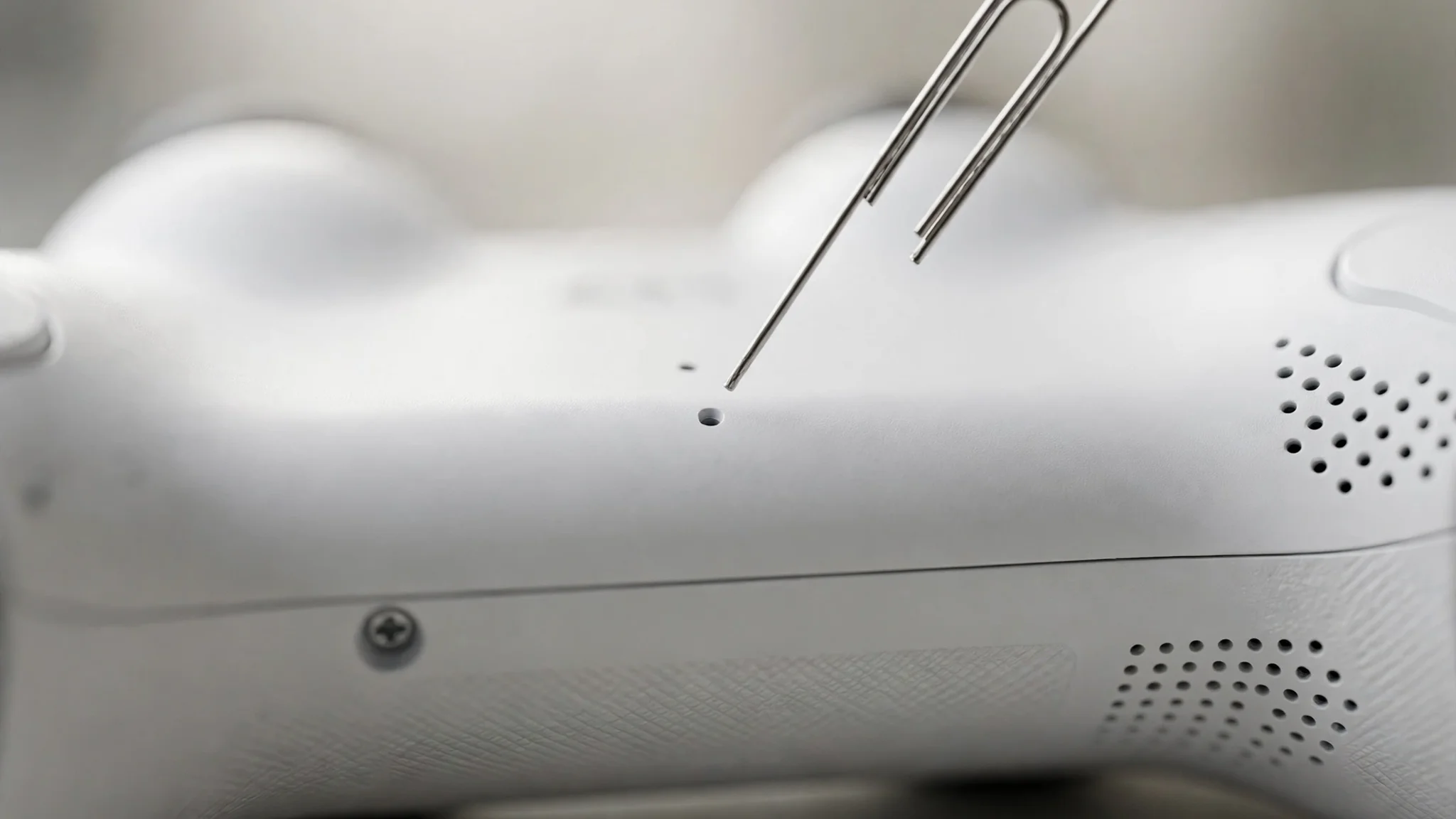
Start with the pinhole reset, since it clears glitches that mimic drift. Turn the controller off, flip it over, and find the tiny reset hole on the back, near the L2 button. Push a straightened paperclip into the hole and hold for at least five seconds. Then reconnect to the PS5 with a USB-C cable and press the PS button to re-pair. Test again afterward. Minor drift caused by stuck calibration data often disappears right here.
Fix 2: Update the Controller Firmware
Outdated device software can cause stick misbehavior. On your PS5, go to Settings, then Accessories, then Controller (General), and open DualSense Wireless Controller Device Software. Install any update it offers, then retest. Sony ships stick and input fixes in these updates, so do not skip this step. You can also update from a PC with Sony’s firmware updater app for Windows. For a second walkthrough of the same reset-and-update order, see Controllertest.org’s DualSense drift guide.
Fix 3: Clean Around the Sticks
Power the controller off. Spray short bursts of compressed air around the base of each thumbstick while tilting the stick in different directions, then let it dry fully. Debris under the stick is a common cause of false readings, and this takes two minutes. Do not open the controller. Taking it apart voids the warranty and is not needed for this step.
When to Contact Sony or Replace
If drift survives a reset, a firmware update, and cleaning, the stick module is worn. Check your warranty first: Sony covers manufacturing defects, and a drifting DualSense inside the warranty window is worth a support ticket before you spend money. Out of warranty, weigh Sony’s repair quote against a new controller, and test the replacement on day one. Best Buy’s DualSense drift guide follows the same safe order, reset, update, then clean, before it recommends a repair. Our guide to fixing stick drift without opening the controller collects the safe options in one place.
FAQs
Does resetting the DualSense fix stick drift?
It fixes drift caused by glitched calibration data or connection issues. It cannot fix physically worn stick modules, so retest after the reset to see which kind you have.
Can I change the deadzone in PS5 settings?
No. The PS5 has no system-wide deadzone setting. Some games, like Call of Duty and Fortnite, offer their own deadzone sliders, which can mask mild drift.
Will Sony repair a drifting DualSense?
If the controller is inside its warranty period, contact PlayStation Support. Drift from normal use is typically covered as a defect. Out of warranty you will pay for the repair, so compare that cost with a new controller first.
How accurate is a PS5 controller drift test?
It reads raw Gamepad API input directly from the controller with no smoothing, so the numbers match what your PC sees. Use a USB cable for the most reliable reading.