Nintendo Switch Controller
Press each button and move the sticks to see live input. Browser mappings can vary by controller and connection.
Analog Sticks
Raw Data
Axes
0: 0.00 1: 0.00 2: 0.00 3: 0.00
Buttons
None
Triggers
Vibration
Connect a controller to check support.
Use this Nintendo Switch Controller Tester to check Joy-Con controllers, a Switch Pro Controller, or a compatible controller in your browser. Pair it through Bluetooth or connect a supported wired controller, then press a button to view live inputs.
Test your Nintendo Switch controller now. No download or account is required.
What this Nintendo Switch controller test shows
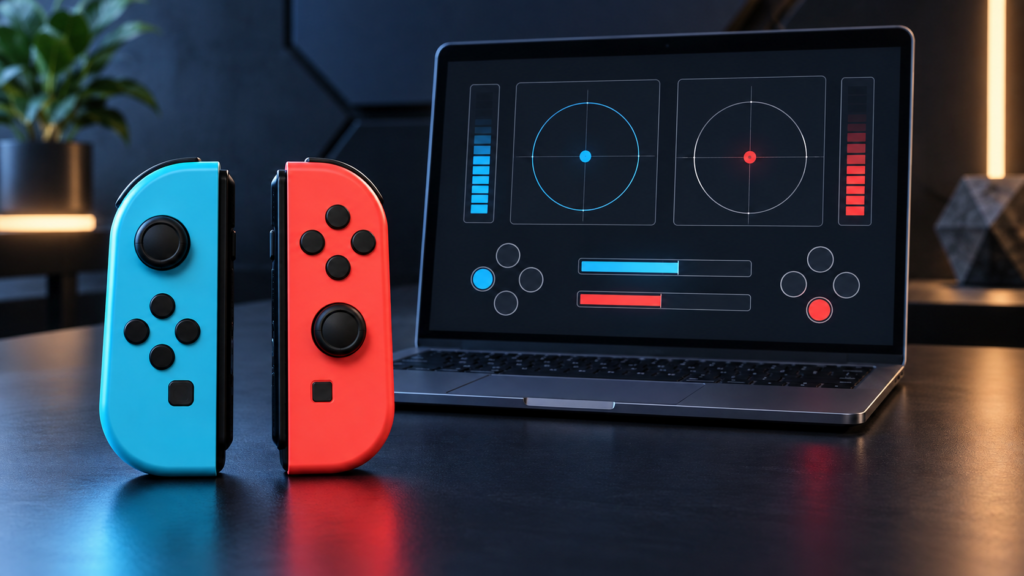
The tester reads button presses, D-pad inputs, stick axes, and available trigger values that your computer exposes to the browser. It can help identify a repeated Joy-Con stick offset, a button that misses presses, or an uneven range. It does not repair the controller, combine Joy-Con automatically on every platform, or replace Nintendo’s own controller calibration process.
How to test Joy-Con and Switch Pro Controllers
- Pair the Joy-Con or Pro Controller with the computer through Bluetooth, or connect a supported wired controller.
- Keep this page visible and press a button.
- Test A, B, X, Y, L, R, ZL, ZR, Plus, Minus, stick clicks, and directional controls.
- Move each analog stick to every edge, trace a slow circle, then release it.
- Leave the sticks untouched for 10 seconds and record any repeated movement.
How to test for Joy-Con drift
Set the Joy-Con on a stable surface without touching its stick. Watch the displayed axis value for 10 seconds. A stable value near 0.00, such as within about ±0.05, can be a small resting offset; it is not a universal pass/fail result. A repeated example such as X: 0.12 after several releases may cause movement in a game with a small dead zone.
The stronger symptom is a value that repeatedly returns away from center, jumps during slow movement, or causes unwanted movement in a game. Record the direction and value, then compare it with the Switch system calibration screen and the game where you noticed the issue.
| What you see | What to check next |
|---|---|
| Stick rests at the same offset after release | Repeat after a full circle and record the X/Y direction. |
| Stick jumps or misses part of the edge | Repeat slowly and compare with Nintendo calibration. |
| One Joy-Con is not detected | Check Bluetooth pairing and test it separately. |
| Physical button activates an unexpected label | Follow the live response; browser mappings may differ. |
Why Joy-Con can appear as two controllers
Left and right Joy-Con are separate Bluetooth devices. Some operating systems and games combine them, but a browser may list them separately. Test each Joy-Con independently if the paired set does not appear as one device. Do not assume two entries mean a hardware issue.
Nintendo button labels and browser mapping
Nintendo’s A/B and X/Y positions differ from the common Xbox layout. A browser can normalize a controller to a standard Gamepad API mapping, so the on-screen label may not match the printed button name. Press each physical button and use the live input that responds.
Browser test versus Nintendo calibration
This page reads browser-visible input only. It does not write calibration data. If a repeated drift-like offset appears, use Nintendo Switch System Settings, Controllers and Sensors, and Calibrate Control Sticks as the official comparison. After calibration, repeat the same browser test and write down what changed.
Joy-Con or Pro Controller not detected
- Click the page and press a button.
- Confirm the controller appears in the computer Bluetooth or USB device list.
- Disconnect it from the Switch console while testing on the computer.
- Remove the Bluetooth pairing and pair it again.
- Close Steam, emulators, and controller-mapping tools for a clean test.
- Test each Joy-Con separately if the pair is not exposed together.
Feature limits
Motion controls, NFC, Home and Capture behavior, player LEDs, HD Rumble, and wake functions may not be available through a browser test. A normal button-and-stick result does not confirm every Nintendo-specific feature works.
FAQS
Can I test a single Joy-Con?
Yes, if the computer and browser expose it as a game controller. You can check its buttons and analog stick independently.
Why are my Joy-Con shown as two controllers?
Each Joy-Con is a separate Bluetooth device. A browser or operating system may show them separately.
Can this test fix Joy-Con drift?
No. It helps confirm a repeatable input symptom but cannot repair worn hardware.
Does the tester support Switch 2 controllers?
Compatibility depends on the controller, operating system, and browser exposing standard gamepad inputs. Test the exact setup and document the result before making a support claim.
Next checks: stick drift test, controller button test, and controller calibration test.