Use this PS Controller Tester to check a PS5 DualSense, DualSense Edge, or PS4 DualShock 4 in your browser. Connect it with USB or Bluetooth, press any button, and check live button states, D-pad inputs, analog-stick axes, and trigger movement.
PlayStation Controller
Press each button and move the sticks to see live input. Browser mappings can vary by controller and connection.
Analog Sticks
Raw Data
Axes
0: 0.00 1: 0.00 2: 0.00 3: 0.00
Buttons
None
Triggers
Vibration
Connect a controller to check support.
Test your PlayStation controller now. No download or account is required.
What the PS Controller Tester shows
The tool displays controller inputs exposed to the browser through the Gamepad Tester API. It can confirm whether a button registers, whether a trigger changes gradually, and whether an analog stick reports movement while untouched. It does not repair the controller, write calibration data, identify an internal part failure, or guarantee that a game uses the same dead-zone setting.
How to test a PS5 or PS4 controller
- Connect the controller with a data-capable USB cable, or pair it through Bluetooth.
- Keep this page visible and press a face button. Browsers can wait for user interaction before exposing a controller.
- Press Cross, Circle, Square, Triangle, the D-pad, L1, R1, Create or Share, Options, L3, and R3.
- Pull L2 and R2 slowly from rest to full travel, then release them.
- Move both sticks to every edge, trace a slow circle, and leave them untouched for 10 seconds.
Normal-looking input versus a drift warning
There is no universal browser pass/fail value. Games, firmware, browser mapping, and dead zones differ. These examples describe a practical screen check, not a hardware diagnosis.
| Reading at rest | What it can mean | Next check |
|---|---|---|
| X: 0.00 to ±0.05, stable | Usually a small resting offset. | Check whether the affected game ignores it. |
| Example: X: 0.12 at rest after several releases | A repeated offset that may move in games with small dead zones. | Retest through USB and Bluetooth, then in the game. |
| Value jumps during a slow circle | The reported range is not moving smoothly. | Repeat and note the direction of the jump. |
| Trigger begins above zero or stops short | Possible travel, mapping, or connection issue. | Check trigger stops and retest with USB. |
A single nonzero reading does not prove stick drift. The stronger sign is the same offset returning across several releases and causing unwanted movement in the game where you noticed it.
DualSense details: USB, Bluetooth, touchpad, and adaptive triggers
Test face buttons, D-pad, bumpers, triggers, stick clicks, Create, Options, and both sticks first. A browser may not expose all PlayStation features. Adaptive-trigger resistance, advanced haptics, touchpad coordinates, motion sensing, microphone, and speaker behavior can depend on the connection and software.
Start with USB for a clean baseline. A DualSense over Bluetooth can expose different features on some systems. If it works by cable but not wirelessly, check pairing, battery charge, Bluetooth interference, and the computer adapter before blaming the controller.
How to check PS stick drift
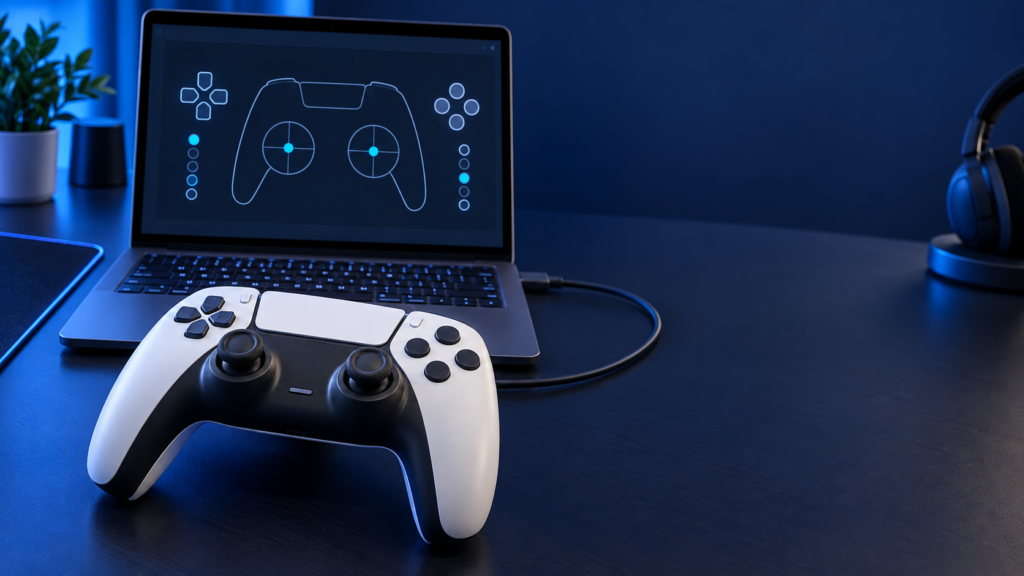
Set the controller on a stable surface without touching either stick. Record the displayed X and Y reading after 10 seconds. Move each stick in a full circle, release it from several positions, and repeat the resting check. Record a specific result such as “right-stick X returned to 0.12 after three releases.” That is more useful for support or repair than saying the controller is bad.
Use the stick drift tester for a focused follow-up, then compare the reading with your game’s dead-zone setting.
How to test L2 and R2
L2 and R2 are analog controls. Their displayed value should rise smoothly as you squeeze and return cleanly after release. A trigger that registers a simple press but never reaches full travel can still affect driving and shooting games. Check trigger-stop settings, then retest by USB.
PS controller not detected
- Click the page and press a button while it is visible.
- Use a cable that carries data, not only power.
- Close Steam Input, Remote Play, or controller-mapping software for one clean test.
- Disconnect extra controllers, reconnect the PlayStation controller, and reload.
- Remove and pair the Bluetooth device again if wireless input is inconsistent.
- Update controller firmware with Sony’s supported tools, then retest.
About vibration testing
Vibration support depends on the controller, driver, connection, browser, and site. Safari does not provide standard browser gamepad vibration support, so no rumble in Safari is not proof of a bad controller. Confirm vibration in a supported game or Sony software before drawing a hardware conclusion.
Real testing evidence to add
Add dated screenshots or short clips only from the exact controller, connection type, operating system, and browser used. Useful evidence includes a centered stick, a repeated offset, a trigger mid-press, and the detected-controller screen. Do not present stock images as test evidence.
FAQS
Can I test a PS5 controller without a PS5?
Yes. Connect a compatible DualSense to a computer by USB or Bluetooth, open the tester, and press a button.
Why does my PS controller show Xbox-style labels?
Browsers commonly normalize controllers to the standard Gamepad API layout. Follow the entry that responds when you press the physical control.
Can an online test fix stick drift?
No. It reads browser-visible inputs and cannot repair worn hardware.
Can I test a PS4 DualShock 4?
Yes, when the computer and browser expose its inputs. Labels and advanced features can vary by platform and connection.
Related Tools: controller button test, trigger test, and controller dead-zone test.