PS5 Adaptive Triggers Not Working? Here’s the Fix
The adaptive triggers are the best thing about the DualSense. Feeling a bowstring tighten or a brake pedal fight back under your finger is something no other stock controller does. So when the L2 and R2 triggers suddenly feel like plain dead buttons, the game loses a big part of its feel.
If your PS5 adaptive triggers are not working, do not assume the controller is broken. In most cases the game does not support the feature, a setting got turned down, or the firmware needs an update. Work through the checks below in order. They go from the 30-second fixes to the real hardware diagnosis, so you will know exactly where the problem is by the end.
First: Does Your Game Even Support Adaptive Triggers?
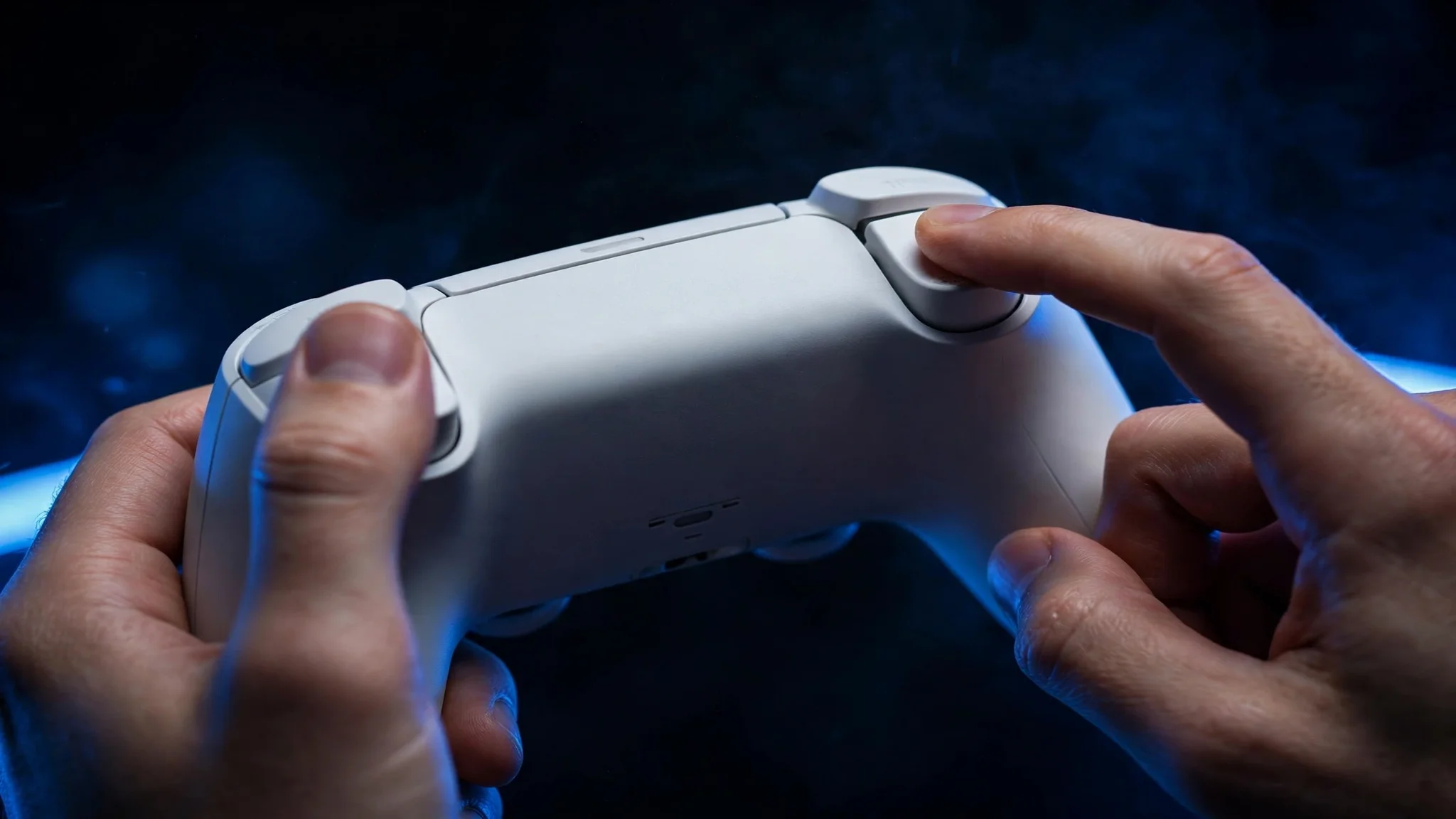
This is the step everyone skips, and it explains more “broken trigger” reports than anything else. Adaptive triggers are not a system-wide feature. Each game developer has to program trigger effects into their game individually. Plenty of big games, including some remasters and ports, simply never added them. Players regularly report missing trigger effects in games whose store pages even list the feature, so you cannot take support for granted.
Test with a game you know uses triggers well. Astro’s Playroom, which comes free with every PS5, is the perfect test because its opening levels exercise both triggers constantly. If you feel resistance in Astro’s Playroom but not in your other game, your controller is fine. That game just does not implement the feature, and no amount of troubleshooting will change it. Check the game’s settings menu too. Some games bury their own trigger or haptics toggle under controller or accessibility options, separate from the PS5 system settings.
Check 1: Turn the Trigger Effect Intensity Back Up
The PS5 lets you weaken or fully disable trigger effects at the system level, and it is easy to turn this down by accident or forget you changed it months ago. When PS5 adaptive triggers are not working, this setting is always worth checking first.
From the PS5 home screen, open Settings (the gear icon, top right). Go to Accessories, then Controllers. Find Trigger Effect Intensity. You will see options for Strong, Medium, Weak, and Off. Set it to Strong for the full effect. Note that this applies per controller, so if you own two DualSense pads you need to check it with each one connected. The setting guides on Digital Trends confirm this menu path, and it takes about 20 seconds. If the triggers were simply turned off here, they will work immediately in a supported game.
Check 2: Update Your DualSense Firmware
Outdated or glitchy firmware is a common cause of trigger problems. Sony updates the DualSense firmware separately from the console, and these updates specifically touch trigger and haptics behavior.
Connect your controller to the PS5 with a USB cable. Go to Settings, then Accessories, then Controllers, and look for the wireless controller software update option. If an update is available, install it and do not touch the controller until it finishes. A safer method is to plug the controller into a PC and update through the official firmware updater, which avoids any wireless hiccups mid-update. After updating, test the triggers in Astro’s Playroom again. If a corrupted or half-applied update was the problem, this is the step that fixes it.
Check 3: Reset the Controller With the Pinhole Button
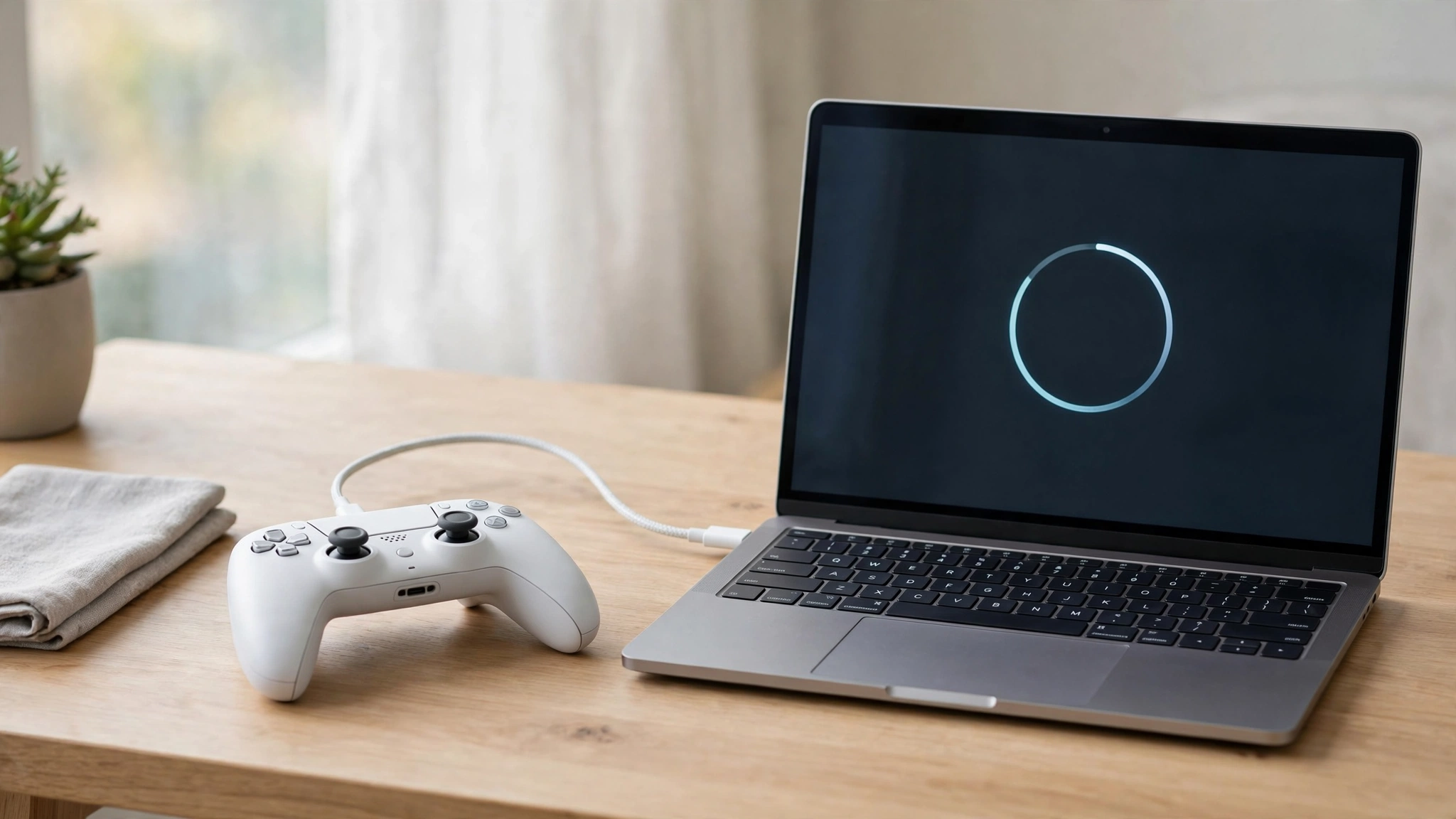
A soft reset clears temporary glitches in the controller’s internal state without deleting anything. Turn off your PS5 fully first. Flip the DualSense over and find the tiny pinhole next to the Sony logo on the back. Push a straightened paperclip or a SIM eject tool into the hole and hold it down for about 5 seconds. You will feel a small click.
Now reconnect the controller to the PS5 with a USB cable and press the PS button to re-pair it. This reset is the standard first move recommended across repair guides, and it resolves trigger issues caused by stuck calibration or confused internal state. Test your game again before moving on.
Check 4: Restart the Console and Try a Wired Connection
If the triggers still feel dead, restart the PS5 completely. Do not use rest mode. Power it fully off, wait 30 seconds, and boot it fresh. Rest mode is convenient, but a full restart clears deeper system glitches that affect accessory behavior.
Then test the controller wired. Plug it into the PS5 with a USB-C cable and play for a few minutes. If the triggers work over USB but not over Bluetooth, you have narrowed the problem to the wireless connection, not the trigger motors. Wireless interference or a weak Bluetooth link can stop the fine trigger signals from getting through even when buttons work fine. Our controller connection stability test can help you check whether the wireless link is dropping inputs. If wired play fixes it, try moving the console closer, removing obstacles, and keeping other wireless devices away from the console.
Check 5: On PC or Steam? That Is a Different Battle
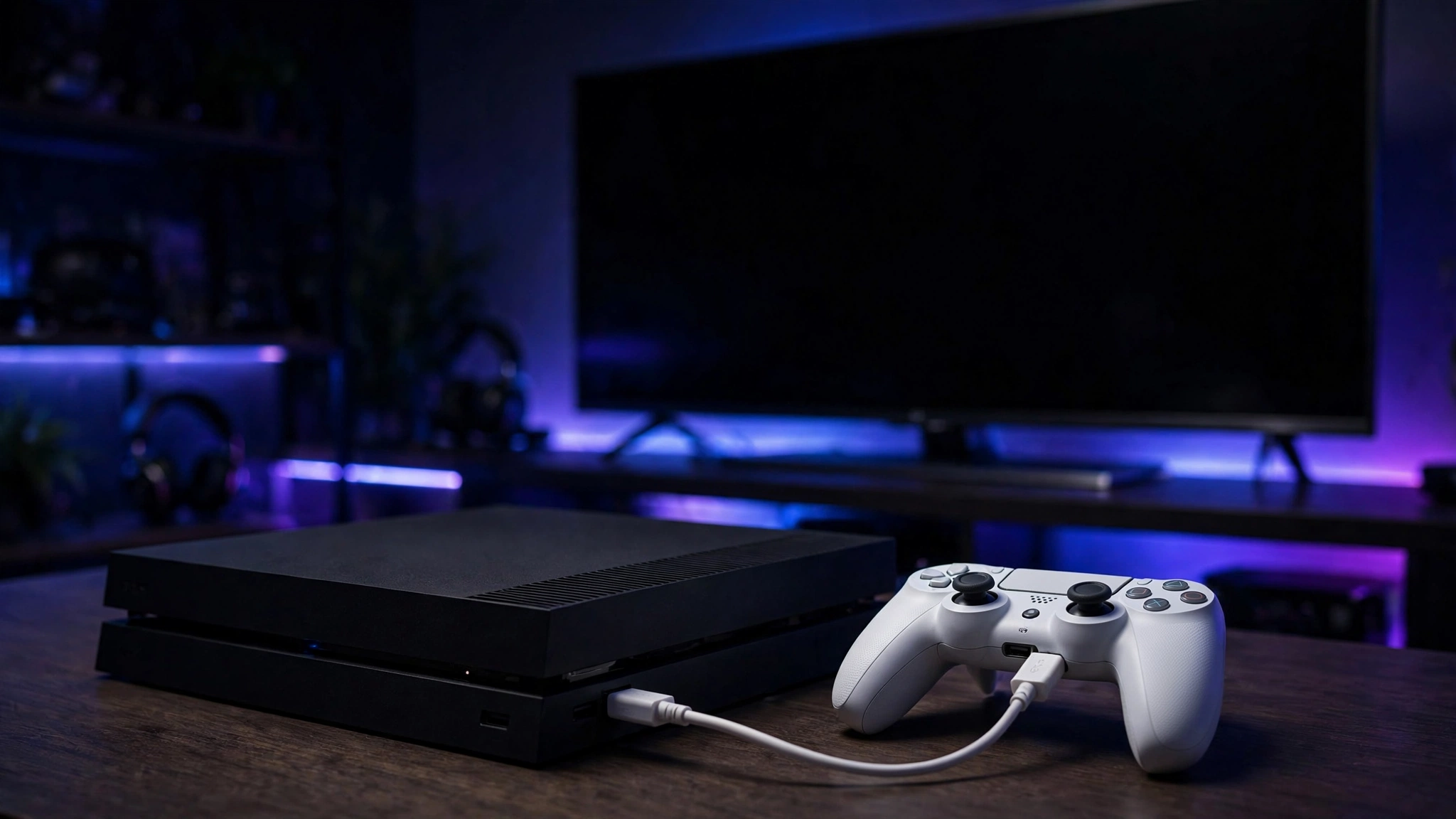
Adaptive triggers on PC are a special case, and this is where many players get stuck. Sony designed the trigger effects for the PS5’s own input system. On Windows, full trigger and haptics support over Bluetooth is limited by the Bluetooth audio bandwidth, which is why triggers often feel dead or wrong on a wireless PC connection.
Here is what actually works on PC. First, connect the DualSense with a USB cable. Sony’s own documentation notes that haptics on PC require a wired connection, a detail summarized in the DualSense FAQ. Second, check the game itself. Only certain PlayStation Studios ports and a handful of other PC games implement adaptive triggers natively. Third, check Steam Input. Open Steam’s controller settings for the specific game and make sure PlayStation configuration support is set up the way you want. Steam Input can remap or override trigger behavior, and per-game profiles that other players share sometimes fix trigger weirdness on Steam Deck and desktop alike. Tools like DSX exist to force trigger effects on PC, but they only work with games that cooperate. If your triggers work perfectly on the PS5 but not on PC, the controller is healthy. The PC software stack is the limitation.
Check 6: Clean Around the Trigger Mechanisms
Dust and grime get into the trigger assembly over time. Players report triggers that feel gritty, click on their own every few seconds, or lose resistance after actions like sprinting. Before assuming hardware failure, clean the area.
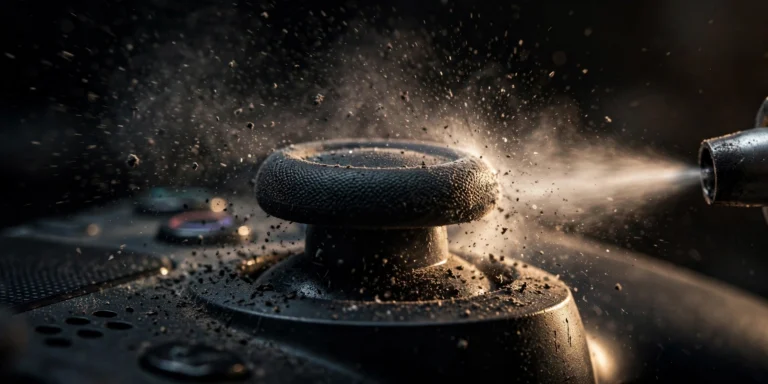
Use a can of compressed air and blow short bursts into the gaps around both triggers while working them back and forth. Do not use liquids here. Then open Astro’s Playroom and run through the controller demo section that exercises the triggers. This demo is a well-known community trick because it drives the trigger gears through their full range and can unstick a jammed gear. If you feel the gears snap back into place during the demo, the problem was mechanical sticking, not a broken part.
When the Trigger Gears Are Physically Broken
Sometimes the hardware really is broken. The adaptive trigger mechanism uses small gears and a spring to create resistance, and these parts can snap. The classic symptom is unmistakable: you feel a small snap during play, and afterward one trigger feels completely loose compared to the other, with zero resistance. It becomes a regular button. This has been reported since the PS5 launch, sometimes within the first weeks of use.
If your trigger suddenly went loose like this, no setting or reset will bring the resistance back. Do not keep forcing it. Check your warranty first. Sony covers the DualSense for one year from purchase, and a snapped trigger mechanism is exactly the kind of manufacturing defect warranties exist for. If you are out of warranty, a professional repair shop can replace the trigger assembly. Opening the controller yourself is possible, and repair guides such as 4gamers.net’s ultimate PS5 fix guide walk through it, but the ribbon cables and plastic clips inside are fragile. Unless you have done small electronics repair before, professional repair is the safer call.
FAQs
Why are my PS5 adaptive triggers not working in only one game?
Because that game probably does not support them. Adaptive triggers are implemented per game, not system-wide. Test with Astro’s Playroom. If the triggers work there, your controller is fine and the other game simply lacks the feature. Also check that game’s own settings menu for a trigger or haptics toggle.
Do adaptive triggers work on PC?
Only partially. Over Bluetooth on Windows, trigger effects are very limited because of how Windows handles the Bluetooth connection. A wired USB connection works better, and even then only games that specifically programmed DualSense trigger support will use them. Steam Input settings can also override trigger behavior per game.
How do I reset my DualSense controller?
Turn off the PS5, flip the controller over, and press the pinhole button next to the Sony logo with a paperclip for 5 seconds. Then reconnect with a USB cable and press the PS button. This clears temporary glitches without deleting any settings.
Why does my R2 trigger feel loose after playing?
A trigger that suddenly feels loose with no resistance usually means the internal gear or spring snapped. This is a hardware failure, not a settings problem. If it happened during normal play and the controller is under a year old, contact PlayStation support about a warranty replacement.
Should I turn off adaptive triggers to make them last longer?
Reducing the Trigger Effect Intensity to Medium or Weak does reduce wear on the trigger motors, and many competitive players turn the effects off entirely for a more consistent trigger pull. It will not prevent a defective gear from snapping, but gentler use is kinder to the mechanism over time.