How We Test Game Controllers At Game-PadTester.com, “testing” means reading and displaying the controller information your browser makes available.
Our tools are designed to help you check buttons, analog sticks, triggers, D-pad inputs and other supported controller functions without pretending that a browser test can diagnose every hardware problem.
We focus on what can actually be observed through the browser and clearly separate those readings from conclusions that require physical inspection, manufacturer software or specialist equipment.
How Does Our Controller Testing Work?
When you connect a compatible controller through USB, Bluetooth or another supported connection, your browser can make controller information available through the Gamepad API.
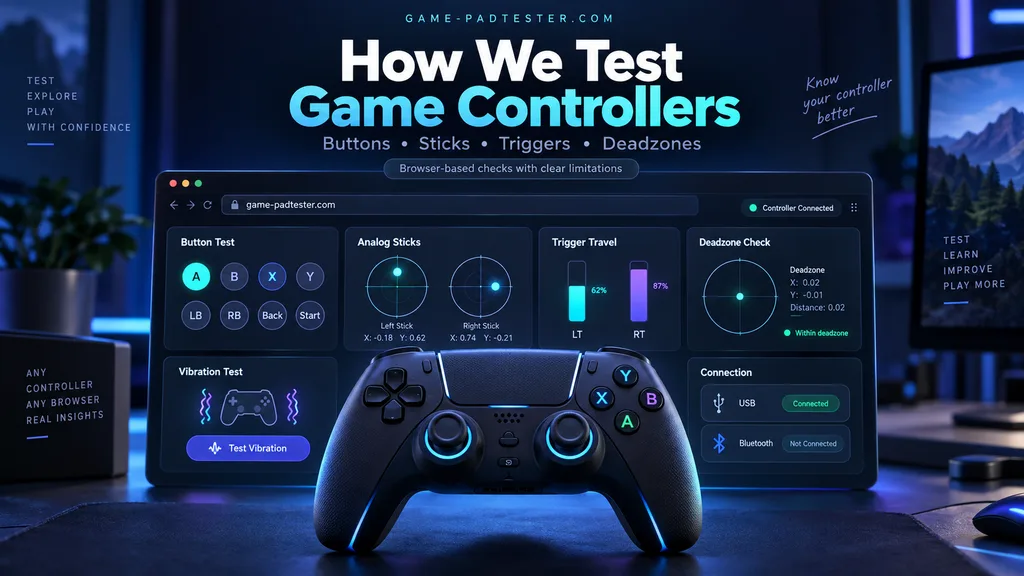
Our tools use these browser-reported inputs to help you observe how your controller responds.
Depending on your controller, browser and operating system, this can include button states, analog stick axes, trigger values, controller mapping information and supported vibration functions.
The important distinction is that we are reading what reaches the browser.
We are not directly measuring the electrical signal inside the controller or inspecting its internal components.
What Do We Check With the Gamepad Tester?
Our main Gamepad Tester is intended as the starting point.
You can press buttons, move both analog sticks, use the D-pad and pull the triggers while watching how those actions are represented on screen.
For a useful test, we recommend checking one control at a time and repeating anything that looks unusual.
The tool can help you notice things such as:
- A button that does not register or release as expected
- A stick that reports movement while untouched
- Different movement ranges between stick directions
- A trigger that does not appear to travel through its expected reported range
- Unexpected button or axis mapping
- A controller that disconnects or stops reporting inputs
These observations can help narrow down a problem, but they should not automatically be treated as proof that a particular component is damaged.
How Do We Check Analog Sticks and Stick Drift?
Our Stick Drift Test focuses on the movement reported by the analog stick axes.
A useful drift check starts with the controller resting on a stable surface with your thumbs away from the sticks. After observing the resting position, move the stick through its range, release it and check the resting position again.
Repeated unwanted movement is more useful for troubleshooting than judging a controller from a single non-zero reading.
A small offset does not automatically mean that a controller is defective.
Games can use different deadzone settings, and the same resting value may affect one game while being ignored by another.
That is why Game-PadTester.com avoids presenting one universal stick value as a pass-or-fail standard.
How Do We Test Controller Deadzone?
Our Controller Deadzone Tester helps you compare small analog-stick movements with a selected deadzone.
A deadzone is an area around the stick’s resting position where movement can be ignored.
The tester can help you understand how much movement is being reported and how a selected threshold affects that movement.
It does not determine the perfect deadzone for every player or every game.
Different games, controllers and playing styles may require different settings.
Increasing a deadzone may hide small unwanted movement, but it does not physically repair a worn analog-stick component.
How Do We Check Controller Triggers?
Our Trigger Tester displays the trigger information exposed by the browser.
For an analog trigger, gradually pulling the trigger should normally produce changing values rather than only a simple on/off state.
You can pull each trigger slowly, hold it at different positions, press it fully and then release it.
This can help you compare the left and right triggers and notice unusual reported behavior.
However, the value shown on screen represents controller input reported to the browser. It is not a measurement of physical pressure, spring strength or trigger resistance.
Trigger stops, controller modes and software settings can also affect the reported range.
How Do We Check Buttons and the D-Pad?
For button testing, we focus on whether an input appears when a control is pressed and whether it returns to its unpressed state after release.
Repeating the same press several times can be more useful than testing it only once, especially when investigating an intermittent problem.
Controller layouts are not identical.
The browser may also expose some controllers using a standard mapping while others can appear differently.
Because of this, an unexpected button number or position does not automatically mean that the physical button is faulty.
How Do We Test Controller Vibration?
Where supported, our Controller Vibration Test can request a vibration effect through browser-accessible controller features.
This tells you whether vibration can be requested successfully in the current controller, connection, operating system and browser setup.
A failed vibration test is not enough on its own to conclude that a vibration motor is broken.
Browser support, controller drivers and the connection method can also affect vibration availability.
How Should You Interpret a Test Result?
We prefer repeatable observations over instant diagnoses.
If something looks wrong, repeat the same action several times. Where practical, compare USB and Bluetooth, reconnect the controller or try another supported browser.
Keep the rest of the setup unchanged while comparing results.
For example, “the right stick repeatedly moves upward after release” is more useful than simply saying “the controller is broken.”
The first statement describes something that was actually observed.
What Can Our Online Controller Tests Not Confirm?
A browser-based controller tester has limits.
Game-PadTester.com should not be used by itself to confirm the exact internal component that has failed, physical wear inside a controller, battery health, authenticity of a controller, long-term durability or whether a repair will continue working.
Browser testing also should not be confused with a complete laboratory measurement of end-to-end gaming latency.
When a result needs deeper investigation, compare it with the controller manufacturer’s supported software, console settings or another appropriate diagnostic method.
Why Can Results Differ Between Controllers and Browsers?
Gamepad support depends on more than the controller name.
The operating system, browser, connection type, drivers, firmware, controller mode and remapping software can all affect what information reaches a web page.
This is why two people using similar controllers may not always see identical mappings or feature support.
Our tools display the information that is available in the current browser environment rather than assuming every controller behaves identically.
What Technical Standards Do We Use for Our Explanations?
Our explanations of browser controller behavior are based on established web documentation, including the W3C Gamepad specification and MDN documentation for the Gamepad API.
Manufacturer documentation may also be referenced when explaining controller-specific connections, features or settings.
We avoid creating technical specifications for controllers when those specifications cannot be verified from an appropriate source.
Can You Verify the Results Yourself?
Yes.
One of the advantages of an interactive controller tester is that you perform the actions yourself.
Press a button and watch its response. Move a stick and watch the axes. Release the stick and observe its resting position. Pull a trigger slowly and watch its reported value change.
If something appears unusual, repeat the test instead of relying on one reading.
Our goal is to make controller behavior easier to observe and troubleshoot, not to turn a browser reading into a diagnosis that the data cannot support.
FAQS
Does Game-PadTester.com physically test every controller model?
No. Our online tools read controller information made available to the browser. We should not claim physical hands-on testing of a particular controller unless that testing has actually been performed.
Does a failed online test prove my controller is broken?
No. It indicates that something unusual may be happening in the current setup. The controller, cable, wireless connection, operating system, browser, driver, mapping software or game settings may also affect the result.
Does a non-zero stick value always mean stick drift?
No. Look for repeatable unwanted movement and consider the deadzone used by the game or software where you experience the problem.
Are browser controller readings the same as raw sensor data?
Not necessarily. The browser receives controller information through software and operating-system layers. The displayed values should be treated as browser-reported controller input.
Why do you explain the limitations of each test?
Because knowing what a test cannot measure is just as important as knowing what it can show. We want the results to help you decide what to investigate next rather than create a false diagnosis.
Test Your Controller
Ready to check your controller?
Open our Gamepad Tester, connect your controller, press a button and begin with the basic inputs. If you notice something unusual, continue with the relevant stick drift, deadzone, trigger, button or vibration test.