PS5 Controller Mic Not Working? Fix It in 2 Minutes
You press the mute button, you check the party, you even restart the console, and your friends still hear nothing. A silent DualSense mic is one of the most annoying PS5 problems because the cause is almost never a broken mic. In most cases, the PS5 is listening to the wrong input, the mic is muted in a setting you never opened, or the mic level is set so low that your voice never registers.
If your PS5 controller mic is not working, start here. This guide walks through the fixes in the order that solves the problem fastest. Begin with the 30-second mic test below, then work through the eight fixes. Most players are back in voice chat within two minutes.

Test Your Mic First (30-Second Check)
Before you change anything, find out if the PS5 hears your mic at all. Press the PS button, open the Control Center, and select Mic. Choose Adjust Microphone Level and talk at a normal volume. If the meter moves, the mic works and the problem is in your chat settings, so jump to Fix 5. If the meter stays flat, the mic is muted, the wrong input is picked, or the level is too low, so start at Fix 1.

Fix 1: Press the Mute Button on Your Controller
This is the fastest fix of all, and the one most players miss. The DualSense has a small flat mute button right below the PS button. One tap mutes the built-in mic, and the button glows orange while it is muted. Tap it once and check that the orange light goes out, then test your mic again.
If you held the button down instead of tapping it, you also muted the console audio going to your TV or speakers. Tap it once more to bring everything back. When you start speaking, a small mic icon flashes in the top right corner of the screen, so watch for it as a quick check that the mic is live.
Fix 2: Pick the Right Input Device
If you use a headset, a USB mic, or a webcam mic, your PS5 may be listening to a device you are not speaking into. That is the most common cause of a mic that seems dead. Go to Settings, then Sound, then Microphone, then Input Device, and pick Microphone on Controller if you want to use the built-in DualSense mic. If you use a headset mic, pick the headset instead.
You can do the same thing faster from the Control Center. Press the PS button, select Mic, then Input Device, and pick the mic you are actually speaking into. After you change it, run the mic level test again to confirm the PS5 hears you.
Fix 3: Turn the Microphone Level Up
A mic that is technically on but set too low sounds exactly like a dead mic. Open the Control Center, select Mic, then Adjust Microphone Level. Talk at your normal volume and watch the input meter. Raise the slider until the meter sits in the Good range. If the meter still does not move at the highest level, keep going through the fixes below before you blame the hardware.
Fix 4: Stop Your PS5 From Muting the Mic at Login
Some players fix the mic, then find it muted again every time they sign in. That is a setting, not a fault. Press the PS button, open the Control Center, and select Mic. Open Microphone Status When Logged In and set it to On instead of Mute. Then open Microphone Status When Starting Voice Chat or Broadcast and make sure it is not set to Switch to Mute. With both set correctly, your mic stays live when you sign in and when you start a chat or a broadcast.
Fix 5: Check Party Chat and Game Chat Settings
If the meter moves but nobody in your party hears you, the mic works and the chat is the problem. First, check that you are in the right chat. Party Chat and Game Chat are separate, and talking in one does not reach players in the other. Open Game Base and confirm you joined the chat your friends are in.
Next, open the Control Center, select Sound, and make sure Mute Game Voice Chat is off. That toggle silences game chat audio, and it is easy to switch on by accident.
One more check for younger players: if it is a child account, a family control can block voice chat completely. On the PS5, go to Settings, then Family and Parental Controls, then Family Management, and check the communication settings for that account.
Fix 6: Fix Discord Voice Chat on PS5
Discord on PS5 has its own quirks. The mic can work fine in a PlayStation party and stay silent in Discord. Join the voice channel from the Discord card in the Control Center, then check that the same input device is picked in the Mic menu. Discord on PS5 uses the console mic settings, so there is no separate Discord mic setting to fix.
If Discord still hears nothing while party chat works, leave the channel and join it again. If that fails, restart the PS5 and join once more. A fresh join after a restart clears most Discord voice problems on PS5.
Fix 7: Update Your PS5 and Controller Software
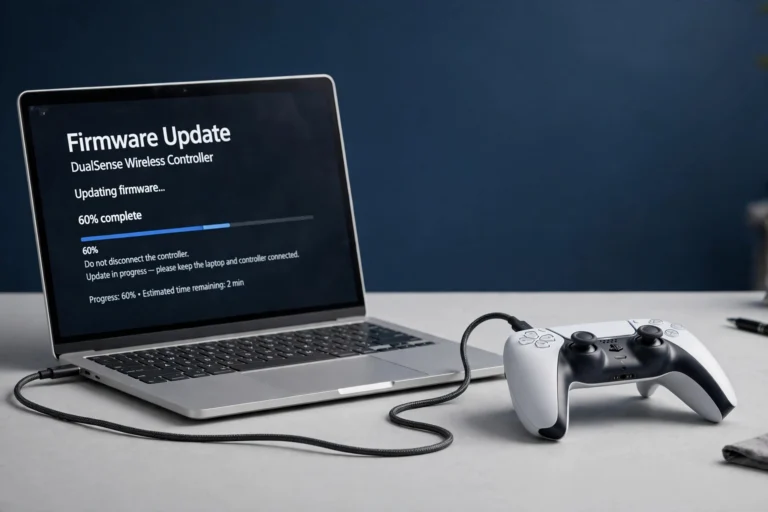
Old system software and old controller software both cause mic dropouts. Go to Settings, then System, then System Software, then System Software Update and Settings, and install any update that is available. Then go to Settings, then Accessories, then Controller (General), then DualSense Wireless Controller Device Software, and install any controller update. Restart the console after both updates and test the mic again.
If your controller has other PS5 troubles, our guide to fixing a PS5 controller that will not charge covers the charging and connection checks that often go with a mic problem, and our PS5 controller firmware update guide walks through the update steps in detail.
Fix 8: Reset the DualSense Controller
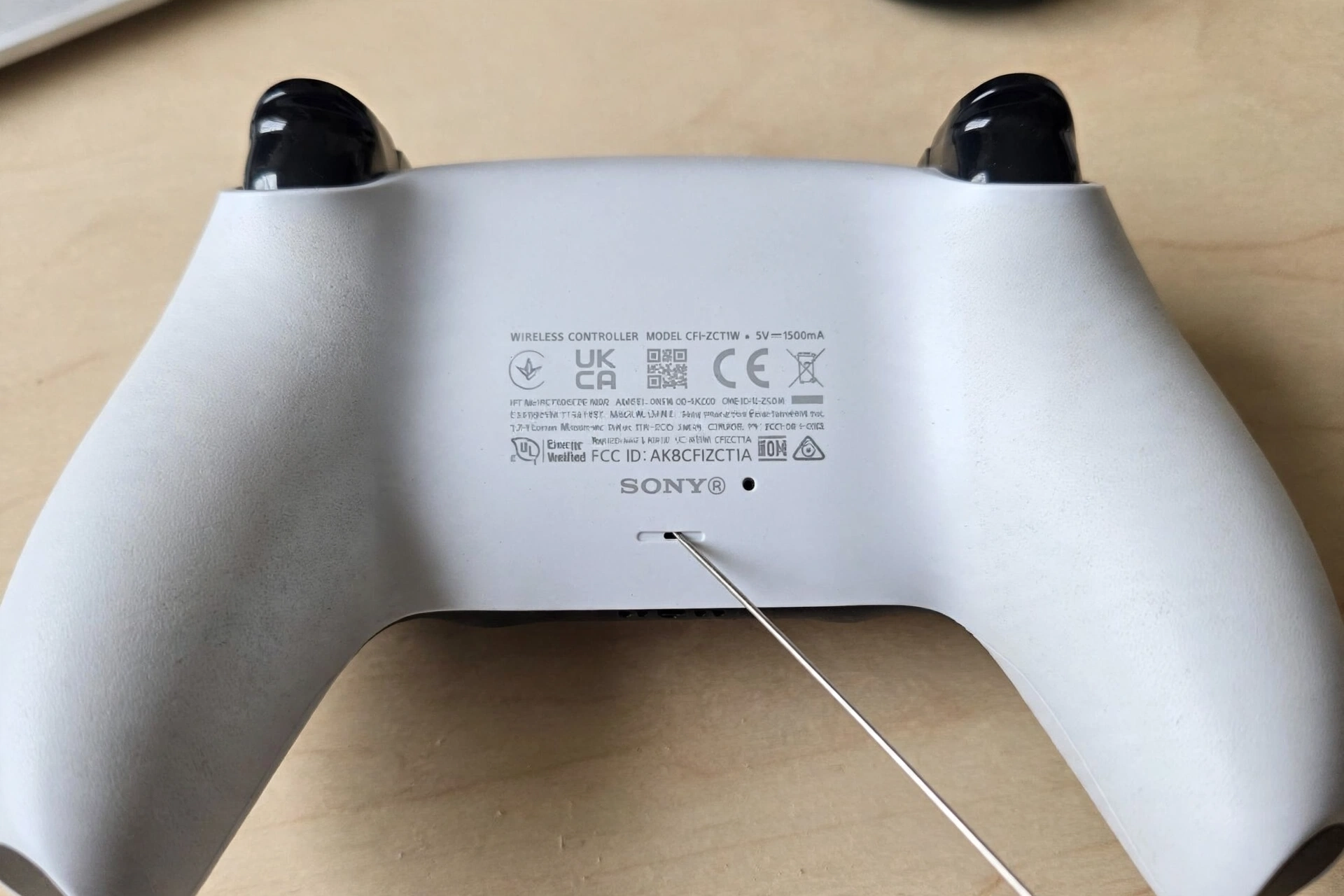
If nothing above helped, reset the controller. This clears bad pairing data without touching your games or saves. Turn the PS5 off, flip the controller over, and find the small pinhole on the back near the Sony logo. Push a paperclip or a SIM tool into the hole and hold it for five seconds. Plug the controller into the PS5 with a USB cable, press the PS button, and test the mic again.
PS5 Controller Mic Not Working on PC?
Everything above is for the console. On a PC the same mic needs different checks. In Windows, right-click the speaker icon, open Sound settings, and set the controller (listed as Wireless Controller) as the default input. Windows often picks your webcam or an old headset instead, so games hear the wrong device.
Over Bluetooth, the DualSense mic is far less reliable than over USB on PC. If the mic shows up in the list but picks up nothing, plug in with a USB cable and test again. The mute button on the controller also often does nothing over Bluetooth on PC, so check the Windows mute state instead.
If you use DS4Windows, make sure it is set to pass the mic through, and see our DS4Windows guide if the controller is not detected at all. You can also test the controller buttons and sticks on our free gamepad tester before you buy a replacement.
When the Mic Is Really Broken
Most mic problems are settings, but hardware does fail. Treat it as a hardware problem only when the meter stays flat at the highest level after all eight fixes, the mic fails on a second controller or a second PS5, or the controller took a hard drop or water damage.
If the controller is still under warranty, contact PlayStation Support and use the PlayStation Repairs diagnostic tool for a repair or replacement. Do not open the controller yourself while it is under warranty, because that can void the cover.
FAQs
Why is my PS5 controller mic not working all of a sudden?
In most cases the mute button got tapped by accident, or an update changed the input device. Press the mute button once so the orange light goes out, then check Settings, then Sound, then Microphone, then Input Device, and pick Microphone on Controller.
How do I know if my PS5 controller mic is muted?
The mute button below the PS button glows orange when the mic is muted, and a mute icon flashes on screen when you start speaking. Press the button once to unmute it.
Does the PS5 controller mic work on PC?
Yes, over USB it works as a normal Windows input device. Over Bluetooth it often appears in the list but fails to pick up sound, so use a USB cable for the mic on PC.
Why can I hear my friends but they cannot hear me?
Your mic input is the problem, not your audio output. Check the input device, the mic level, and the mute button first, then check the party and game chat settings in Fix 5.
Should I use the controller mic or a headset mic?
The built-in mic is fine for quick chat. For long sessions or noisy rooms, a headset mic sounds better and picks up less room noise.
Run the fixes in order and test the mic after each one. Most players find the fix in the first three steps: the mute button, the input device, and the mic level. If the meter never moves after all eight fixes, the mic hardware is the likely cause, and a warranty repair is the next step.