Xbox Controller Flashing But Not Connecting? 7 Fixes
You press the Xbox button, the light starts blinking, and nothing happens. It blinks and blinks, then gives up and turns off. Your console sits there, your game waits, and your controller refuses to connect.
A flashing Xbox controller is one of the most common Xbox problems, and the good news is that it is almost never a dead controller. In most cases the cause is weak batteries, a lost pairing, or a small wireless glitch, and you can fix it in a few minutes without any tools. This guide explains what each blink pattern means and walks you through 7 fixes that work on Xbox Series X/S, Xbox One, and PC, starting with the fastest checks first.
What Does a Flashing Xbox Controller Mean?
Your controller talks to you through that blinking light, and the pattern tells you what is wrong. Before you try any fix, watch the light for a few seconds and match it to this table. It will point you straight to the right fix.
| Flash pattern | What it means | Start with |
|---|---|---|
| Slow blink that never stops | Controller is searching for a device it already knows | Fix 2 (re-pair) |
| Fast blink in pairing mode | Controller is ready to pair with a new device | Fix 2 (re-pair) |
| Blinks a few times, then turns off | Batteries are too weak to hold a connection | Fix 1 (batteries) |
| Blinks 3 times, then off | Controller cannot find the console | Fix 4 (power cycle), then Fix 2 |
| Constant fast blink that never stops | Firmware problem or wireless fault | Fix 5 (firmware) |
| No light at all | No power reaching the controller | Fix 1, then Fix 3 (USB cable) |
| Works wired, blinks wireless | Wireless link problem, not a dead controller | Fix 7 (interference) |
A normal controller blinks for about two seconds while it connects, then the light goes solid. A solid light means you are connected and ready to play. Anything longer than that means the controller is stuck in search mode, and the fixes below will get it out.
Why Your Xbox Controller Is Flashing and Won’t Connect
An xbox controller flashing won’t connect for one of seven reasons, and most of them are easy to fix once you know which one you have.
First, weak batteries. This is the number one cause. A controller with batteries at 20 to 40 percent can still turn on and blink, but it cannot hold a wireless connection. The power draw spikes during pairing, and weak batteries cannot keep up. Second, a lost pairing. If you used the controller on another console, a PC, or your phone, it is still looking for that device instead of your console. Third, a sleeping or frozen console. If your Xbox is in standby or stuck after an update, it will not answer the controller at all.
Fourth, old firmware. Microsoft ships controller firmware updates that fix pairing bugs. A controller that missed an update can refuse to connect to a console that did update. Fifth, wireless interference. Xbox controllers use the same 2.4 GHz band as Wi-Fi routers, Bluetooth headsets, and microwaves, and a crowded signal can block pairing. Sixth, a PC-side problem. On Windows, old Bluetooth drivers, a saved pairing that went bad, or Steam Input fighting with the controller can all stop the connection. Seventh, hardware damage. This is rare, but a dropped controller or a bent battery contact can break the wireless link for good. Work through the fixes in order and you will find your cause fast.
Fix 1: Replace the Batteries or Recharge the Pack
Start here, because weak batteries cause more flashing controllers than anything else, and this fix takes 30 seconds.
Take the batteries out and put in a fresh pair of alkaline AA batteries. Make sure the plus and minus ends match the marks inside the compartment. Do not mix old and new batteries, and do not mix brands. If you use the Xbox Rechargeable Battery Pack, plug the controller in with a USB-C cable and check that the charging light comes on. A pack that looks charged can still be worn out after a few years, so if the controller still blinks on a freshly charged pack, test it with plain AA batteries to rule the pack out.
Also check the battery contacts. Look inside the compartment for bent, dirty, or corroded metal contacts. A bent contact that does not touch the battery will cut power during pairing, which looks exactly like a connection problem. Gently bend a bent contact back into place with a plastic tool, and wipe light corrosion off with a dry cloth. If the controller works fine on USB power but blinks on batteries, the battery compartment is your problem, not the wireless link.
Fix 2: Re-Pair the Controller to Your Console
If fresh batteries did not stop the blinking, your controller has probably lost its pairing. This happens most often after you used the controller on a PC, a phone, or a different Xbox. Re-pairing it takes under a minute.
- Turn on your Xbox console by pressing the Xbox button on the console itself, not the controller.
- Press and hold the Xbox button on the controller until it lights up and starts blinking.
- Press and release the Pair button on the console. On Xbox Series X/S it is the small round button on the front, next to the USB port. On Xbox One it is on the side of the console.
- Within 20 seconds, press and hold the Pair button on the top edge of the controller, near the USB-C port, for about 3 seconds. The Xbox button will start blinking faster.
- Wait a few seconds. When the Xbox button stops blinking and stays solid, the controller is paired.
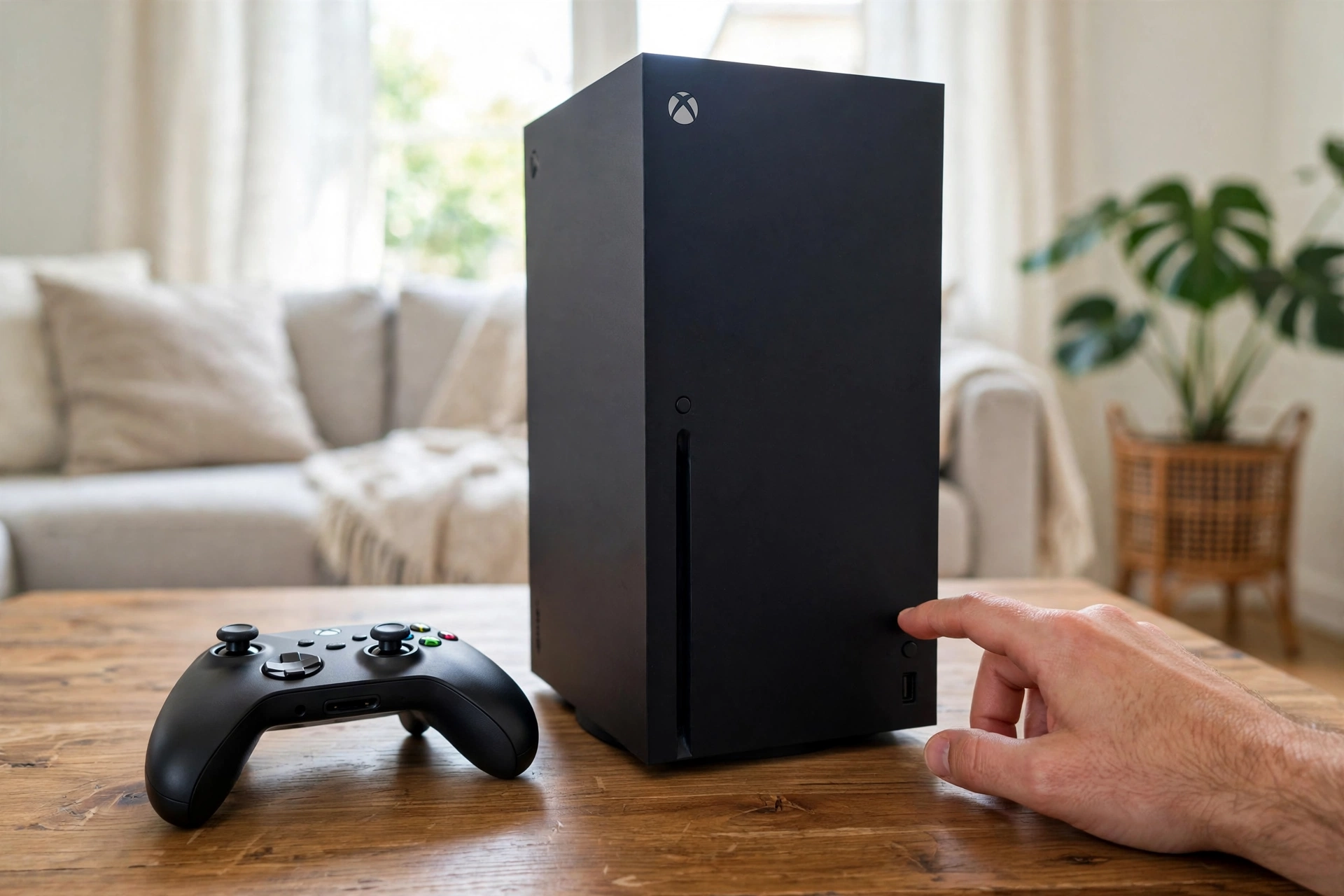
If the light keeps blinking, try the pairing again, but this time hold the controller within a metre of the console. Distance matters during pairing, and a controller on the other side of the room can fail to finish the handshake. Also wake the console fully first. A console in instant-on standby sometimes ignores pairing requests until you press its own power button.
On PC, the same idea applies. Hold the Pair button on the controller for 3 seconds until the Xbox button blinks fast, then add the controller in Windows Settings under Bluetooth and devices. If Windows shows the controller but cannot finish pairing, remove the old entry first and pair it again from scratch. Our full Xbox disconnect guide covers the same steps in more detail: https://game-padtester.com/xbox-controller-keeps-disconnecting-from-pc/
Fix 3: Connect With a USB Cable
A wired connection is the fastest way to find out whether your problem is wireless or something worse, and it often fixes the blinking on its own.
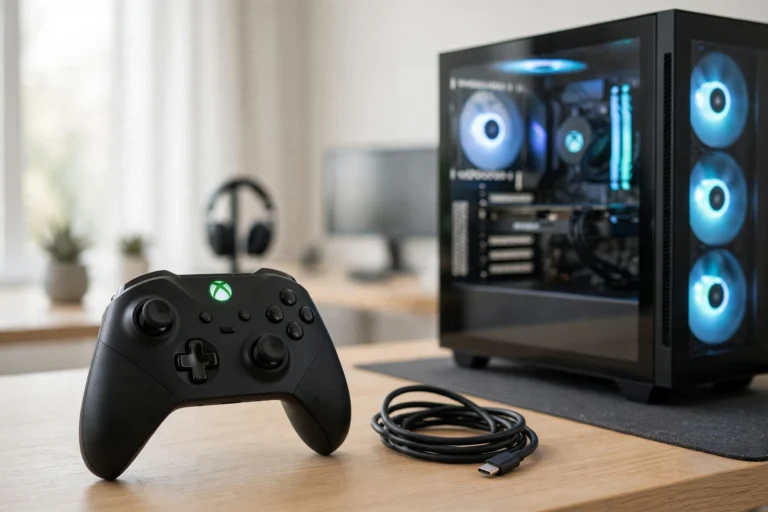
Plug the controller into the console or PC with a USB-C cable for Series X/S controllers, or a Micro-USB cable for Xbox One controllers. Use a cable you know transfers data, not a charge-only cable. A charge-only cable will power the controller but cannot carry the connection, so the controller will keep blinking.

If the controller connects and works fine on cable, the wireless side is the problem, and Fix 6 and Fix 7 will sort it out. You can keep playing wired while you work through them. If the controller still blinks or stays dark even on a known-good cable and port, try a different USB port and a different cable. If it stays dead on cable too, the problem is power or hardware, not pairing, and you should jump to the repair section at the end of this guide. A wired link also cuts input delay, and our guide on reducing input lag explains the rest of that setup: https://game-padtester.com/how-to-reduce-controller-input-lag-on-pc/
Fix 4: Power Cycle Your Console and Controller
A full power cycle clears the wireless stack on both sides. Sleep mode, failed updates, and bad pairing attempts can leave the console’s wireless module in a stuck state, and a normal restart does not always clear it.
- Hold the Xbox button on the controller for 6 to 10 seconds until it turns off.
- Take the batteries out, or unplug the USB cable, and wait 30 seconds.
- Hold the power button on the console for 10 seconds until it shuts down fully.
- Unplug the console power cable from the wall and wait 30 seconds. This step matters. A console left plugged in keeps its wireless module in standby, and the stuck state survives a normal shutdown.
- Plug the console back in, turn it on, put the batteries back in the controller, and try pairing again with Fix 2.
Do not use Quick Resume or a sleep-mode restart for this step. You need a full power cut to reset the wireless module. After the power cycle, test the controller in a game you know well. If it connects and stays connected for a full session, the old wireless state was the problem.
Fix 5: Update the Controller Firmware
Old firmware is a quiet cause of flashing controllers. Microsoft updates controller firmware to fix pairing bugs, and a controller that missed an update can refuse to talk to a console that did update. Update it over a cable so the update cannot drop halfway.
On Xbox, plug the controller in with a USB cable, then go to Settings, then Devices and connections, then Accessories. Select your controller, open the three-dot menu, and choose Firmware version. If an update is available, install it and keep the controller plugged in until it finishes. The update takes about two minutes.
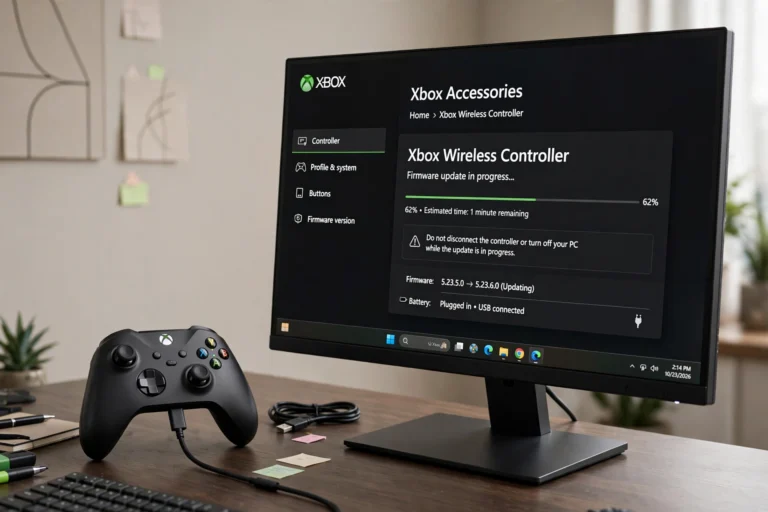
On PC, plug the controller in with a USB cable and open the Xbox Accessories app from the Microsoft Store. Your controller appears automatically. Open the three-dot menu and choose Firmware update if one is available. Our step by step guide covers both Windows 10 and Windows 11 in detail: https://game-padtester.com/how-to-update-xbox-controller-firmware-on-pc/
If the blinking started right after a firmware update, the update itself may be the problem. Open the same Accessories menu and look for a firmware revert option. Rolling back to the previous version fixes the small number of controllers that a new update breaks. Keep the controller plugged in during any firmware change, and never turn it off halfway through.
Fix 6: Fix the PC Side: Bluetooth, Drivers, and Steam
If your controller blinks on PC but works fine on your console, the problem is on the PC side, not the controller. Work through these checks in order.
First, check Bluetooth support. Early Xbox One controllers and the original Xbox Elite controller have no Bluetooth at all. They can only connect to a PC with a USB cable or the Xbox Wireless Adapter for Windows. If your controller is one of those models, no amount of Bluetooth troubleshooting will help. Newer controllers, the ones with a USB-C port and a plastic seam around the Xbox button, do support Bluetooth.
Second, remove the old pairing. Open Windows Settings, go to Bluetooth and devices, find the Xbox Wireless Controller entry, and remove it. Then hold the Pair button on the controller for 3 seconds and pair it again from scratch. Old or hidden pairing entries are a common cause of a controller that shows up in Windows but never finishes connecting.
Third, update your Bluetooth driver. Open Device Manager, expand Bluetooth, right-click your Bluetooth adapter, and choose Update driver. While you are there, check the controller entry under Human Interface Devices or Xbox Peripherals too. If Windows shows a yellow warning icon next to either one, right-click it, choose Uninstall device, unplug the controller, and plug it back in so Windows installs a fresh driver.
Fourth, stop Steam Input from fighting the controller. If Steam is running, open Steam Settings, then Controller, and turn off Xbox configuration support for the game you are playing. Steam Input and Windows can both try to claim the controller at once, and the fight shows up as blinking and failed connections. Our Steam controller guide walks through the same settings in detail: https://game-padtester.com/controller-not-working-in-steam-6-quick-fixes/
Fifth, turn off USB power saving. In Device Manager, open USB Root Hub, then Properties, then Power Management, and uncheck “Allow the computer to turn off this device to save power”. Windows can cut power to the USB port your Bluetooth adapter or Xbox Wireless Adapter uses, which drops the controller mid-pairing. If you use the Xbox Wireless Adapter, plug it into a USB extension cable to move it closer to you. The adapter works best with a clear line of sight to the controller.
Fix 7: Cut Wireless Interference and Reset the Controller
If the controller pairs sometimes but keeps dropping back to blinking, wireless interference or a corrupt pairing record is usually the cause.
Xbox controllers use the 2.4 GHz band, the same band your Wi-Fi router, Bluetooth headset, wireless keyboard, and microwave use. Move your console away from the Wi-Fi router, and do not keep the console inside a closed TV cabinet. Enclosed spaces and metal shelves block the 2.4 GHz signal. Keep the controller within 6 metres of the console with a clear line between them, and turn off nearby Bluetooth devices one at a time to test which one is interfering. USB 3.0 devices, especially external hard drives sitting next to the console, are a known source of 2.4 GHz noise.
If interference is not the cause, reset the controller itself. Remove the batteries, hold the Xbox button for 10 seconds with no power in the controller, then put the batteries back in and pair it again. This clears the controller’s saved pairing memory. For a deeper reset, hold the Pair button, the Menu button, and the View button at the same time for 10 seconds. If the controller still blinks after a reset, test it on a second console or PC. A controller that blinks on every device has a hardware fault, and a controller that works on the second device has a problem with the first one.
If the controller also has other faults, such as a stuck button or a drifting stick, test it first on our free gamepad tester at https://game-padtester.com/ to see exactly which inputs are misbehaving. A drifting stick is a separate problem with its own fix, and our calibration guide covers it: https://game-padtester.com/how-to-calibrate-xbox-controller-on-pc/
When to Repair or Replace Your Controller
Some flashing controllers are hardware damage, and no setting will fix them. Here is how to know you have reached that point.
You have hardware damage if the controller blinks on every device you test, wired and wireless, after new batteries, a firmware update, and a full reset. Check the battery compartment first. Bent pins that do not touch the battery are a common failure point, and gently bending them back can save a controller. If the controller works on cable but never connects wirelessly, the wireless module inside may be faulty.
Before you pay for a repair, check your warranty. Xbox controllers carry a 90 day warranty from Microsoft. Check your warranty status at https://account.microsoft.com/devices and contact Microsoft support at https://support.xbox.com/ if your controller is still covered. Do not open the controller yourself while it is under warranty, since opening it can void the coverage.
Out of warranty, a local repair shop can often replace a wireless module or a battery contact for much less than a new controller. Compare that cost with a new pad first. If your controller is old and several parts are failing at once, a new controller is usually the better spend. Keep the old one for parts, or recycle it through a local electronics recycling point.
FAQs
Why does my Xbox controller keep blinking and not connecting?
The most common causes, in order, are weak batteries, a lost pairing, a console in standby, old firmware, and wireless interference. Start with fresh AA batteries, then re-pair the controller with the Pair buttons on the console and the controller. Those two steps fix the problem for most people.
Why is my Xbox controller flashing slowly?
Slow blinking usually means the controller is searching for a device it already knows, such as a console or PC it was paired with before. It can also mean the batteries are too weak to finish pairing. Put in fresh batteries first, then re-pair the controller to the console you want to use.
How do I stop my Xbox controller from blinking?
Press the Xbox button to wake it. If it blinks slowly, press and hold the Pair button on the controller and the Pair button on the console within 20 seconds of each other. The blinking stops when the two connect and the Xbox button light goes solid. If it keeps blinking, plug the controller in with a USB cable and check the battery and firmware steps in this guide.
Can a flashing Xbox controller be broken?
Rarely. In most cases a flashing controller just needs new batteries or a fresh pairing. If none of the 7 fixes in this guide work, try the full reset in Fix 7, then test the controller on a second console or PC. If it blinks on every device, wired and wireless, the wireless module or board is likely damaged and needs a repair or replacement.
Why won’t my Xbox controller connect to my PC?
The most common PC causes are a controller model with no Bluetooth, an old saved pairing, an outdated Bluetooth driver, or Steam Input fighting with Windows. Check that your controller model supports Bluetooth, remove the old pairing and pair it again, update the Bluetooth driver in Device Manager, and turn off Xbox configuration support in Steam. A USB cable or the Xbox Wireless Adapter for Windows will connect any model.
An xbox controller flashing won’t connect looks like a dead controller, but it is almost always a power or pairing problem. Start with fresh batteries, then re-pair the controller to your console. Those two steps fix the problem for most players, and a USB cable test will tell you in seconds whether the fault is wireless or something worse.
If your controller still blinks after a firmware update and a full reset, test it on a second device. A controller that works on the second device has a problem with the first one, and a controller that blinks everywhere needs a repair. And if your controller keeps dropping out after it connects, our Xbox disconnect guide covers the fixes for that next problem: https://game-padtester.com/xbox-controller-keeps-disconnecting-from-pc/