How to Update PS5 Controller Firmware on PC (2026 Guide)
You do not need a PS5 to update your DualSense firmware on a PC. Sony ships a free Windows app called PlayStation Accessories that flashes your controller to the latest firmware with no console and no PlayStation Network account. The whole job takes a couple of minutes, and it is worth doing: firmware updates fix random disconnects, clean up Bluetooth pairing, and keep the controller behaving properly in Steam Input. The one rule that trips everyone up is the cable. You must use a USB data cable, because a charge-only cable powers the controller while Windows sits there seeing nothing at all. This guide walks you through every step, then covers what to do when any of them refuses to cooperate.
Quick Answer
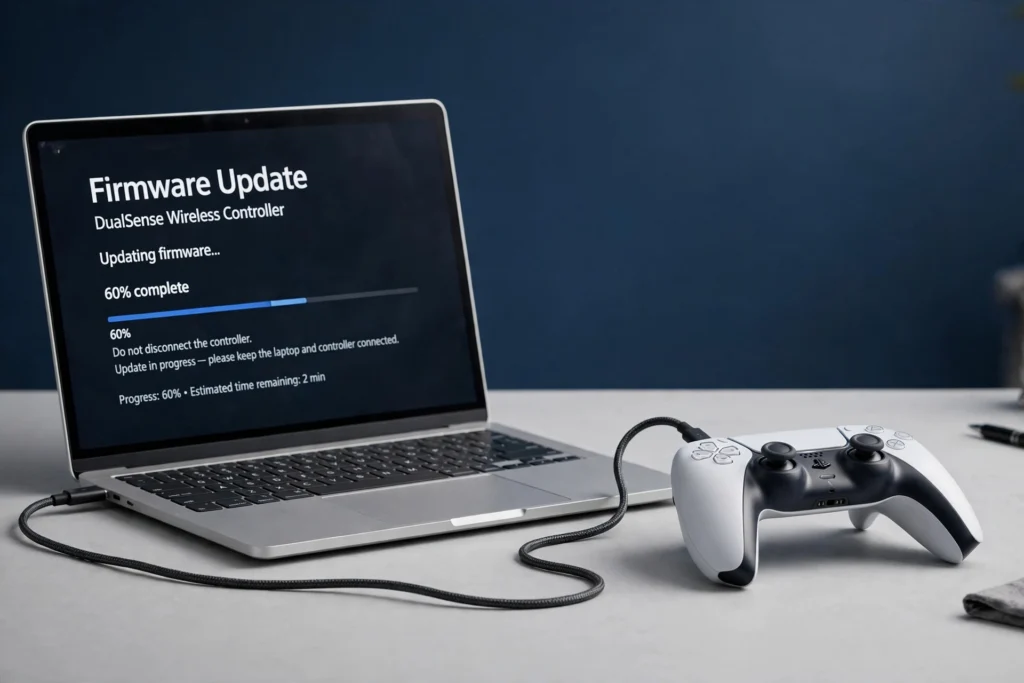
Download the free PlayStation Accessories app from Sony’s download page, plug your DualSense into the PC with a USB data cable, open the app, select Firmware for your controller, and click Update if it appears. Keep the PC on and the controller plugged in until the update finishes. That is the whole process. The rest of this guide is for the part where something goes wrong.
What You Need Before You Start
- A Windows 10 (64-bit) or Windows 11 PC. The app is Windows-only. There is no Mac or Linux version.
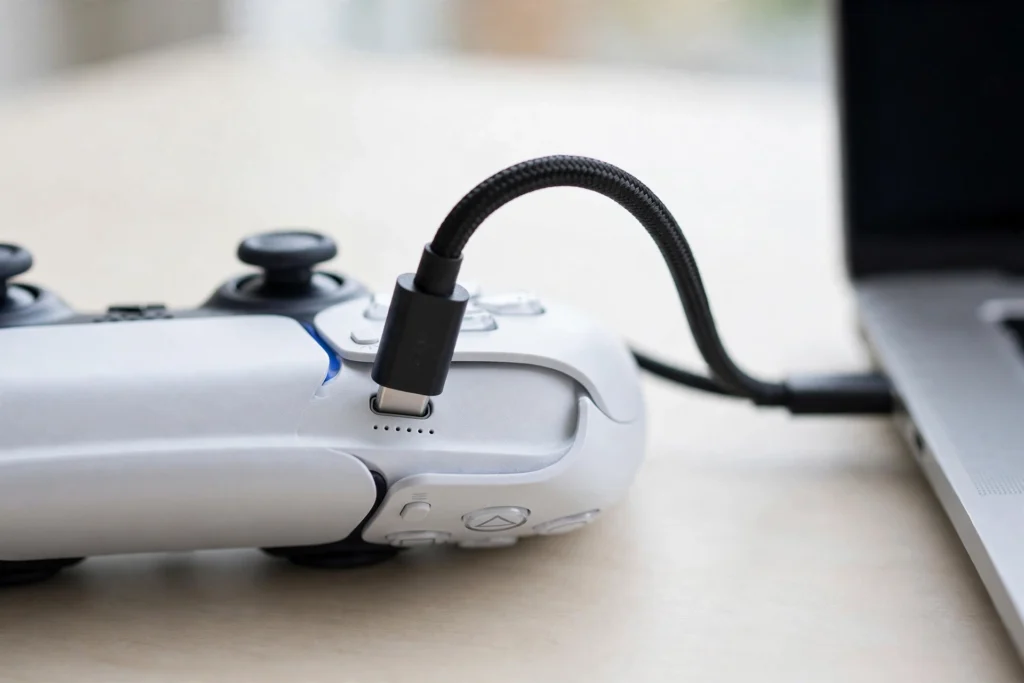
- A USB data cable with a USB-C plug on the controller end. This matters more than anything else on this list. Cheap charge-only cables power the pad but never send data, so the app never sees a controller at all. A cable that syncs files with a phone is a safe bet.
- The PlayStation Accessories app installed. Grab it from Sony’s official download page (controller.dl.playstation.net). It needs about 250 MB of free space and a display of 1280 by 800 or higher.
- A charged controller. Do not start a firmware update on a dying battery.
- Steam and DS4Windows closed, at least while you update. Both can grab the controller first and hide it from the Sony app.
Step 1: Download and Install the PlayStation Accessories App
Go to Sony’s PlayStation Accessories download page and click Download for Windows. Run the installer and approve it when Windows asks for permission. If you have seen older guides mention a tool called “Firmware updater for DualSense wireless controller”, that is this same app under its old name. Sony renamed it and added DualSense Edge profile support, but the firmware update job is unchanged. The current app version is 2.2.1.
Step 2: Connect the Controller With a USB Cable
Plug the DualSense into the PC with your data cable. On a desktop, use a rear USB port, because front-panel ports and unpowered hubs are flaky. Windows should play the device-connected sound. If nothing happens, the cable is probably charge-only. Swap it before you go any further.
One important rule: run the update over USB. The app itself can talk to your controller over Bluetooth for normal use, but the firmware flow is built around a wired connection, and a cable removes the one failure you cannot afford mid-update, a dropped Bluetooth link. You can go back to Bluetooth after the update.
Step 3: Open the App and Check “Firmware for Your Controller”
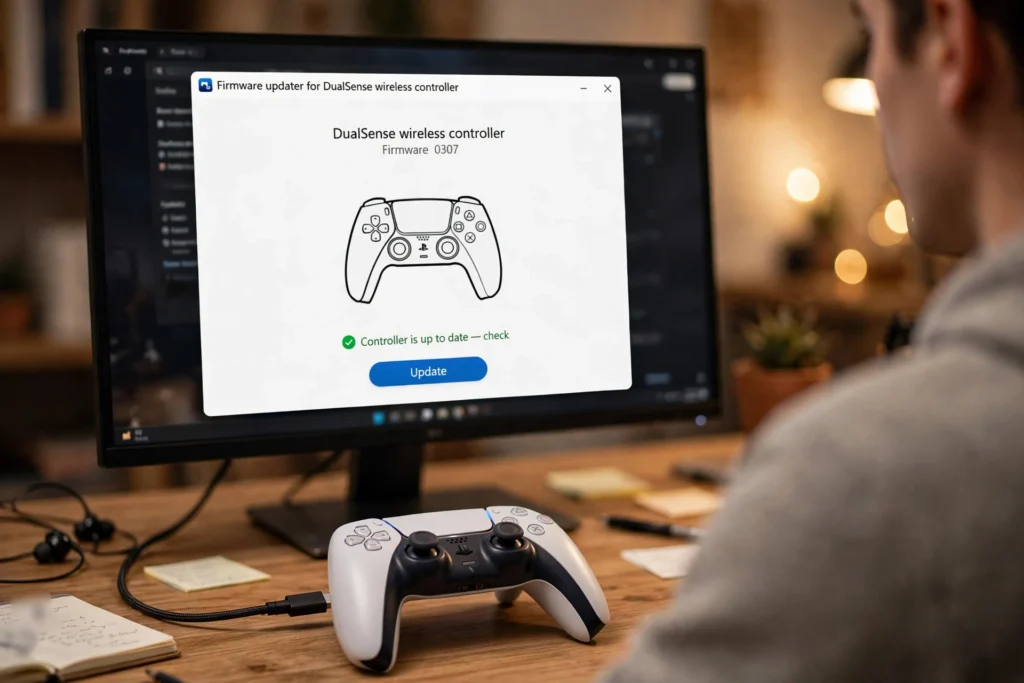
Open PlayStation Accessories. Your connected controller shows up on the main screen. Select Firmware for your controller. This screen shows the current firmware version on your pad. If a newer version exists, an Update button appears. If it does not, your controller is already current and there is nothing else to do.
Step 4: Click Update and Wait
Click Update and wait. Do not turn off the PC, do not unplug the controller, and do not press buttons on it. The update usually takes a minute or two. If you are updating more than one controller, do them one at a time. When the app says the update is complete, click OK. You are done. Unplug the cable and use the controller however you like.
How to Check Your DualSense Firmware Version
Open PlayStation Accessories with the controller plugged in and select Firmware for your controller. The app shows the version currently installed. Sony does not publish a public changelog of DualSense firmware versions, so the honest way to check is right here: if the Update button appears, a newer version exists. If it does not, you are current.
Can You Update DualSense Firmware Over Bluetooth?
Use USB instead. The app does connect to your controller over Bluetooth for everyday use, and some short guides list Bluetooth as an option for the update steps. But Sony’s own update walkthrough is built around a cable, and no reliable source documents a firmware flash completing over Bluetooth. Bluetooth can drop at the worst moment, and a dropped link in the middle of a firmware write is exactly how controllers end up unresponsive. Plug it in, update, go back to wireless.
Can Steam Update Your DualSense Firmware?
No. Steam is great for playing with a DualSense and mapping its buttons, but it does not flash controller firmware. Valve only pushes firmware updates through Steam for its own hardware. For the DualSense, the firmware update comes from Sony’s app or a PS5 console. The controller works in Steam exactly as before after the update. Keeping Steam itself updated is still smart, just know it handles the games, not the firmware.
Do You Need a PSN Account to Update?
No. The PlayStation Accessories app never asks you to sign in to PlayStation Network. Sony’s official requirements list only a Windows PC with a USB port or Bluetooth. There is no account step anywhere in the flow. If a guide tells you to log in to PSN first, it is describing a different process.
Troubleshooting DualSense Firmware Update Problems on PC
PlayStation Accessories Is Not Detecting the Controller
Work through this checklist in order.
- The cable is charge-only. Try a known data cable and a rear USB port. This is the cause most of the time.
- The controller is off or asleep. Press the PS button to wake it while it stays plugged in.
- Bluetooth confusion. A pad paired to the PC or a nearby PS5 can fight the cable connection. Hold the PS button until the light bar and player indicator go dark to turn it fully off, then plug it in. For deeper pairing trouble, see our guide on fixing a PS5 controller that will not connect to a PC over Bluetooth.
- Steam or DS4Windows is holding the controller. Close both completely, then reopen the Sony app. If DS4Windows grabs the pad first, other apps cannot see it. See our guide on DS4Windows not detecting a controller for the flip side of this problem.
- The app is outdated. Download a fresh copy from Sony’s page. The current version is 2.2.1.
- Windows does not see the controller at all. Press Windows + R, type joy.cpl, and press Enter. If the game controller panel is empty, Windows itself is not seeing the pad, and no app can update it. Try a different cable, a rear port, and a PC restart.
The Update Fails or Gets Stuck
Do not panic, and do not yank the cable. Firmware updates sometimes sit still for a while.
- Wait at least ten minutes before touching anything. Some updates just take a while.
- Do not unplug the cable mid-update. Pulling it during the flash is how a controller ends up unresponsive.
- Swap the cable and port. A wobbly connection is the most common real cause of a stalled update.
- Reset the controller. Push a pin into the small hole on the back for about five seconds. Sony says this does not erase pairing or profile settings.
- Close Steam and DS4Windows, restart the PC, and try the update again.
The Controller Is Unresponsive After a Failed Update
If a failed update leaves the controller dead to the world, do the paperclip reset first: pin in the back hole, hold about five seconds, then plug the controller into the PC with USB and reopen PlayStation Accessories. If the app still cannot see it, try another cable and port. If nothing brings it back, Sony points you to PlayStation Repairs. This is rare, and almost every case traces back to the cable coming loose mid-update, which is why the wired rule in Step 2 exists.
Firmware vs Drivers: What Is the Difference
Firmware lives inside the controller. It is the controller’s own software, and only Sony’s PlayStation Accessories app updates it. Drivers live in Windows. They tell Windows how to talk to the controller, and Windows Update handles them. If your controller misbehaves on PC, check both: firmware in the app, drivers through Windows Update or Device Manager. Mixing these two up is why so many “update driver” guides never fix the actual problem.
Which Controllers Can Update on PC
The PlayStation Accessories app updates two controllers on a Windows PC:
- DualSense wireless controller (firmware update only)
- DualSense Edge wireless controller (firmware update plus custom profiles, stick and trigger settings you can edit on PC)
The DualShock 4 cannot use the app. A PS4 pad gets its updates through a console. If a guide tells you to run a DualShock 4 through PlayStation Accessories, close that tab.
After the Update: Test Your Controller
Updates change how the controller talks to Windows, so run a quick check that everything still works. Press every button, pull both triggers, move both sticks, and swipe the touchpad. It takes thirty seconds and catches anything that stopped registering after the update. And if you also game on an Xbox pad, keep it current with our guide on updating Xbox controller firmware on PC, since it walks the same idea through Microsoft’s app.
FAQs
Do I need a PS5 to update my DualSense firmware?
No. That is the whole point of the PlayStation Accessories app. Sony built it so PC players without a console can keep their controllers current.
Do I need a PSN account to update the firmware?
No. The app never asks you to sign in. Sony’s requirements list only a Windows PC with a USB port or Bluetooth.
Can Steam update my DualSense firmware?
No. Steam handles playing and button mapping, not firmware. Use Sony’s PlayStation Accessories app. The controller works in Steam exactly as before after the update.
Can I update the firmware over Bluetooth?
Do it over USB. The app connects over Bluetooth for normal use, but the firmware flow is built around a cable, and a dropped Bluetooth link mid-update can leave the controller unresponsive. Plug it in, update, go back to wireless.
How long does a DualSense firmware update take?
Usually a minute or two. If the progress bar sits still for more than ten minutes, treat it as stuck and follow the troubleshooting steps above.
Will the update erase my settings or pairings?
No. The update touches the firmware only. Even the paperclip reset does not erase pairing or profile settings, according to Sony.
Final Verdict
Updating a PS5 controller on a PC is a five-minute job once you know the two things that matter: use Sony’s PlayStation Accessories app, and use a real USB data cable. No PS5, no PSN account, no Steam tricks. Do it over a cable, leave the controller alone until the app says it is done, and your DualSense stays current with the latest fixes. That is literally it.