DS4Windows Not Detecting Controller? 7 Fixes (2026)
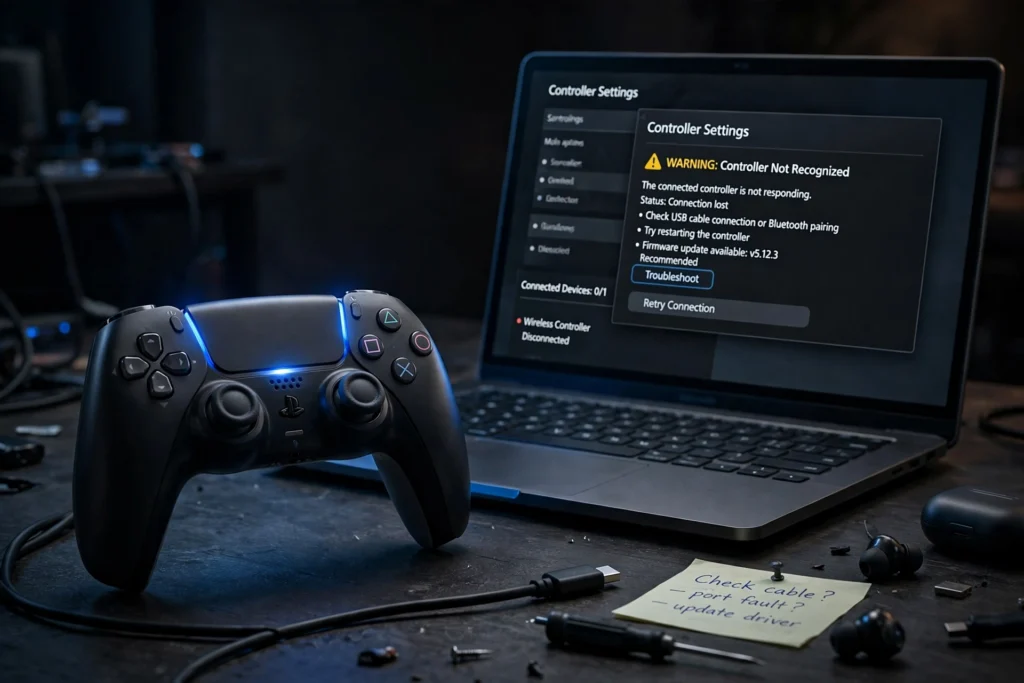
You plug in your controller, open DS4Windows, and the Controllers tab says “No Controllers Connected”. Or worse, the log flashes “could not open exclusively” and nothing you click makes the pad show up.
Almost every case of DS4Windows not detecting a controller comes down to one of seven causes: a charge-only cable, a stale Bluetooth pairing, a missing ViGEmBus driver, another app grabbing the controller first, a hidden HidGuardian driver, an outdated DS4Windows build, or a controller that needs a reset. Work through the fixes below in order. Most people fix it before they reach Fix 4.
Why DS4Windows Says “No Controllers Connected”
DS4Windows sits between your physical controller and your games. It reads the real pad, then creates a virtual Xbox 360 controller that games understand. For that chain to work, three things must line up: Windows must see the physical controller, the ViGEmBus driver must be installed so the virtual controller can exist, and no other program may grab the pad before DS4Windows does. When any one of those breaks, you get the dreaded “No Controllers Connected” message.
Before the fixes, do this 30-second check.
Quick Check: Is Windows Seeing the Controller at All?
Press Windows + R, type joy.cpl, and press Enter. This opens the Windows game controller panel.
If your controller shows up here but not in DS4Windows, the problem is inside DS4Windows or its drivers. Skip to Fix 4.
If nothing shows up here, Windows itself is not seeing the pad. The problem is the connection. Start at Fix 1.
Fix 1: Swap the Cable and USB Port
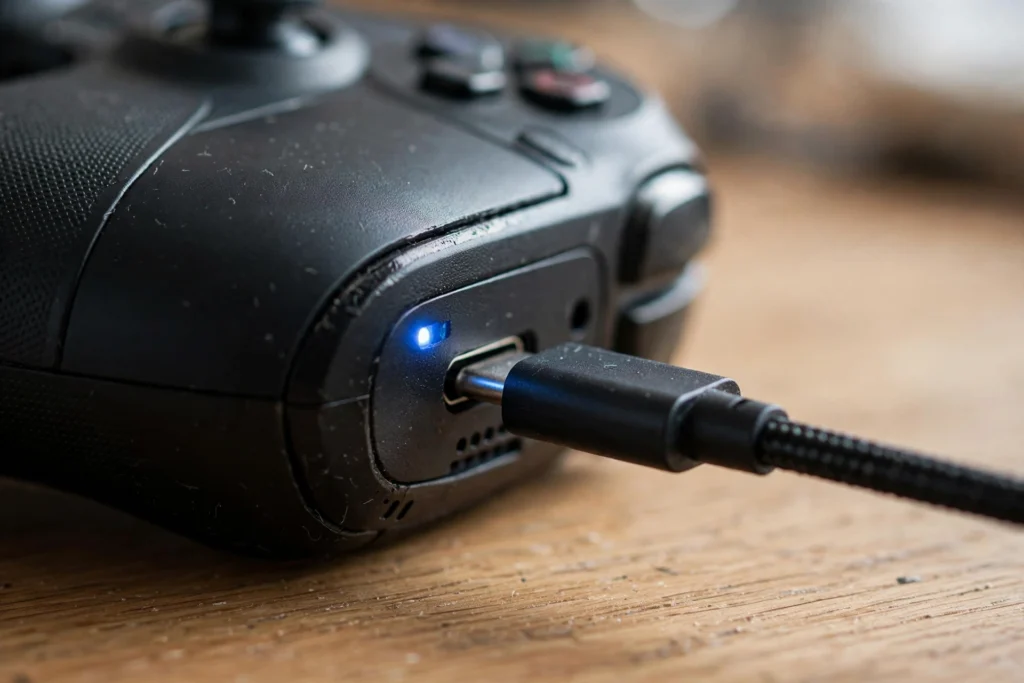
The most common cause of a wired DualShock 4 or DualSense not being detected is a charge-only cable. Plenty of USB cables, especially cheap ones bundled with phone chargers, only carry power. They charge the controller but never send data, so Windows never sees a gamepad.
What to do:
- Try a cable you know transfers data. A cable that syncs files with a phone is a safe bet.
- Plug into a USB port on the back of the PC, not a front-panel port or an unpowered hub. Rear motherboard ports are the most reliable.
- Listen for the Windows “device connected” sound. If you hear it but joy.cpl still shows nothing, the cable is fine and the driver layer is the problem. Move to Fix 4.
If you only care about playing wired games, this single swap fixes the issue for most people.
Fix 2: Update DS4Windows to a Working 2026 Build
This one trips up a lot of people. The DS4Windows project has changed hands several times. The Ryochan7 build, which most old YouTube tutorials point to, is archived, and its GitHub repository was removed in 2026, so old download links are dead or point to sketchy mirrors.
What actually works in 2026:
- The ds4windowsapp/DS4Windows fork, latest release v3.5 (published February 2026). This is the stable pick for most users.
- DS4Windows 5 release candidates (latest VIIPERRC4.6.7, published October 2026) if you want the newest features like adaptive trigger support, though it is still pre-release software.
Get the program only from the official repository or the official site. Random download sites bundle outdated or modified copies, and a modified copy can quietly break detection. If you installed DS4Windows from a tutorial link more than a year ago, uninstall it and install a current build first. Then run the Controller/Driver Setup inside DS4Windows so the drivers install cleanly.
Fix 3: Re-pair Bluetooth the Right Way
If your controller pairs to Windows but DS4Windows ignores it, the Bluetooth pairing is usually stale or incomplete. A controller paired to your PS5 or phone at the same time will also refuse to talk to the PC, because it only holds one Bluetooth connection.
Do this in order:
- Turn the controller fully off first. Hold the PS button for about 10 seconds until the light bar goes dark. Skipping this step is the number one Bluetooth mistake.
- On the PC, open Settings, then Bluetooth and devices, and remove the old “Wireless Controller” entry completely.
- Put the controller into pairing mode. On a DualShock 4, hold the PS button and the Share button together until the light bar starts blinking fast. On a DualSense, hold the PS button and the Create button (the small button left of the touchpad).
- On the PC, choose Add device, then Bluetooth, and select Wireless Controller from the list.
- Open DS4Windows only after Windows shows the controller as connected.
If Bluetooth keeps dropping mid-game, check our guide on why controllers keep disconnecting. And if Windows pairs the pad but your browser games do not see it, run a quick check with our browser gamepad test guide to confirm whether the virtual controller is being created.
Fix 4: Install ViGEmBus and Check the Driver Stack
DS4Windows cannot create its virtual Xbox 360 controller without the ViGEmBus driver. If ViGEmBus is missing or broken, usually after a Windows update, DS4Windows will open fine but detect nothing.
- Open Settings, then Apps, then Installed apps, and look for ViGEmBus. If it is missing, run the ViGEmBus setup that ships with DS4Windows (Settings tab, then Controller/Driver Setup).
- Note: ViGEmBus was retired by its developer and archived in November 2023. Version 1.22.0 is the final release. It still works and DS4Windows still needs it, so install the copy bundled with your DS4Windows build.
- Open Device Manager and expand Human Interface Devices. Look for yellow warning icons. Right-click any controller-related entry, choose Uninstall device, then unplug and replug the controller so Windows reinstalls the drivers.
- Restart DS4Windows after every driver change. Driver fixes do not apply until the program restarts.
Fix 5: Fix the “Could Not Open Exclusively” Error
This is the famous one. DS4Windows tries to grab the controller in exclusive mode (the “Hide DS4 Controller” setting) so games see only the virtual Xbox pad instead of two controllers. Exclusive mode only works if DS4Windows is the first program to touch the controller. If Steam, the NVIDIA GeForce Experience overlay, the Windows Game Bar, reWASD, or even a background process grabbed the pad first, the log says “failed to enable exclusive mode” and detection breaks.
Fix it like this:
- Close Steam completely, including the system tray icon. In Steam, also turn off PlayStation Configuration Support and Xbox Configuration Support while DS4Windows is running. Running both Steam Input and DS4Windows at once creates double inputs, which we cover in our ghost input guide.
- Disable the NVIDIA in-game overlay, or start DS4Windows before enabling the overlay.
- Close DS4Windows fully, then right-click the DS4Windows executable and choose Run as administrator. Administrator rights help it win the race for the controller.
- With DS4Windows open and running as admin, unplug the controller and plug it back in. The log should now show a successful exclusive connection.
For a permanent fix, use HidHide instead of relying on exclusive mode. HidHide is a small driver from the same developer as ViGEmBus that hides the physical controller from everything except the programs you whitelist. Install HidHide, open the HidHide Configuration Client, enable device hiding, add your controller to the devices list, and add DS4Windows to the Applications list. Important: if HidHide hides the pad from DS4Windows itself, the controller vanishes entirely. Always keep DS4Windows on the Applications whitelist.
Note that the official DS4Windows documentation now calls the old “Hide DS4 Controller” option unreliable and recommends HidHide as the trustworthy solution. If exclusive mode keeps failing on your system, stop fighting it and switch to HidHide.
Fix 6: Remove HidGuardian and Other Hidden Blockers
HidGuardian is an older driver that did the same hiding job as HidHide. It is no longer needed, and if it is still installed, it can hide your controller from both Windows and DS4Windows with no visible warning. Several Microsoft Q&A threads end with the user discovering HidGuardian was the culprit all along.
- Open Control Panel, then Programs, then Uninstall a program.
- If HidGuardian is listed, uninstall it and restart the PC.
- After the restart, install HidHide only if you need the hiding feature.
Also check two less obvious blockers:
- The Bluetooth Support Service. Press Windows + R, type services.msc, find Bluetooth Support Service, and make sure it is running. If it is stopped, right-click and start it.
- Windows Game Mode. Open Settings, then Gaming, then Game Mode, and turn it off while testing. Game Mode has been reported to interfere with DS4Windows detection.
Fix 7: Reset the Controller and Start Fresh
If nothing above worked, reset the controller hardware and rebuild the whole chain cleanly.
- Find the small pinhole on the back of the controller, near the L2 button.
- Press a pin or paperclip into it and hold for about 10 seconds. You will feel a click.
- Uninstall DS4Windows, ViGEmBus, and HidHide from the PC.
- Restart the PC.
- Install a current DS4Windows build (see Fix 2), run the Controller/Driver Setup, and connect the controller.
A reset also helps when the controller behaves strangely in games after being detected, like phantom button presses. For that specific symptom, see how to fix controller ghost inputs.
When Nothing Works: What to Check Next
Be honest with yourself about two hardware realities.
First, fake and clone DualShock 4 controllers often use different hardware IDs. DS4Windows may never detect them properly, and no setting fixes that. If your controller was suspiciously cheap, test with a genuine Sony pad before concluding the software is broken.
Second, a controller with a dead Bluetooth radio or a damaged USB port will charge but never send data. If the pad charges on every cable, shows nothing in joy.cpl, and a second controller works fine on the same PC, the controller itself is the problem.
One more thing: if you only play Steam games, you may not need DS4Windows at all. Steam Input handles DualShock 4 and DualSense natively. Close DS4Windows, open Steam, go to Settings, then Controller, and enable PlayStation Configuration Support. If the controller works there, the hardware is fine and the issue was purely a DS4Windows setup problem. Our guide on connecting a PS5 controller to PC via Bluetooth walks through the Steam Input route step by step.
Once your controller is detected, verify the input is clean with our controller input lag test.
FAQs
Why does DS4Windows say “No Controllers Connected” when Windows sees the controller?
Windows seeing the pad only means the USB or Bluetooth connection works. DS4Windows needs the ViGEmBus driver to create its virtual controller, and it needs exclusive access to the pad. Install or repair ViGEmBus, close Steam and overlay apps, run DS4Windows as administrator, then reconnect the controller.
What does “could not open exclusively” mean in DS4Windows?
It means another program grabbed the controller before DS4Windows did. DS4Windows needs to be the first program to open the pad to hide the physical device in exclusive mode. Close Steam, the NVIDIA overlay, and the Windows Game Bar, then stop and start DS4Windows or replug the controller.
Do I need DS4Windows if I only play games on Steam?
No. Steam Input supports the DualShock 4 and DualSense directly. Close DS4Windows, open Steam Settings, go to Controller, and turn on PlayStation Configuration Support. Use DS4Windows for non-Steam games, emulators, and advanced remapping.
Why did DS4Windows stop detecting my controller after a Windows update?
Windows updates sometimes break or remove the ViGEmBus driver. Reinstall it through the Controller/Driver Setup inside DS4Windows, restart the program, and reconnect the controller. Also check that Steam did not re-enable PlayStation Configuration Support during its own update.
Does DS4Windows work with fake PS4 controllers?
Usually not reliably. Clone controllers often use non-standard hardware IDs that DS4Windows does not recognize. Some clones work partially, but detection problems with fakes are rarely fixable in software. Test with a genuine controller to confirm.
Should I use HidHide or the “Hide DS4 Controller” option?
Use HidHide. The official DS4Windows documentation now describes the old “Hide DS4 Controller” exclusive mode option as unreliable and recommends HidHide instead. Just remember to whitelist DS4Windows in the HidHide Applications list, or HidHide will hide the controller from DS4Windows too.
Why does my controller show up twice in games when DS4Windows is running?
Games are seeing both the physical PlayStation controller and the virtual Xbox 360 controller DS4Windows creates. Hide the physical pad with HidHide so games see only one controller. This double-controller problem also causes double inputs in menus.
6 Comments