How to Use a PS4 Controller on PC: 3 Easy Methods That Work
Yes, you can use a PS4 controller on PC, and it takes about two minutes. The DualShock 4 works on Windows 10 and Windows 11 over a USB cable or Bluetooth, and Steam has built-in support for it, so most Steam games work with almost no setup. For games outside Steam, a free tool called DS4Windows fills the gap. This guide shows you all three methods, in order from easiest to most flexible, plus the fixes for the problems people hit most often.
What You Need to Use a PS4 Controller on PC
You need a DualShock 4 controller, a PC running Windows 10 or Windows 11, and one of the following: a micro-USB data cable, or Bluetooth built into your PC (or a cheap USB Bluetooth adapter). That is all the hardware. The PS4 controller uses micro-USB, not USB-C, so grab the right cable: the one that came with your PS4 works, and so does any micro-USB cable that carries data. A charge-only cable will power the controller but Windows will never see it, and that is the single most common reason a wired setup fails. If you plan to play games outside Steam, you will also want DS4Windows, which is free. Before you start, charge the controller for a few minutes if the battery is flat, and unplug it from your PS4 so it does not stay paired to the console.
Method 1: Connect Your PS4 Controller With a USB Cable
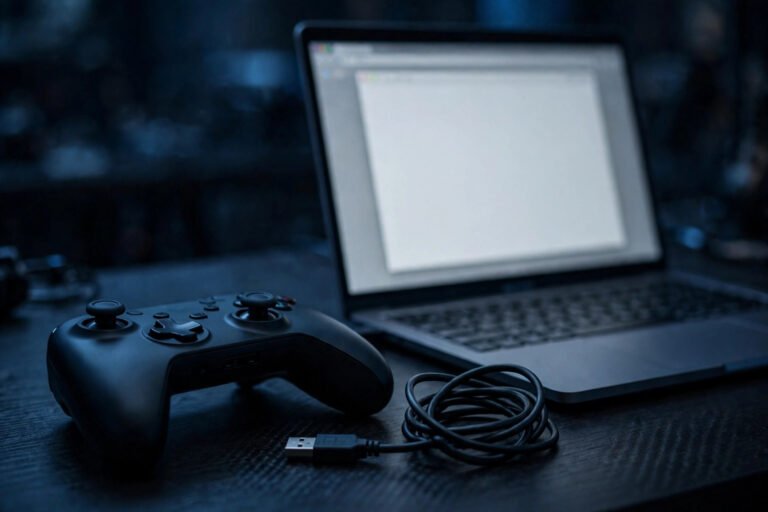
The cable method is the fastest way to play. It needs no pairing, no Bluetooth, and no software, and it gives you the lowest input lag of any connection. It also charges the controller while you play.
- Plug the small micro-USB end of the cable into the port on the top edge of the controller, between the L2 and R2 triggers.
- Plug the full-size USB end into any USB port on your PC. A USB port on the back of a desktop is best, since front ports on some cases deliver less stable power.
- Wait a few seconds while Windows installs the driver. You will hear the device-connected sound.
- Press the PS button in the middle of the controller. The light bar should glow a solid color.
- Check that Windows sees it: press the Windows key, type joy.cpl, press Enter, and look for Wireless Controller in the list. Select it and click Properties to test the buttons and sticks.
That is it. Open Steam or your game and the controller should work. If a game ignores the controller completely, it probably expects Xbox input, which Method 3 and the DS4Windows section below fix. If Windows does not see the controller at all, try a different cable first: a charge-only cable is the usual cause. Our full cable troubleshooting is here: https://game-padtester.com/ps4-controller-keeps-disconnecting-from-pc/
Method 2: Connect Your PS4 Controller Over Bluetooth
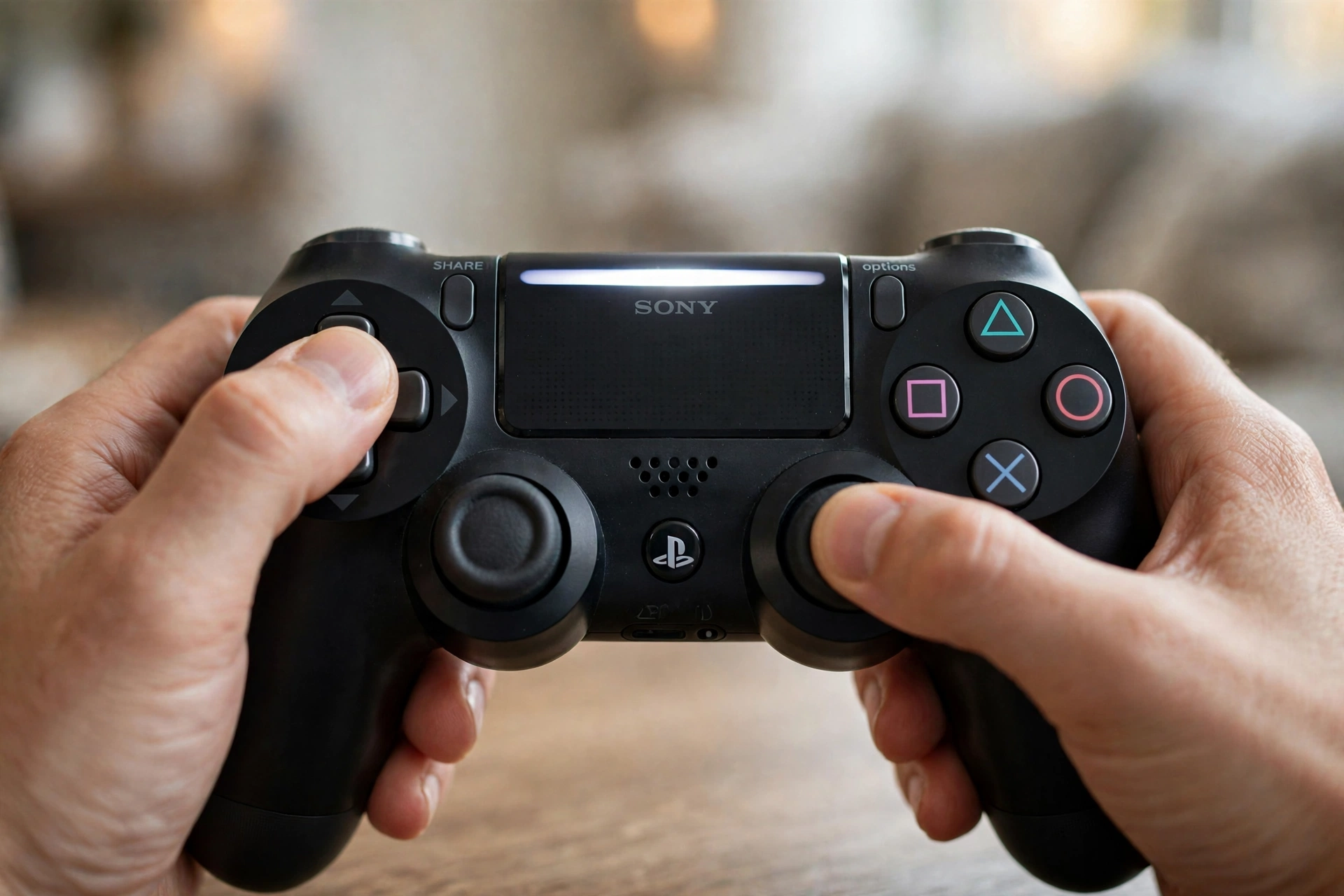
Bluetooth is the way to go if you play from the couch or hate cables. Expect about 4 to 6 hours of play per charge over Bluetooth, a bit less than wired play.
- Turn the controller off first. If the light bar is lit, hold the PS button until it goes dark.
- Put the controller in pairing mode: hold the Share button, then hold the PS button as well. Keep holding both until the light bar starts flashing white rapidly, after about 3 to 5 seconds.
- On your PC, open Settings, then Bluetooth and devices, and make sure Bluetooth is turned on.
- Click Add device, then choose Bluetooth.
- Pick Wireless Controller from the list. That is the name Windows gives the DualShock 4: it will not say PS4 or DualShock.
- Wait for the light bar to turn a solid color. The controller is paired.
The next time you want to play, just press the PS button and the controller should reconnect to your PC on its own. To use the controller with your PS4 again, plug it into the console with a USB cable and press the PS button once. That re-pairs it to the console, and you will need to pair it to the PC again afterward. If the controller never appears in the Bluetooth list, reset it with the small pinhole button on the back (hold it for 5 seconds with a paperclip), then try pairing again. If your PC has no Bluetooth at all, a USB Bluetooth adapter costs a few dollars and works fine: plug it in, let Windows install it, then follow the same steps.
Method 3: Set Up Your PS4 Controller in Steam
Steam is where the DualShock 4 feels most at home on PC. Valve added official PlayStation Controller Support years ago, and it handles the button translation, the touchpad, and the light bar for you.
- Connect your controller with a cable or Bluetooth using Method 1 or 2 above.
- Open Steam and go to Settings in the top left menu, then open the Controller tab.
- Find PlayStation Controller Support and set it to Enabled, or to Enabled in Games w/o Support if you want Steam to handle games that lack their own PlayStation support.
- Go back to the Controller tab and click Test Controller or open Steam’s controller settings to check that every button, stick, and trigger responds.
- Launch a game. Many modern games will show PlayStation button icons (Square, Triangle, Circle, X) on their own. If a game still shows Xbox prompts, open its in-game settings and look for a button prompt or controller icon option.
Steam Input also lets you remap buttons, adjust the touchpad, and set the light bar color per game, all from the same Controller settings page. If a Steam game still does not respond to the controller, our Steam-specific fixes are here: https://game-padtester.com/controller-not-working-in-steam-6-quick-fixes/
Can You Use a PS4 Controller on PC Without Steam?
Yes. DS4Windows is the free tool for that job, and it is the standard choice for games on the Epic Games Store, GOG, Xbox Game Pass, and standalone launchers. It reads your DualShock 4 and presents it to Windows as a virtual Xbox 360 controller, which is the input type nearly every PC game understands.
How to Install DS4Windows
- Download DS4Windows from the official project page on GitHub (the ds4windowsapp/DS4Windows repository). Avoid random download mirrors.
- Extract the zip file and run DS4Windows. If it asks for the .NET 8 Desktop Runtime, install it from Microsoft and restart DS4Windows.
- When asked, install the ViGEmBus driver. This is the driver that creates the virtual Xbox controller.
- Connect your PS4 controller by cable or Bluetooth. DS4Windows should list it, and the controller will now show up in games as an Xbox 360 controller.
- Leave DS4Windows running in the background while you play. Closing it removes the virtual controller.
Fix Double Input With HidHide
Double input is the most common DS4Windows headache: a button press registers twice because the game sees both the real DualShock 4 and the virtual Xbox controller. Fix it in two steps. First, turn off Steam’s PlayStation Controller Support (Steam, then Settings, then Controller, then set it to Not Enabled), because Steam and DS4Windows fight over the same controller. Second, install HidHide, which hides the real controller from games so only the virtual one gets through. Our full DS4Windows troubleshooting guide is here: https://game-padtester.com/ds4windows-not-detecting-controller/
Which Method Should You Pick?
Pick the cable if you play competitive games or want zero setup: it is the fastest, the most stable, and it charges while you play. Pick Bluetooth if you play from a couch or a laptop and want to move freely. Pick Steam Input if almost all your games are on Steam: it is the least work and gives you the best touchpad and light bar support. Pick DS4Windows if you play games outside Steam, especially on the Epic Games Store or Game Pass, since those games often expect Xbox input and nothing else. You can mix methods too: many players use Bluetooth plus Steam for most games, then switch on DS4Windows for the odd non-Steam title.
Test Your PS4 Controller Before You Play
A quick test now saves a ruined match later. Open our free gamepad tester at https://game-padtester.com/ and press every button, move both sticks in full circles, pull both triggers to 100 percent, and swipe the touchpad. If a button does not light up on screen, or a trigger stops short of 100 percent, you have found a hardware problem before it costs you a game. You can also re-check the controller in joy.cpl if you want a second opinion. If everything works but the game still feels slow to respond, the connection may be adding lag: our lag fixes are here: https://game-padtester.com/how-to-reduce-controller-input-lag-on-pc/
PS4 Controller Not Working on PC? 5 Quick Fixes
- Swap the cable. A charge-only micro-USB cable is the top cause of a wired controller not being detected. Use a data cable, ideally the one from your PS4.
- Reset the controller. Push a paperclip into the small hole on the back of the controller, hold it for 5 seconds, then pair again.
- Remove the device and re-pair. In Windows Bluetooth settings, remove Wireless Controller from the paired list, then run through Method 2 again from scratch.
- Turn off Steam support when using DS4Windows. If buttons fire twice, Steam and DS4Windows are both translating input. Set PlayStation Controller Support to Not Enabled in Steam.
- Reinstall the driver. Open Device Manager, find the controller under Human Interface Devices or Bluetooth, right-click it, choose Uninstall device, then reconnect the controller and let Windows install the driver again. For disconnects that keep coming back, see our dedicated guide: https://game-padtester.com/ps4-controller-keeps-disconnecting-from-pc/
FAQs
Do I need DS4Windows to use a PS4 controller on PC?
No, not for Steam games. Steam has built-in PlayStation support, so a DualShock 4 works there with no extra software. You need DS4Windows only for games outside Steam, such as Epic Games Store or Game Pass titles, where the game expects Xbox input.
Why does my PS4 controller show Xbox buttons on PC?
Most PC games are built for XInput, the input standard Xbox controllers use. Steam and DS4Windows translate your DualShock 4 into a virtual Xbox controller, so games show A, B, X, and Y prompts. Some games let you switch to PlayStation icons in their settings.
Can I use my PS4 controller on PC and PS4 at the same time?
No. The controller pairs with one device at a time. To move it back to your PS4, plug it into the console with a USB cable and press the PS button. To move it back to your PC, pair it over Bluetooth again.
Does the PS4 controller touchpad work on PC?
Yes, in Steam. Steam Input can use the touchpad as a mouse or map it to buttons, and you can change that per game. Outside Steam, DS4Windows can map the touchpad too, but some games will simply ignore it.
Why is my PS4 controller flashing white and not connecting?
A fast flashing white light bar means the controller is in pairing mode or a pairing attempt failed. Reset the controller with the pinhole button on the back, remove Wireless Controller from your PC Bluetooth list, charge the controller, then pair it again.
A PS4 controller on PC is a two minute job once you know the steps: cable for the fastest setup, Bluetooth for wireless play, Steam Input for your Steam library, and DS4Windows for everything else. Pick the method that matches where you play, test the controller on our gamepad tester before your first match, and use the quick fixes above if anything acts up. Your DualShock 4 still has plenty of life left on PC.