Controller Rumble Not Working? 7 Fixes That Bring Back the Buzz
You fire up a game, take a hit, and feel nothing. No rumble on the explosion, no buzz on the tackle. Before you buy a new pad, work through this list. A silent controller is a software or settings problem far more often than a dead motor, and most fixes take less than five minutes. We go in order of effort, covering PS5, Xbox, Nintendo Switch, and PC.
First, Prove the Motors Still Work
Do not touch a single setting until you know whether the motors are alive. A browser-based vibration test is the cleanest check: connect the controller, press any button so the page sees it, then run a rumble command. If the pad shakes, both motors and the signal path are fine, and the problem lives in a game or a setting.
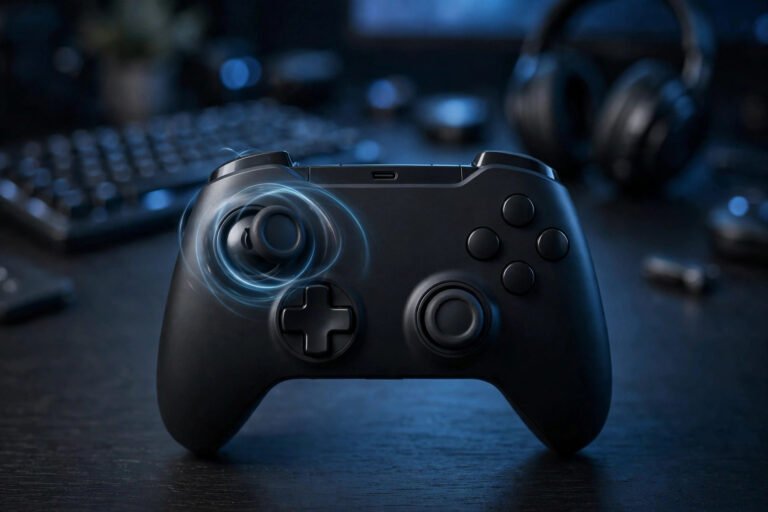
Run strong motor first, then weak motor, then both. Most controllers have two motors: a heavy low-frequency one (strong) and a lighter high-frequency one (weak). If both shake, your hardware is good. If only one shakes, note which one. A single dead channel points to hardware, while no rumble anywhere usually points to software.
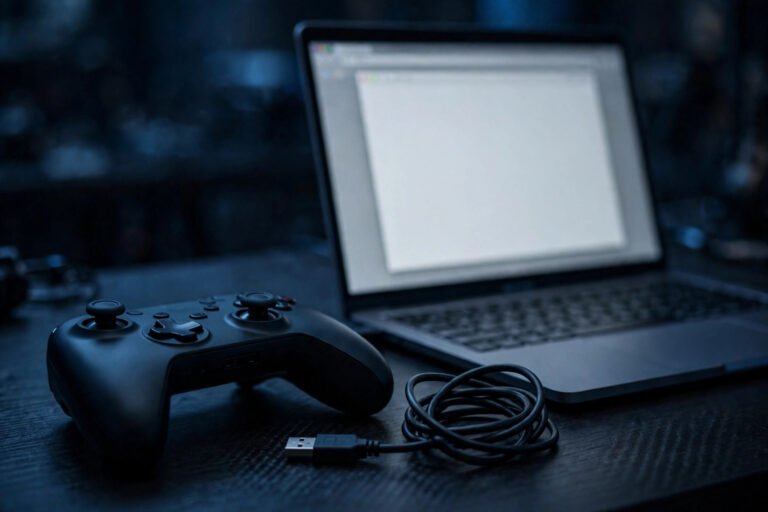
Test wired if you can. Bluetooth can carry button presses perfectly while fumbling the rumble signal, so a pad that feels dead over wireless might work fine on a cable. If your controller only rumbles over USB, you have a connection problem, not a motor problem. Confirm it with a connection stability test before you blame the motors.
Fix 1: Turn Vibration On in the Game Itself
Many games ship with vibration off or bury it under “Controller Feedback” or “Haptics.” Open the game’s settings, look under Controls or Accessibility, and enable vibration, rumble, or haptic feedback.
Then fully quit the game and relaunch it. Plenty of games only read controller settings at startup, so toggling vibration mid-session does nothing until you restart. If rumble works in one game but not another, stop here. That pattern almost always means the game has its own switch turned off, or that game simply does not support rumble on your platform.
Fix 2: Check the System-Level Vibration Setting
Every console has a master vibration switch that overrides games. If someone turned it off months ago, or a system update flipped it, every game goes quiet at once.
On PS5, go to Settings, then Accessories, then Controllers, and set Vibration Intensity to Medium or Strong. The DualSense also has a separate Trigger Effect Intensity slider. Check both, since they can be turned off independently. Sony’s own fix guide walks through these same steps, see the GameRevolution reference at the end.
On Xbox, press the Xbox button, go to Profile and system, then Settings, then Accessibility, then Controller, and choose Vibration settings. Standard controllers get a simple on/off toggle. On an Elite Series 2 you adjust vibration per profile with sliders, so check you are editing the profile you actually play with.
On Nintendo Switch, go to System Settings, then Controllers and Sensors, and make sure Controller Vibration is on. Note that the Switch Lite has no vibration hardware, and Nintendo’s HD Rumble is deliberately subtle, so do not expect the same punch as Xbox or PlayStation, see the SlashGear reference at the end.
Fix 3: Update the Controller Firmware
Outdated firmware is a quiet rumble killer. Manufacturers regularly fix vibration bugs in updates, and a controller that skipped a few updates can lose rumble while everything else works.
For Xbox controllers, plug the pad into the console or PC with USB, open the Xbox Accessories app, select your controller, and install any pending firmware update. The app also lets you reset a custom Elite profile that might have vibration turned down.
For the DualSense, connect it to your PS5 with USB and check for a controller update in Settings, then Accessories, then Controllers. On PC you can update DualSense firmware through the official PlayStation PC firmware updater.
For Switch Pro Controllers and Joy-Con, go to System Settings, then Controllers and Sensors, and choose Update Controllers. Nintendo pushes controller firmware alongside system updates, so make sure the console itself is current too.
After updating, retest rumble in a game you know supports it. If vibration returns, you are done.
Fix 4: Switch from Bluetooth to a Cable
Wireless links cause more rumble failures than most people expect. Bluetooth was built for small data like button presses, and the extra channel that carries rumble commands is the first thing to break when the link gets weak.
Plug the controller in with a proper data cable and test again. If rumble works wired but not wireless, the motors are fine. From there: move closer to the console or PC, remove other wireless devices between you and the screen, unpair and re-pair the controller, and on PC try a dedicated wireless adapter instead of built-in Bluetooth.
There is one more wireless trap on PC. If the controller keeps dropping and reconnecting, rumble can cut out along with everything else. If you see disconnects, fix the connection first using our guide on why controllers keep disconnecting, then retest rumble.
Fix 5: Fix the PC Software Layer
PC has the most layers between the game and the motors, so this is where most PC rumble problems live. Work through them one at a time.
Start with Steam Input. Open the game in your Steam library, go to Properties, then Controller, and try Steam Input both enabled and disabled. Some games need Steam Input to translate a PlayStation or Switch pad into something they understand. Other games have native controller support and get confused by Steam’s extra translation layer. There is no universal answer, so test both, and fully restart the game after each change.
Next, check for competing mappers. If you run DS4Windows, reWASD, or a similar tool alongside Steam Input, the two can fight over the controller and rumble gets lost in the middle. Pick one input layer per game and disable the others.
For the DualSense specifically, check Windows audio devices. Some PC games route DualSense haptics through the controller’s speaker and microphone device. If you disabled the Wireless Controller audio device in Windows sound settings, haptics can die while buttons keep working. Re-enable the controller’s speaker and microphone, set your normal speakers back as the default output, and relaunch the game.
Fix 6: Rule Out Power and Cable Problems
Low power makes motors weak or silent before anything else breaks. On an Xbox controller with AA batteries, swap in fresh batteries or a fully charged rechargeable pack and test. On a DualSense or Switch Pro Controller, charge it fully and test again.
On PC, the cable matters more than people think. A charge-only cable carries power but no data, so rumble commands never arrive. Use a cable you know transfers data, ideally the one that came with the controller, and plug it into a rear motherboard USB port rather than a hub.
Fix 7: Reset and Re-Pair the Controller
When everything above fails, reset the controller. On the DualSense and DualShock 4, turn the pad off, find the small hole on the back near the L2 trigger, press a paperclip into it for five seconds, then reconnect. On Xbox and Switch controllers, remove the device from the Bluetooth list first, then pair fresh as if it were new.
Pair wired first if you can. After the reset, check the system-level vibration setting once more, because resets can restore different defaults.
When Only One Motor Rumbles
If your testing shows the strong motor works but the weak motor never responds, or one grip rumbles while the other stays silent, across wired USB and a second game, you are probably looking at hardware. Rumble motors and their wiring are the most common internal failure, and settings cannot fix them.
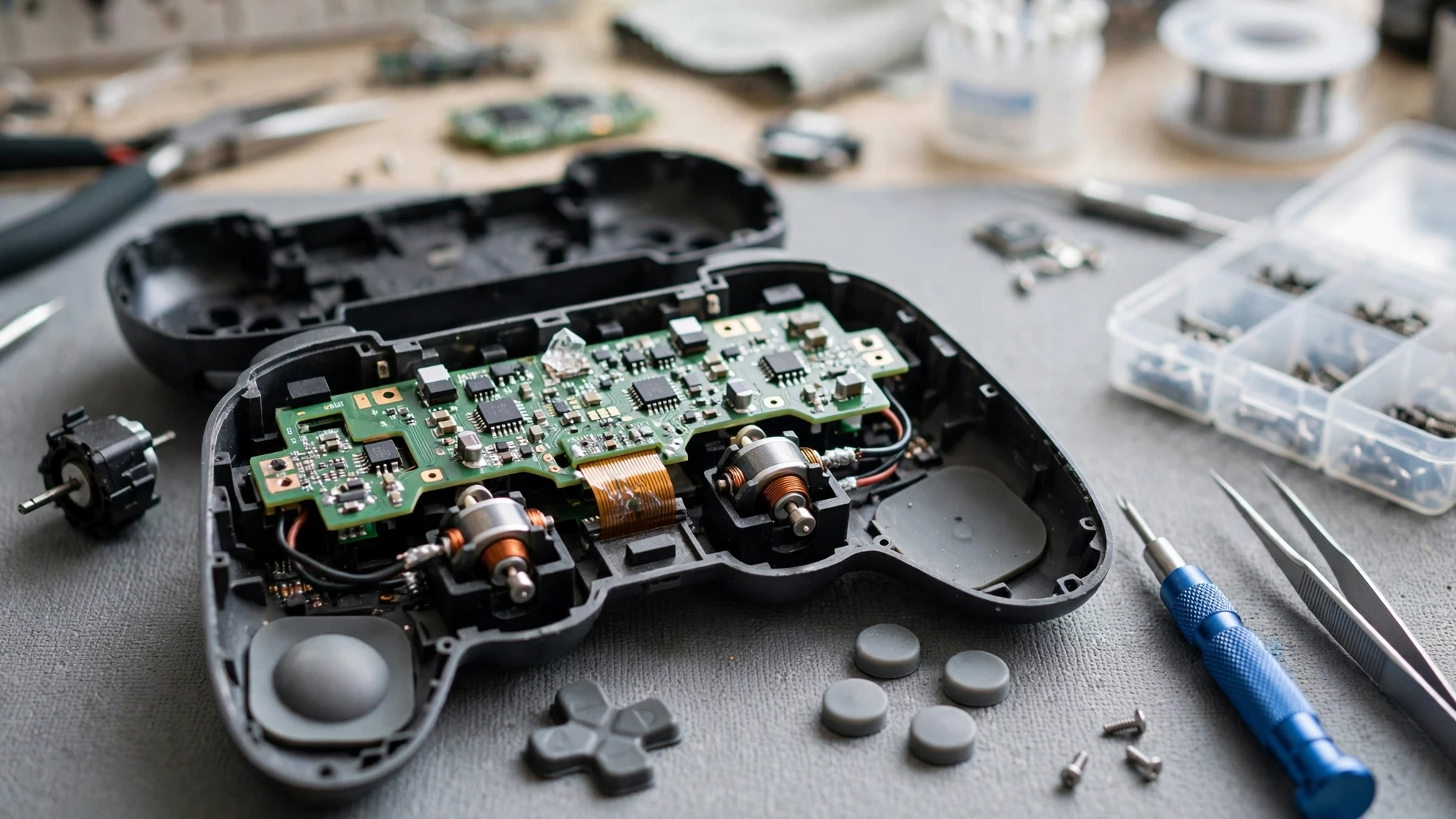
Before opening anything, check your warranty. Sony, Microsoft, and Nintendo all cover controller defects for at least a year in most regions, and opening the shell voids that coverage. If the controller is out of warranty and you are comfortable with a screwdriver, replacement motors are cheap, and iFixit has teardown guides for every major pad.
FAQs
Why is my controller not vibrating anymore?
The most common reasons are a game-level vibration setting turned off, a system-level vibration switch turned off, outdated controller firmware, or a Bluetooth connection that carries buttons but not rumble. Work through the fixes in this guide in order. In most cases the motors are fine and one of the software fixes brings rumble back.
Why does my Xbox controller rumble on the console but not on PC?
PC adds extra layers between the game and the motors. Check Steam Input (try it both enabled and disabled), close competing mappers, update firmware through the Xbox Accessories app, and test over a wired USB data cable.
Does controller vibration work over Bluetooth?
Usually yes, but it is the least reliable connection for rumble. Bluetooth can deliver button presses perfectly while dropping or weakening the rumble signal. If rumble works over USB but not Bluetooth, treat it as a connection problem. Re-pair the controller, reduce wireless interference, or switch to a wired cable or an official wireless adapter.
Why does only one side of my controller vibrate?
Controllers have separate strong and weak motors, and some have separate trigger motors too. If one motor never responds across wired USB, a second game, and a second device, that channel likely has a hardware fault. If one side is merely weaker, check the system vibration intensity setting and the battery level first, because low power weakens motors before anything else.
Should I worry if my controller vibrates nonstop?
A controller that rumbles constantly even in menus is a different problem. It usually means a stuck rumble command from a crashed game or a firmware glitch. Close the game fully, disconnect and reconnect the controller, and restart the console or PC. If it keeps happening in every game, reset the controller and update its firmware.
How do I turn vibration back on after an update turned it off?
System updates sometimes reset controller settings. On PS5 check Settings, then Accessories, then Controllers, and set Vibration Intensity back to Medium or Strong. On Xbox go to Settings, then Accessibility, then Controller, then Vibration settings. On Switch go to System Settings, then Controllers and Sensors, then Controller Vibration. On PC check the in-game setting and Steam Input again.
References
- GameRevolution’s PS5 haptic feedback fix guide
- SlashGear Nintendo Switch HD Rumble settings: https://www.slashgear.com/1499517/hd-rumble-nintendo-switch-how-to-activate-deactivate/