
Controller Keeps Scrolling Up? Here’s How to Fix It Fast
You are trying to pick a menu item and the selection keeps climbing. Or the volume creeps higher on its own. Or a settings page scrolls to the top every time you let go. When your controller keeps scrolling up, something is feeding a constant upward signal, and it is almost always one of three things: a drifting stick, a stuck button, or a software glitch. This guide shows you how to tell which one you have in about sixty seconds, then gives you the exact fix for each.

The 60-Second Diagnosis: Stick, Button, or Software
Open a gamepad tester in your browser, connect the controller, and set it down without touching it. Now watch.
If the left stick’s vertical axis shows constant upward movement at rest, the stick is drifting up. Our stick drift tester makes this easy to see, and a deadzone tester shows how far the stick sits from center.
If the sticks sit at zero but a button stays lit in the tester without you pressing it, a button is stuck. The usual suspect is LB or RB, because bumpers take the hit when a controller drops.
If the sticks are centered and no button is lit, yet menus still scroll up, the cause is software. Something between the controller and the screen is generating the input. Read the software section below.
Write down your result. Every fix in this guide targets one of these three buckets, and using the wrong fix wastes your time.
If the Stick Is Drifting Up
Stick drift means the analog stick’s sensors report movement when the stick is centered. The sensors are tiny potentiometers that wear with use, and when they wear unevenly, the rest position shifts. Even a small upward bias scrolls menus fast because menus repeat the input many times per second.
Start with the deadzone. The deadzone is the small area around the stick’s center that the system ignores. Raising it tells the console or PC to disregard the stick’s false signal. Many games have a deadzone slider in their controller settings. On PC, Steam lets you set it per game in the controller configuration. Raise it in small steps until the scrolling stops, but not so far that the stick feels unresponsive.
Next, clean under the stick. Dust and skin oils work into the stick housing and add friction that holds the stick slightly off-center. Blow compressed air around the base of the stick while rotating it through its full range of motion. Then recalibrate if your platform offers it. Xbox controllers can be recalibrated through the system controller settings, and PC tools can do the same.
If cleaning and deadzone do not stop it, the sensor is worn, not dirty. Our guide on fixing stick drift without opening the controller covers every non-invasive method in order, including the calibration tricks that work when cleaning fails.
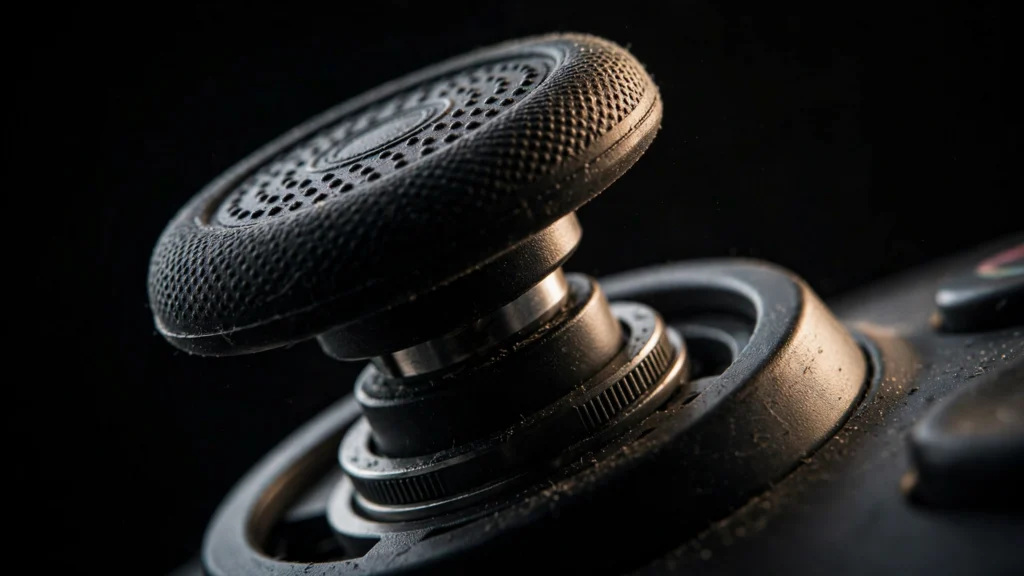
If a Button Is Stuck
A stuck bumper or d-pad button can scroll menus too, because many menus treat a held button as a repeating input. The tricky part is that the button may not look stuck. A bumper that sits one millimeter low can still register as pressed.
Test each button in the gamepad tester, pressing and releasing every face button, bumper, trigger, and d-pad direction one at a time. Watch for any input that stays lit after you let go, or any button that registers from the lightest touch.
To fix it, slide a toothpick gently around the button’s edges to clear out grit, then clean the crevice with a cotton swab damp with isopropyl alcohol, pressing the button repeatedly to work the alcohol underneath. Let it dry completely before testing. This fixes most cases caused by drops, dust, or sticky residue.
If the button still registers as pressed, the rubber membrane underneath is worn or torn. That is a cheap replacement part, but installing it means opening the controller. Check your warranty first. If the controller is still covered, a warranty claim is smarter than a screwdriver.
If the Tester Shows Nothing: Software Causes
When the controller looks clean in the tester but menus still scroll up, the phantom input is being created by software. Here are the causes in order of likelihood.
First, Steam’s desktop controller layout. If Steam is running on your PC, it applies a controller profile to the desktop itself, and a misconfigured layout can scroll or move things without you touching the pad. Open Steam Settings, go to Controller, and disable or empty the desktop layout, then test again.
Second, a second controller or joystick is plugged in. Old flight sticks, racing wheels, and forgotten gamepads can all send input that the system reads as controller input. Unplug every USB input device except your keyboard, mouse, and the controller you are testing. This alone fixes a surprising number of mystery scrolling cases, especially in older PC games that listen to every connected device.
Third, the Windows Xbox controller bug. If you use a wired Xbox controller on Windows and the cable briefly disconnects and reconnects, Windows can get stuck believing an upward input is still held. The cruel part is that unplugging the controller does not clear it, because the stuck state lives in Windows. Only a full shutdown and power cycle clears it. After the power cycle, fix the root cause: use a cable with a snug connector that does not wiggle, or switch to wireless. This bug is well documented by affected players (https://www.resetera.com/threads/pc-help-windows-seemingly-registering-inputs-although-only-with-certain-elements.570544/).
Fourth, the Steam “fast scroll” bug. Some Steam users have found that corrupted per-game controller data makes sticks behave wildly, scrolling fast and controlling the wrong things. The documented fix is to delete the Steam userdata folder for your account (back up your screenshots folder first), then restart Steam and let it rebuild the data (https://steamcommunity.com/discussions/forum/0/2805133852518800824/). Only try this after the simpler software checks fail.

Step-by-Step Fix Order
Here is the whole process in one list. Do it top to bottom and stop when the scrolling stops.
- Run the gamepad tester with the controller untouched and note whether the stick drifts, a button sticks, or nothing shows.
- For drift: raise the deadzone, clean under the stick with compressed air, recalibrate.
- For a stuck button: clean around it with a toothpick and isopropyl alcohol.
- For software: disable Steam’s desktop controller layout and unplug all other input devices.
- On Windows with a wired Xbox controller: do a full power cycle, then fix the loose cable.
- Update the controller firmware over USB.
- If nothing works and the tester still shows drift or a stuck input on a second device, the controller needs repair or replacement.
When It’s Time for Repair
If the gamepad tester shows upward drift or a stuck button on two different devices, and cleaning, deadzone, and firmware have all failed, the hardware is worn out. Stick potentiometers have a limited lifespan, and heavy use wears them faster. Button membranes tear and lose their spring.
Check the warranty before anything else. Sony, Microsoft, and Nintendo cover controller defects for at least a year in most regions, and opening the controller voids that coverage. If you are out of warranty and comfortable with small electronics, stick modules and button membranes are inexpensive, and iFixit has step-by-step teardowns for every major controller (https://www.ifixit.com/Answers/View/671858/Why+is+the+analog+stick+jittery,+erratic,+or+jumpy). If you are not comfortable opening it, a local repair shop can usually do the job cheaply.
FAQs
Why does my controller keep scrolling up?
A constant upward signal is reaching the system from one of three places: a drifting analog stick reporting upward movement at rest, a stuck button (often a bumper) registering as a repeating press, or a software glitch such as Steam’s desktop layout, a conflicting second controller, or the Windows USB disconnect bug. A sixty-second gamepad tester check tells you which bucket you are in.
Is my stick drifting or is a button stuck?
Open a gamepad tester and set the controller down untouched. Constant upward movement on the stick’s vertical axis means drift. A button that stays lit without being pressed means a stuck button. Nothing showing in the tester while menus still scroll means software. Each cause has a different fix, so diagnose before you repair.
Why does my Xbox controller scroll through menus so fast?
Fast scrolling usually means the upward signal is strong or repeating quickly. Check for stick drift first and raise the deadzone. If you are on PC with a wired Xbox controller, the Windows disconnect-reconnect bug can also cause runaway scrolling that only a full power cycle clears. Also try unplugging other USB controllers and disabling Steam’s desktop controller layout.
How do I increase deadzone to stop scrolling?
In most games, look under Settings, then Controls or Controller, for a deadzone or stick sensitivity slider. Raise the left stick deadzone in small steps until the scrolling stops. On PC, open the game’s controller configuration in Steam and set the deadzone there. Stop raising it once the stick still responds normally to real input, because too much deadzone makes aiming feel sluggish.
Why does unplugging my controller not stop the scrolling?
If unplugging the controller does not stop it, the stuck input lives in software, not the pad. On Windows, a brief USB disconnect can leave the system believing an input is still held, and only a full shutdown and power cycle clears it. Corrupted Steam controller data can also keep scrolling after the controller is gone. Power cycle first, then check Steam’s desktop layout and controller data.
Can Steam cause my controller to scroll on its own?
Yes. Steam applies a desktop controller layout whenever it runs, which can scroll and move the cursor without any game open. Corrupted per-game controller data can also make sticks behave wildly in Steam games. Disable the desktop layout in Steam Settings under Controller, and if problems persist in games, back up your screenshots and delete the Steam userdata folder so it rebuilds cleanly.
References
ResetEra thread documenting the Windows Xbox controller scrolling bug
Steam fast-scroll userdata fix: https://steamcommunity.com/discussions/forum/0/2805133852518800824/
Microsoft Q&A controller drift triage: https://learn.microsoft.com/en-us/answers/questions/3870497/why-are-all-of-my-controllers-are-drifting-up-in-t
iFixit analog stick cleaning: https://www.ifixit.com/Answers/View/671858/Why+is+the+analog+stick+jittery,+erratic,+or+jumpy