Controller Not Detected in Browser: Fixes for Chrome, Edge and Firefox
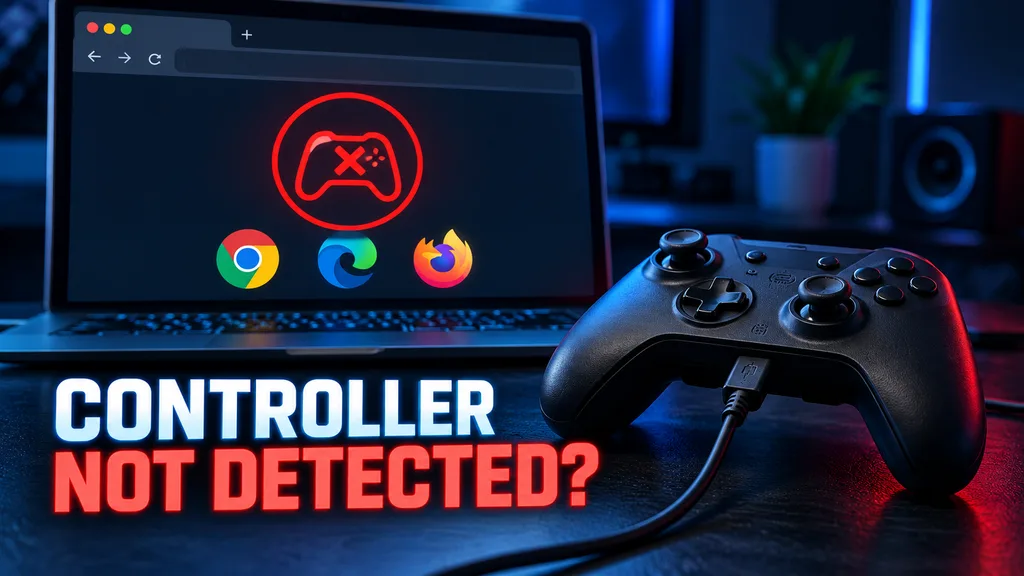
If your controller is not detected in the browser, focus the tester page and press a face button such as A, Cross or B first. Browsers may not display a connected controller until they receive a deliberate button press.
Controller Not Detected in Browser If that does not work, follow the fixes below in order. They will help you determine whether the problem comes from the controller, USB or Bluetooth connection, operating system, browser or another controller application.
Quick Fix: Make the Browser Detect Your Controller
Try these steps before changing any drivers or advanced browser settings:
- Connect or pair your controller.
- Open the Gamepad Tester.
- Click anywhere inside the tester page.
- Press A, Cross or another face button several times.
- Reload the page and press the button again.
- Keep the tester tab visible and active.
- Disconnect any additional controllers.
- Reconnect the controller after the page has loaded.
A face button is usually more reliable than moving a stick because small stick movements may be ignored as normal analog noise.
Why Is My Controller Not Detected in Browser?
Online controller testers use the browser’s Gamepad API to read buttons, triggers and stick movements. The browser can only display information that your operating system and controller driver make available to it.
Detection can fail when:
- The controller is paired but not actively connected
- The webpage is not focused
- No controller button has been pressed
- A USB cable supplies power but does not carry data
- Steam Input or another remapping tool changes the controller
- The browser is outdated
- The controller firmware or Bluetooth driver is outdated
- An extension or privacy setting blocks part of the page
- The controller uses an unsupported or unusual input mode
- The tester is opened inside a restricted embedded frame
- Another program is holding or transforming the controller input
A controller’s power light only proves that it is receiving power. It does not prove that the computer or browser can read its inputs.
Is the Problem the Controller, Browser or Website?
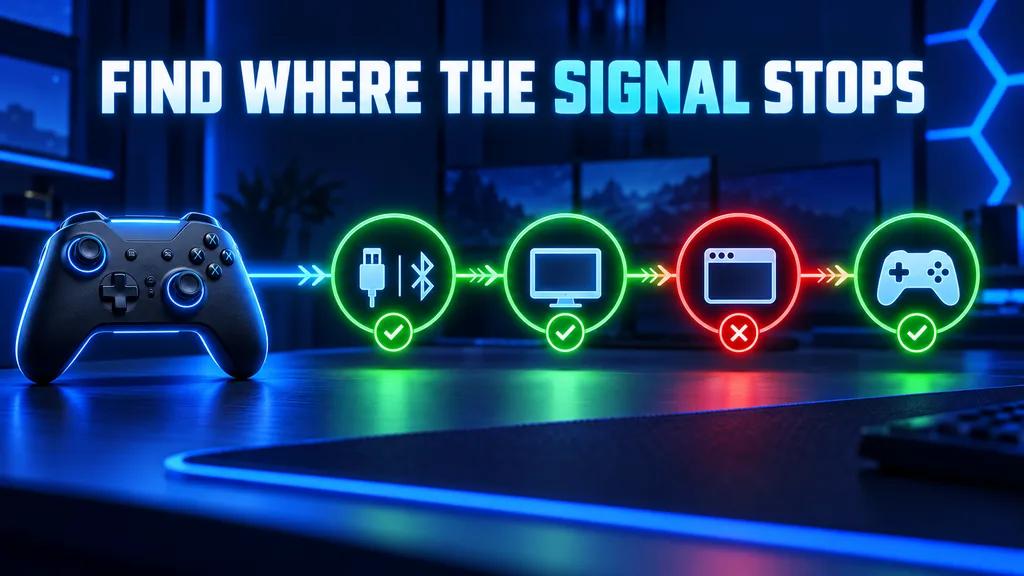
Use this table to identify the most likely cause.
| Test result | Most likely cause |
|---|---|
| Controller works nowhere | Cable, battery, pairing, firmware, driver or hardware problem |
| Controller appears in Windows but not the tester | Browser, mapping or controller-software problem |
| Controller works in Chrome but not Firefox | Browser-specific setting or behavior |
| Controller works in the tester but not a browser game | Game, cloud service or launcher problem |
| Buttons appear with incorrect labels | Non-standard controller mapping |
| Two controllers appear in the tester | Physical and virtual controllers are both active |
| Controller stops responding after changing tabs | The tester page no longer has focus |
| Buttons work but vibration does not | Browser haptic support, not general detection |
| Controller works only through Steam | Steam may be translating the original input |
Start at the connection layer and change only one setting at a time. This makes it easier to identify the real cause.
1. Focus the Page and Press a Controller Button
Modern browsers may wait for a user action before exposing connected controller information to a webpage.
Open the Gamepad Tester, click inside the page and press a face button. Keep the tab open and visible while testing.
If the controller was connected before you opened the page:
- Reload the tester.
- Wait for it to finish loading.
- Press A, Cross, B or another face button.
- Move both sticks through their full range.
Do not test from a background tab. Chrome, Edge and Firefox may handle background controller input differently.
2. Disconnect and Reconnect the Controller
A browser may occasionally miss the original connection event.
Use this sequence:
- Close games and controller utilities.
- Disconnect the controller.
- Open the tester page.
- Reconnect the controller.
- Click the tester.
- Press a face button.
Test with only one controller connected. Multiple physical and virtual controllers can make it difficult to identify which device the browser is reading.
3. Try a Different USB Cable and Port
A controller can light up through a charge-only cable while sending no data to the computer.
If you are using USB:
- Use a cable that you know transfers data.
- Connect directly to the computer.
- Avoid an unpowered USB hub during testing.
- Try another USB port.
- Check both ends of the cable.
- Inspect the controller’s port for looseness or debris.
- Test the cable with another compatible data device if possible.
A successful wired connection also helps determine whether the original problem is limited to Bluetooth.
4. Check Whether Windows Detects the Controller
If Windows does not recognize the controller, Chrome, Edge and Firefox normally cannot read it.
Test the controller with joy.cpl
- Press Windows + R.
- Type
joy.cpl. - Press Enter.
- Select your controller.
- Click Properties.
- Press the buttons and move both sticks.
If the buttons and axes respond in this window, Windows can read the controller. Continue with the browser-specific fixes below.
If the controller does not appear:
- Try another USB cable or port.
- Remove and pair the Bluetooth connection again.
- Restart the controller and computer.
- Check Device Manager for a warning symbol.
- Install normal Windows updates.
- Update the controller through its manufacturer’s official application.
Avoid downloading controller drivers from unknown driver websites.
5. Close Steam Input and Controller Remapping Tools
Steam Input, DS4Windows, reWASD, emulator software and manufacturer utilities can translate, hide or duplicate controller inputs.
Temporarily close applications such as:
- Steam
- DS4Windows
- reWASD
- Controller Companion
- Emulator frontends
- Manufacturer configuration software
- Cloud-gaming launchers
- Virtual gamepad drivers
Disconnect and reconnect the controller after closing them, then repeat the browser test.
This does not mean these applications are defective. They may create a virtual Xbox-style controller for games that cannot understand the physical device directly. The browser may see the physical controller, the virtual controller, both devices or neither device depending on the configuration.
If closing a tool makes the controller disappear, reopen it and check whether it is required to translate that specific controller.
How to Fix a Controller Not Detected in Chrome
Chrome supports the standard Gamepad API, but the page still needs to receive a controller interaction.
Try these Chrome fixes:
- Open the tester in a normal top-level Chrome tab.
- Click inside the page.
- Press a face button.
- Reload the page.
- Disconnect and reconnect the controller.
- Update Chrome.
- Test in an Incognito window.
- Close Steam and controller remapping tools temporarily.
- Test with a direct USB data connection.
- Restart Chrome after changing drivers or firmware.
To update Chrome:
- Open the three-dot menu.
- Select Help.
- Open About Google Chrome.
- Allow Chrome to check for updates.
- Relaunch the browser if requested.
Test Chrome without extensions
Incognito mode disables most extensions unless you have specifically allowed them to run there. If the controller works in Incognito, an extension or modified browser setting may be affecting the tester.
Disable extensions one at a time instead of removing all of them.
Should you change Chrome flags?
Do not start by changing experimental Chrome flags. Many older tutorials recommend flags that have been renamed, removed or changed between browser versions.
Use the default settings unless you are investigating a confirmed bug affecting your exact Chrome version.
How to Fix a Controller Not Detected in Microsoft Edge
Microsoft Edge and Chrome are both Chromium-based browsers, so their basic Gamepad API behavior is often similar.
Try these Edge fixes:
- Keep the tester tab active.
- Click inside the tester.
- Press a controller face button.
- Reload the page.
- Update Microsoft Edge.
- Test in an InPrivate window.
- Close other games, launchers and controller utilities.
- Confirm the controller works in
joy.cpl. - Try USB if Bluetooth is not working.
- Restart Edge after updating a driver or controller firmware.
To update Edge:
- Open the three-dot menu.
- Select Help and feedback.
- Open About Microsoft Edge.
- Install the available update.
- Restart Edge.
If the controller works in Chrome but not Edge, compare extensions and privacy settings. If it fails in both browsers but works in Windows, check Steam Input, virtual-controller drivers and the controller’s current input mode.
How to Fix a Controller Not Detected in Firefox
Firefox supports the Gamepad API, but it places particular importance on user interaction while the webpage is visible.
Try these Firefox fixes:
- Keep the tester page visible.
- Click inside the page.
- Press a face button several times.
- Reload the tester.
- Update Firefox.
- Test Firefox Troubleshoot Mode.
- Close controller remapping applications.
- Compare the controller in Chrome or Edge.
- Check advanced preferences only if they were previously changed.
Test Firefox Troubleshoot Mode
Firefox Troubleshoot Mode temporarily disables extensions and some customizations.
- Open the Firefox menu.
- Select Help.
- Choose Troubleshoot Mode.
- Restart Firefox when prompted.
- Open the tester and press a controller button.
If the controller works in Troubleshoot Mode, an extension or customized setting may be interfering.
Check Firefox’s gamepad preference
This is an advanced check and should not be the first fix.
- Enter
about:configin the address bar. - Accept the warning.
- Search for
dom.gamepad.enabled. - Confirm it has not been manually changed to
false.
Do not change unrelated preferences. If you previously enabled strict fingerprinting-resistant settings, test with the normal defaults to see whether those settings are limiting controller information.
Fix a Bluetooth Controller Not Detected in the Browser
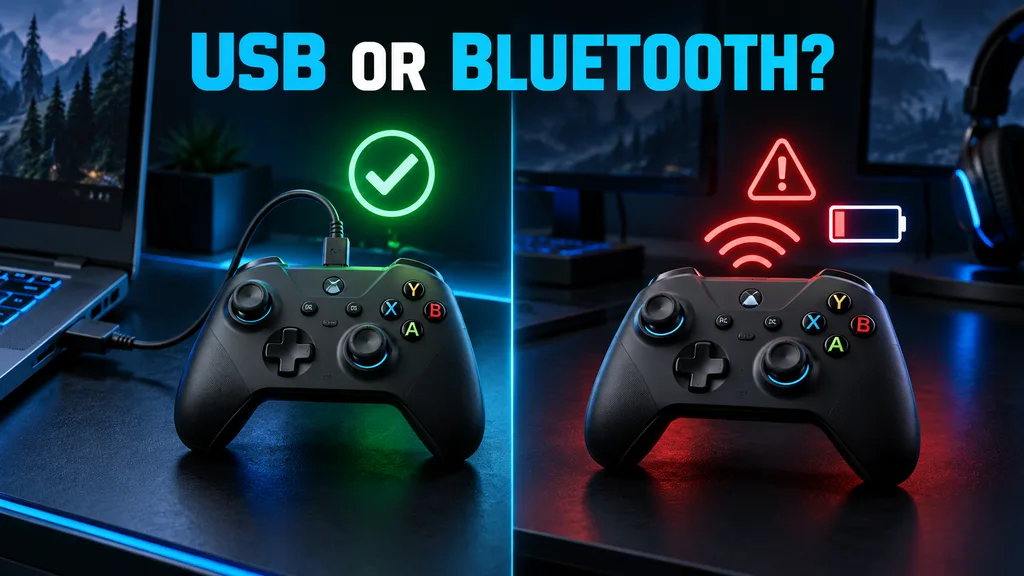
“Paired” and “connected” do not always mean the same thing. A controller may remain saved in the Bluetooth device list without maintaining an active connection.
Try this sequence:
- Charge the controller.
- Turn off Bluetooth on other devices previously paired with it.
- Remove the controller from your computer’s Bluetooth list.
- Restart Bluetooth.
- Put the controller into pairing mode.
- Pair it again.
- Open the tester.
- Press a face button.
If the problem continues:
- Move closer to the computer.
- Disconnect unnecessary Bluetooth devices.
- Update the Bluetooth driver.
- Install available operating-system updates.
- Compare the result with a wired USB connection.
If USB works but Bluetooth does not, the browser is probably not the main problem. Focus on pairing, controller firmware, battery condition and the computer’s Bluetooth adapter.
Fix a Controller Not Detected on macOS
First confirm that macOS recognizes the controller.
- Open System Settings.
- Select Bluetooth.
- Confirm that the controller shows as connected.
- Check the Game Controllers panel if it is available.
- Remove and pair the controller again if necessary.
- Compare Bluetooth with a USB data connection.
Close Steam, controller remappers and cloud-gaming applications before testing again.
If the controller works in Safari but not Chrome or Firefox, update the affected browser and test with extensions temporarily disabled. A successful result in one browser shows that the controller and macOS connection are working.
Fix a Controller Not Detected on Linux
A controller may work through Steam’s translation layer while remaining unavailable to a normal browser process.
You can first check whether Linux sees the USB device:
Advanced users can also check the available input devices or use a trusted controller-testing utility from their Linux distribution.
If Linux detects the controller but browsers do not:
- Compare Firefox and a current Chromium browser.
- Check whether the browser was installed as a sandboxed package.
- Close Steam and virtual-controller software.
- Reconnect the controller after closing those applications.
- Review device permissions for your distribution.
- Test wired USB and Bluetooth separately.
Do not copy unknown udev rules from an unverified website. Rules should match the exact controller and Linux setup.
Why Does the Controller Work in Steam but Not in the Browser?
Steam Input can translate a controller into a format that a game understands. A browser outside Steam may receive the original raw device instead.
This can produce several results:
- Steam recognizes the controller, but the browser does not.
- The browser shows different button numbers.
- The browser detects both the physical and virtual controller.
- Closing Steam removes the only compatible virtual controller.
- Opening Steam creates duplicate input.
Test with Steam closed first. If the controller disappears completely, reopen Steam and determine whether its translation is required.
Do not assume the controller is broken simply because Steam and the browser report it differently.
Fixes for Xbox, PlayStation and Switch Controllers
Xbox controller not detected
For an Xbox controller:
- Test it in
joy.cpl. - Update its firmware through the official Xbox Accessories app.
- Compare USB, Bluetooth and the Xbox Wireless Adapter.
- Remove and pair the Bluetooth connection again.
- Close Steam Input during the first browser test.
Xbox-style XInput controllers generally use a browser-friendly standard layout, but drivers, firmware and virtual devices can still cause detection problems.
PS5 or PS4 controller not detected
For DualSense or DualShock 4:
- Use a USB data cable for the first test.
- Pair the controller again if using Bluetooth.
- Close DS4Windows temporarily.
- Test the physical controller before enabling virtual Xbox emulation.
- Compare Chrome, Edge and Firefox.
DS4Windows can help applications that do not support PlayStation controllers, but it can also create a second virtual device. Check which controller the browser is displaying.
Switch Pro Controller not detected
For a Switch Pro Controller:
- Test both USB and Bluetooth.
- Disconnect it from the Nintendo Switch before pairing with the computer.
- Close Steam Input temporarily.
- Press a face button after opening the tester.
- Expect button labels to differ in some browser mappings.
Generic controller not detected
Many generic controllers provide more than one operating mode, such as:
- XInput
- DirectInput
- Android mode
- Switch mode
Check the controller manual for its mode-switching combination. XInput mode is usually the most compatible option on Windows, but the correct choice depends on the controller and operating system.
What If the Controller Is Detected but the Inputs Are Wrong?
Detection and correct mapping are separate issues.
A controller can appear in the browser while:
- Buttons use unexpected numbers
- A and B are reversed
- X and Y are reversed
- Triggers appear as buttons instead of axes
- Both triggers share one axis
- Extra paddles do not appear
- Touchpad or gyro input is unavailable
- Vibration is unsupported
The standard Gamepad API focuses on common buttons, triggers and axes. Extra hardware features are not exposed consistently across every browser and controller.
After detection works, use the Trigger Test to check whether LT, RT, L2 or R2 reach their full range.
You can also use the Stick Drift Test to inspect resting stick movement and axis behavior.
Why Is My Controller Showing Twice?
Duplicate controllers usually mean that the browser sees:
- The original physical controller
- A virtual controller created by Steam Input, DS4Windows, reWASD or another tool
Close the remapping application and reconnect the controller. If one entry disappears, you have identified the virtual device.
Duplicate inputs can cause:
- Menus moving twice
- Two button presses from one action
- Incorrect player assignments
- Confusing button labels
- One controller working while the other remains inactive
Use only the input layer required by your game or browser.
How to Confirm the Controller Is Working
After the browser detects your controller, verify more than its name.
Test:
- Every face button
- D-pad directions
- Left and right bumpers
- Left and right triggers
- Both stick clicks
- Full stick movement
- Start, Menu, View or Share buttons
- Stable connection for at least one minute
A detected controller can still have a damaged button, incomplete trigger range or stick drift.
FAQS
Why is my controller connected but not detected in the browser?
The controller may be paired without actively sending data, or the browser may be waiting for a gamepad user action. Focus the tester page and press a face button. If it still does not appear, check whether the operating system detects it.
Why do I need to press a button before the browser detects my controller?
Browsers limit gamepad information for privacy reasons. A deliberate controller input tells the browser that the user is actively interacting with the device.
Why is my controller not detected in Chrome?
The page may not be focused, the controller may need a button press, or another application may be changing its input. Reload the tester, press a face button, test Incognito mode and close controller remapping software temporarily.
Why does my controller work in Chrome but not Firefox?
Firefox may require the page to be visible when the controller interaction occurs. Extensions, privacy preferences and browser-specific device mapping can also produce different results.
Does Microsoft Edge support controllers?
Yes. Microsoft Edge supports the standard Gamepad API. Keep the page active and press a controller button after opening the tester.
Why does my controller work in Steam but not in the browser?
Steam Input may be translating the physical controller into a virtual Xbox-style device. A normal browser may receive the original controller differently or may not receive the translated device.
Can a USB cable power a controller without detecting it?
Yes. A charge-only USB cable can power or charge a controller without carrying input data. Test with a cable known to support data transfer.
Why is Bluetooth connected but the controller does not work?
The controller may be connected to another saved device, have low battery, use an incompatible mode or have a Bluetooth driver problem. Remove the pairing, restart Bluetooth and pair the controller again.
Can DS4Windows stop a browser from detecting a controller?
It can change what the browser sees by hiding the physical controller or creating a virtual one. Close DS4Windows temporarily to compare the raw controller connection.
Why does the controller work in the tester but not in my game?
If every input works in the tester, the controller, operating system and browser connection are functioning. The remaining problem is more likely related to the game, streaming service, controller profile or launcher.
Is my controller broken if vibration does not work?
Not necessarily. Button detection and vibration use different browser capabilities. A controller can report every input correctly even when browser vibration is unavailable.
Do Chrome and Edge show a controller permission popup?
The standard Gamepad API normally does not use the same permission popup seen with a camera or microphone. Instead, the browser may wait for a controller interaction before exposing the device.
Should I reinstall the controller driver?
Only after simpler checks fail or Windows shows a device error. Start with Windows Update, controller firmware, another cable, another port and a fresh Bluetooth pairing.
Test Your Controller Now
Open the free Gamepad Tester, connect your controller and press a face button.
Once it is detected, test every button, trigger and stick before changing calibration settings or deciding that the controller needs repair.
Sources and Editorial Notes
Browser behavior was checked against the W3C Gamepad specification and MDN’s Gamepad API documentation.
Windows driver recommendations were checked against Microsoft’s official driver-update guidance.
Controller support can vary by model, connection method, operating system and browser version. Test the controller in more than one environment before deciding that it has a hardware fault.