How to Test Controller Input Lag
Want to know how to test controller input lag without buying expensive gear? The most honest home method is a slow-motion phone video: film your thumb and the screen in one shot, count the frames between the press and the on-screen reaction, and run a simple formula. A faster check is a browser polling-rate test, which measures your controller’s share of the delay in about a minute. This guide covers both methods, what counts as a good number, and how to cut the lag you find.
What Is Controller Input Lag?
Controller input lag is the total delay between your thumb moving and the game reacting on screen. It is not one thing. It is a chain of small delays stacked on top of each other:
- Your controller scans the button or stick (1-2 ms).
- The controller reports that input over the connection: wired USB, Bluetooth, or a 2.4 GHz dongle (1-20 ms depending on type).
- Your PC or console processes the input (1-3 ms).
- The game engine reads it on its next tick (4-16 ms at 60 fps).
- The GPU renders the frame and your display draws it (1-15 ms depending on the screen and its settings).
Add those up and a normal setup lands somewhere between 8 and 56 ms of total lag. That is why two players with the same controller can feel very different responsiveness: the display and the game settings are often the biggest variables, not the pad.
One distinction that saves a lot of confusion: input lag is not the same as response time. Response time is how fast a single pixel changes color on your monitor. Input lag is the full trip from press to pixels. A monitor with a 1 ms response time can still add 15 ms of input lag if its game mode is off.

What Is a Good Input Lag Number?
It helps to split the number in two: the controller’s own share, and the full chain.
For the controller’s share (pad to PC), lower is better and anything under about 10 ms is excellent. Here are figures reported by hardware testers for popular pads. Treat them as lab-reported baselines, not promises: your exact number moves with firmware, drivers, and setup.
| Controller | Connection | Reported Latency |
|---|---|---|
| PS5 DualSense | Bluetooth (optimized) | ~1.0 ms |
| PS5 DualSense | Wired USB | ~1.5 ms |
| Xbox Series X | Wired USB | ~6.8 ms |
| Xbox Series X | Bluetooth | ~10.0 ms |
| Xbox Elite Series 2 | Wireless dongle | ~7.0 ms |
For the full chain (thumb to screen), 30-60 ms is normal on a decent setup, and most players stop noticing improvements once the controller’s own share drops under about 8 ms. Human reaction time sits around 150-250 ms, so the controller is a small slice of what you feel. Chasing the last 2 ms on the pad while your TV adds 40 ms is fixing the wrong link.
How to Test Controller Input Lag at Home
Method 1: Slow-motion phone camera (most honest)
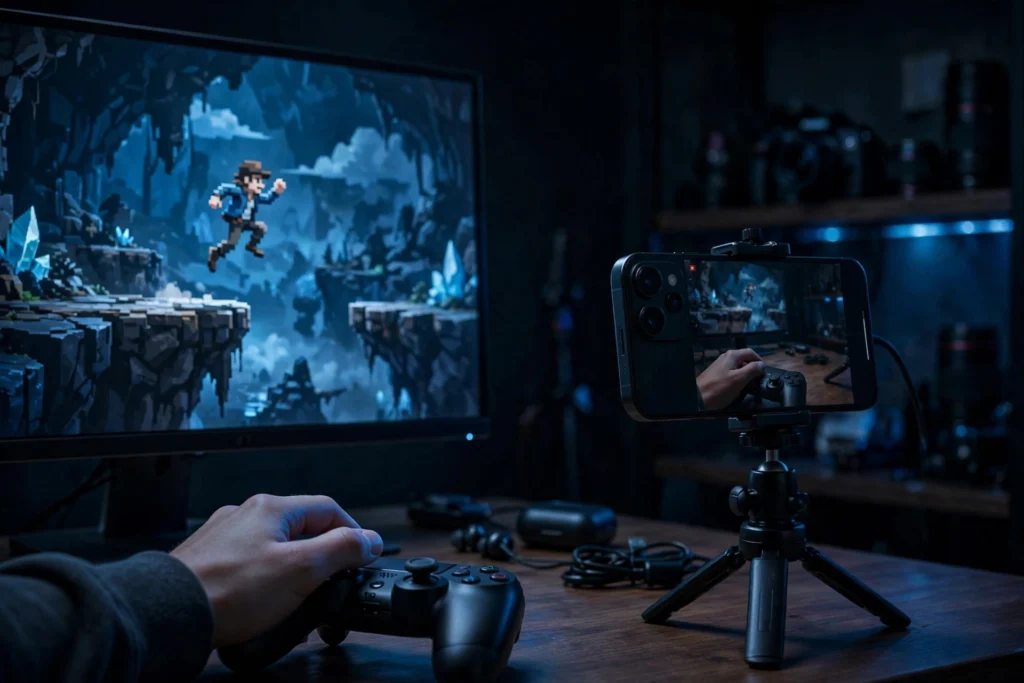
This is the closest you can get to a true end-to-end number without lab gear, because it captures the real press and the real screen reaction.
- Prop your phone so one shot shows both your controller and your monitor.
- Switch the camera to slow motion. 240 fps is standard on most iPhones and Androids.
- Record yourself pressing a button with a clear on-screen result, like jumping or shooting.
- Open the video in a player that steps frame by frame. Count the frames from the moment your finger fully presses the button to the first frame where the action starts on screen.
- Do the math: (frames ÷ 240) × 1000 = latency in milliseconds. Count 12 frames and your lag is 50 ms.
This number covers everything: controller, PC, and monitor. Run it three times and average the results.
Method 2: Polling-rate comparison in your browser (fastest)
A browser cannot time your physical press or your display, so it cannot give you the true end-to-end figure. What it can measure is the controller’s share of the lag: how often the pad reports (polling rate) and how steady the connection is. That is the part you can actually fix, and the test takes about a minute.
- Open our free controller polling rate test and run it with the controller plugged in over USB. Note the Hz and how steady the number is.
- Switch to Bluetooth (or your dongle) and run the same test. Note the new Hz and the jitter.
- Read the gap. A lower Hz or jumpier reading on wireless is the latency your connection adds. A big gap means the link, not the pad, is your problem.
If the numbers jump all over the place on either connection, try a different cable or USB port before blaming the controller. You can also run a connection stability test to check whether the connection itself is unstable.
Method 3: The feel test in your actual game
Numbers are useful, but feel is the final judge. Load a rhythm game or a fighting game and run a frame-perfect combo, first wired and then wireless. Test in the game you actually play, because network latency, the engine tick rate, and VSync all stack on top of controller latency. A perfect lab number means little if your game runs at 30 fps with VSync on.
Wired vs Bluetooth vs 2.4 GHz Dongle
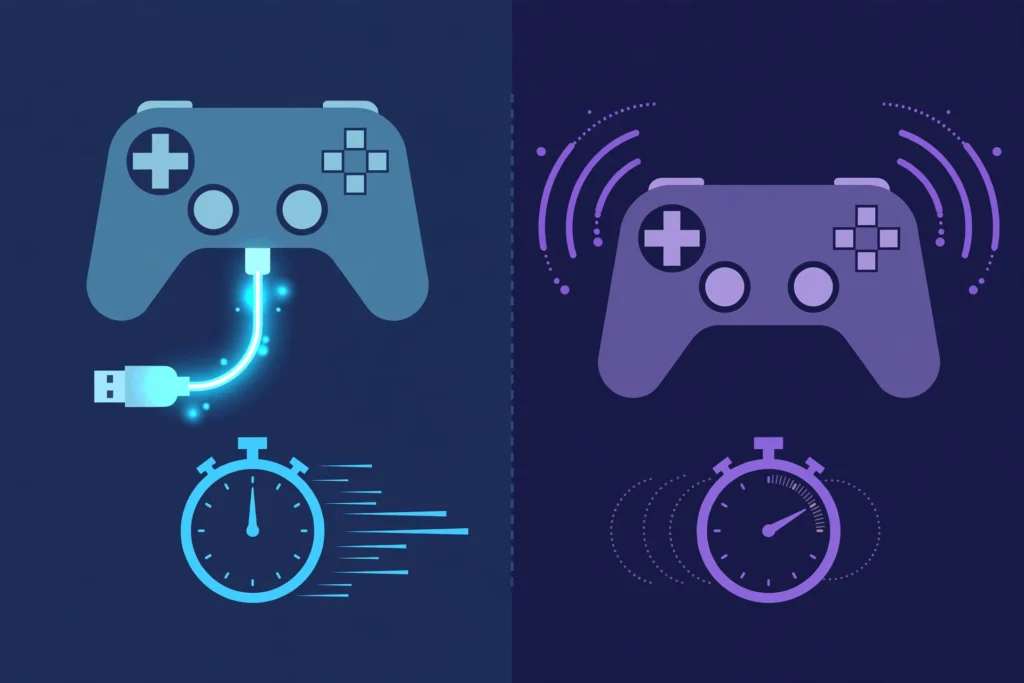
Across controlled tests, the tiers look like this:
- Wired USB: 1-4 ms, the steadiest option and the competitive standard.
- 2.4 GHz dongle (Xbox Wireless Adapter or a dedicated dongle): 3-6 ms, close to wired, far steadier than Bluetooth.
- Bluetooth 5.0 direct to PC: 8-12 ms, with occasional spikes when interference hits.
- Bluetooth to console: 10-20 ms, with extra encryption and processing overhead.
Two details most guides skip. First, the Bluetooth version on the box barely matters for controllers: the protocol overhead is the bottleneck, not the radio, so a 5.2 dongle will not meaningfully beat a 5.0 one for pad latency. Second, PlayStation pads break the “wired is always fastest” rule on PC. The DualSense and DualShock 4 cap wired USB polling at 250 Hz, but over Bluetooth they can report faster with the right drivers, so some testers measure lower latency on Bluetooth for these specific pads. Do not take that as gospel for every setup: test both connections yourself and keep whichever measures better.
How to Reduce Controller Input Lag
Work through this checklist in order. Most people feel the difference after the first three steps.
On PC:
- Go wired with a data cable. Plug into a rear motherboard USB port, not a front-panel port or a hub. Front ports add electrical noise and jitter.
- Put dongles on USB 2.0. USB 3.0 signaling sits at 2.5 GHz, right next to the 2.4 GHz band your wireless link uses, and the crosstalk causes spikes.
- Clear the 2.4 GHz airspace. Move the Wi-Fi router to 5 GHz if you can, and keep wireless headset dongles, wireless mouse dongles, and microwaves away from your controller and receiver.
- Turn off Bluetooth audio while gaming. A Bluetooth headset and a Bluetooth controller fight for the same radio time. This is the most common cause of sudden one-second freezes.
- Update firmware and drivers. Run the Xbox Accessories app for Xbox pads, and keep your Bluetooth adapter drivers current through Device Manager. Intel and Realtek both ship stability fixes that directly help latency.
- Kill double input layers. Running Steam Input and DS4Windows at the same time means two programs translate your inputs, which adds real delay. Pick one. Also close overlays you do not need: Xbox Game Bar, Discord overlay, and screen recorders all hook into input.
- Disable Windows power saving for USB and Bluetooth. Windows is allowed to suspend these devices mid-game unless you tell it not to.
- Raise the polling rate where the pad allows it. DS4Windows or HIDUSBF can push some wired pads to 1000 Hz. Verify the change with a before-and-after run on our polling rate test instead of trusting the setting.
- Prefer a 2.4 GHz dongle over Bluetooth if you must play wireless. The Xbox Wireless Adapter is the easy pick for Xbox pads.
On console (PS5 / Xbox):
- 10. Turn on your display’s game mode. This alone can cut 10-25 ms by bypassing image processing. Also switch off motion smoothing and noise reduction.
- 11. Use the game’s performance mode when it offers one. Higher frame rates shorten the wait between your input and the next drawn frame.
- 12. Keep the controller close with a clear line of sight to the console, and update the controller firmware in the system settings.
Troubleshooting Odd Results
- Your slow-mo number is way higher than expected. Check the TV’s game mode first. The display is the biggest variable in most living-room setups, and it is the link players blame last.
- The number jumps between runs. That is usually Bluetooth interference or a busy PC. Retest over a wired connection for a baseline, then change one thing at a time.
- Only one game feels laggy. The pad is probably fine. Engine tick rate, VSync, and network latency belong to the game, not the controller.
- Inputs feel delayed AND the sticks drift on their own. That is not lag, that is drift: the pad is sending inputs you never made. Run our stick drift test to confirm before chasing latency fixes.
- Bluetooth was fine yesterday and terrible today. Something joined the 2.4 GHz band: a new router channel, a headset charging nearby, or a neighbor’s network. Work through the airspace checklist above.
FAQs
Can you test controller input lag in a browser?
Not the true end-to-end figure. Real input lag runs from your thumb to the pixels changing, and a web page cannot timestamp your physical press or the display. What a browser can measure is the controller’s share: its polling rate and connection steadiness. Fix those and the felt lag drops.
How do I test my controller’s latency?
Measure the polling rate wired and then wireless with a browser test, and compare the two numbers. The gap is the latency your connection adds. For the closest thing to a true button-to-screen figure at home, use the slow-motion phone method described above.
What is a good input lag for a controller?
For the controller’s own share, under about 10 ms is excellent. For the full thumb-to-screen chain, 30-60 ms is normal on a decent setup. Consistency matters more than the raw figure: your timing adapts to stable latency, not to a variable one.
Does Bluetooth add input lag?
Yes, typically a few milliseconds over a cable, and it varies more moment to moment. The one exception testers report is PlayStation pads on PC, where Bluetooth can match or beat wired because of how Sony caps USB polling. Test both on your own setup.
Is wired always faster than wireless?
For the same controller, a USB cable is the reliable floor. A good 2.4 GHz dongle gets close and usually beats Bluetooth. The PlayStation-on-PC exception above is the only common case where wireless can win, so verify rather than assume.
How much input lag does polling rate add?
At most one polling interval. A 125 Hz pad updates every 8 ms, so it can add up to 8 ms of wait. A 1000 Hz pad updates every 1 ms. Moving from 125 Hz to 1000 Hz saves up to about 7 ms of worst-case wait, and past 250 Hz the gains shrink fast. You can measure your controller’s polling rate free in your browser.
Why does my PS5 DualSense feel laggy on PC?
Usually the connection, not the pad. Test it wired and then over Bluetooth: if one measures steadier, that is your answer. Also check for double input layers (Steam Input plus DS4Windows) and a weak battery, both of which read as inconsistent lag. For a longer wired-vs-wireless comparison, run a connection stability test.
Does Steam Input add input lag?
A small amount, typically low single-digit milliseconds on a healthy wired setup. It becomes a real problem when stacked with a second remapping tool like DS4Windows, or when a specific pad interacts badly with Bluetooth. Disable it per game rather than globally, since some games need it to recognize PlayStation or Switch controllers at all.
Can a phone slow-motion test measure true input lag?
It is the closest home method because it captures the actual press and the actual screen reaction in the same footage. Use 240 fps, count frames from full press to first on-screen reaction, and apply (frames ÷ 240) × 1000. It will not match lab hardware to the millisecond, but it is honest and repeatable.
Should I overclock my controller’s polling rate?
Only over wired USB on PC, and only on pads whose drivers allow it, like the DualSense and DualShock 4 via DS4Windows or HIDUSBF. It cannot fix a slow display or a bad wireless link, so fix the connection first and treat overclocking as the last few percent.
References
- MDN Web Docs, Gamepad API: https://developer.mozilla.org/en-US/docs/Web/API/Gamepad_API

2 Comments