How to Calibrate Your Xbox Controller on PC (Windows 10/11)
If your Xbox controller pulls to one side, aims slowly, or fires a trigger too early on PC, calibration is the fix to try before you buy a new pad. Calibration resets what your PC treats as “center” for the sticks and triggers, so a resting stick reads as zero again.
This guide covers how to calibrate Xbox controller on PC in three ways: the official Xbox Accessories app, the built-in Windows calibration wizard, and Steam deadzone tuning. Start with Method 1 if you have a Series X|S or Elite controller. Use Method 2 for older Xbox One controllers. Use Method 3 when a game still feels off after the first two.
What Calibration Actually Fixes (and What It Does Not)
Calibration helps when a stick rests slightly off center, a trigger reads a small value without being pressed, or movement feels uneven in one direction. It can hide light drift and make aiming feel consistent again.
Calibration does not repair a worn stick mechanism. If a stick snaps back with a loud click, grinds, or drifts hard in one direction even after calibration, the hardware is likely worn. In that case, calibration is a short term fix, and a stick replacement or a new controller is the real answer.
Before You Start: Test Your Controller First
Do not calibrate blind. Test first so you can compare before and after.
- Connect your controller by USB cable. A cable gives the most stable reading during setup, even if you normally play wireless.
- Press Windows + R, type joy.cpl, and press Enter.
- Select your Xbox controller, click Properties, then open the Test tab.
- Leave both sticks alone. Watch the crosshair and the axis numbers. A healthy controller rests near zero. A small constant offset is what calibration is meant to fix.
- Press each trigger slowly, then move each stick in a full slow circle. Note any stick that sticks, jumps, or never reaches the edge of its range.
If you want a quick browser check, use the gamepad tester on game-padtester.com to see live stick and trigger values before you change anything.
Method 1: Recalibrate With the Xbox Accessories App (Best for Series X|S and Elite)
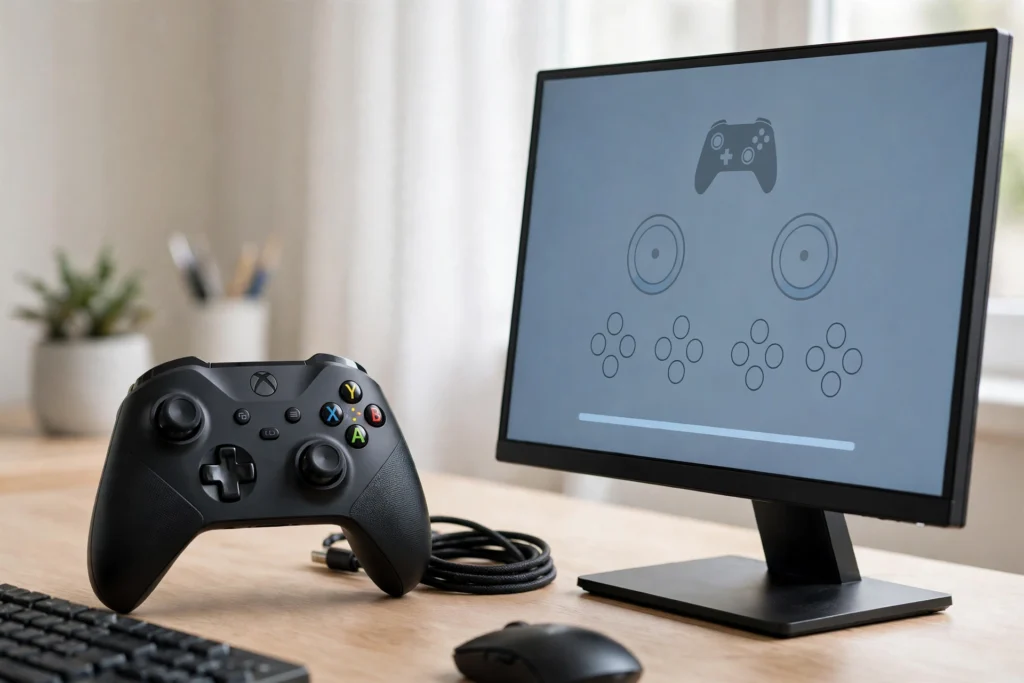
The Xbox Accessories app is Microsoft’s official tool, and it is the only method that writes a new center point back to a supported controller itself. It works on Windows 10 and Windows 11, and it is free from the Microsoft Store.
- Install Xbox Accessories from the Microsoft Store and connect your controller by USB.
- Open the app and select your controller.
- Update the firmware first if the app offers an update. Do not unplug the controller during a firmware update. If you need the full steps, see our guide on how to update Xbox controller firmware on PC: https://game-padtester.com/how-to-update-xbox-controller-firmware-on-pc/
- Look for the recalibration option for your controller. On supported models it appears in the controller settings after the firmware check.
- Follow the on screen prompts. The app will ask you to leave the sticks centered, then move them as directed. Move slowly and let each stick return to center on its own. Do not hold it in place.
- Repeat for the second stick if prompted, then test the triggers if the app offers trigger recalibration.
If the recalibration option does not appear, your controller model or firmware may not support it. That is normal for some older Xbox One controllers. Move to Method 2 instead, which works on almost every PC controller.
Method 2: Calibrate With the Windows Game Controller Wizard (joy.cpl)
The Windows wizard changes how your PC reads the controller, not the controller itself. That is still useful, because most PC games read the Windows values. This is the classic method that older guides describe, and it still works on Windows 10 and Windows 11.
- Connect your controller by USB.
- Press Windows + R, type joy.cpl, and press Enter.
- Select your Xbox controller and click Properties.
- Go to the Settings tab and click Calibrate. If you only see a Test tab, click Settings first; the Calibrate button lives there.
- Click Next, then leave the D-pad and sticks centered and press a button when asked.
- Follow each prompt: move the stick in the directions shown, leave it centered when told, and press the buttons and triggers as requested. Do not rush the axis steps.
- Click Finish, then go back to the Test tab and check the resting values again. Both sticks should now sit near zero when untouched.
To reset instead of recalibrating, open the same Settings tab and choose Reset to Default. That clears a bad calibration in one step, and it is worth trying if a previous calibration made things worse.
Method 3: Fine Tune Deadzones in Steam (Best for PC Games)
Sometimes Windows calibration is correct but a game still drifts, because the game reads tiny stick movements. Steam lets you set a deadzone per game, which tells the game to ignore small inputs around center.
- Open Steam and go to Settings, then Controller.
- Select your Xbox controller and open its calibration or controller settings.
- Find the deadzone setting for the left and right sticks.
- Set the smallest deadzone that fully hides your at rest reading. If your stick rests at 0.05, a deadzone just above that, such as 0.06 or 0.08, usually fixes it without making aiming feel numb.
- Test in a game. If small movements feel delayed, lower the deadzone slightly. If drift returns, raise it slightly.
Steam settings only affect Steam games, so keep your Windows calibration as the base and use Steam deadzones as a per game fine tune. If a controller is not working in Steam at all, fix that first with our Steam guide: https://game-padtester.com/controller-not-working-in-steam-6-quick-fixes/
What to Do If Calibration Does Not Fix Drift
Work through this order before replacing anything:
- Clean around the stick base with compressed air. Dust under the stick rim can hold it slightly off center.
- Try a different USB cable and a different USB port. A loose cable can look like a calibration problem.
- Update the firmware in Xbox Accessories, then recalibrate again.
- Reset the calibration to default in joy.cpl, then run the wizard once more from a clean start.
- Test the controller on another PC. If it drifts there too, the fault is in the controller, not your PC setup.
If drift comes back within days after every calibration, the stick sensor is wearing out. At that point, a repair or replacement will save more time than another calibration round.
Calibration Checklist: Settings That Actually Matter
Use this quick checklist after any calibration session:
- Resting sticks read near zero in the joy.cpl Test tab.
- Both sticks reach full range in every direction without jumping.
- Triggers go from zero to full smoothly, with no early firing.
- Firmware is up to date in Xbox Accessories.
- Steam deadzone is set only as high as needed, not higher.
- You tested in an actual game, not only in a settings screen.
FAQs
Does calibrating an Xbox controller fix stick drift?
It fixes light drift caused by a shifted center point, and it hides small sensor offsets. It does not fix heavy drift from a worn stick, which needs repair or replacement.
Do I need the Xbox Accessories app to calibrate on PC?
No. The Windows joy.cpl wizard calibrates almost any controller on PC. The Xbox Accessories app is the better choice for Series X|S and Elite controllers because it can write the new center point to the controller itself.
Why is there no Calibrate button in joy.cpl for my controller?
Some newer Xbox controllers show only a Test tab in joy.cpl because Microsoft moved calibration to the Xbox Accessories app. Use Method 1 for those controllers, and use Steam deadzones if a game still drifts.
Will calibration delete my button mappings?
No. Calibration changes stick and trigger center points and ranges. It does not erase button remaps in Xbox Accessories or Steam, but it is still smart to note your profiles before making changes.
How often should I recalibrate my Xbox controller?
Only when you notice a problem, or after a firmware update changes how the sticks feel. There is no need to recalibrate on a schedule if the resting values are clean and games feel right.
Final Check
Calibrate once, test properly, and stop. A good calibration should feel boring: sticks sit still when you let go, aiming starts when you move, and triggers fire when you press. If you have to recalibrate every week, treat that as a hardware warning, not a software routine, and plan a repair or replacement before it costs you a ranked match.