Controller Not Working in Steam? 6 Quick Fixes
You launch your favorite game on Steam, pick up your controller, and nothing happens. The pad works fine on your desktop, Steam even shows it connected, but in game you get zero response. It is frustrating, but in most cases the fix takes less than ten minutes.
The usual cause is not a broken controller. It is a settings clash: Steam Input fighting the game, two input tools running at once, or a driver that needs a refresh. Work through the six fixes below in order, and test after each one. Most players find the fix in the first three steps.

First, Find Out Where It Breaks
Before you change anything, answer one question: does Steam see your controller at all? Open Steam, go to Settings, then Controller, and check the list of detected controllers. Press a few buttons and watch for a response.
If Steam does not see the pad, the problem is at the connection or driver level, so start with Fix 4. If Steam sees it but the game ignores it, the problem is almost always Steam Input or a conflicting tool, so start with Fix 1. This one check saves you from changing settings that were never broken.
You can also test every button, stick and trigger for free on the game-padtester.com homepage tester. If the buttons respond there but not in Steam, you know the hardware is fine and the fix is in software.
Fix 1: Set Steam Input the Right Way for That Game
Steam Input is the layer that translates your controller for games. It helps a lot of pads, but it also causes most Steam controller problems, because some games want it on and others want it off.
For one game only, do this: right click the game in your Steam library, open Properties, then Controller, and look at the Steam Input dropdown. If it is on “Use default settings”, try “Enable Steam Input” first, restart the game, and test. If that fails, try “Disable Steam Input” and test again. For Xbox controllers, “Disable” often works best, because most games support Xbox pads directly. For PlayStation controllers, “Enable” often works best, because many games only understand Xbox input without it.
Change this per game, not for all of Steam. A setting that fixes one game can break another, and that is normal.
Fix 2: Run Only One Input Tool at a Time
DS4Windows, reWASD, JoyToKey, Xbox Accessories remapping, and Steam Input all do a similar job. Run two of them on the same pad and the game may see double input, no input, or a phantom second controller.
Close every remapping tool except the one you actually need for that game. If you use DS4Windows for a PlayStation pad, turn Steam Input off for that game, or close DS4Windows and let Steam Input do the job. Never run both at once. If you already read our DS4Windows guide, the same rule applies there: one clean input path, every time.
Also check Windows Device Manager for duplicate controllers. Old virtual controllers left behind by uninstalled tools can steal the “player one” slot. Remove any virtual gamepad you no longer use, restart Steam, and test again.
Fix 3: Check the Game Itself Before You Blame Steam
Not every Steam game supports every controller. Open the game’s Steam store page and check the “Controller Support” line: “Full” means it is built for pads, “Partial” means some parts need a mouse, and no mention means support is limited.
Also check the in-game settings. Many games have their own input setting, like “Input Device” or “Controller Preset”, and it may be set to keyboard only. Switch it to controller, or to “Auto”, and restart the game. If a game worked yesterday and broke after an update, verify the game files: right click the game, Properties, Installed Files, then “Verify integrity of game files”. A damaged input config file is a common silent cause.
Fix 4: Switch to Wired USB and Re-Pair Bluetooth
Wireless problems look exactly like Steam problems. A weak Bluetooth link can drop inputs while Steam still shows the pad as connected. Plug the controller in with a USB cable and test. If wired works, the pad and Steam are fine, and the fault is the wireless link.
For Bluetooth, remove the controller from Windows Bluetooth settings, then pair it again from scratch. On a PlayStation pad, hold the PS button and Share button together until the light bar flashes, then pair. Keep only one controller connected while you test. A second pad, a flight stick, or a racing wheel can grab the player one slot and leave your main pad ignored.
Fix 5: Update Drivers and Firmware, Then Restart Steam Fully
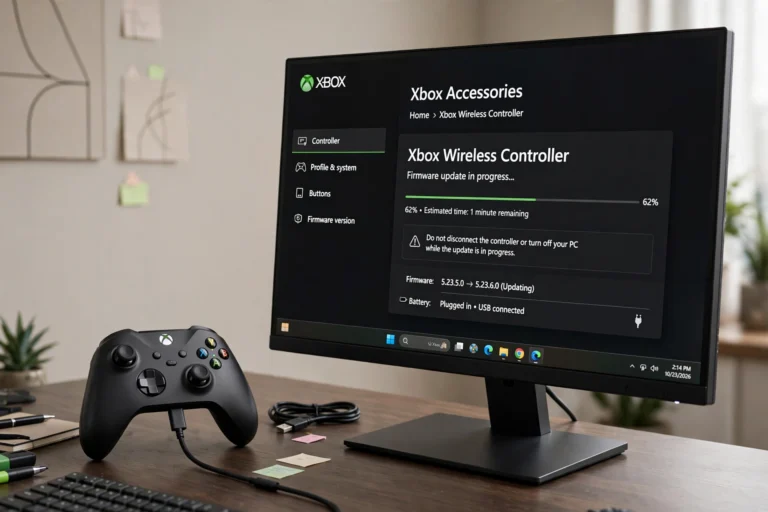
Outdated drivers and old firmware cause detection failures that look random. In Windows Device Manager, find your controller, right click it, and choose “Update driver”. For Xbox pads, also update firmware through the Xbox Accessories app on Windows. For PS5 DualSense pads, use Sony’s official firmware updater for Windows.
Then restart Steam properly, not just the game. Close Steam from the system tray, wait a few seconds, and open it again. Steam only re-scans controllers on a fresh start, so a game restart alone often is not enough. Full steps for both brands are in our Xbox firmware guide and our PS5 firmware guide linked above.

Fix 6: Test in Big Picture Mode and With a Clean Boot
If nothing above worked, test in Big Picture Mode. Open Steam in Big Picture, go to Settings, then Controller Settings, and check whether the pad responds there. If it responds in Big Picture but not in a game, the issue is per game settings, so go back to Fix 1 and Fix 3. If it fails even in Big Picture, the issue is at the system level.
As a last software check, restart Windows with only Steam running and no other game tools, overlays, or RGB apps open. Overlays from Discord, GeForce Experience, or other launchers sometimes block controller input in full screen games. If the pad works in a clean boot, add your apps back one at a time until you find the clash.
When It Is a Hardware Problem
If the controller fails on a second PC, fails wired and wireless, and fails the online button test, the hardware is the likely cause. Try a different cable and a different USB port first, because a worn cable is the most common hardware fault. Sticky buttons, drift, or a dead battery can also mimic a Steam problem, so rule those out before you buy a replacement.
FAQs
Why does my controller work in Steam but not in game?
This usually means Steam Input is set wrong for that game, or a second input tool is fighting Steam. Change the per game Steam Input setting (Fix 1) and close other remapping tools (Fix 2). Test after each change.
Why is my controller detected but no buttons respond?
The game may be reading a different device as player one. Disconnect extra pads, wheels, and sticks, remove old virtual controllers in Device Manager, and restart Steam. Also check the in-game input device setting.
Should Steam Input be on or off?
It depends on the pad and the game. Xbox pads usually work best with Steam Input off, because games support them directly. PlayStation and generic pads usually work best with Steam Input on. Test both settings per game; there is no single correct answer.
Do I need DS4Windows for Steam games?
Usually no. Steam Input handles PlayStation pads in most games. Use DS4Windows only for games outside Steam that need Xbox input, and never run it together with Steam Input on the same pad.
Why did my controller stop working after a Steam update?
Updates can reset controller settings or change how Steam Input behaves for a game. Re-check the per game Steam Input dropdown, restart Steam fully, and verify the game files. Your saved controller layout may also need to be re-selected.
Final Check
Work the fixes in order, test after each one, and keep one clean input path: one pad, one tool, one setting per game. In most cases the pad is back in game within ten minutes. If you want to confirm the hardware first, run every button and stick through the free tester on game-padtester.com before you change any settings.

4 Comments