Xbox Controller Keeps Disconnecting from PC? 9 Fixes
Nothing kills a good run faster than a controller that drops out mid match. One second you are aiming, the next your character stands still while the Xbox button on the controller flashes and searches for a signal again. If your Xbox controller keeps disconnecting from PC, the fix is usually simple, but only if you find the right cause first. Bluetooth dropouts, USB power cuts, weak batteries, and Steam settings can all look exactly the same on screen.
This guide is for PC players on Windows 10 and Windows 11. It covers Xbox One, Xbox Series X|S, and Elite controllers, connected by Bluetooth, USB cable, or the Xbox Wireless Adapter. Work through the fixes in order. Most players find the cause in the first four steps and never need the rest.
Before you change any setting, test your controller on the free gamepad tester on game-padtester.com. Move the sticks, press the buttons, and watch whether the input stops when the disconnect happens. That tells you if the whole controller drops out or if only one game loses it.
First, Find Out What Kind of Disconnect You Have
Not every disconnect is a fault, and the type you have points straight to the fix.
First, check the timing. An Xbox controller turns itself off after about 15 minutes with no input to save battery. That is normal, not a fault. Press any button to wake it. Random dropouts during active play are different. Those are the ones this guide fixes.
Second, run the cable test. Plug the controller into your PC with a USB-C data cable and play for 20 minutes. If it stays connected over USB but drops out wirelessly, the problem is in the wireless link: batteries, Bluetooth, interference, or pairing. If it disconnects over USB too, check the cable, the USB port, and Windows power settings first.
Third, check where it happens. If the controller drops out in menus, in every game, and on the desktop, the cause is in Windows, the radio link, or the controller itself. If it only drops out in one game, or only after a game launches, suspect Steam Input or that game’s own controller settings instead. Fix 8 covers that case.
Write down what you find: wired or wireless, how often it drops, and whether it happens everywhere or in one game only. That one note will save you from changing settings that were never broken.
Why Your Xbox Controller Keeps Disconnecting from PC
Most PC disconnects come down to a short list of causes:
- Weak or dying AA batteries, or a worn rechargeable pack that cannot hold voltage under load
- Outdated or buggy controller firmware. Microsoft firmware version 5.23.5.0 in early 2025 caused widespread disconnects for many players, and the later 5.23.6.0 update fixed those reports. If you skipped updates since then, you may still be on the buggy build.
- Windows turning off your Bluetooth adapter or USB port to save power
- Bluetooth interference or weak signal, since Bluetooth shares the crowded 2.4 GHz band with Wi-Fi routers, microwaves, and other Bluetooth devices
- A stale Bluetooth pairing left over from a Windows update or a previous device
- Outdated Bluetooth or USB drivers
- Steam Input fighting with a game’s own controller support
- A charge-only USB cable, a loose port, or a damaged cable that looks fine but carries no data
- A worn controller radio or USB port, which is rare but real after years of use
The fixes below go after the common causes first and the rare ones last.
Fix 1: Put In Fresh Batteries or a Charged Pack
Start here even if the battery icon looks fine. A controller can power on with weak batteries and still drop out when vibration kicks in or the radio needs full power. The battery indicator often shows low too late.
Take out both AA batteries and put in a fresh matching pair from the same pack. Check that the contacts are clean and the batteries sit tight, with no rattle. If you use a rechargeable pack, charge it fully first, then test. A pack that dies fast under vibration is worn out, even if it shows a full charge at rest.
Note that plugging a standard controller into USB-C does not recharge ordinary AA batteries. It only powers the controller while plugged in. If the drops stop with fresh batteries, you are done. If they keep happening, move to Fix 2.
Fix 2: Test With a Real USB Data Cable
A cable test does two jobs at once: it gives you a stable way to play right now, and it tells you whether the wireless link is the problem.
Use a USB-C cable you know carries data, not a cheap charge-only cable. Plug it straight into a USB port on the back of a desktop PC if you can. Front panel ports and USB hubs can deliver less stable power. Play for at least 20 minutes, including a session with vibration on.
If the controller stays connected over USB, your wireless link is the problem. Focus on Fixes 3, 5, and 9. If it still drops out over USB, skip ahead to Fix 4 for USB power settings and Fix 7 for drivers, because a wired dropout is almost never a Bluetooth problem.
While you are wired, update the firmware too, since firmware updates need a USB connection. That step is Fix 6, and it is worth doing even if the cable test looks good.
Fix 3: Move Closer and Cut Wireless Interference
Bluetooth and Xbox Wireless both run on the crowded 2.4 GHz band, so distance and nearby electronics matter more than most players expect.
Sit within about 6 to 9 feet of your PC with a clear line of sight to it. Move the controller out from behind your legs, off your lap under a blanket, and away from metal objects. A metal PC case can block a Bluetooth antenna, so if your PC sits under a desk against a wall, try a short USB Bluetooth extension cable to move the antenna into the open, or move the PC itself a few inches out.
Move your phone, wireless headset dock, and other Bluetooth gear a little farther from the PC while you test. Keep the controller away from a Wi-Fi router and a microwave, and try switching your Wi-Fi to the 5 GHz band if your router offers it, which frees up the 2.4 GHz band for the controller.
If the disconnects only happen in one spot in the room but never at a desk close to the PC, interference or range was the cause. If they happen everywhere, keep going.
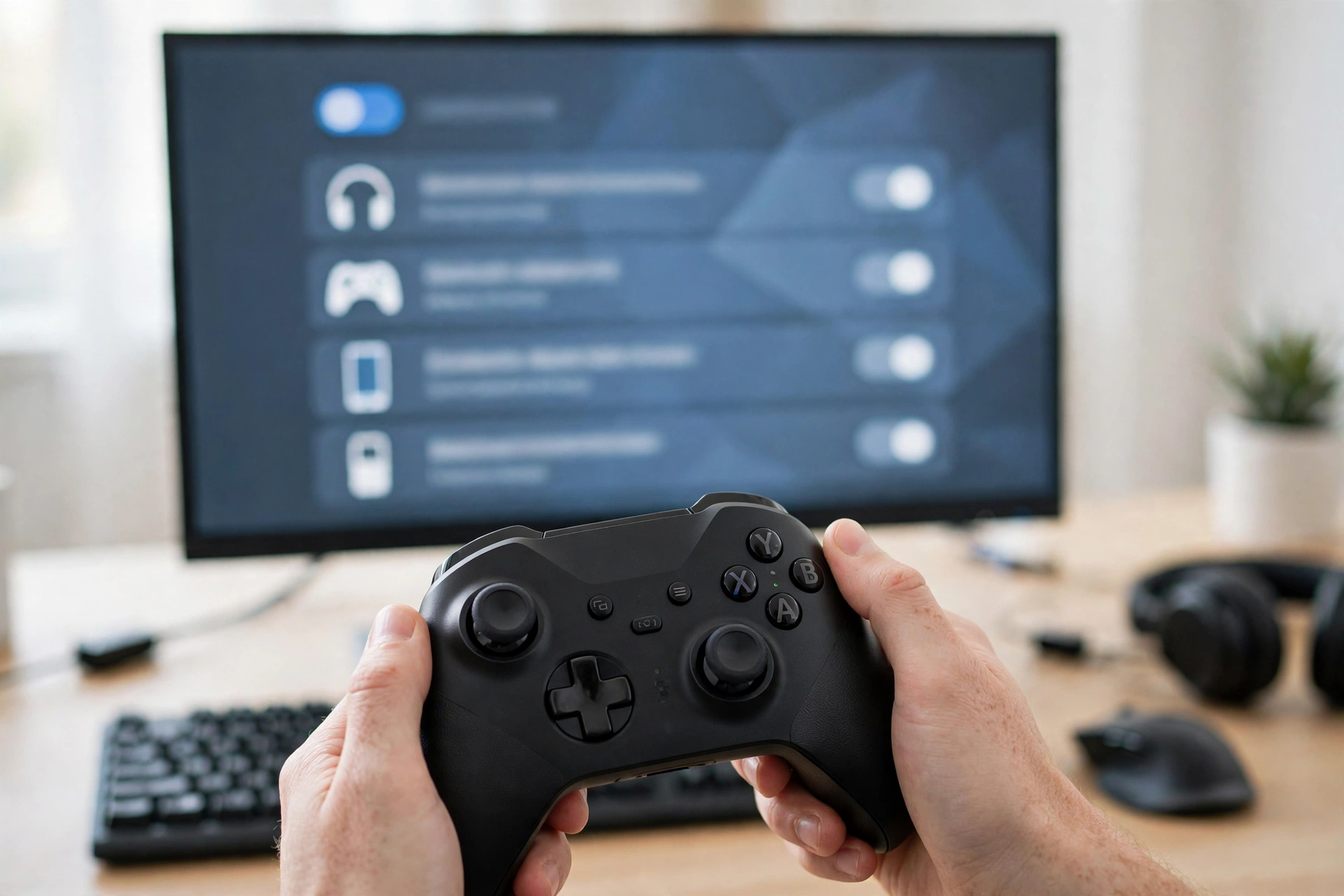
Fix 4: Stop Windows Turning Off Your Bluetooth and USB Devices
This is the fix most older guides skip or bury, and it solves a large share of random PC disconnects. Windows can shut down a Bluetooth adapter or a USB hub to save power, even while you are playing.
For Bluetooth, open Device Manager, expand Bluetooth, right click your Bluetooth adapter, and open Properties. Go to the Power Management tab and uncheck “Allow the computer to turn off this device to save power.” Do the same for the controller entry under Human Interface Devices if it shows a Power Management tab.
For USB, stay in Device Manager, expand Universal Serial Bus controllers, and repeat the same step for each USB Root Hub and Generic USB Hub. Then open Windows Settings, go to System, then Power, and turn off USB selective suspend if your power plan shows it. On a laptop, check both the plugged in and battery power plans, since a laptop on battery power is far more likely to cut USB power.
Restart your PC after changing these settings. Power changes sometimes need a restart before they take effect, and testing without one can mislead you into thinking the fix failed.
Fix 5: Remove the Pairing and Pair Fresh
A stale pairing is a common cause after a Windows update. Windows 11 feature updates have repeatedly broken old Xbox Bluetooth pairings, and the controller will keep dropping until the old entry is cleared.
On Windows 11, open Settings, then Bluetooth and devices, then Devices. Find the Xbox controller, select it, and choose Remove device. Turn Bluetooth off and back on. Then hold the small pair button on the top of the controller until the Xbox button flashes fast. Choose Add device, then Bluetooth, and select the controller when it appears.
Before you pair, make sure the controller is not still connected to your Xbox console, phone, or tablet. A controller holds one active connection at a time, and it will keep jumping back to the last device if that device is in range and awake. Turn off Bluetooth on the other device or move the controller out of range while you pair it to the PC.
After pairing, play for 20 minutes before you call it fixed. A fresh pairing that holds for five minutes and then drops has not proven anything yet.
Fix 6: Update the Controller Firmware in Xbox Accessories
Outdated firmware causes exactly this symptom: a controller that pairs fine and then drops out for no clear reason. The Xbox Accessories app from the Microsoft Store is the official way to update it on PC.
Connect the controller by USB cable, open Xbox Accessories, and select your controller. If an update is offered, install it and do not unplug the controller until it finishes. A failed update from an unplugged cable can leave the controller in a worse state than before.
If you need the full step by step walkthrough, see our guide on how to update Xbox controller firmware on PC: https://game-padtester.com/how-to-update-xbox-controller-firmware-on-pc/
Players who were still on the buggy 5.23.5.0 build should update to the fixed build and then test again before changing anything else. Firmware alone fixed the widespread early 2025 disconnect reports for many players, according to Turtle Beach’s roundup of the issue: https://ca.turtlebeach.com/blog/why-xbox-controller-keeps-disconnecting
Fix 7: Update Your Bluetooth and USB Drivers
If fresh batteries, a clean pairing, and new firmware did not fix it, the drivers are next. A Bluetooth driver that predates a Windows update can drop a controller that worked fine for months.
In Device Manager, expand Bluetooth, right click your adapter, and choose Update driver, then Search automatically for drivers. Do the same under Universal Serial Bus controllers for your USB hubs, and under Human Interface Devices for the controller entry. Then check Windows Update for optional driver updates, since Bluetooth drivers often arrive there rather than through Device Manager.
If Windows says the best driver is already installed but the drops continue, check your PC or motherboard maker’s support page for a newer Bluetooth driver. Laptop makers and motherboard makers often ship newer Bluetooth drivers than Windows Update offers. Download only from the maker’s own site, never from a driver download site.
Restart after driver updates, then re-pair the controller once more if it does not reconnect on its own.
Fix 8: Fix Steam Input and Background App Conflicts
If the controller holds a connection on the desktop but drops out or acts up inside a game, Steam Input is the prime suspect. Steam adds its own controller layer on top of Windows, and a game with its own native controller support can fight with that layer.
First, close background apps that grab controller input: Steam overlays, Discord overlays, and other game launchers. Test the game with only Steam running. If the drops stop, reopen apps one at a time until the drops return, and you have found the conflict.
In Steam, open Settings, then Controller, and confirm Steam sees the controller. For one problem game, open its library page, choose Properties, then Controller, and try Steam Input disabled first if the game has native Xbox controller support. Relaunch the game after each change. If the game has no native support, try Steam Input enabled instead.
If your controller is not working in Steam at all, rather than just dropping out, fix that first with our Steam guide: https://game-padtester.com/controller-not-working-in-steam-6-quick-fixes/
Fix 9: Try the Xbox Wireless Adapter or Another Device
Bluetooth is the weakest of the three PC connection methods. The Xbox Wireless Adapter for Windows uses Microsoft’s own wireless protocol instead of Bluetooth, and it holds a steadier connection with lower latency. It is the best wireless option if Bluetooth keeps dropping on your PC and you do not want a cable.
One note: the Elite Series 2 controller ships with Bluetooth disabled on PC by design, so USB-C or the Wireless Adapter are its only PC options. If you own an Elite Series 2 and Bluetooth never works right, that is expected, not a fault in your PC.
Finally, test the controller on a second device, such as another PC or an Xbox console. If it drops out everywhere, the fault is in the controller, most likely its radio or battery contacts. If it only drops out on your PC, the fault is in your PC’s Bluetooth hardware or drivers, and a Wireless Adapter or a new Bluetooth dongle is a cheaper fix than a new controller.
What to Do If It Still Disconnects
Work through this short checklist before you replace anything:
- Try a second USB cable and a second USB port, on the back of the PC if possible
- Test with a different controller on the same PC, and your controller on a different PC
- Check that the battery contacts are clean and springy, and that the USB-C port on the controller is free of dust
- Reset the controller by holding the Xbox button for 10 seconds until it turns off, then pair it fresh
- If the stick also drifts, calibrate it before you blame the connection. See our calibration guide: https://game-padtester.com/how-to-calibrate-xbox-controller-on-pc/
If disconnects come back within days after every fix, treat that as a hardware warning. A controller that drops out on every device, wired and wireless, has a failing radio or board, and a repair or replacement will save more time than another round of settings.
FAQs
Why does my Xbox controller keep disconnecting from PC but not from my Xbox?
The PC link is the difference. Your console uses Microsoft’s own wireless protocol, while your PC may use generic Bluetooth, which is more open to interference and driver problems. Try the cable test, then the Xbox Wireless Adapter, which uses the same protocol as the console.
Does low battery really cause disconnects even when the controller stays on?
Yes. A weak battery can keep the controller powered on while its voltage dips under load, such as during vibration. That dip is enough to drop the radio link. Fresh batteries are the cheapest test you can run, so always rule them out first.
Is it normal for my Xbox controller to turn off by itself?
Yes, after about 15 minutes with no input. That is a battery saving feature, not a disconnect fault. Press any button to wake it. Random dropouts during active play are the problem this guide fixes.
Should I use Bluetooth or the Xbox Wireless Adapter on PC?
Use USB-C for the most stable link, the Xbox Wireless Adapter for the best wireless link, and Bluetooth when you have no other option. Bluetooth works, but it shares the crowded 2.4 GHz band and depends on your PC’s Bluetooth driver quality.
Can a Windows update cause my controller to keep disconnecting?
Yes. Windows updates have broken old Bluetooth pairings and replaced working drivers before. After a major update, remove the controller pairing, update your Bluetooth driver, and pair fresh. That sequence fixes most update related disconnects.
Final Check
Most Xbox controller disconnects on PC come from one of four causes: weak batteries, Windows power settings, a stale Bluetooth pairing, or old firmware. Fix those four first, in that order, and test for 20 minutes after each change instead of changing everything at once. A controller that holds a full session without a single dropout is fixed. If yours still drops out on every device, wired and wireless, it is time for a repair or a replacement, not another settings change.
If you test your controller after each fix on the gamepad tester on game-padtester.com, you will see the difference right away: steady inputs, no gaps, and no more frozen character mid match.