How to Update Xbox Controller Firmware on PC (2026 Guide)
Grab your Xbox controller, plug it into your PC with a USB cable, and open the Xbox Accessories app. If there is a firmware update waiting, the app tells you right on the controller tile. Two clicks and you are done. The whole thing takes about five minutes, and it is worth doing. Firmware updates fix random disconnects, cut input lag, and add support for newer Windows features. The only catch: most people hit at least one snag, usually a charge-only cable or the app not seeing the controller. This guide walks you through every step, plus the fixes for every common failure.
Quick Answer
Install the free Xbox Accessories app from the Microsoft Store, connect your controller to the PC with a USB data cable (not Bluetooth), open the app, click the three dots on the controller tile, then click Firmware version and Update now. Keep the controller plugged in until the update finishes. That is the whole process. The rest of this guide covers what to do when any of those steps does not go as planned.
What You Need Before You Start
- A Windows 10 or Windows 11 PC with the Xbox Accessories app installed. The app is free in the Microsoft Store.
- A USB data cable. This matters more than anything else on this list. Cheap charge-only cables power the controller but never send data, so Windows never sees a gamepad at all. A cable that syncs files with a phone is a safe bet.
- Fresh batteries or a charged battery pack. If the controller dies mid-update, you get to start over at best. Do not start at ten percent battery.
- The controller disconnected from everything else. A pad paired to your Xbox or phone will fight the PC for the connection. Turn the console fully off or unpair first.
Step 1: Install the Xbox Accessories App
Open the Microsoft Store on your PC and search for “Xbox Accessories”. Install the app published by Microsoft Corporation. It is free. If you already have it, open the Store library and update it. An old app build is one of the top reasons the update option never appears.
Step 2: Connect the Controller With a USB Cable
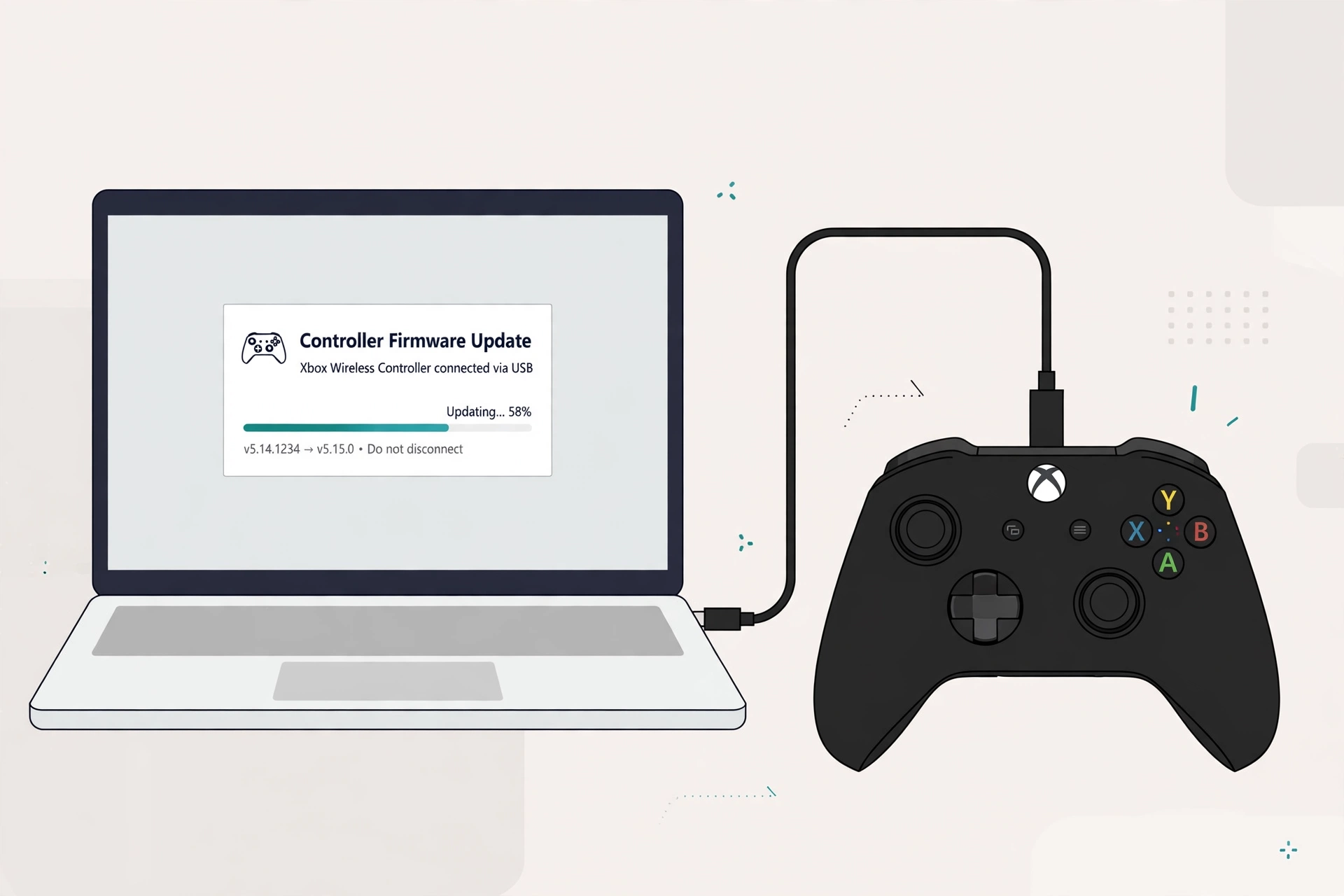
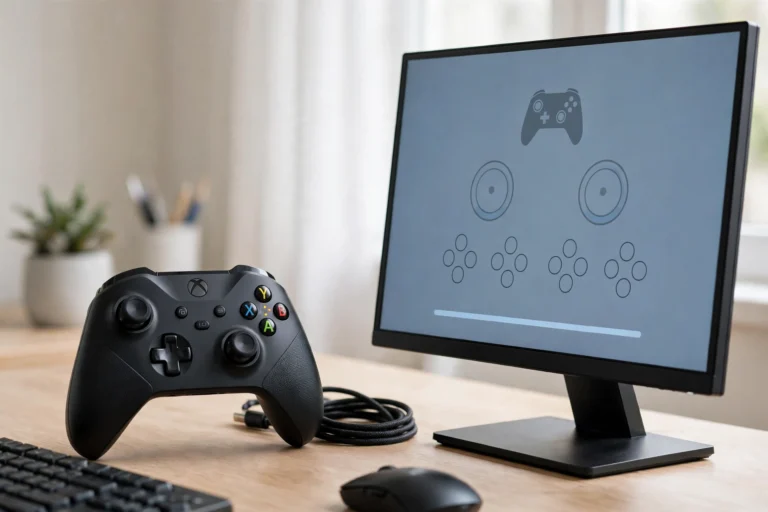
Plug the controller into the PC with your data cable. On a desktop, use a rear USB port, because front-panel ports and unpowered hubs are flaky. Windows should play the device-connected sound. If nothing happens, the cable is probably charge-only. Swap it before you go any further.
One important rule: the Xbox Accessories app cannot update a controller over Bluetooth. If your pad is Bluetooth-paired, the app will not even show it. Update over USB, or plug in the Xbox Wireless Adapter for Windows. You can go back to Bluetooth after the update.
Step 3: Open the App and Check the Controller Tile
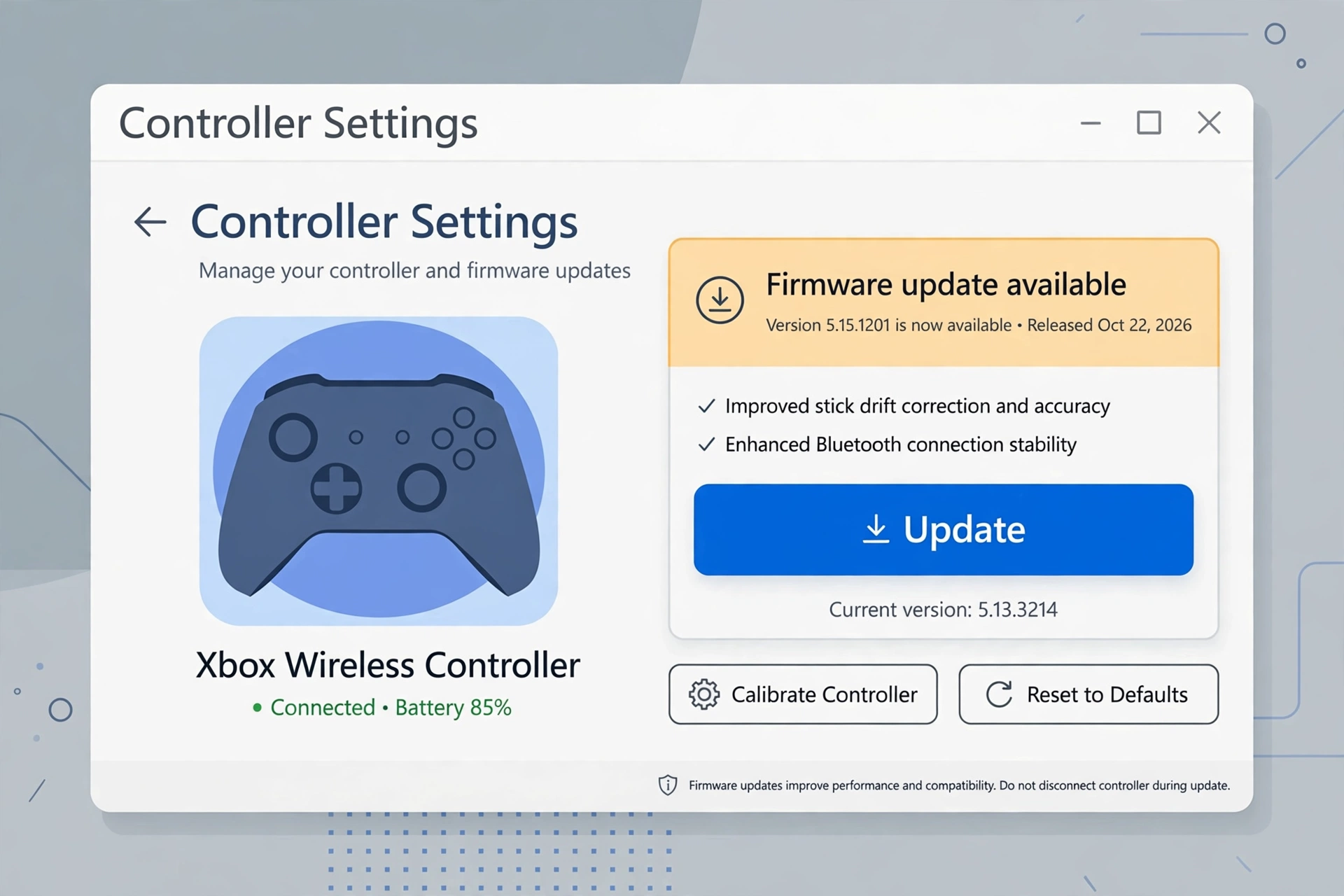
Open the Xbox Accessories app. Your controller should show up as a tile. Click the three dots in the corner of the tile, then click Firmware version. This screen shows the current firmware on your controller and whether a newer one exists.
Step 4: Click Update Now and Wait
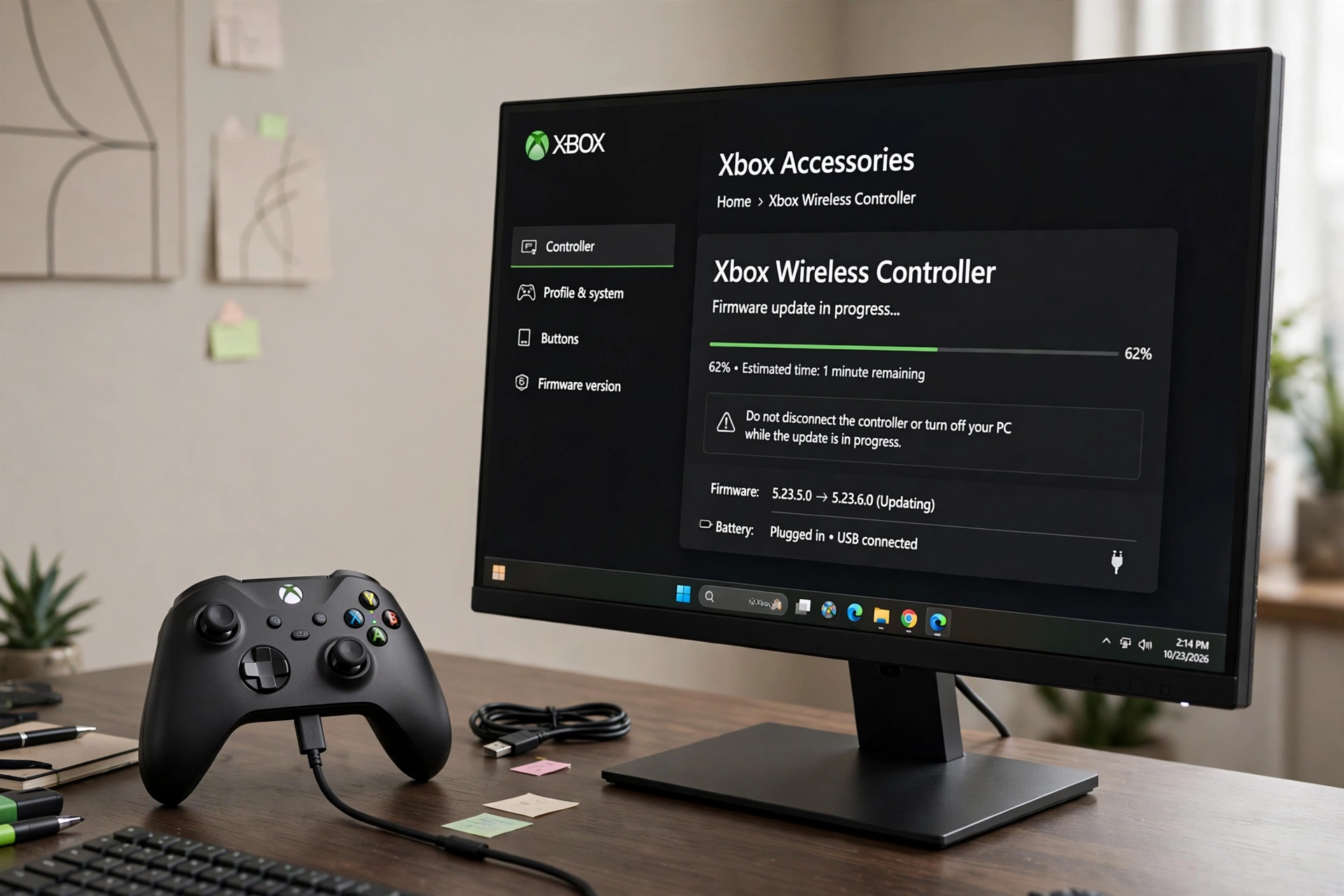
If a newer firmware is available, you will see an Update now button. Click it and wait. The progress bar moves slowly, and that is normal. Do not unplug the cable, do not close the app, and do not press buttons on the controller. Most updates finish in three to five minutes. When the app says the controller is up to date, unplug it. You are done.
How to Check Your Controller Firmware Version
Open the app, click the three dots on the controller tile, and read the Firmware version line. If it says no update is available, your controller is current and there is nothing else to do. A typical current version looks like 5.23.6.0, and the number climbs with each release. Writing it down before and after is handy if you ever need to report a problem to Xbox Support.
Can You Update the Firmware Over Bluetooth?
No. The Xbox Accessories app does not detect Bluetooth-paired controllers for firmware updates. This is the single most common “why is nothing showing up” complaint, and it works this way by design. Update over USB or with the Xbox Wireless Adapter, then go back to Bluetooth as usual.
Troubleshooting Firmware Update Problems on PC
The Xbox Accessories App Is Not Detecting the Controller
Work through this checklist in order.
- The controller is on Bluetooth. Unpair it in Windows Bluetooth settings and plug it in with USB.
- The cable is charge-only. Try a known data cable and a rear USB port.
- The app or Windows is outdated. Update the Xbox Accessories app in the Microsoft Store and run Windows Update.
- Another program is holding the controller. Close Steam, DS4Windows, and reWASD completely, then reopen the app. If DS4Windows grabs the pad first, Windows hides it from other apps. See our guide on DS4Windows not detecting a controller for the flip side of this problem.
- Restart the PC. Boring, but it clears the stuck device states that cause half of these.
The Update Fails or Gets Stuck
Do not panic, and do not yank the cable. Firmware updates sometimes sit at the same percentage for a long time.
- Wait at least ten minutes before touching anything. Some updates just take a while.
- Power-cycle the controller. Hold the Xbox button for about six seconds to turn it off, then turn it back on while it stays plugged in.
- Swap the cable and port. A wobbly connection is the most common real cause of a stalled update.
- Close background apps, especially Steam and DS4Windows, restart the PC, and try the update again.
The Controller Shows Up as a Generic HID Device
Open Device Manager, find the controller under Human Interface Devices or Xbox Peripherals, right-click it, and choose Update driver, then search automatically. Windows Update also pushes controller drivers under Optional updates. A generic driver will not break the firmware update, but the app sometimes refuses to recognize the pad until the right driver lands.
Windows Does Not See the Controller at All
Press Windows + R, type joy.cpl, and press Enter. If the game controller panel is empty, Windows itself is not seeing the pad, and no app can update it. Try a different cable, a rear port, and a PC restart. If the controller will not even power on, start with our guide on fixing an Xbox controller that will not turn on, then come back here.
How to Roll Back Xbox Controller Firmware
Sometimes a firmware update causes more problems than it fixes, like new connection drops right after updating. Microsoft added a way back.
- Connect the controller to the PC with a USB cable.
- On the PC, open a browser and go to the Xbox Support article titled “My Xbox controller has connection issues after the last update” on support.xbox.com.
- That article has a “Check your controller’s firmware” link. Clicking it opens the Xbox Accessories app straight to the reversion screen.
- Choose the previous firmware version and follow the prompts.
Two notes: not every controller model offers the rollback option, and Microsoft can pull older versions at any time. If you do not see the reversion screen, your model does not support it.
Firmware vs Drivers: What Is the Difference
Firmware lives inside the controller. It is the controller’s own software, and only the Xbox Accessories app updates it. Drivers live in Windows. They tell Windows how to talk to the controller, and Windows Update handles them. If your controller misbehaves on PC, update both: firmware in the app, drivers through Windows Update or Device Manager. Mixing these two up is why so many “update driver” guides never fix the actual problem.
Which Xbox Controllers Can Update on PC
All of these update through the Xbox Accessories app on a Windows 10 or 11 PC:
- Xbox One controller (all revisions)
- Xbox Series X|S controller
- Xbox Elite Wireless Controller Series 2
- Xbox Adaptive Controller
The Xbox 360 controller cannot be firmware-updated on PC. It predates the whole system. If a guide tells you to update a 360 pad, close that tab.
After the Update: Test Your Controller
Updates change how the controller talks to Windows, so run a quick check that everything still works. Open our free Xbox controller tester (or the full test page for PC) and press every button, pull both triggers, and move both sticks. It takes thirty seconds and catches any button that stopped registering after the update. If your controller disconnects during games, read our guide on why controllers keep disconnecting, since outdated firmware was likely only part of the story.
FAQs
Do Xbox controllers need firmware updates to work?
No. A controller works fine out of the box. But updates fix disconnects, cut input lag, and add features like Bluetooth Low Energy and Dynamic Latency Input, which lowers latency. Skipping them leaves free performance on the table.
Can I update Xbox controller firmware through Steam?
No. Steam does not update controller firmware. Use the Xbox Accessories app. The controller keeps working in Steam exactly as before after the update.
Can I update Xbox controller firmware on my phone?
No. You can only update through an Xbox console or a Windows 10 or 11 PC with the Xbox Accessories app.
How long does an Xbox controller firmware update take?
Usually three to five minutes. If the progress bar sits still for more than ten minutes, treat it as stuck and follow the troubleshooting steps above.
Why does my controller disconnect after a firmware update?
A bad update can reset the Bluetooth pairing or introduce a bug. Re-pair the controller, and if the drops continue, roll the firmware back with the steps above.
Does updating firmware delete my controller settings?
Custom button maps and profiles stored in the Xbox Accessories app stay put. The update touches the firmware only, not your profiles.


5 Comments