PS4 Controller Keeps Disconnecting from PC? 8 Fixes
Nothing kills a good run faster than a PS4 controller that drops out in the middle of a match. One second you are moving, the next your character stands still, the light bar blinks, and Windows plays the disconnect sound. Then it comes back, sometimes seconds later, sometimes not at all.
The good news: most PS4 disconnects on PC have a boring, fixable cause. It is rarely a dead controller. It is usually a weak Bluetooth signal, a tired battery, a cable that charges but does not carry data, Windows power saving, or two programs fighting over the same controller.
This guide walks through the fixes in the order that solves the most cases first. Start at Fix 1 and test after each step. If your controller works fine wired but drops on Bluetooth, jump straight to Fixes 3, 4, and 5. If it drops on a cable too, start with Fixes 1 and 2.
Before you start, answer one question: does it drop on USB, on Bluetooth, or on both? That one answer cuts the list in half, and it is the step most older guides skip.
Why Your PS4 Controller Keeps Disconnecting from PC
A DualShock 4 on PC has more ways to fail than the same controller on a PS4. On a console, Sony controls the whole chain. On a PC, the chain is a Bluetooth adapter, Windows drivers, Steam or DS4Windows, a USB port, a cable, and a battery that may be years old. Any weak link in that chain looks like a random disconnect.
The most common causes are:
- A low or aging battery that cannot hold a stable Bluetooth link, even when the controller still turns on
- A charge-only or damaged micro USB cable, or a loose port on the controller or PC
- Windows turning off the Bluetooth adapter or USB hub to save power
- A stale Bluetooth pairing, or the controller trying to reconnect to a nearby PS4 instead of your PC
- A weak Bluetooth adapter tucked behind a metal PC case, or interference from Wi-Fi and other wireless gear
- Steam Input and DS4Windows both trying to control the same controller at once
- Outdated or corrupt Bluetooth, USB, or chipset drivers
Work through the fixes below and you will find which link is broken in your setup.
Fix 1: Charge It Fully and Rule Out a Tired Battery
A PS4 controller with a low battery does not always warn you clearly on PC. It can pair, work for a few minutes, then drop as the voltage dips under load. Older DualShock 4 batteries do the same thing even at what looks like a partial charge.
Plug the controller into your PC with a USB cable and charge it for at least 30 minutes before you test again. If the disconnects stop while it is plugged in and charging, the battery is your prime suspect.
Also test this: play one full session wired. If wired play is rock solid and Bluetooth drops, the battery and the wireless link are both in play, but the fix is usually in Fixes 3 to 5, not a new controller yet. If it still drops while wired and fully charged, move to Fix 2. A battery that only lasts 30 minutes or less, or a controller that dies the moment you unplug it, needs a battery replacement, not another software fix.
Fix 2: Swap the Cable and the Port, and Skip Hubs
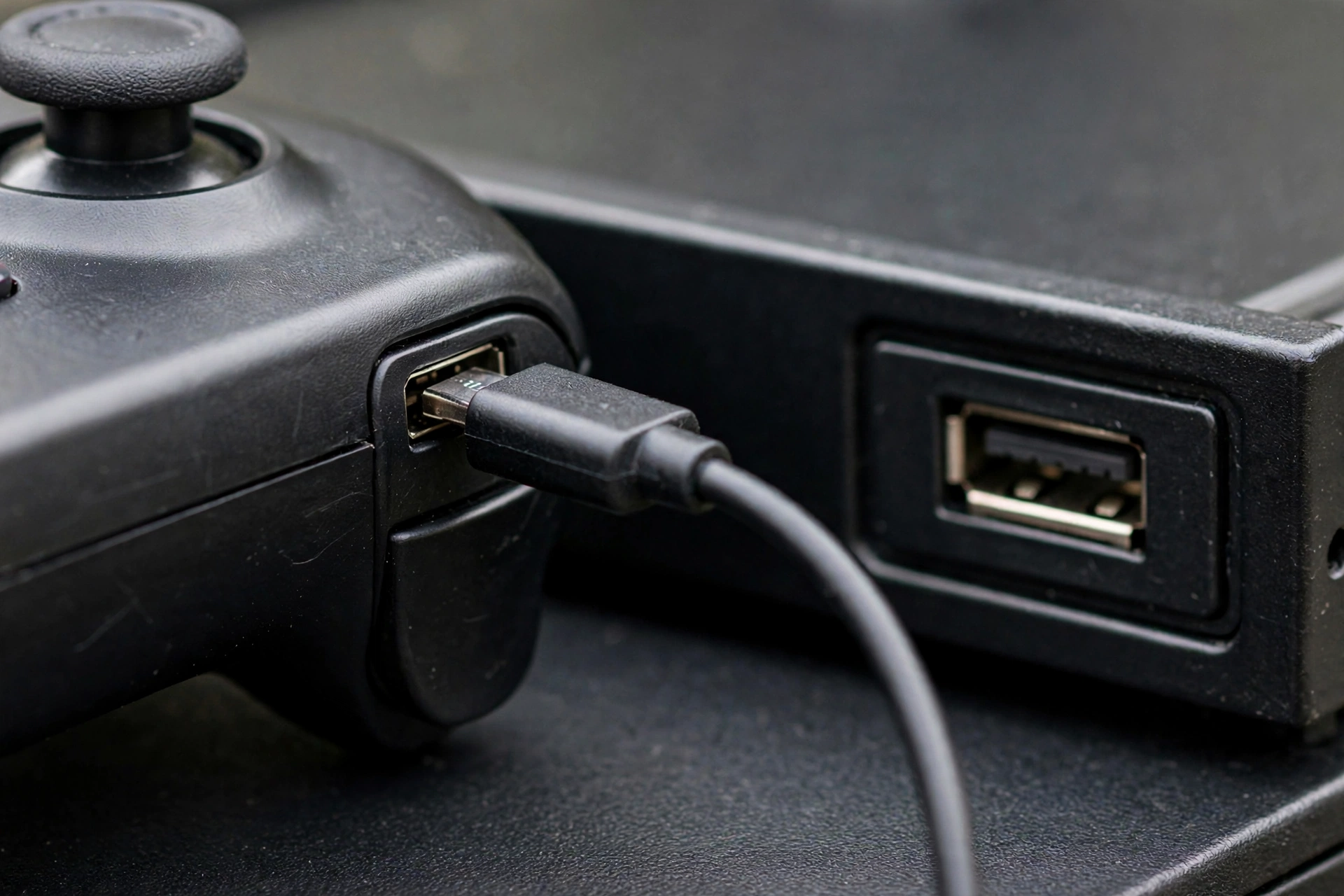
For wired disconnects, the cable is the first thing to suspect, even if it charges the controller. Many cheap micro USB cables are charge-only. They carry power but no data, so Windows sees nothing, or sees the controller only until the cable shifts a fraction of a millimeter.
Try a different micro USB cable that you know carries data, one that works for file transfer on a phone or another device. Plug it straight into a USB port on the PC itself, not a monitor, keyboard, or USB hub. Those pass-through ports are a classic cause of random drops, and forum fixes for this exact problem call them out again and again.
Try a second port too, ideally one on the front of a desktop PC. Wiggle the cable gently at the controller end. If a tiny movement kills the connection, the cable or the controller port is worn, and no driver update will fix it. Test the same port with another device, like a flash drive, to rule out a dead port on the PC side.
Fix 3: Stop Windows Turning Off Your Bluetooth and USB Devices
This is the single most missed fix for Bluetooth disconnects, and it is free. Windows power saving can switch off your Bluetooth adapter or USB hub when it thinks the device is idle, which reads as a random disconnect mid-game.
Do this:
- Right click Start and open Device Manager.
- Expand Bluetooth, right click your Bluetooth adapter, and choose Properties.
- Open the Power Management tab and uncheck “Allow the computer to turn off this device to save power”. Click OK.
- Now expand Universal Serial Bus controllers. For each USB Root Hub, open Properties, open Power Management, and uncheck the same box.
- Restart your PC, pair the controller again, and test.
If your Bluetooth adapter has no Power Management tab, that setting is controlled by the driver, so move to Fix 7 and update it from the adapter maker’s site. Do not skip this fix just because the controller worked yesterday. A Windows update can re-enable power saving without telling you.
Fix 4: Remove the Stale Pairing and Pair It Clean
Bluetooth remembers old pairings, and a DualShock 4 remembers the last device it connected to. If Windows holds two entries for the same controller, or the controller is still trying to reach your PS4 in the next room, you get pair, drop, pair, drop loops.
Clean it out properly:
- In Windows, go to Settings, then Bluetooth and devices, and remove every entry named Wireless Controller or DUALSHOCK 4.
- Turn the controller off by holding the PS button until the light goes out.
- Hold Share and PS together until the light bar flashes fast. That is pairing mode.
- In Windows, choose Add device, then Bluetooth, and pair it fresh. Do not pair from a dongle utility if your adapter has one.
- If it still loops, turn off or unplug your PS4 first, then repeat the steps. A DualShock 4 can only hold one connection at a time, so a nearby console that grabs it will look exactly like a PC disconnect.
Fix 5: Fix a Weak Signal and Cut Interference
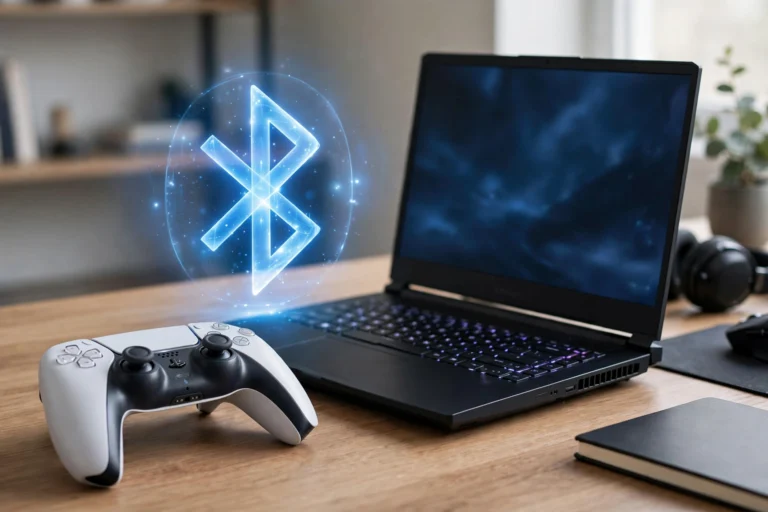
Bluetooth is a short range radio, and a PC case is a metal box. A tiny adapter plugged into a rear USB port, surrounded by cables and a Wi-Fi antenna, is the worst spot in the room for it. Competitor guides that blame drivers first often miss this, and it explains why a controller works at your desk but drops from the couch.
Move closer to the PC for one test session. If the drops stop, signal is your problem. Then make the fix permanent: move the adapter to a front USB port, or use a short USB extension cable to bring the dongle out from behind the case and into open air. Keep the controller within a few feet of the adapter during play.
Cut interference too. Bluetooth shares the 2.4 GHz band with Wi-Fi, microwaves, and other wireless gear. If you can, put your Wi-Fi on 5 GHz, move the router a little farther from the PC, and switch off Bluetooth on nearby devices you are not using. If you are still dropping with a clear line of sight and a short range, your adapter itself may be too weak. Cheap older dongles pair fine but drop under gaming load, and a newer Bluetooth 4.0 or later adapter is a cheap upgrade that solves a lot of these cases.
Fix 6: Stop Steam and DS4Windows Fighting Over the Controller
This is the classic software conflict. Steam Input and DS4Windows both want to own your DualShock 4. Run both at once and Windows can see two controllers, or none, and the connection can drop when a game launches or when you switch windows.
Pick one layer and stick to it:
- If you play mostly on Steam, use Steam Input alone. Close DS4Windows completely, then in Steam go to Settings, then Controller, and make sure PlayStation Controller Support is on. Test the game again.
- If you play outside Steam, on Epic, GOG, or Battle.net, use DS4Windows alone. In Steam, turn PlayStation Controller Support off so Steam does not grab the controller. In DS4Windows, turn on Hide DS4 Controller so games do not see both the real and the virtual controller at once.
Also check this: DS4Windows must be running before you turn the controller on over Bluetooth, or it may not pick the controller up until you restart DS4Windows. If your drops only happen in one game, check that game’s controller settings too. Some games drop a controller that was plugged in after the game launched, so connect first, then launch.
For related setup help, see our guides on DS4Windows not detecting a controller and controller not working in Steam.
Fix 7: Update Drivers and Reinstall DS4Windows Clean
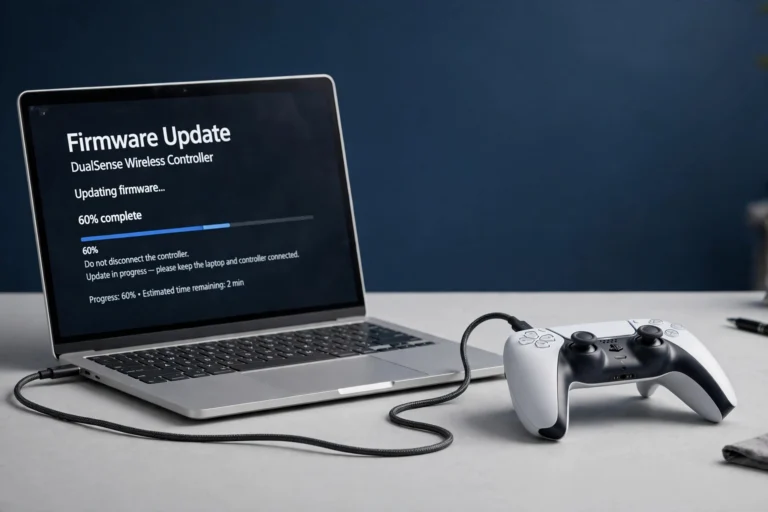
Outdated or corrupt drivers are the other big cause, especially after a Windows update. Update in this order: Bluetooth adapter driver, USB and chipset drivers from your PC or motherboard maker’s site (not just Windows automatic search), then run Windows Update for the HID and system drivers.
If you use DS4Windows, do a clean reinstall when an update does not help:
- Close DS4Windows and unplug the controller.
- Delete the old DS4Windows folder so an old config cannot carry over, then download the latest release from the official DS4Windows source.
- Reinstall the ViGEmBus driver when prompted, pair the controller fresh using Fix 4, and test before you restore custom profiles.
Do not stack driver updater tools on top of this. One clean official driver beats three updater apps guessing at versions. If a driver update makes things worse, roll that one driver back in Device Manager and note which version worked.
Fix 8: Reset the Controller and Test the Hardware Itself
If every software fix fails, prove whether the hardware is at fault before you buy a replacement. Reset the controller: find the small pinhole on the back, near the L2 button, press it with a paperclip for about 5 seconds, then pair it fresh with Fix 4.

Then run this isolation test:
- Try a different cable and a different PC port. If it works there, your first cable or port was bad.
- Try the controller on another PC, or on a PS4 with a cable. If it drops everywhere, the controller, its battery, or its port is failing.
- Try a different controller on your PC. If the second controller is stable, your PC setup is fine and the first controller is the problem.
Also test your inputs after each fix with the free gamepad tester on game-padtester.com. Press every button and move both sticks. If a button sticks or a stick drifts while the connection holds, you have a second issue, and our Bluetooth pairing guide for PS5 controllers covers similar wireless checks in PS5 controller not connecting to PC via Bluetooth.
Still Disconnecting? Run This 5 Minute Test
If you have tried the fixes above and the drops continue, run this quick test before you spend money:
- Play wired, fully charged, with DS4Windows closed and Steam Input handling the controller. Stable? Your problem is Bluetooth or a software conflict, not the controller.
- Play on Bluetooth, close to the PC, with power saving off and a fresh pairing. Stable? Your problem was signal, interference, or a stale pairing.
- Play with a different cable and port, then a different controller. Stable with the swap? You just found the faulty part.
Write down which test fixed it. That note saves you from redoing all eight fixes the next time Windows updates a driver.
FAQs
Why does my PS4 controller disconnect every few minutes on Bluetooth?
The usual cause is Windows power saving switching off the Bluetooth adapter, a weak adapter signal, or interference on the 2.4 GHz band. Turn off power saving in Device Manager, move the adapter to a front port, and re-pair clean before you blame the controller.
Does DS4Windows cause PS4 controller disconnects?
It can, but only when it fights with Steam Input or when it runs with an old config or a missing ViGEmBus driver. Use one input layer at a time, turn on Hide DS4 Controller in DS4Windows, and do a clean reinstall if the drops started after an update.
Why does my PS4 turn on when I press the PS button on PC?
Your DualShock 4 is still paired to the console, and the PS button wakes it. Remove the controller from the PS4 Bluetooth list, or turn the console off and unplug it while you test on PC, then pair fresh to the PC.
Can a bad cable cause disconnects even if it charges the controller?
Yes. Charge-only cables carry power but no data, and a damaged data cable can drop the connection when it moves. Always test with a known good data cable plugged straight into the PC, not a hub or monitor port.
Should I use wired or Bluetooth for PC gaming?
Wired is more stable and has lower input delay, so use it for competitive games or while you troubleshoot. Bluetooth is fine for casual play once power saving is off, the adapter is in a good spot, and the battery is healthy.
Final Word
A PS4 controller that keeps disconnecting from PC is annoying, but it is almost always one of a short list of causes: battery, cable, power saving, stale pairing, weak signal, a Steam and DS4Windows clash, or an old driver. Work the fixes in order, test after each one, and stop as soon as the drops stop. Most players find the answer by Fix 5, and the rest usually find it in the isolation test in Fix 8.
If the controller is stable on another PC but drops on yours, your PC setup is the problem, not the controller. If it drops everywhere, replace the battery or the controller and keep the good cable and adapter you already tested.