How to Reduce Controller Input Lag on PC (7 Proven Fixes)
You press a button and your character moves a split second late. In a slow story game you might not care, but in a shooter, a fighting game, or a racing game, that delay costs you matches. This is controller input lag: the time between your thumb moving and the action showing up on screen.
The good news is that most input lag on PC is fixable, and the biggest fixes cost nothing. The delay builds up along a chain: your controller, the connection, Windows, the game, and your display. Any slow link in that chain adds delay, so the smart way to fix it is to test one link at a time, starting with the one that matters most.
In this guide you will learn how to measure your controller latency, then work through 7 proven fixes in order of impact, from the cable in your hand to the settings on your monitor.

What Is Controller Input Lag?
Controller input lag is the full delay from the moment you press a button or move a stick to the moment you see the result on screen. It is not the same as network lag. Your ping measures the delay to a game server, while input lag exists even in offline single player games.
A frame at 60 frames per second lasts about 16.7 milliseconds, so even a few extra frames of delay feel sluggish. Competitive players aim for total system latency under 15 milliseconds, while most casual players stop noticing delay below about 40 milliseconds. If your setup adds more than that, every input feels soft and late.
The delay comes from five places: the controller hardware, the wireless or wired connection, software layers on your PC, the game engine and its graphics settings, and your display. Fixing the slowest link first gives you the biggest improvement for the least effort.
How to Test Your Controller Input Lag First
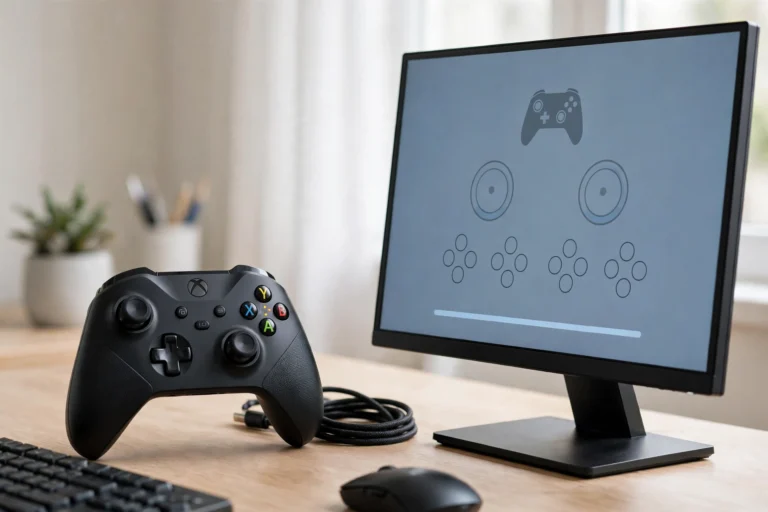
Before changing settings, measure a baseline so you know what actually helped. Start with the free polling rate test on our gamepad tester tool: open the tester on game-padtester.com, connect your controller, and watch how often it reports inputs and how steady those reports are.
Run the test twice: once with your controller wired, and once over Bluetooth or your wireless dongle. If the wired run reports faster and steadier than the wireless run, your connection is the problem, not your PC. If both runs look the same and still feel slow, the delay is further down the chain, in your software, your game, or your display.
Test one change at a time and re-run the test after each change. Changing five settings at once tells you nothing about which one fixed it.
Fix 1: Switch to a Wired Connection or a 2.4 GHz Dongle
This is the single biggest fix for most players. A wired USB connection is direct and stable, with almost no added delay. Plug the cable straight into a USB port on your PC, not into a hub or a long extension cable, and use a good quality data cable, not a charge-only cable.
If you prefer wireless, use the controller’s own 2.4 GHz dongle instead of Bluetooth whenever one is available. Dedicated dongles are built for low latency and usually match a wired connection closely, while Bluetooth adds more delay and varies more from moment to moment. In published latency testing, the same controller measured roughly 21.8 ms average on its dongle versus 37.3 ms on Bluetooth, and the Bluetooth results were far less consistent.
If your controller only supports Bluetooth, keep reading: Fix 2 will help you get the best out of it.

Fix 2: Clean Up Your Bluetooth Setup
Bluetooth is convenient, but it is the weakest link for latency on PC. If Bluetooth is your only option, a few setup changes can still cut the delay noticeably.
Keep the controller close to your PC with a clear line of sight, and move other wireless devices away from the receiver. Routers, wireless headsets, and other Bluetooth gadgets all compete for the same crowded 2.4 GHz band. A cheap or old Bluetooth adapter can add more delay than the controller itself, so a modern Bluetooth 5 adapter plugged into a front USB port often beats a weak built-in adapter buried behind a metal PC case.
Charge your controller before long sessions. A low battery can push a wireless controller into power saving behavior that makes its reporting less steady, which feels like random lag spikes. If the lag only appears on Bluetooth and disappears on a cable, the wireless link was your problem all along.
If Bluetooth keeps dropping or stuttering, our guide on PS5 controller Bluetooth problems on PC covers the pairing and driver steps in detail: https://game-padtester.com/ps5-controller-not-connecting-to-pc-bluetooth/
Fix 3: Raise Your Polling Rate to 1000 Hz
Polling rate is how often your controller reports its state to your PC. A controller polling at 125 Hz reports every 8 milliseconds, so the game can wait up to a full 8 milliseconds for the next update. At 1000 Hz it reports every 1 millisecond, which cuts up to 7 milliseconds of worst case waiting.
Most modern controllers already poll at 1000 Hz over USB. Older or budget controllers may sit at 125 Hz or 250 Hz, and some only reach their top rate on a wired connection. Check your controller’s specs or its official software: Xbox controllers, DualSense, and most 8BitDo pads let you confirm or adjust this in their app. Third party tools can also overclock some controllers, but only do this if you are comfortable with unofficial software, and test stability after.
Do not chase rates above 1000 Hz. Moving from 1000 Hz to 8000 Hz saves under 1 millisecond and can cause instability on some systems. The jump from 125 Hz to 1000 Hz is where the real gain lives.
Fix 4: Remove Extra Software Layers
Every program sitting between your controller and your game adds a little processing time. Steam Input, DS4Windows, vendor apps, remappers, and overlays all translate or watch your inputs, and running two of them at once can double that cost.
Use one input layer only. If you play through Steam, let Steam Input handle the controller and close other remappers. If a game supports your controller natively, try disabling Steam Input for that game: right click the game in Steam, open Properties, then Controller, and set it to Disable Steam Input. If you need DS4Windows for a DualShock 4, do not also run Steam Input on top of it.
Also close overlays you do not need while playing: Discord overlay, GeForce Experience overlay, and RGB control software can all interfere with input timing. Our DS4Windows guide walks through a clean setup if your controller is not being detected at all: https://game-padtester.com/ds4windows-not-detecting-controller/
Fix 5: Turn Off VSync and Tune In-Game Settings
VSync is one of the largest hidden sources of input lag. It forces the game to wait for your monitor’s refresh cycle before showing a frame, which can add a full frame or more of delay. Turn VSync off in your game’s graphics settings. If screen tearing bothers you, use your GPU’s low latency mode instead: NVIDIA Reflex in supported games, or Low Latency Mode set to Ultra in the NVIDIA Control Panel, and AMD Anti-Lag for Radeon cards.
Set your display mode to Fullscreen rather than Borderless Windowed, since borderless adds the Windows desktop compositor to the chain. Cap your frame rate slightly below or at your monitor’s refresh rate for steady frame delivery, and avoid running the game at settings your GPU cannot hold: frame drops feel exactly like input lag.
If the lag only appears in one game, the cause is almost always in that game’s settings, not your controller. Check VSync, display mode, and frame cap first before touching anything else.
Fix 6: Turn On Windows Game Mode and Fix USB Power Settings
Windows has two settings that quietly hurt controller responsiveness. First, turn on Game Mode: open Settings, go to Gaming, then Game Mode, and switch it on. Game Mode prioritizes your game for CPU and GPU resources and stops Windows Update from restarting mid-session.
Second, stop Windows from putting your USB ports to sleep. Open Device Manager, expand Universal Serial Bus controllers, right click each USB Root Hub, open Properties, go to the Power Management tab, and uncheck “Allow the computer to turn off this device to save power”. Do the same for your Bluetooth adapter under Bluetooth. This prevents the tiny wake-up delays that feel like random stutter.
Also update your controller firmware with the manufacturer’s official tool and check Windows Update for the latest Bluetooth and USB drivers. Firmware updates often fix latency bugs, and our Xbox firmware guide covers the PC steps: https://game-padtester.com/how-to-update-xbox-controller-firmware-on-pc/
Fix 7: Set Your Monitor or TV to Game Mode
If the lag is present in every game, your display is a prime suspect. TVs in particular can add tens of milliseconds in their default picture modes because of motion smoothing and image processing. Open your TV or monitor menu and switch to Game Mode, which bypasses most of that processing.
On a monitor, use the highest refresh rate it supports: right click the desktop, open Display Settings, then Advanced Display, and pick the top refresh rate. A 144 Hz or 165 Hz display shows each frame sooner than a 60 Hz one, which directly shortens the time from input to screen.
A slow display can undo every other fix in this guide, so check this even if you already fixed your connection. If you play on a TV, Game Mode alone can cut more delay than any controller setting.
Quick Fixes by Symptom
Use this short checklist to jump straight to the likely cause:
- Lag only on Bluetooth: switch to a cable or a 2.4 GHz dongle first.
- Lag in one game only: check that game’s VSync, display mode, and frame cap.
- Lag in every game: check your display’s Game Mode, then your polling rate.
- Random lag spikes: check your battery level, USB power settings, and background overlays.
- Controller not responding at all in Steam: see our Steam fix guide: https://game-padtester.com/controller-not-working-in-steam-6-quick-fixes/
FAQs
Does a wired controller always have less input lag than wireless?
Usually, but not always. A good 2.4 GHz dongle comes very close to a wired connection, while Bluetooth usually adds the most delay. If your wireless controller uses a quality dongle, the difference from wired is often too small to feel.
Does Steam Input add input lag?
Yes, but only a small amount on a healthy setup, typically low single digit milliseconds. Your connection type matters far more. Fix the connection first, then worry about software layers.
Will a higher polling rate fix my input lag?
It helps, but only up to a point. Moving from 125 Hz to 1000 Hz can cut up to 7 milliseconds of worst case delay. Going beyond 1000 Hz saves under 1 millisecond and is rarely worth the instability risk.
Does VSync cause controller lag?
Yes. VSync can add a full frame or more of delay because the game waits for the monitor’s refresh cycle. Turn it off for the lowest latency, and use NVIDIA Reflex or AMD Anti-Lag if your hardware supports it.
Why does my controller lag only on PC and not on console?
PC adds more links to the chain: Bluetooth adapters, USB hubs, input remappers, overlays, and Windows power settings. Consoles use a single tuned wireless link with no extra software layers. Working through the fixes in this guide closes most of that gap.
Controller input lag on PC rarely has one cause, and that is why guessing rarely works. Measure your baseline, switch to a wired connection or a quality dongle, clean up Bluetooth, raise your polling rate to 1000 Hz, trim extra software, turn off VSync, fix your Windows settings, and set your display to Game Mode. Work through the fixes in that order and stop when the lag is gone.
Test your controller again on the gamepad tester after each change and keep the setup that feels instant. If you found this guide useful, try the tester tool on game-padtester.com to check your polling rate and connection right now.



One Comment