Xbox Elite Controller Paddles Not Working? Here’s the Fix
If your Xbox Elite Controller Paddles Not Working, you are not alone. This is one of the most common Elite Series 1 and Series 2 complaints, and in most cases the fix takes less than five minutes. Paddles usually fail for one of three reasons: they are not seated properly, they have no button assigned to them, or the active profile is wrong. This guide walks you through every fix in order, from the 30 second checks to the deeper software resets, so you can get back in the game without buying a new controller.
Why Your Elite Paddles Stop Working
The Elite paddles are removable metal levers held in place by magnets. Each paddle presses a small button built into the back of the controller. If the paddle sits even slightly out of place, it cannot press that button fully, and the input never registers. On the software side, paddles do nothing until you assign them a button in the Xbox Accessories app. A wrong profile, a corrupted profile, outdated firmware, or Steam overriding your setup can all break them too. Work through the fixes below in order and test after each one.
Quick Test: Is It Hardware or Software?
Before changing anything, find out which side the problem is on. Press each paddle slowly and feel for a clean click. A paddle that feels mushy, loose, or different from the others points to a seating or wear problem. A paddle that clicks fine but does nothing in game points to a mapping or profile problem. You can also test every input for free on our gamepad tester at https://game-padtester.com/: press each paddle and watch whether it lights up on screen. That result tells you exactly which fix to focus on.
Fix 1: Remove and Reseat the Paddles
This fixes more paddle problems than anything else. Pull each paddle straight off, do not twist it. Check the paddle and the socket for dust, lint, or pet hair. Wipe both with a dry microfiber cloth, then press the paddle back until it snaps in and sits nearly flush with the back of the controller. Gently rock it side to side: a correctly seated paddle has only a tiny bit of play. Hard gripping during long sessions can work paddles loose over time, so recheck the seating whenever a paddle starts acting up.
Fix 2: Check the Active Profile
On the Elite Series 2, the small profile button in the middle of the controller switches between saved profiles, and it is easy to bump it by accident. If your current profile has no paddle assignments, your paddles will feel dead even though nothing is broken. Press the profile button to cycle through your profiles and test the paddles on each one. If they work on one profile but not another, the problem is the profile, not the hardware. Keep the profile you actually play on active before you start a match.
Fix 3: Remap the Paddles in the Xbox Accessories App
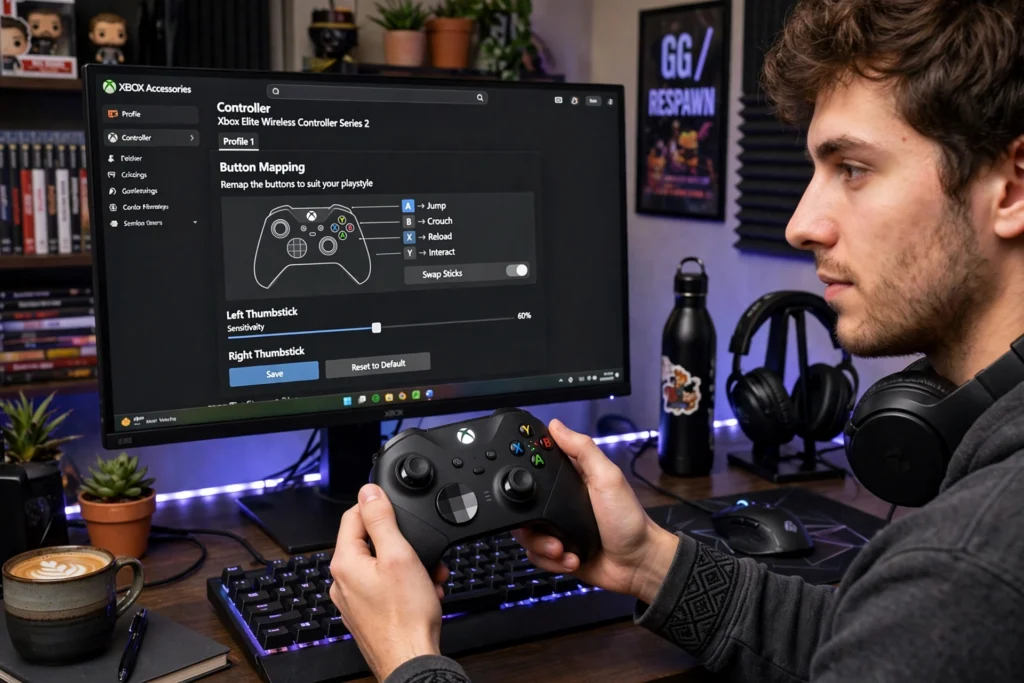
Paddles ship unassigned, and a reset or a new console can leave them that way. Connect your controller to your Xbox or Windows PC with a USB cable, open the Xbox Accessories app, select your controller, and choose Configure. Pick a profile, then select each paddle (P1 through P4) and assign it a button such as A, B, X, Y, jump, or crouch. Save the profile and test in game. If you use a PC, the Xbox Accessories app is free from the Microsoft Store, and it is the only official way to map Elite paddles.
Fix 4: Clean the Paddle Sockets
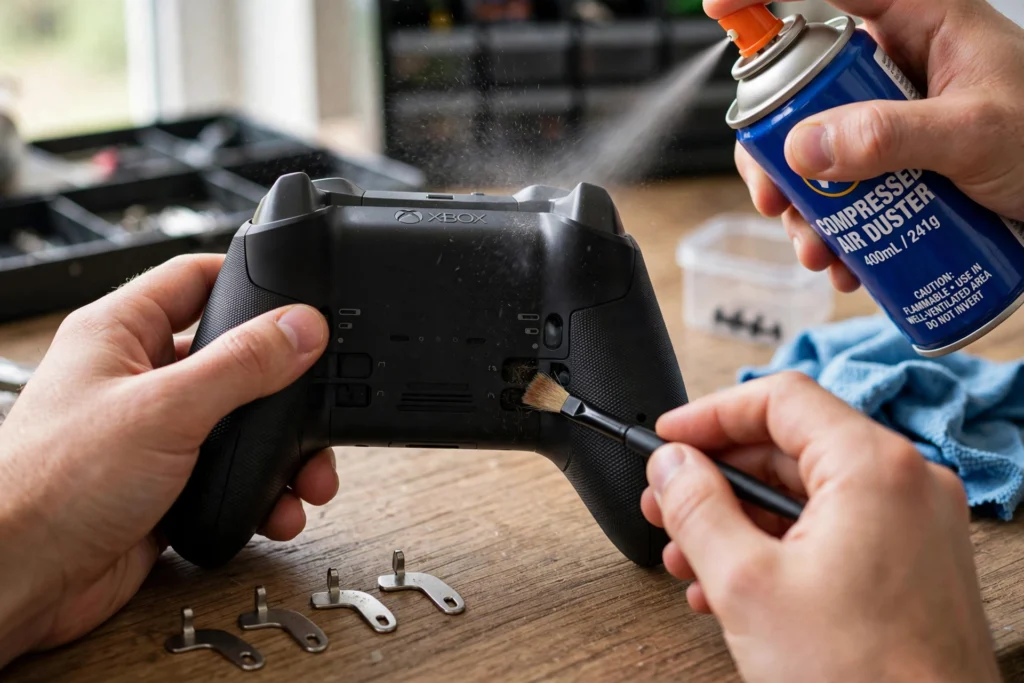
Dust and grime build up in the paddle sockets and stop the paddle from making full contact. Remove all four paddles, then give each socket a short blast of compressed air. For sticky residue, lightly dampen a cotton swab with isopropyl alcohol and clean around the socket, then let it dry fully before snapping the paddles back in. Never spray lubricant such as WD-40 into the controller: it gums up the small switches and can ruin them. A quick clean once a month prevents most debris problems.
Fix 5: Update the Controller Firmware
Outdated firmware causes paddle bugs, including paddles staying active on the wrong profile. On Xbox, go to Profile and system, then Settings, then Devices and connections, then Controllers and headsets, and select the three dots for your controller to check for an update. On PC, open the Xbox Accessories app with the controller connected by USB and install any update it offers. Keep the cable attached until the update finishes. If you had paddle trouble after a console update, this is the first fix to try. Our full walkthrough is here: https://game-padtester.com/how-to-update-xbox-controller-firmware-on-pc/
Fix 6: Create a Fresh Profile
A corrupted profile can silently break paddle assignments even when everything looks right. In the Xbox Accessories app, create a brand new profile, assign the paddles on that profile, and test. If the paddles work on the new profile, your old profile was the problem. Rebuild your settings on the fresh profile from scratch instead of copying the old one. This also fixes cases where paddles keep firing on the default profile with no assignments.
Fix 7: Turn Off Steam Input Interference
On PC, Steam can override your Elite setup. Steam Input sometimes remaps your controller or blocks paddle inputs, which makes paddles work on Xbox but not in a Steam game. Open Steam, go to Settings, then Controller, and disable Steam Input for your controller, or set the game to use the default gamepad configuration. Then test the paddles again. If you play outside Steam, the same idea applies to any third party remapping tool: close it and test with a clean setup. Related guide: https://game-padtester.com/controller-not-working-in-steam-6-quick-fixes/
Fix 8: Check for Worn or Bent Paddles
Elite paddles take a beating, especially the two lower ones. Compare each paddle against the others: a bent paddle, a weak magnet, or a worn tip will not press the internal button evenly. Try swapping two paddles around. If the problem moves with the paddle, the paddle itself is worn and a replacement set will fix it. Official and third party replacement paddle sets are cheap, and they snap in with no tools. If the problem stays in the same socket after swapping, the socket or internal switch is the issue, which leads to the last step.
Fix 9: Reset the Controller and Contact Support
If nothing above worked, reset the controller. Hold the Xbox button for about 6 seconds to turn it off, wait a few seconds, then turn it back on. On PC, you can also remove the controller in Device Manager under Xbox Peripherals and reconnect it so Windows reinstalls the driver. Still dead? If your controller is under warranty, contact Xbox Support with photos of the problem: a faulty paddle socket is a hardware repair, and opening the controller yourself can void the warranty. Do not open the shell unless you are out of warranty and comfortable with small electronics repair.
How to Keep Your Elite Paddles Working
Remove and clean the paddles once a month, store the controller in its case instead of on a dusty desk, and avoid pulling paddles off at an angle, which weakens the magnets over time. Also check your bumpers now and then, since heavy use wears them too: https://game-padtester.com/xbox-controller-bumper-not-working/
FAQs
Why is only one paddle not working?
One dead paddle is almost always a seating, dirt, or wear issue on that one socket. Reseat it, clean the socket, then swap it with another paddle to see if the problem follows the paddle or stays in the socket.
Do Elite paddles work on PC without the Xbox Accessories app?
The paddles send input only through the profile stored on the controller, and you need the Xbox Accessories app to assign buttons to them. Once mapped, the profile stays on the controller, so you do not need the app open while you play.
Can you use Elite paddles without mapping them?
No. Unmapped paddles do nothing when pressed. Assign each paddle a button in the Xbox Accessories app before you expect any input from it.
How do I reset my Elite controller paddles?
Open the Xbox Accessories app, select your controller profile, and either clear the paddle assignments or create a fresh profile with new assignments. Power cycling the controller also clears temporary glitches.
Can I buy replacement paddles for Elite Series 2?
Yes. Replacement paddle sets for the Elite Series 1 and Series 2 are sold by Microsoft and third party sellers. They are magnetic, need no tools, and snap straight into the existing sockets.
Most Elite paddle problems come down to seating, mapping, or profile, and the fixes above cover all three. Start with reseating and remapping, then work through firmware and a fresh profile before you spend money on parts or a repair. If one fix worked for you, test all four paddles in game before you call it done.