PS5 Controller Not Connecting to PC via Bluetooth? 8 Fixes That Work
Your PS5 controller refuses to pair with your PC. Windows never lists it, or it pairs and then drops in the middle of a game. I have seen this problem dozens of times, and in almost every case the controller is fine. The issue is a setting, a driver, or the controller still talking to another device.
Work through the fixes below in order. Most people are paired within five minutes.
Why Your PS5 Controller Will Not Connect to PC Bluetooth
A DualSense can pair with only one device at a time. If it was last used on your PS5, your phone, or another laptop, it will try to reconnect to that device instead of your PC. That is the number one cause.
The other common causes: the controller was never put in true pairing mode, an old broken entry is blocking it in Windows, the Bluetooth driver is outdated, there is wireless interference near your desk, or the battery is too low to hold a connection.
Fix 1: Turn the Controller Fully Off First
You cannot pair a controller that is still connected to something else. Hold the PS button for about 10 seconds until the light bar turns off completely. No light means it is off.
Now put it in pairing mode before it reconnects to your PS5 or phone. If the controller is near your PS5, unplug the console or keep the controller far from it during this process.
Fix 2: Enter True Pairing Mode (PS + Create)
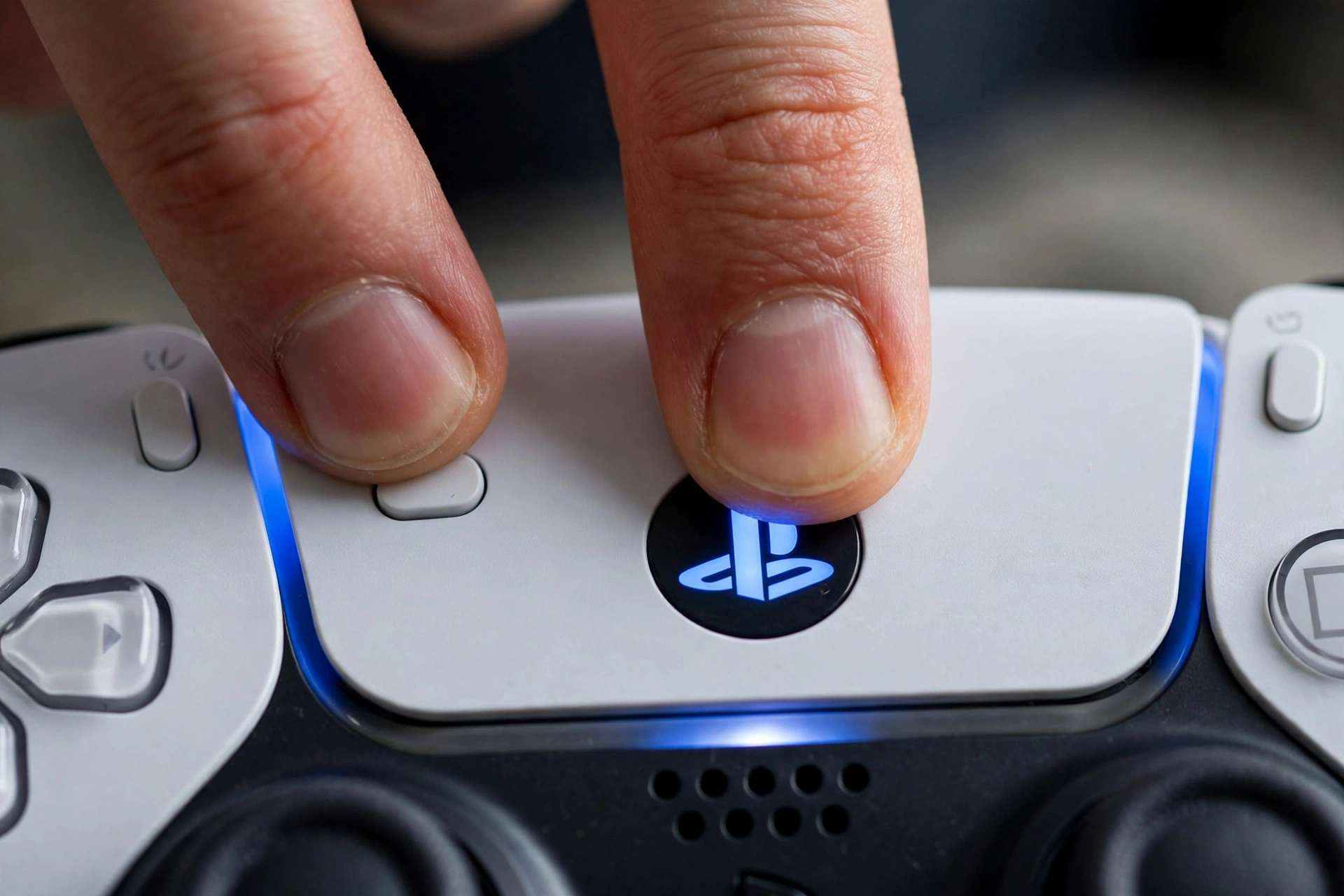
With the controller off, press and hold the PS button and the Create button at the same time. The Create button is the small button to the left of the touchpad.
Keep holding until the light bar flashes rapidly, a fast double-blink. A slow single blink means it is trying to reconnect to its last device, not pairing. That is the mistake most people make.
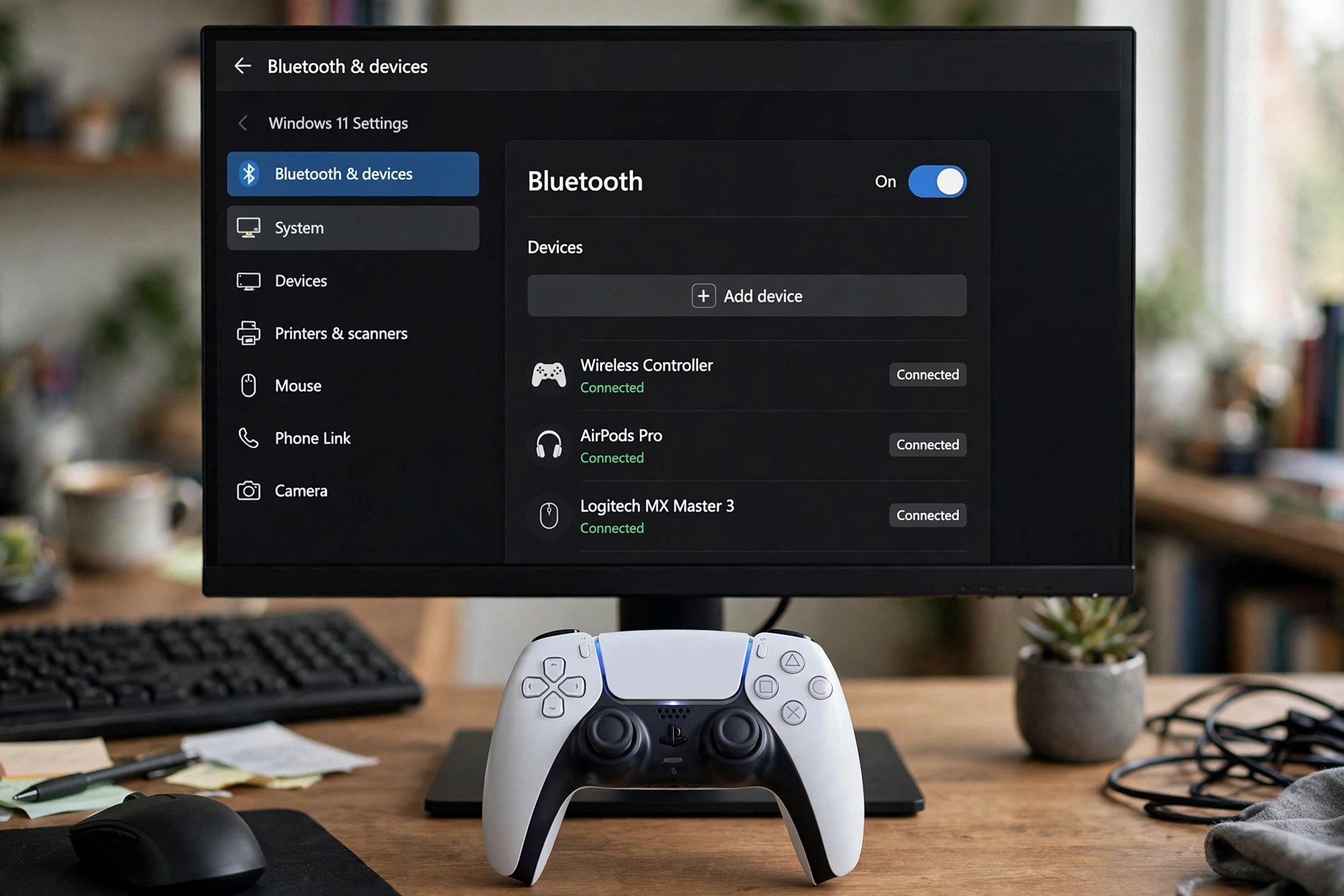
Now open Windows Settings, go to Bluetooth and devices, click Add device, then Bluetooth. Your controller appears as “Wireless Controller” or “DualSense Wireless Controller”. On some PCs it shows up as “ITE Device”, which is also normal. Select it and wait for the light to go solid.
Fix 3: Delete Old Bluetooth Entries and Re-pair
Windows keeps a record of every device you paired. A broken or half-paired record blocks new pairings. Go to Bluetooth and devices, find every entry named “Wireless Controller”, “DualSense Wireless Controller”, or “ITE Device”, click the three dots, and choose Remove device.
Turn Bluetooth off, wait 10 seconds, turn it back on, then pair again using Fix 2. This clears the most stubborn pairing failures.
Fix 4: Update Your Bluetooth Drivers
Outdated Bluetooth drivers are the top Windows-side cause. Open Device Manager, expand Bluetooth, right-click your Bluetooth adapter, and choose Update driver, then Search automatically for drivers.
Then check Windows Update for anything pending. On laptops, also grab the Bluetooth driver from the laptop maker’s support page, since Windows sometimes installs a generic one that misbehaves with controllers.
One more Windows check that Microsoft support staff use: press Win + R, type services.msc, find Bluetooth Support Service, and make sure it is set to Automatic and running. If it is stopped, the controller cannot connect at all.
Fix 5: Hard Reset the Controller
If the controller still will not pair, clear its stored pairing memory. Turn the controller over and find the small pinhole on the back, next to the Sony logo. Push a pin or straightened paperclip in and hold for 5 seconds.
This wipes corrupt pairing data and is especially useful if the controller was paired to several devices. After the reset, go back to Fix 2 and pair fresh.
Fix 6: Update the Controller Firmware With the PlayStation Accessories App
Sony ships a free Windows app called PlayStation Accessories that updates DualSense firmware. Old guides still call it the DualSense Firmware Updater, so many people search for a name that no longer exists.
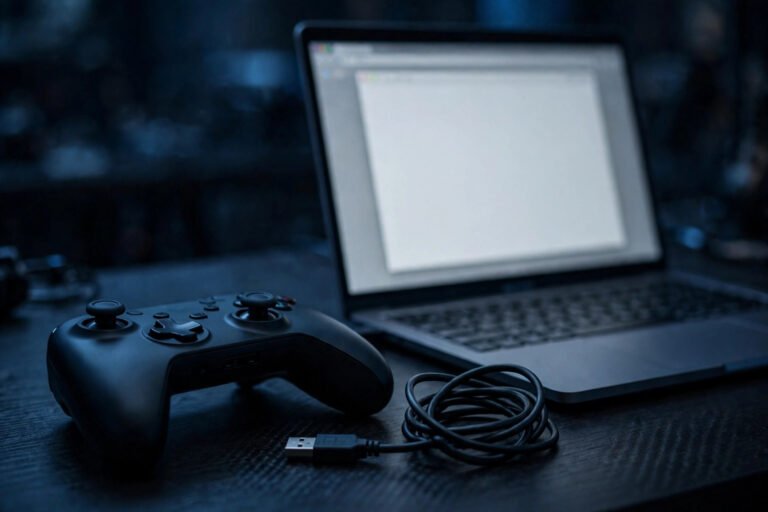
Download it from the official PlayStation site, plug the controller in with a USB-C cable that carries data (not a charge-only cable), and follow the on-screen steps. An old firmware version can refuse Bluetooth handshakes that a new one handles fine.
Fix 7: Enable Steam Input or Use DS4Windows
Paired but the game ignores the controller? That is an input-layer problem, not a Bluetooth problem.
In Steam, go to Settings, then Controller, and turn on PlayStation controller support. Close Steam completely and reopen it after pairing, because Steam often misses controllers paired while it was running.
For games outside Steam, add the game to Steam as a non-Steam game so Steam Input can translate it, or use DS4Windows with Xbox 360 output for the Epic launcher, Xbox app, and emulators.
Important: never run Steam Input and DS4Windows on the same controller at the same time. The game will see two controllers and your buttons will press twice. Pick one input layer per game.
Fix 8: Kill Interference or Upgrade Your Bluetooth Adapter
Bluetooth shares the air with a lot of noise. Move the controller and PC closer together during pairing, turn off nearby Bluetooth headphones and speakers, and keep the setup away from Wi-Fi routers and microwaves.
If your Bluetooth comes from a cheap USB dongle plugged into a USB 3.0 port, move it to a USB 2.0 port or use an extension cable to get it away from the tower. USB 3.0 ports create radio noise that kills Bluetooth range.
Still dropping? A modern Bluetooth 5.0 or newer USB adapter, like the well-known TP-Link models, fixes weak onboard Bluetooth on many desktops. And when nothing else works, test with a wired USB connection as your baseline. If wired is perfect and wireless fails, the Bluetooth link is the problem, not the controller.
It Pairs but Steam or the Game Does Not See It
This deserves its own section because it confuses everyone. Bluetooth paired means Windows sees the controller. Your game seeing it is a separate step.
If the game lists two controllers, you have both Steam Input and DS4Windows active. Close DS4Windows for Steam games and let Steam Input handle the pad. If buttons press twice, same cause: two input layers translating one press. Fix it the same way.
If a non-Steam game shows nothing at all, add it to Steam as a non-Steam game and enable PlayStation controller support. Once paired, you can also verify every button registers on our free gamepad tester at game-padtester.com before blaming the game.
Works Wired but Not Wireless? Start Here
This result tells you the controller hardware is fine and the problem lives in the Bluetooth link. Skip the firmware and reset steps and go straight to Fixes 3, 4, and 8: delete old pairings, update Bluetooth drivers, and remove interference.
Also check your cable before you trust the wired result. Many USB-C cables only carry power. If the controller charges but never shows in Windows, try a cable you know transfers data, ideally the one that came with the PS5.
How to Stop This From Happening Again
Fully power off the controller after each PC session by holding the PS button for 10 seconds. That stops it from waking up and reconnecting to the wrong device.
In Bluetooth settings, remove the controller from devices you no longer use it with. Keep the PlayStation Accessories app installed so firmware updates are one click away. And keep a data-capable USB-C cable on your desk, because wired mode also unlocks haptic feedback and adaptive triggers, which Sony does not support over Bluetooth on PC.
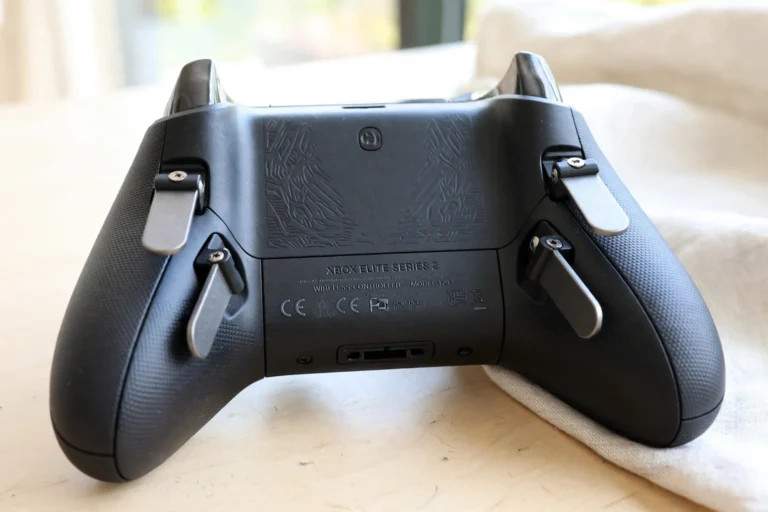
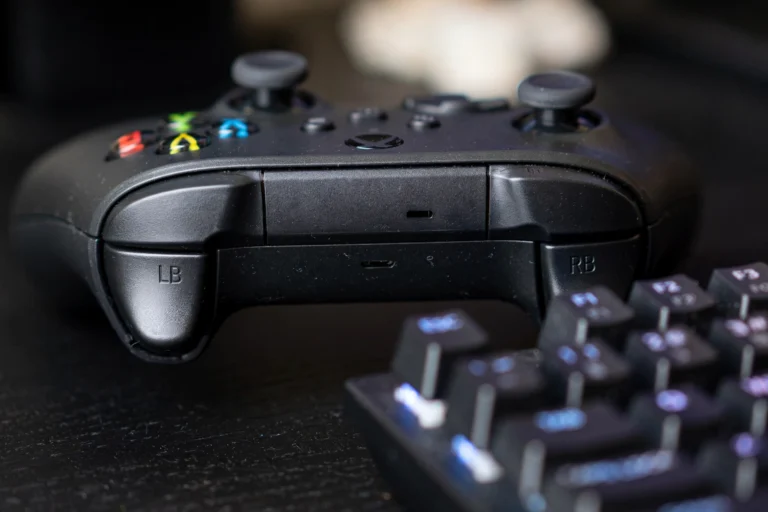
If you run into other controller problems, our Xbox controller bumper fix guide walks through a similar step-by-step repair.
FAQs
Why is my PC not finding my PS5 controller?
The controller is usually not in pairing mode or is still connected to another device. Turn it fully off by holding the PS button for 10 seconds, then hold PS and Create together until the light blinks fast. Only then will Windows list it.
Why does my PS5 controller pair but then disconnect from PC?
The usual causes are low battery, wireless interference, or an outdated Bluetooth driver. Charge the controller, move it closer to the PC, turn off nearby Bluetooth devices, and update the driver in Device Manager.
My PS5 controller connects via Bluetooth but Steam does not detect it. What do I do?
Enable PlayStation controller support in Steam under Settings and Controller, then fully close and reopen Steam. For games outside Steam, add the game to Steam as a non-Steam game or use DS4Windows.
Why does my controller work wired but not wireless?
That means the controller is fine and the Bluetooth link is the problem. Delete old Bluetooth entries, update your Bluetooth drivers, and check for interference. Also test with a data-capable USB-C cable, since charge-only cables can fake a working wired test.
Why does it show up as “Wireless Controller” instead of DualSense?
That is normal. Windows reads the controller’s generic Bluetooth name. Some PCs even list it as “ITE Device”. As long as it pairs and the light goes solid, the name does not matter.
Do I need a Bluetooth adapter to connect a DualSense to PC?
Only if your PC has no Bluetooth built in. Most modern laptops and many desktops have it. If your range is poor or pairing fails, a Bluetooth 5.0 or newer USB adapter is a cheap fix.
How do I put the PS5 controller in pairing mode?
Turn it fully off first, then press and hold the PS button and the Create button (left of the touchpad) together until the light bar flashes rapidly. The fast double-blink means it is discoverable.
Will a low battery stop the controller from pairing?
Yes. A nearly dead controller may start pairing and then fail or drop right after. Charge it for at least 15 minutes before troubleshooting further.
After using it on PC, why won’t my controller connect to my PS5 anymore?
A DualSense pairs with one device at a time, so pairing it to your PC broke the PS5 link. Plug it into the PS5 with a USB-C cable and press the PS button to re-pair. It will work wirelessly with the console again after that.
5 Comments