PS5 Controller Not Charging? 8 Fixes That Work in 2026
You plug in your PS5 controller, wait a few minutes, and nothing happens. No orange light, no battery icon, no charge. A PS5 controller not charging is one of the most common DualSense problems, and the good news is that most of the time the controller is fine. A dead battery is rarely the cause. In most cases the fault is the cable, a dirty port, or a rest mode setting that cuts power while you sleep.
This guide walks you through 8 fixes in order, from the quickest test first to the last resort. Work through them one at a time and check the light bar after each step. Most players find the fix in the first three steps and never need the rest.
How to Tell If Your PS5 Controller Is Charging
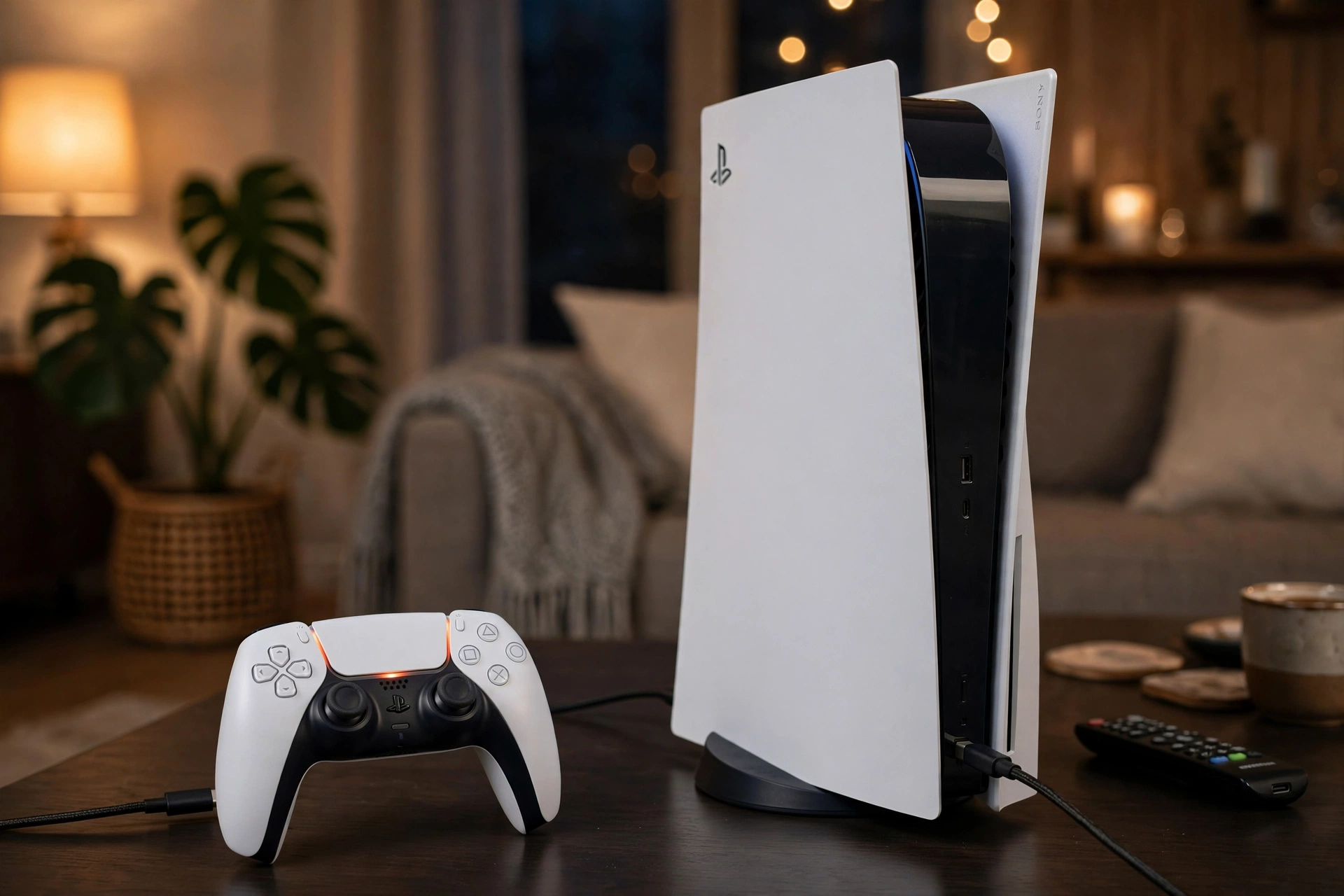
Before you fix anything, make sure you know what charging looks like. When a DualSense is charging, the light bar around the touchpad pulses orange. When the battery is full, the light turns off. You can also check the battery level on screen: press the PS button to open the control center and look at the battery icon next to the controller.
A full charge takes about 3 hours from empty using the console USB port or a standard charger. The DualSense has a 1,560 mAh battery, and Sony rates it for up to 12 hours of play on a full charge. If your controller charges but dies in under 4 hours of play, the battery itself is worn out, and no settings fix will bring it back. That is a battery replacement, not a charging problem.
If the light bar stays dark no matter what you try, or it pulses orange for a moment and then stops, work through the fixes below. Each one rules out a different cause.
Fix 1: Plug It Into a Different Power Source
The single most useful test costs nothing. Unplug the controller from the PS5 and plug it into a phone charger or a PC USB port instead. Watch the light bar. It should pulse orange within a few seconds.
If it charges from a wall charger or a PC but not from the console, the controller is fine. Your problem is the PS5 USB ports or the rest mode setting, so skip ahead to Fix 4 and Fix 6. If it does not charge anywhere, the fault is in the cable, the port, or the controller itself, and the next three fixes will sort out which one.
Use a charger that follows the USB standard. Sony notes that not every USB charger can charge a DualSense, so if one wall charger fails, try a different one before you blame the controller. A standard 5V phone charger from Samsung, Google, or Apple is a safe test.
Fix 2: Swap the USB-C Cable
Cables fail far more often than controllers do, and USB-C cables are not all the same. Many cheap cables are charge only, which means they carry power but no data. The DualSense needs a charge and sync cable because the controller and the console run a quick digital handshake before charging starts. The controller asks for a specific voltage and current, and if that handshake fails, the controller refuses to draw power at all to protect the battery.
Start with the cable that came with your PS5. If you no longer have it, use a known good USB-C cable from a phone or tablet, one that you know transfers data. Test the cable on your PC first: plug the controller into the PC with the cable. If the PC makes a sound or shows a new USB device, the cable is good. If the PC does not react at all, the cable is the problem.
Avoid the drawer full of mystery cables from cheap earbuds and gadgets. Those are the cables most likely to be charge only or low quality, and they cause exactly this problem.
Fix 3: Clean the USB-C Port on the Controller
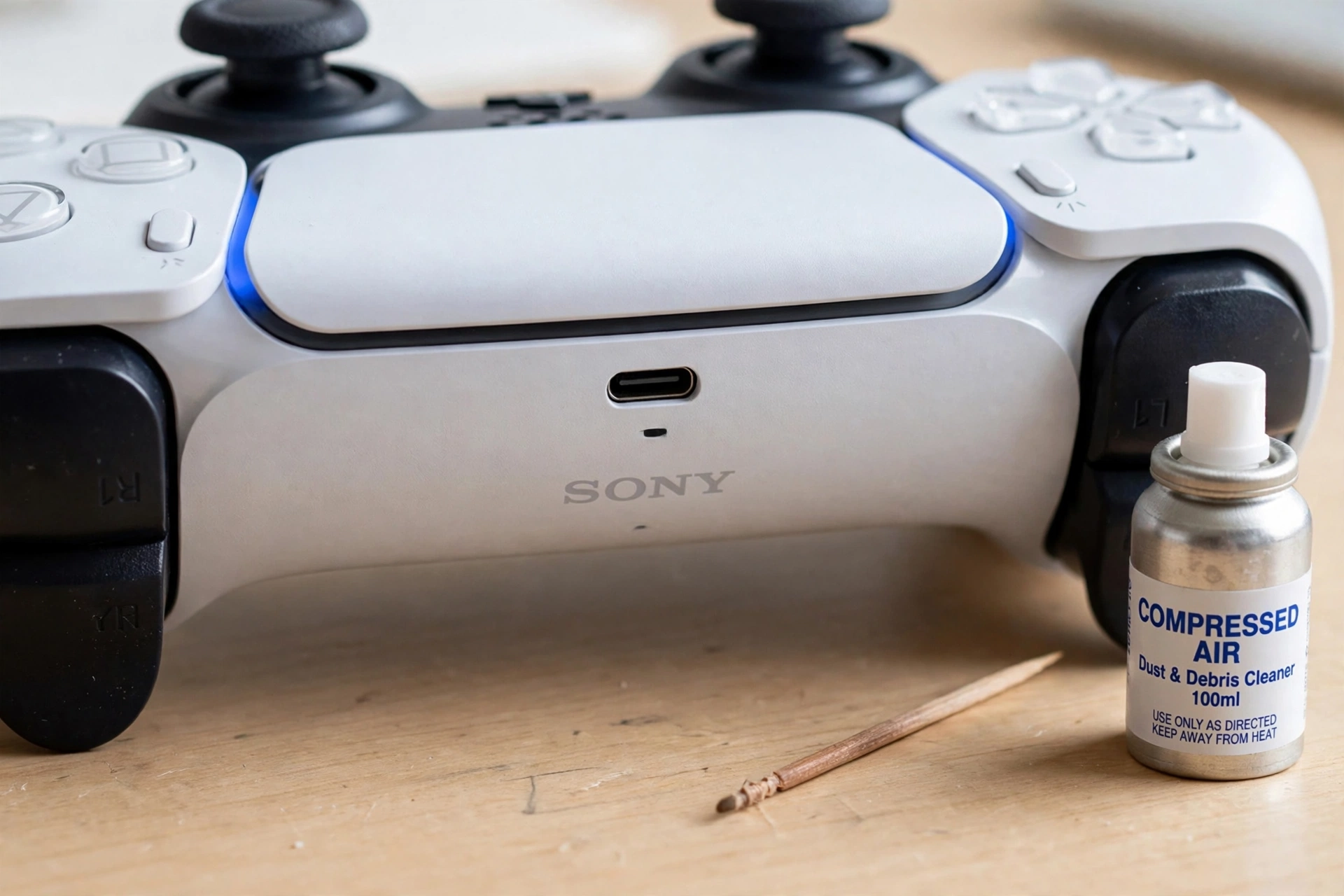
The DualSense USB-C port sits on top of the controller, open to the world. Dust, pocket lint, and crumbs collect inside it over time, and a compacted plug of lint stops the connector from seating fully. If your cable feels loose, wobbles, or only charges when you hold it at an angle, dirt in the port is the most likely cause.
Turn the controller off first. Blow out loose debris with a can of compressed air, holding the can upright so no liquid comes out. If that does not clear it, use a wooden toothpick or a plastic dental pick and gently scrape the bottom of the port to loosen compacted lint, then blow it out again.
Never use a metal needle or a safety pin. Metal conducts electricity and can short the small pins inside the port, which can kill the controller for good. Wood and plastic are safe, metal is not.
If you want a deeper cleaning routine for the rest of the controller, our stick cleaning guide covers safe methods that also work around the ports: https://game-padtester.com/how-to-clean-ps5-controller-analog-sticks/
Fix 4: Try a Different USB Port on the PS5
The USB ports on the PS5 are not all the same, and one port can fail while the others work fine. Move the cable to a different port and watch the light bar again. Try a rear port if you have been using a front port, and a front port if you have been using a rear one.
On the original PS5 model, the front USB-A port is a Hi-Speed port on a separate daughterboard, while the rear USB-A ports are SuperSpeed ports soldered to the main board. A single bad port is more common than most players expect, and this test rules it out in under a minute.
If none of the console ports charge the controller but a wall charger does, the console USB ports may need a system restart or a software update. Restart the PS5 fully, not rest mode, then test the ports again.
Fix 5: Reset the DualSense Controller
A software level reset clears charging failures that look like hardware problems. There is a small reset button inside a pinhole on the back of the DualSense, near the Sony logo beside the left grip screw. It clears pairing state and charge controller faults that nothing else touches.
Here is the exact reset process, as PlayStation Support describes it:
- Turn off the PS5 completely, not rest mode, and unplug the controller.
- Find the small hole on the back of the controller near the Sony logo.
- Push a straightened paperclip or SIM tool into the hole until you feel a click, and hold it for about 5 seconds.
- Reconnect the controller to the PS5 with a USB cable and press the PS button.
Wait a few seconds after pressing the PS button. The light bar should pulse orange as charging starts. If the controller still will not charge after the reset, move on to the rest mode and firmware fixes below.

Fix 6: Turn On USB Power in Rest Mode
This is the fix for controllers that only fail to charge overnight. By default, many PS5 consoles stop supplying power to their USB ports in rest mode after a set time. You plug the controller in, walk away, and the console cuts power almost right away, so nothing charges.
Go to Settings, then System, then Power Saving, then Features Available in Rest Mode, then Supply Power to USB Ports. Set it to Always. The default on many consoles is 3 Hours, which is not enough to fully charge a dead controller overnight if you plug it in late.
Once this is set to Always, the controller will charge whenever the console is in rest mode. Test it by putting the console in rest mode with the controller plugged in and checking the light bar after a minute. If the orange pulse is steady, this was your problem, and the controller was never broken.
Fix 7: Update the Controller Firmware
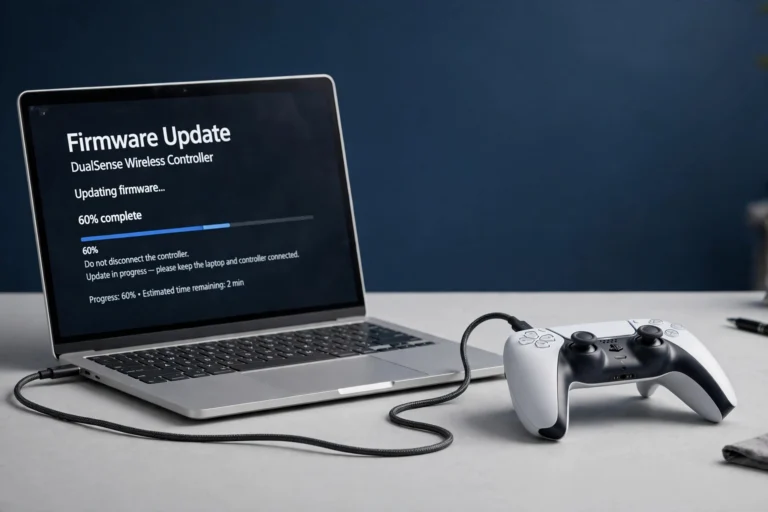
Outdated firmware can cause charging and connection problems, and Sony ships DualSense firmware fixes through console updates and through the PlayStation Accessories app on PC. If your controller has not been updated in a while, this step is worth doing.
On the PS5, go to Settings, then Accessories, then Controller, then check for a wireless controller device software update. On a PC, install the PlayStation Accessories app, connect the controller with a USB cable, and follow the on screen update prompt. The update takes a few minutes, and the controller must stay connected by cable until it finishes.
Our full firmware guide walks through both methods step by step, including what to do if the update fails: https://game-padtester.com/ps5-controller-firmware-update-pc/
After the update, unplug the controller, plug it back in, and check the light bar. A firmware fix can restore normal charging right away.
Fix 8: Use a Charging Dock or Contact PlayStation Support
If every fix above has failed, the problem is likely the USB-C port or the battery inside the controller, and a charging dock can buy you time. A dock charges through the metal contacts on the bottom of the DualSense, which bypasses the USB-C port entirely. If the controller charges fine on a dock but not through a cable, the USB-C port is the fault.
If the controller will not charge on a dock either, or it charges but dies very fast, the battery is the likely fault. A controller that only charges when you hold the cable at an angle, or one where the cable slips out with almost no pressure, usually has a worn or damaged USB-C port. Replacing that port is a soldering job on the circuit board inside the controller, not a part you can swap by hand, so it belongs with a repair shop.
At this point, use the PlayStation Repairs diagnostic tool on the PlayStation Support site. It walks you through a final check and starts a repair or replacement if the controller is still under warranty. Do not open the controller yourself while it is under warranty, since that voids the coverage.
When the Battery or Port Is the Problem
A PS5 controller not charging after all 8 fixes usually has a hardware fault, not a settings problem. Here is a quick way to tell which part has failed. A worn battery charges normally but dies fast, often in under 4 hours of play, and the light bar behaves normally while it charges. A bad port shows connection symptoms: the cable only works at an angle, the plug feels loose, the orange light pulses for a moment then stops, or the controller disconnects when the cable moves during wired play.
If your controller also drops its connection to the PC or the console, check our Bluetooth connection guide as well, since charging and connection faults often share the same cable and port causes: https://game-padtester.com/ps5-controller-not-connecting-to-pc-bluetooth/
A battery or port repair is usually cheaper than a new DualSense, so get a repair quote before you buy a replacement, especially if the controller is a special edition.
FAQs
Why is my PS5 controller not charging?
The most common causes are a faulty or charge only USB-C cable, lint packed inside the charging port, a failed USB port on the console, rest mode cutting USB power, or a worn battery. Try a different cable and power source first, then clean the port and reset the controller.
How long does it take to charge a PS5 controller?
About 3 hours from empty using the console USB port or a standard wall charger. The light bar pulses orange while charging and turns off when the battery is full. A controller that charges much faster than that and dies quickly has a worn battery.
Can I charge my PS5 controller with a phone charger?
Yes, as long as the charger follows the USB standard. A standard 5V phone charger from Samsung, Google, or Apple works fine. Sony notes that not every USB charger can charge a DualSense, so try a different charger if the first one does nothing.
How do I know if my PS5 controller is charging?
The light bar around the touchpad pulses orange while the controller is charging. You can also press the PS button and check the battery icon in the control center on screen. If the light stays dark, the controller is not receiving power.
Can I charge my PS5 controller while the PS5 is off?
No, not when the console is fully off. The controller charges while the console is on, or while it is in rest mode with USB power turned on. Set Supply Power to USB Ports to Always under Settings, System, Power Saving, Features Available in Rest Mode.
One Comment