Best EA FC 26 Controller Settings for Controller Players
If your passes keep going to the wrong player, your defenders keep switching at the worst moment, or your shots keep flying over the bar, your controller settings are probably fighting you. The default settings in EA FC 26 are built for casual kickabouts, not for Division Rivals or FUT Champions. Change a handful of options and the same controller suddenly feels faster, sharper, and far more predictable.
This guide gives you the best EA FC controller settings for FC 26, tested against what pro players and the top community guides actually use in 2026. You get one clear setup for shooting, passing, defending, switching, and camera, plus separate notes for PS5, Xbox, and PC. Copy the table below, play five or six matches, then tweak one setting at a time until it fits your hands.
Best EA FC 26 Controller Settings at a Glance
Here is the full setup in one place. The sections below explain why each value is there and who should change it.
| Setting | Recommended value |
|---|---|
| Gameplay preset | Competitive |
| Shot Assistance | Assisted (Precision if you are skilled) |
| Through Pass Assistance | Semi |
| Lobbed Through Pass | Semi |
| Ground Pass Assistance | Assisted |
| Cross Assistance | Assisted (Semi for manual crosses) |
| Lob Pass Assistance | Assisted |
| Pass Receiver Lock | Late |
| Defending | Tactical (learn Advanced later) |
| Jockey | Manual |
| Auto Switching | Air Balls and Loose Balls |
| Auto Switching Move Assistance | None or Low |
| Right Stick Switching | Player Relative |
| Right Stick Switching Sensitivity | 4 to 6 |
| Analog Sprint | Off |
| Trigger Effects / Adaptive Triggers | Off |
| Vibration / Haptics | Off |
| Timed Finishing | See shooting section (FC 26 changes this) |
| Pass Block Assistance | On |
| Clearance Assistance | Directional |
| Power Shot Zoom | Off |
| Camera | Tele Broadcast (Height 10, Zoom 10) or Co-op (Height 20, Zoom 0) |
Start With the Competitive Preset
Before you touch anything else, switch your gameplay preset to Competitive. Go to Settings, then Game Settings, and pick Competitive. This preset turns off the casual helpers the game gives you by default, including contextual agile dribbling, auto clearances, auto flair passes, auto shots, and assisted headers. It also sets jockey to manual, through pass assistance to Semi, and defending to Tactical.
This step matters because online modes enforce the Competitive preset anyway. Division Rivals, FUT Champions, Online Seasons, and Clubs all run on it. If you practice in Career Mode or kickoff with the default preset, you are building muscle memory for a version of the game you will never play when it counts. Set it once and leave it there.
Shooting Settings: Precision Shooting Changes Everything in FC 26
Shooting is where FC 26 differs most from FC 25, so read this part twice. In FC 25, timed finishing was the skill that separated good finishers from great ones. You tapped shoot a second time and a green timing window made the shot faster and more accurate. In FC 26, that old system is gone. Precision Shooting is the new skill based shooting system, and it works differently.
With Precision Shooting, you aim your shot yourself with the left stick. Point it well and the ball goes exactly where you aimed, even into the tiny gaps near the post that Assisted shooting would never pick. Point it a fraction off and the ball misses badly. Community testers, including YouTuber The Guide and the NealGuides team, have shown that the old double tap trick no longer produces the green timed finish. If you try it in FC 26, you will just take a weak second touch or a rushed shot.
So what should you pick? Most players should start with Assisted. Assisted aims toward the goal for you, so your chances stay consistent while you learn the rest of the game. If you create a lot of chances every match, Assisted will score plenty of them. Move to Precision only when you are confident aiming under pressure and you are ready to spend a few practice sessions missing shots on purpose to learn the stick angles. Top pros split on this. Levi de Weerd plays on Precision because it gives him shots nobody else can hit. Anders Vejrgang sticks with Assisted because consistency wins more matches than the occasional wonder goal. Follow Vejrgang until your finishing feels automatic, then try Precision in Squad Battles before you take it into Rivals.
Two more shooting notes. First, keep Power Shot Zoom off. The zoom animation looks dramatic but it hides the goal for a split second, and that split second is when you need to see the keeper. Second, set your power bar to around 2.5 to 3 bars for normal shots while you learn, then adjust to your own feel in Skill Games.
Passing Settings That Give You Real Control
Passing is a mix of help and control. Too much help and the ball goes where the game thinks you want it, which is often the wrong player. Too little help and every pass becomes a chore. The setup below is the one nearly every competitive guide agrees on.
Set Through Pass Assistance to Semi. Semi through balls follow your stick direction, so you can slide a pass into the channel your winger is running into instead of watching the game pick a safe sideways option. Set Lobbed Through Pass to Semi for the same reason. Keep Ground Pass Assistance on Assisted, because ground passes in traffic need the game to pick the right receiver. Cross Assistance can stay on Assisted, or move to Semi if you like aiming your own crosses and controlling how high they come in. Lob Pass Assistance stays on Assisted.
Set Pass Receiver Lock to Late. This small option lets you change the direction of a pass or shot until the last moment before the ball leaves your foot. With the default early lock, the game picks your target the instant you press the button. Late lock gives you time to correct a bad angle, and that saves a surprising number of attacks.
Defending: Tactical or Advanced?
Defending is the other big choice in FC 26, and the community is split in a way that actually tells you something useful. Tactical Defending is the standard most players know. You press the tackle button to tackle, hold L2 or LT to jockey, and the game picks the tackle type for you. It is the safe pick, and every competitive guide lists it as the starting point.
Advanced Defending is the new option in FC 26, and it is the one the best players are moving toward. It splits your defensive actions across two buttons. Circle or B is still your tackle, but X or A now triggers a physical challenge, a shoulder barge or seal out that lets you body an attacker off the ball. With a strong striker who has the Bruiser PlayStyle Plus, that physical button is the difference between getting pushed off the ball and winning it back cleanly.
Start with Tactical. Learn manual jockey first, because jockeying is the base of all good defending in FC 26. Hold L2 or LT, stay goal side, and let the attacker come to you instead of diving in. Once you can defend a full match without lunging, try Advanced in Squad Battles for a week. If the extra button clicks for you, keep it. If it feels like finger gymnastics, go back to Tactical. There is no shame in Tactical, and plenty of elite players still use it.
Turn Pass Block Assistance on. It is one of the few automatic helps worth keeping, because it lets your defender stick a foot out when you are already in the passing lane. Set Clearance Assistance to Directional so you choose where the ball goes when you clear it, even if that means putting it out for a throw in to keep possession.
Player Switching Settings That Stop the Wrong Defender
Bad switching loses more goals than bad tackling. You press pass to switch, the game hands you the wrong defender, and the attacker runs straight through the gap you just left. Fix this with three settings.
Set Auto Switching to Air Balls and Loose Balls. The game will only switch you automatically when the ball is in the air or loose, which is when you actually want a new player. It will stop yanking control away from your defender during normal play. Set Auto Switching Move Assistance to None or Low, so the player you switch to does not drift on his own before you touch the stick.
Turn on Right Stick Switching and set the reference to Player Relative. Flick the right stick in the direction of the defender you want and the game gives you that exact player. It takes a few matches to learn, but once it clicks you will never go back to mashing the switch button and hoping. Set Right Stick Switching Sensitivity between 4 and 6. Lower is safer while you learn, higher is faster once your flicks are accurate. Turn Player Lock on if you like calling a specific runner during attacks, or leave it off if you never use it.
Input Settings: Analog Sprint, Vibration and Trigger Effects
These three settings decide whether your inputs feel instant or slightly delayed, and every pro setup agrees on them.
Turn Analog Sprint off. With it on, a half press of the trigger gives you a half sprint, which is useless when you are chasing a winger. With it off, any press of the sprint trigger is full speed. That binary sprint is more reliable in every situation.
Turn Trigger Effects off. On PS5, the adaptive triggers add resistance to the sprint trigger. It feels realistic, but it slows your reactions by a fraction every time you press it. Turn Vibration and haptic feedback off too. Rumble feels good in a single player match, but in a tight online game it adds noise to your hands right when you need clean stick control. If your controller feels slow or your inputs feel late in any game, these three toggles are the first place to look, and our guide to reducing input lag on PC walks through the rest of the chain from controller to screen.
Best Camera Settings for FC 26
Camera settings are not strictly controller settings, but they change what your controller inputs can do, because you can only pass to a player you can see. The two cameras every competitive player uses are Tele Broadcast and Co-op.
Tele Broadcast is the best all rounder. Set Height to 10 and Zoom to 10 for a wide, slightly raised view that keeps your wingers and full backs on screen without making the players tiny. Co-op is the tactical pick. Set Height to 20 and Zoom to 0 for the widest possible view, which is great if you build your attacks slowly and like to see every run before you pass. Try Tele Broadcast first, then Co-op for a few matches, and keep the one that matches how you attack. Set Camera Swing to 0 so the view does not drift during play.
Best EA FC 26 Controller Settings for PS5
PS5 players get the DualSense, which has the best feel of any stock controller for FC 26, but also the most settings to turn off. Use the full table above, then check these PS5 specific items.
Turn Adaptive Triggers off in the controller settings menu, not just in the game. The DualSense trigger resistance is set in the console menu too, and it can come back after a system update. Turn Haptic Feedback off for the same reason you turn vibration off. If your DualSense stick starts drifting, do not blame the game settings. Clean the sticks first, and our PS5 stick cleaning guide shows the safe way to do it without opening the controller.
Best EA FC 26 Controller Settings for Xbox
Xbox players should use the same table, with two platform notes. First, if you own an Xbox Elite controller, put sprint or skill moves on the back paddles. Taking sprint off the trigger and onto a paddle keeps your thumbs on the sticks during the exact moments you need them most. Our Elite paddle fix guide covers the paddle setup in detail.
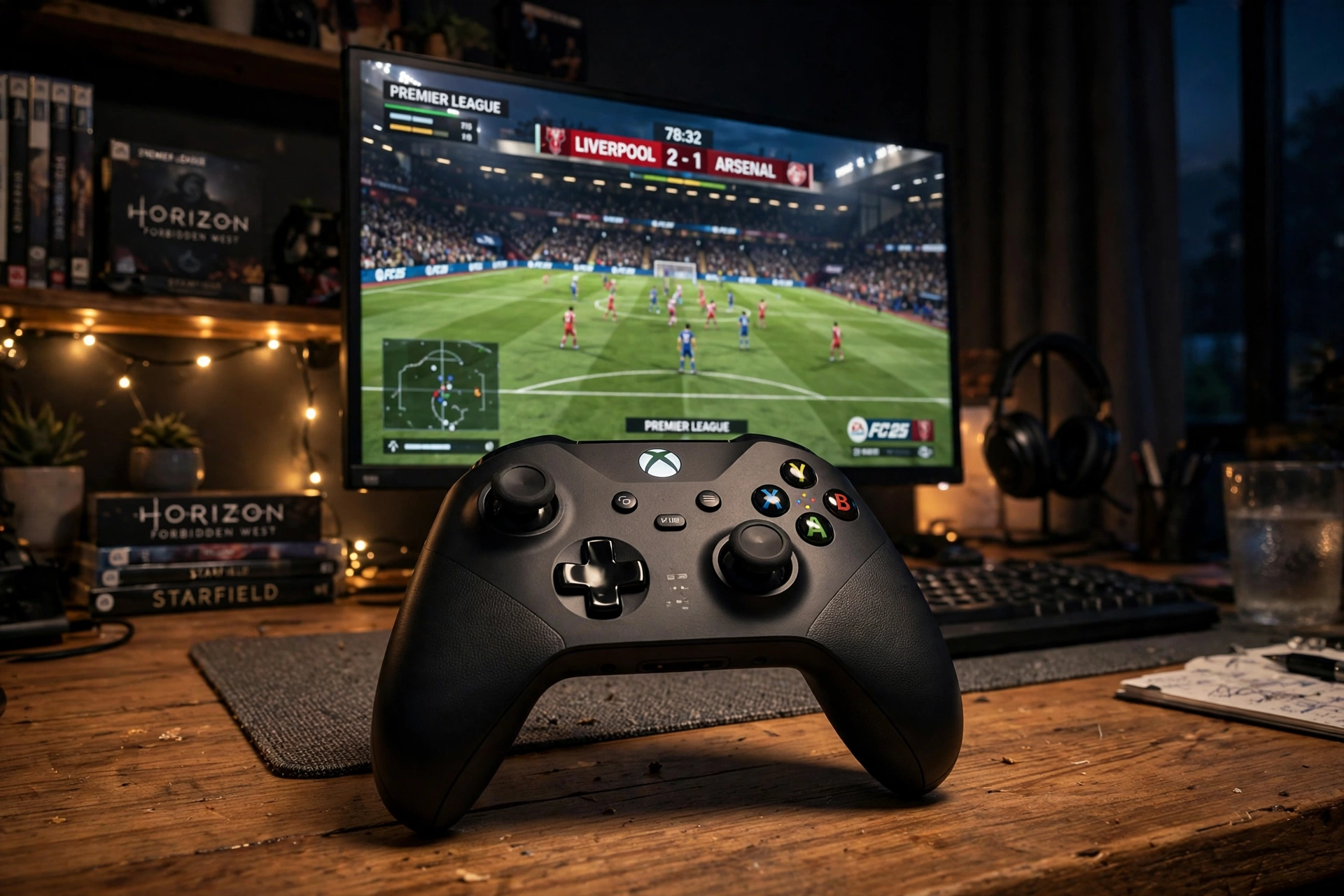
Second, if your Xbox controller feels off on PC, calibrate it before you blame the game. Windows has a built in calibration tool, and our calibration guide walks through it step by step.
Best EA FC 26 Controller Settings for PC
On PC, the settings are the same, but the connection matters more. Play wired if you can. A USB cable removes the small wireless delay that Bluetooth adds, and it removes the battery worry mid match. If you must play wireless, use the official Xbox wireless adapter or a good Bluetooth 5 connection and keep other Bluetooth devices away from your PC.
Check your polling rate too. A controller that reports its position 125 times a second feels slower than one reporting 1000 times a second, and that gap shows up in a game where a tackle is decided in a single frame. If your controller supports a higher polling rate, turn it on in its software.
How to Test Your New Settings in One Week
Do not change everything and then judge it after one match. Change the whole table at once, then give it a week. Play three Squad Battles matches first, where the stakes are low and you can practice right stick switching without losing rank. Then play five Division Rivals matches. After each match, write down the one setting that annoyed you most. Change only that one setting, by one step, and play three more matches.
The settings most players end up changing after week one are Right Stick Switching Sensitivity, which usually goes up by one or two, and Cross Assistance, which many players move from Assisted to Semi once their crossing improves. Almost nobody goes back to the default preset, and almost nobody turns vibration back on.
What Settings Do the Pros Actually Use?
Here is the short version of the pro setups that community guides keep reporting. Levi de Weerd, one of the best FC players in the world, plays on Precision shooting, Semi through passes, and Advanced defending. Anders Vejrgang, another top pro, plays on Assisted shooting, Semi through passes, and Tactical defending. Both use the Competitive preset, Analog Sprint off, vibration off, and trigger effects off.
The lesson is not to copy one of them exactly. It is that the base is the same for everyone, and the only real split is shooting and defending. Start with Vejrgang’s setup, because it is the safer one, and move toward Levi’s setup only when your mechanics are ready. Your controller settings will not turn you into a pro overnight, but the right setup stops the game from fighting you, and that is the point.
The same idea applies in other games too. If you play shooters, our Warzone and Apex controller settings guides use the same approach: start with the competitive preset, turn off the noise, then tune one setting at a time. See the Warzone settings guide and the Apex Legends settings guide. Rocket League players can use the same method in our Rocket League settings guide.
FAQs
What are the best controller settings for EA FC 26?
Use the Competitive preset, Assisted shooting, Semi through passes, Tactical defending, manual jockey, auto switching on Air Balls and Loose Balls, right stick switching on Player Relative, Analog Sprint off, vibration off, and trigger effects off. Use Tele Broadcast camera at Height 10 and Zoom 10. That is the setup most competitive players start from.
Should I use Tactical or Advanced defending in FC 26?
Start with Tactical. It is simpler and it is still the standard for most players. Try Advanced after a week or two if you want manual control over physical challenges and shoulder barges. Advanced is stronger once you learn it, but it adds a second defensive button to manage.
Is Precision Shooting better than Assisted in FC 26?
Precision Shooting has a higher ceiling because you aim every shot yourself, and top players like Levi de Weerd use it. Assisted is better for most players because it is consistent and forgiving. Start with Assisted and switch to Precision only after you can aim calmly under pressure in Squad Battles.
What is the best camera for EA FC 26?
Tele Broadcast at Height 10 and Zoom 10 is the best camera for most players. Co-op at Height 20 and Zoom 0 is better if you want the widest view of the pitch for slow build up play. Both are used by competitive players, so pick the one that fits how you attack.
Does turning off vibration make you better at FC 26?
It removes a small distraction from your hands and it stops rumble from masking your stick inputs in tight moments. Every pro setup turns vibration off, and most players who try it for a week do not turn it back on. It will not fix bad defending on its own, but it makes your inputs cleaner.
The best EA FC controller settings are not a secret pro file. They are the Competitive preset, Assisted shooting until you are ready for Precision, Semi through passes, Tactical defending with manual jockey, smart switching, and every piece of input noise turned off. Copy the table at the top, play a week of matches, and change one setting at a time from there. Your controller will stop fighting you, and your actual skill will finally show through.