Controller Polling Rate Explained: How to Check and Improve It
Your controller sends a fresh report to your PC or console many times every second. That speed is the controller polling rate, and it decides how long your button press waits before the game even sees it. A slow rate adds lag you can feel in a close fight. A fast rate makes your aim feel glued to your hands.
This guide explains what the number means in plain English, which rates Xbox, PlayStation, and Switch controllers really run at, how to check yours in under a minute, and how to raise it when your hardware allows it.
What Is Controller Polling Rate?
Polling rate is how often your controller reports its current state to the device it is connected to. Each report carries the position of both sticks, the triggers, and every button. The rate is measured in hertz (Hz). A 125Hz controller sends 125 reports per second. A 1000Hz controller sends 1,000.
The gap between reports is the part you feel. You can work it out with one simple formula: 1000 divided by the Hz number gives you the gap in milliseconds.
| Polling rate | Gap between reports | What it feels like |
|---|---|---|
| 125Hz | 8 ms | Standard console rate, fine for most games |
| 250Hz | 4 ms | Noticeably snappier on PC |
| 500Hz | 2 ms | Very responsive, pro level |
| 1000Hz | 1 ms | As fast as a wired controller gets |
| 8000Hz | 0.125 ms | Marketing flagship, tiny real gain |
That 8ms gap at 125Hz is a maximum, not an average. Your press lands somewhere inside that window, so on average it waits about half the gap. Going from 125Hz to 1000Hz saves up to 7ms, and about 3.5ms on average.
Polling Rate vs Input Lag: Not the Same Thing
Polling rate and input lag get mixed up all the time, but they measure different things. Polling rate is only how often your controller talks to your PC. Input lag is the full trip: your press, the controller firmware, the USB or Bluetooth link, the operating system, the game engine, the render, and finally your monitor.
A 1000Hz controller cannot fix a slow TV or a game that reads input once per frame. It only shrinks one link in the chain. That is why two controllers with the same rate can still feel different, and why our guide on reducing input lag looks at the whole chain instead of one number.
What Polling Rate Do Popular Controllers Actually Run At?
The number on the box is often a best case, not what you get on your setup. Here is what independent testing shows for the controllers most PC and console players actually own.
| Controller | Wired USB | Bluetooth | Notes |
|---|---|---|---|
| Xbox Series X/S | 125Hz | 125Hz | 250Hz with the Xbox Wireless Adapter |
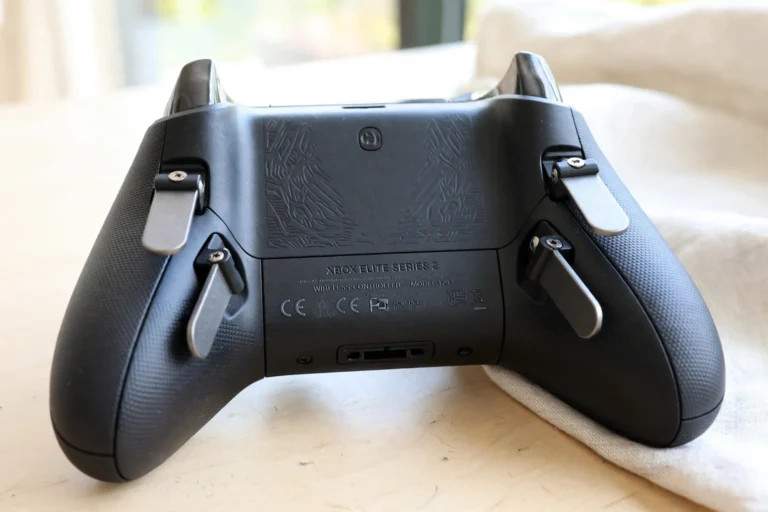
| Xbox Elite Series 2 | 125Hz | 125Hz | Same XInput limit as the standard pad |
| PS5 DualSense | 250Hz | 125Hz | 1000Hz possible with DS4Windows on PC |
| PS4 DualShock 4 | 250Hz | 125Hz | 1000Hz possible with DS4Windows on PC |
| Switch Pro Controller | 125Hz | About 62Hz | No way to raise it |
| 8BitDo Ultimate 2 / GameSir G7 SE | 1000Hz | Varies | Native high rate over USB |
Why Xbox Controllers Are Stuck at 125Hz
Microsoft builds Xbox controllers on the XInput protocol, and the Windows XInput driver polls them at 125Hz no matter which cable or USB port you use. There is no official Microsoft setting or firmware update that raises it. The only official jump is the Xbox Wireless Adapter, which runs the controller at 250Hz over its 2.4GHz link. Third party tools claim more, but no reliable software overclock exists for first party Xbox pads, so 125Hz wired and 250Hz on the adapter are the honest numbers.
Why the DualSense Runs Faster on PC
Sony ships the DualSense with a 250Hz USB report rate, double the Xbox pad. Over Bluetooth it drops to about 125Hz. On the PS5 console itself Sony has never published an official figure, and independent measurements land in the same range as wired PC play. The DualSense is also the easiest mainstream controller to push further: DS4Windows can raise it to 1000Hz over a wired connection, which is covered in the steps below.
Is 1000Hz Really Better Than 125Hz?
Yes, but the size of the win depends on what you play. The jump from 125Hz to 1000Hz cuts the maximum wait from 8ms to 1ms. In a competitive shooter or a fighting game, where a single frame at 120Hz lasts 8.3ms, that saving is real. In a slow RPG or a story game, you will never notice it. Your monitor frame time and your own reaction time, around 200ms for most people, are far bigger numbers.

One more thing matters more than the headline number: stability. A controller that holds a steady 250Hz with even spacing feels better than one that spikes to 1000Hz and then stutters between 0.5ms and 2.5ms gaps. When you test your own pad, look for a stable line, not a peak number.
Above 1000Hz the returns get tiny. A few flagship pads now advertise 8000Hz, which is a 0.125ms gap, but the step from 1000Hz to 8000Hz saves less than 1ms. Do not buy a new controller for that number alone.
How to Check Your Controller Polling Rate on PC
You can check your rate in under a minute, and you should test before you change anything, so you know whether a fix actually worked.
Method 1: Test in Your Browser
Connect your controller, open our free gamepad tester, press any button to wake it up, then move a stick in slow circles for ten seconds. The tool reads your controller through the Gamepad API and shows the rate it sees. One honest warning: a browser test is capped by your monitor refresh rate, so a 60Hz screen cannot show a true 1000Hz reading. Use it to compare wired against Bluetooth on the same screen, not as a hardware certificate.
Method 2: Use Gamepadla or XinputTest
For a real hardware number, use a small desktop tool. Gamepadla is free and open source, and it supports both XInput and DirectInput pads. Install it, pick your controller, hit Test, and rotate a stick slowly at the edge. It reports the average and maximum rate plus the gap between reports. XinputTest works the same way for Xbox style controllers. Both tools beat a browser test because they read the USB reports directly instead of going through the browser frame loop.
Method 3: Check Inside DS4Windows
If you already run DS4Windows for a DualSense or DualShock 4, it shows the current rate in its profile settings, and it is the same place you raise it. This only works for Sony controllers, since DS4Windows does not manage Xbox pads.
How to Improve Your Controller Polling Rate
Work through these in order. Most players only need the first two.
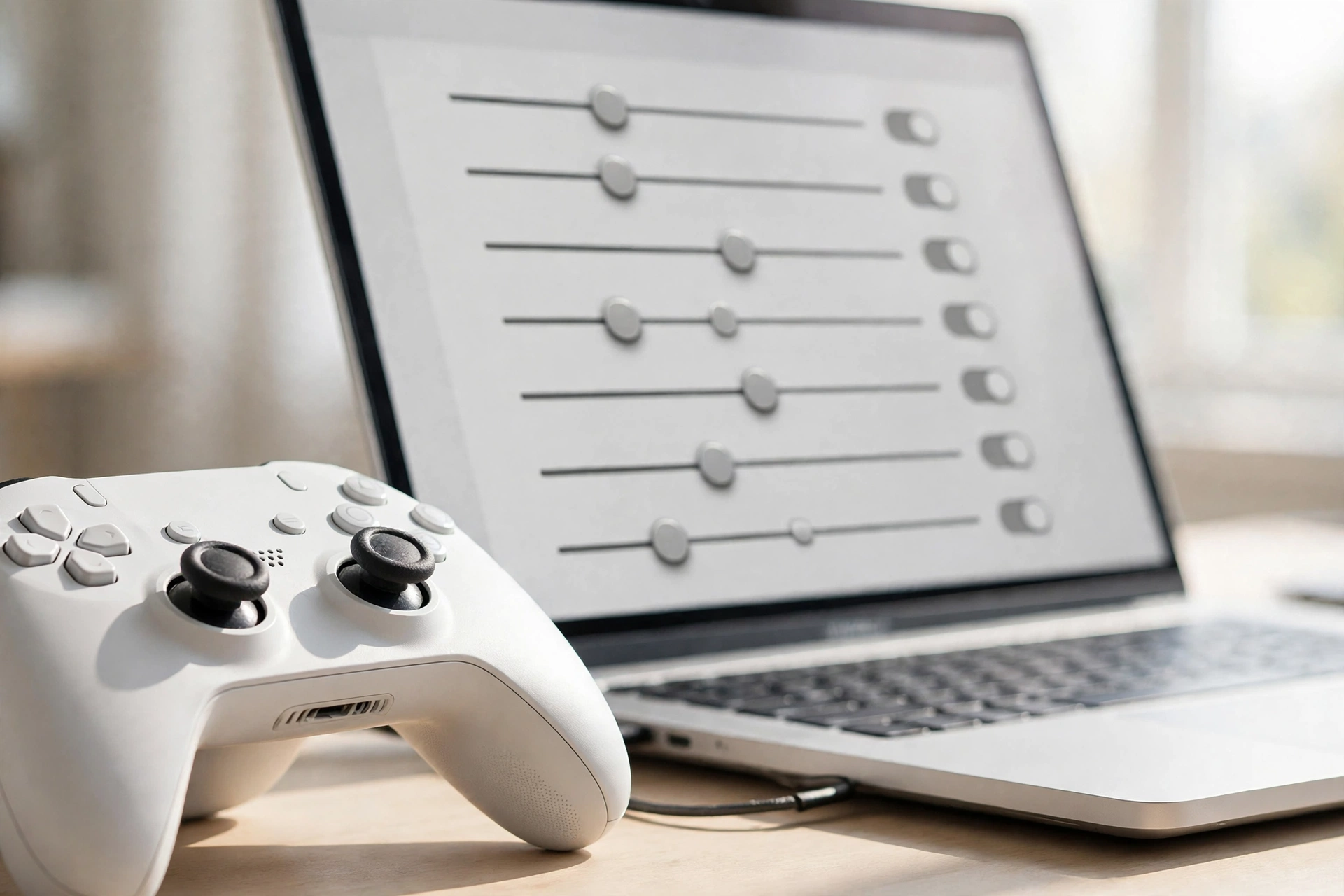
- Plug in a USB cable. This is the single biggest free win. Wired USB almost always polls faster and steadier than Bluetooth, and it removes wireless interference from the picture. Use a data cable, not a charge-only cable, and plug it straight into the PC instead of an unpowered hub.
- Update the firmware and use the vendor app. Check your controller app for a report rate or polling setting. On the GameSir G7 SE and G7 HE, firmware 6.40 or later plus a 1000Hz report rate in GameSir Nexus, with the pad switched to XInput mode, is the documented path to 1000Hz. 8BitDo pads get the same treatment in 8BitDo Ultimate Software. Always update firmware first, because the high rate option often appears only after the update. Keeping firmware current matters for every controller, as our PS5 firmware update guide shows.
- Use the Xbox Wireless Adapter for 250Hz. If you play wireless on an Xbox pad, the official adapter doubles the rate from 125Hz to 250Hz with no driver tricks. It is the only official upgrade path Microsoft offers.
- Raise a DualSense or DualShock 4 with DS4Windows. Install DS4Windows from its official GitHub page, open Settings, enable the HID device mode, then set the polling rate to 1000Hz in your profile and reconnect the controller over USB. Test again after the change. If you see stick drift or dropped inputs at 1000Hz, drop back to 500Hz, which still feels fast and is far steadier on most PCs. If DS4Windows does not see your controller at all, see our DS4Windows not detecting guide.
- Overclock with hidusbf only if you know the risks. Hidusbf is a free filter driver that makes Windows poll a wired Sony controller more often than the firmware asked for. It works on DualSense and DualShock 4 pads, not on Xbox controllers, and some builds need Windows Memory Integrity turned off, which weakens a real security feature. If a method only works after turning that protection off, skip it. For most players, DS4Windows at 500Hz or 1000Hz is the safer route to the same result.
Why Your Polling Rate Reading Looks Wrong
Polling rate numbers confuse people because the test and the hardware rarely agree at first. Here are the usual reasons:
- Your monitor caps the browser test. A browser reads the controller once per animation frame, so a 60Hz screen caps readings near 60Hz. Test on a 144Hz or 240Hz screen for a fairer browser number, or use Gamepadla instead.
- You are on Bluetooth. Bluetooth defaults to 125Hz on most pads and drops lower on the Switch Pro Controller. Plug in the cable and test again.
- The battery is low. Some controllers cut their rate to save power as the battery runs down. Xbox pads in particular can drop from 250Hz to 125Hz on a low battery, so charge up before you judge the number.
- Steam Input or a remapper sits in the middle. A virtual controller layer can report its own rate instead of the hardware rate. Test with Steam Input off, or check the raw device in Gamepadla.
- You are reading a peak, not an average. One spike to 1000Hz means nothing if the average sits at 250Hz. Judge the average and the stability.
FAQs
What is a good polling rate for a controller?
For casual and story games, 125Hz is fine. For competitive shooters, fighting games, and rhythm games, aim for 500Hz or 1000Hz over a wired connection. Above 1000Hz the gains are too small to feel.
Is 1000Hz better than 125Hz for gaming?
Yes, in fast games. It cuts the maximum input wait from 8ms to 1ms, a saving of up to 7ms. In slow games you will not feel the difference, and a stable 250Hz often beats a jittery 1000Hz.
How do I check my controller polling rate?
Connect the controller to your PC, open a browser based gamepad test or install Gamepadla, then move a stick in circles for ten seconds and read the average rate. Test wired and Bluetooth separately, since the numbers are usually different.
Can I increase my Xbox controller polling rate?
There is no official way past 125Hz wired or Bluetooth. The official Xbox Wireless Adapter raises it to 250Hz. No reliable software overclock exists for first party Xbox controllers, so do not pay for tools that promise 1000Hz on one.
Does a higher polling rate reduce input lag?
Partly. It shrinks the waiting time before your PC sees the press, which is one slice of total input lag. It cannot speed up the game engine, the render, or your monitor, so pair a faster rate with the other fixes in our input lag guide.
Polling rate is a simple number with a simple lesson: wired beats wireless, Sony pads can be pushed to 1000Hz on PC, Xbox pads top out at 250Hz through the official adapter, and stability matters more than the peak. Check your own controller with the steps above, and if your inputs still feel slow, work through the rest of the chain in our input lag guide. A faster report rate is a real upgrade, but only when the rest of your setup keeps up.