PS5 Controller Touchpad Not Working? 5 Fixes That Work in 2026
PS5 controller touchpad not working is one of those problems that feels like broken hardware but usually is not. The DualSense touchpad is really two inputs in one: a touch surface that reads swipes and a button underneath it that clicks. A game can use one and ignore the other, so a swipe that does nothing in one game can be perfectly normal while the same pad works fine everywhere else.
Before you buy a new controller or open the shell, work through the five fixes below in order. Most touchpad problems clear up with a game check, a quick clean, a firmware update, or a reset. The whole process takes about ten minutes, and the first step alone saves a lot of players from replacing a healthy controller.
First, Find Out What Actually Stopped Working
Do not reset anything yet. The touchpad has three separate jobs, and each one can fail on its own. Figuring out which one stopped tells you which fix to use.
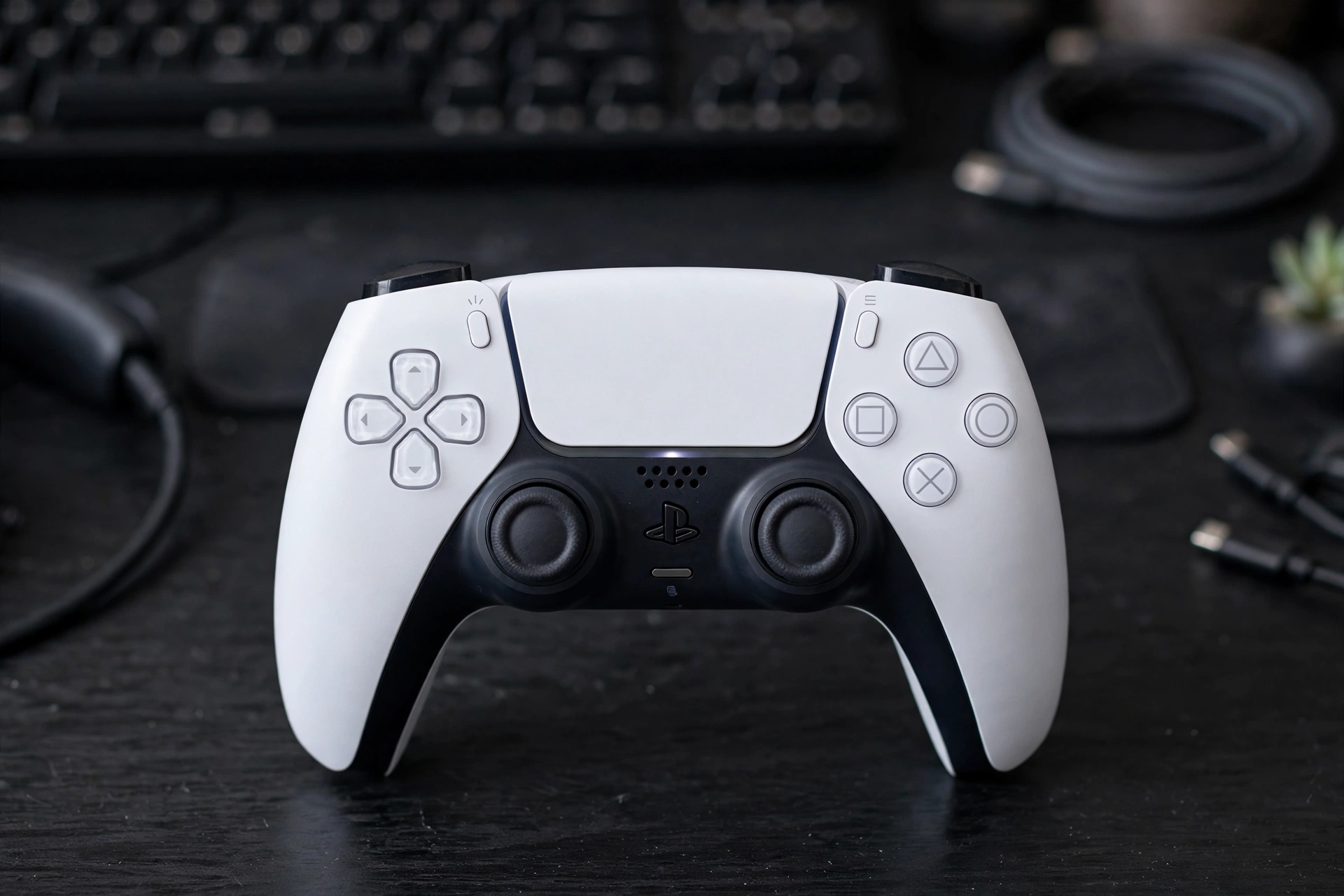
First, press the touchpad down until it clicks. That click is a normal button, the same as Cross or Square. Then swipe one finger slowly across the surface without pressing it down. That swipe is a separate touch input. Finally, open a game you know uses the touchpad, such as Ghost of Tsushima, where a swipe opens the map, or Astro’s Playroom, which uses both the click and swipes in its opening levels.
If the click works but swipes do nothing, the touch surface or the game binding is the problem, not the button. If swipes work in one game but not in another, the second game simply may not use that input, or your custom control layout remapped it. If nothing works in any game, move on to the fixes below. This two minute test is the difference between a five minute software fix and a repair you did not need.
Why Your PS5 Controller Touchpad Stops Working
Most touchpad failures fall into a small set of causes, and knowing them keeps you from chasing the wrong fix.
- The game does not use the touchpad. Plenty of PS5 games never touch it, and some use only the click. A silent swipe in a game like that is expected, not a fault.
- Dirt and skin oils on the surface. The touch sensor reads your finger through the surface, and a layer of grime weakens that reading until swipes drop out.
- Out of date DualSense firmware. Sony ships controller software updates that fix input bugs, and an old version can leave the touchpad unresponsive after a PS5 system update.
- A stale Bluetooth pairing or a custom layout. A bad pairing or a remapped profile can swallow the touchpad input while every other button still works.
- Hardware damage. A hard drop can crack the surface or loosen the thin flex cable that connects the touchpad to the main board. If the pad took a fall and then stopped working, this moves to the top of the list.
Fix 1: Test It in a Game That Actually Uses the Touchpad
Open your PS5, pick a game that documents touchpad controls, and try the exact action the game expects. In Ghost of Tsushima, swipe up on the touchpad to open the map. In Astro’s Playroom, the touchpad click opens menus and swipes move objects. If the touchpad works there, your controller is fine and the first game was the problem.
Also check the control layout inside the game that failed. Go to its settings, open the controls screen, and look for the touchpad action. If you use a custom layout, note it down, switch back to the default layout, and test again. A remapped touchpad action is one of the most common reasons players think the pad died. If the default layout fixes it, rebuild your custom layout and leave the touchpad action alone.
Fix 2: Clean the Touchpad Surface
Turn the controller off first. Hold the PS button for about ten seconds until the light bar goes dark, then unplug any cable.
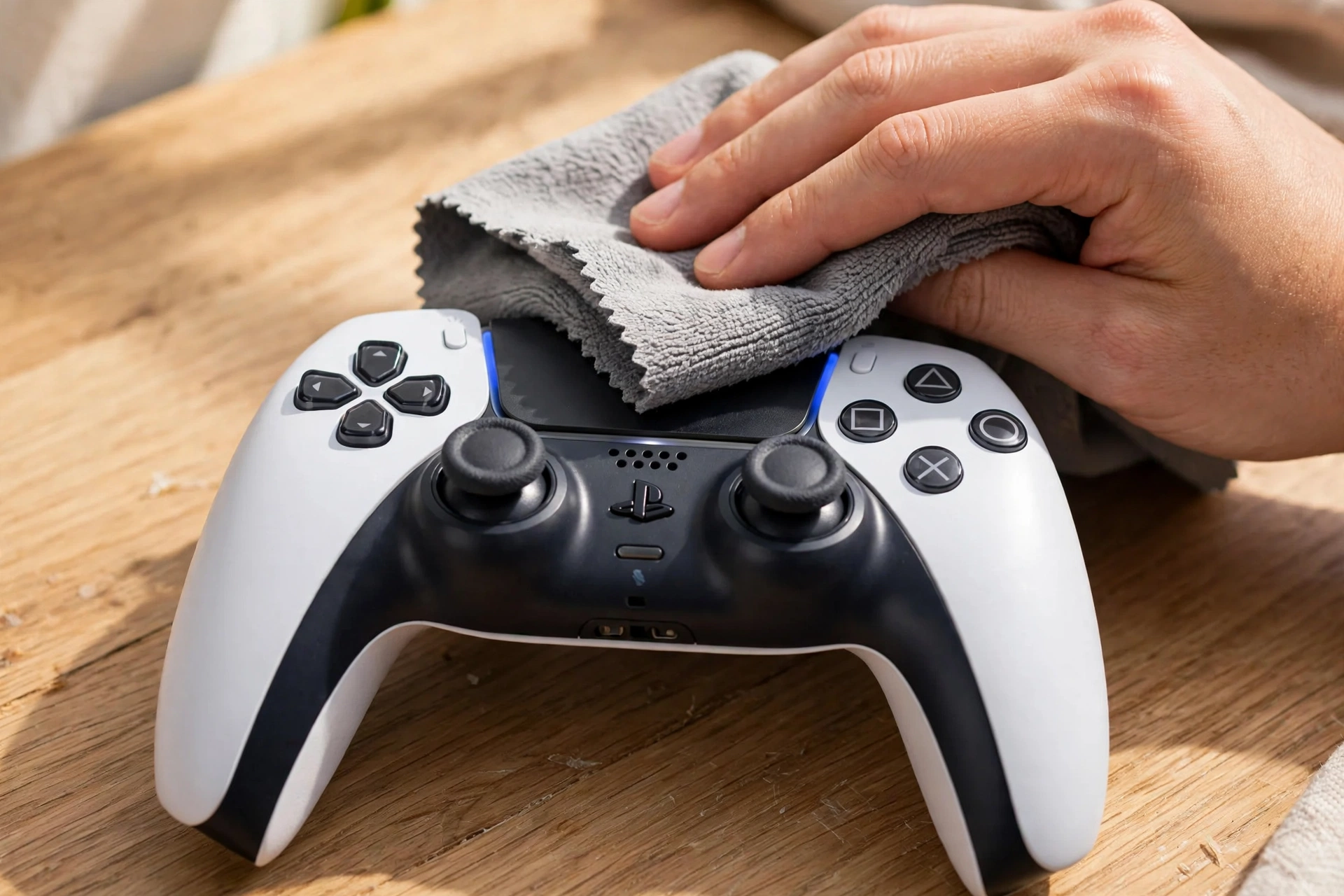
Wipe the touchpad with a dry microfiber cloth, using slow straight strokes. If there is visible grime, dampen the cloth lightly with 90 percent isopropyl alcohol and wipe again, then let the surface dry fully before you turn the controller back on. Do not pour liquid onto the pad, do not push alcohol into the edges, and do not press harder to force a response. A dirty touchpad usually comes back after one careful clean, and this fix costs nothing.
Fix 3: Update the DualSense Firmware and Your PS5
Firmware updates fix more touchpad problems than players expect, and Sony releases them quietly. Check yours before you try anything harder.
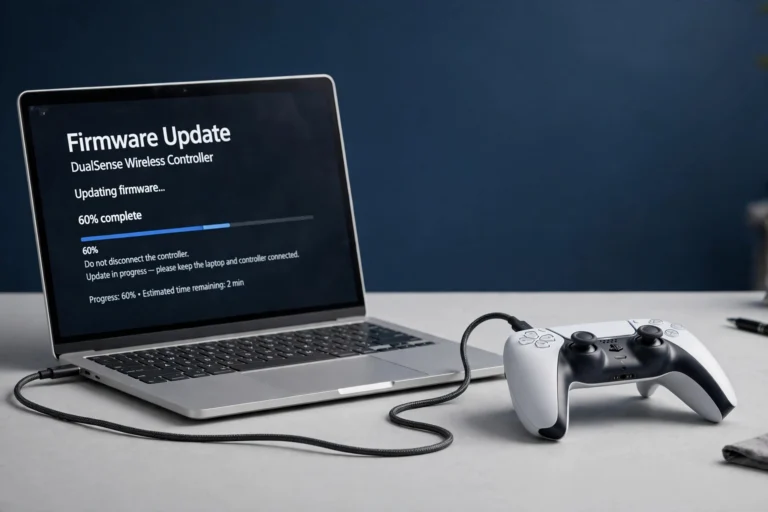
Connect the controller to your PS5 with a USB cable that carries data, not a charge only cable. Then go to Settings, then Accessories, then Controller, then DualSense Wireless Controller Device Software. If an update is available, install it and wait for it to finish before you unplug anything.
While you are there, update the console too. Go to Settings, then System, then System Software, then System Software Update, and install anything waiting. A controller on new firmware and a console on old system software can disagree in ways that look like dead hardware. Our full walkthrough covers the PC route as well if you play without a console nearby.
Fix 4: Reset the Controller and Re-Pair It
If the firmware is current and the pad is clean, a reset clears the pairing state and the small glitches that come with it. This is the fix that solves most cases that reach this step.
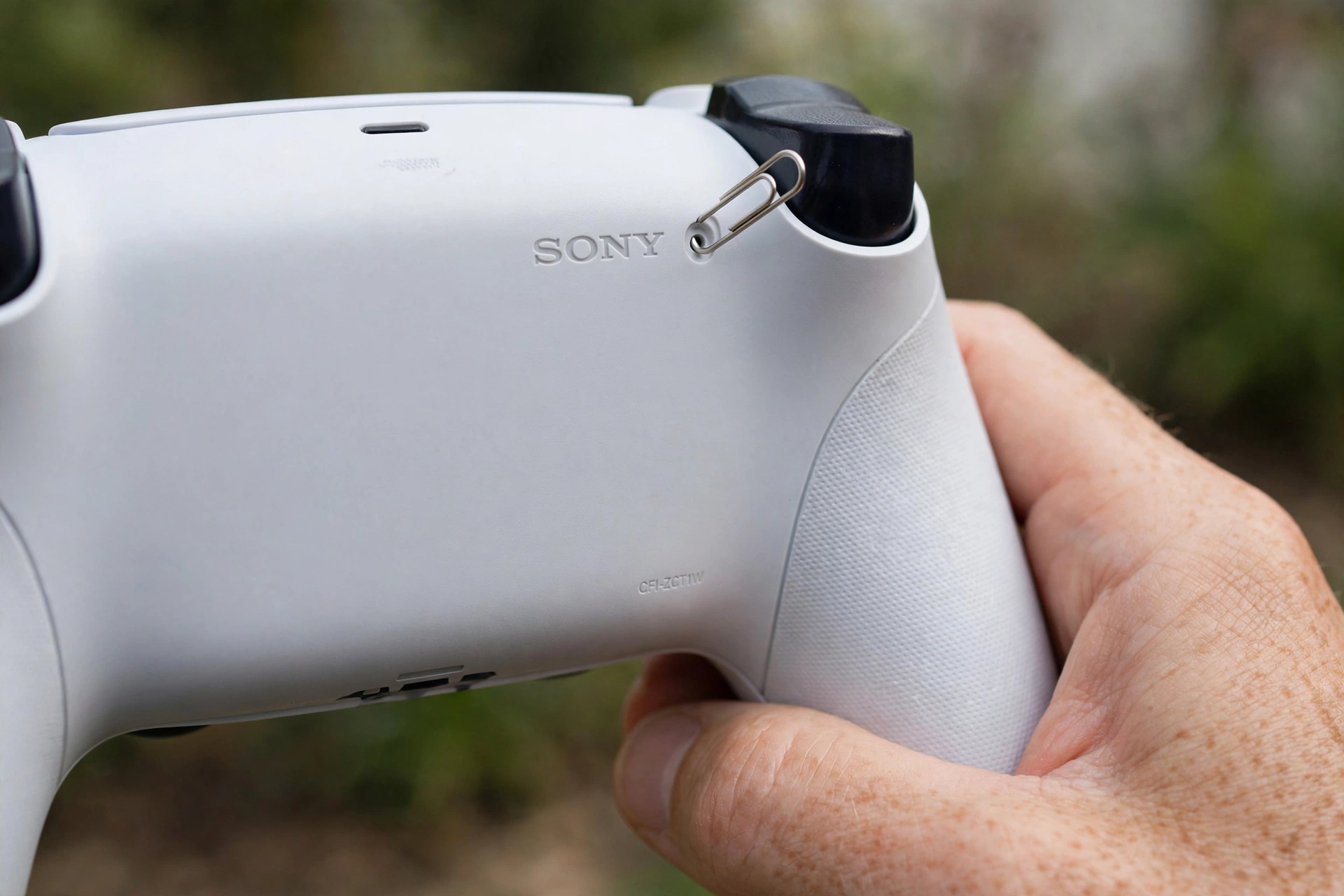
Turn the controller off and unplug it. Flip it over and find the small reset hole on the back, beside the Sony logo near the right grip. Push a paperclip or a SIM ejector tool into the hole and hold it for at least five seconds, then let go. The controller is now reset and unpaired.
Plug it back into your PS5 with a USB cable and press the PS button to pair it again. Test the touchpad in a game that uses it. If you play on PC over Bluetooth and the touchpad still misbehaves after the reset, remove the controller from your PC Bluetooth devices and pair it fresh. Our Bluetooth guide walks through the re-pairing steps for Windows.
Fix 5: Check Steam Input and PC Settings
On PC the touchpad often works fine but the game never sees it, because a software layer sits between the controller and the game. Steam Input can remap the touchpad to mouse movement, extra buttons, or nothing at all, and a profile that sets it to mouse mode will swallow swipes in games that expect a touchpad press.
Open Steam, go to the game, then Controller Settings, and look at what the touchpad is bound to. If it is set to mouse or to a button you did not intend, change it back to the game default or turn Steam Input off for that game and test again. Close DS4Windows or DualSenseX while you test, so only one input layer is active at a time. If the touchpad starts working after a profile change, that profile was the problem, not the controller. Our Steam fixes guide covers the rest of the common Steam Input traps.
How to Test the Touchpad Click in Your Browser
You can check the click side of the touchpad in under a minute, without installing anything. Connect your DualSense to your PC with a data capable USB cable, open our free gamepad tester, and press any face button to wake the controller up.
Then press the touchpad down once and watch the buttons grid. The touchpad click shows up as a standard button, so it should light up and release cleanly. If it lights up, the click hardware is alive and your problem is the touch surface, a game binding, or a profile. One honest limit: a browser test cannot see swipes or touch coordinates, because the web Gamepad API does not expose them in a standard way. A missing swipe in the browser proves nothing about the touch sensor, so judge swipes in a game, not in the browser.
When the Touchpad Is Really Broken
If the same documented click or swipe fails in several supported games, on the PS5 and on PC, after a clean, a firmware update, and a reset, the fault is probably inside the controller. The usual suspects are a worn touchpad assembly or the flex cable that links it to the main board. iFixit publishes a step by step DualSense touchpad replacement guide if you are comfortable opening the controller, and their troubleshooting page lists the same checks in this guide as the first steps.
Do not open the shell just to confirm a theory, and never open it while the controller is still under warranty. Opening the controller can void the warranty, so check your coverage with PlayStation Support first. If the controller is covered, Sony may repair or replace it free of charge.
FAQs
Why is my PS5 controller touchpad not working?
The most common reasons are a game that does not use the touchpad, dirt on the surface, old DualSense firmware, a remapped control layout, or a stale Bluetooth pairing. Test the touchpad in a game that documents touchpad controls, clean the surface, update the firmware, and reset the controller. Hardware failure is the last thing to suspect, not the first.
How do I reset my PS5 controller touchpad?
There is no reset for the touchpad alone. Reset the whole controller: turn it off, push a paperclip into the small hole on the back beside the Sony logo, hold it for at least five seconds, then reconnect the controller to your PS5 with a USB cable and press the PS button. Test the touchpad in a supported game after the reset.
Can you replace the touchpad on a PS5 controller?
Yes. The touchpad is a separate part connected to the main board by a flex cable, and iFixit publishes a replacement guide for the DualSense. It is a fiddly repair with small clips and screws, so try the software fixes first and check your warranty before opening the controller.
Does the PS5 controller touchpad work on PC?
It depends on the game. The touchpad click works as a standard button in most PC games, but swipe gestures need a game with native DualSense support or a remapper such as Steam Input or DS4Windows. If a swipe does nothing on PC, check the game’s controller settings and your Steam Input bindings before blaming the hardware.
Why does my touchpad click work but swipes do nothing?
The click and the swipe are two different inputs. A working click only proves the button under the pad is alive. Swipes need the touch sensor, a game that reads it, and a clean surface. Test swipes in a game that documents them, clean the pad, and check that no remapper has taken over the touch surface.
A PS5 controller touchpad that stops working is usually a software or settings problem wearing a hardware costume. Test the click and the swipe separately, try the action in a game that actually uses it, clean the surface, update the firmware, and reset the controller. If none of that brings it back in several games, check your warranty before you open anything. And if your DualSense has other quirks, our charging guide covers the reset steps that fix a surprising number of them too.