Controller Double-Clicking or Double Input? How to Fix It
You press A once and your character jumps twice. You tap down on the D-pad in a menu and the cursor skips two slots. One press, two actions, and a game that suddenly feels broken.
This is controller double input, and it is one of the most common controller problems on PC. The good news is that it is almost always a software problem, not a broken controller. In most cases, the game is simply seeing your controller twice, and once you remove the extra copy the problem is gone. This guide walks you through the exact controller double input fix steps that work on PC, Xbox, and PlayStation, starting with the fastest checks first.
What Is Controller Double Input?
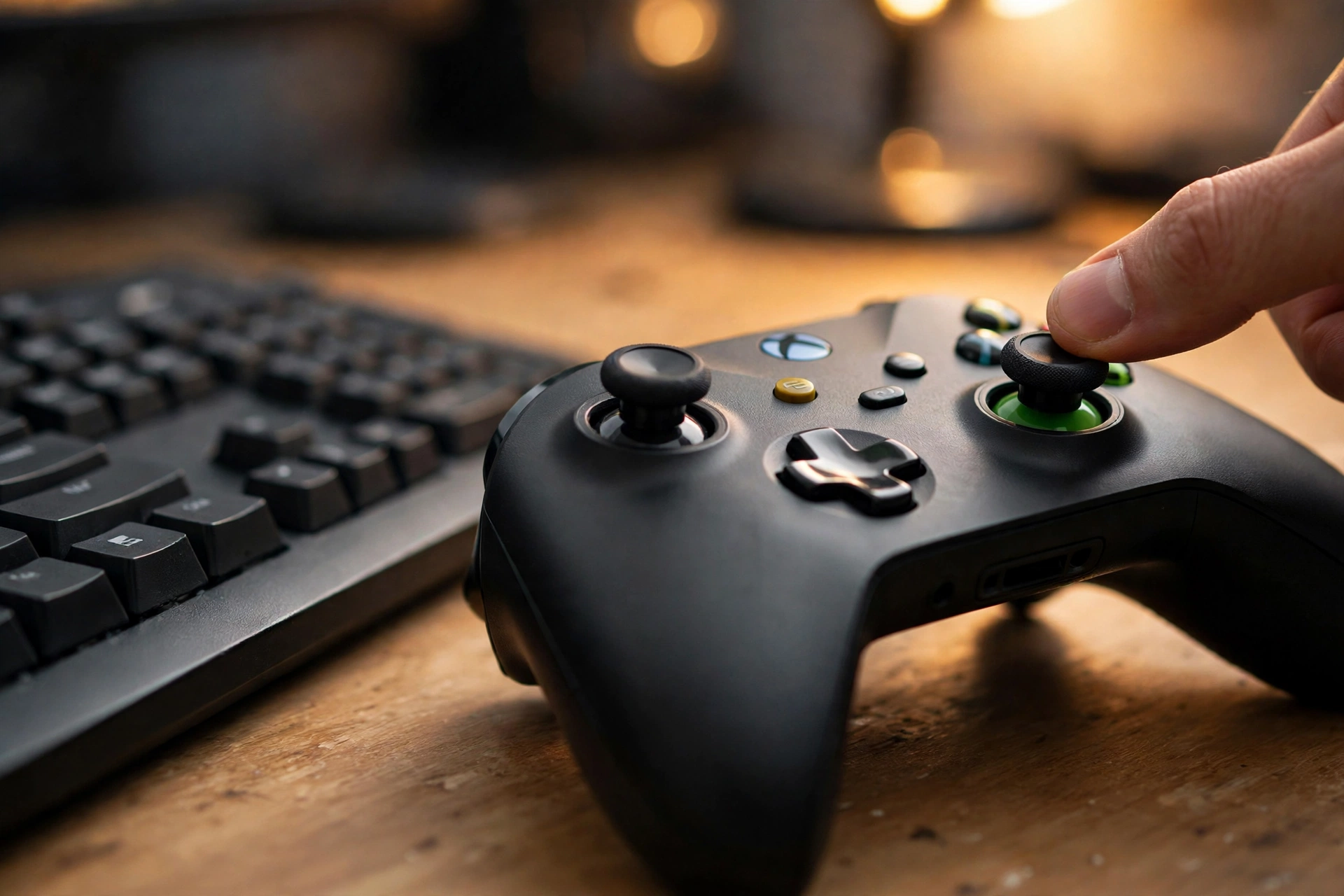
Double input means a single press on your controller reaches the game twice. You press X one time, and the game acts like you pressed it two times. Your character fires two shots instead of one, buys two items instead of one, or jumps twice off a ledge you wanted to land on.
There are two kinds of double input. The first is software double input. Your PC or console sees your controller as two separate controllers, so every press arrives twice. This is the most common kind, and it is easy to fix. The second is hardware double input. A worn or dirty button contact bounces when you press it, and the controller sends two signals for one press. This is sometimes called double-clicking, and it needs a different fix.
The fastest way to tell them apart is to test the controller. If the problem shows up in every game and every app, it is probably software. If only one button double presses while the rest work fine, it is probably that button.
What Causes Controller Double Input?
Most double input comes from one of six causes. Finding your cause tells you which fix to use, so read through this list before you start changing settings.
First, two input layers running at once. Steam Input, DS4Windows, reWASD, and BetterJoy all translate your controller into a virtual Xbox controller. If two of them run together, the game gets the same press from both of them. Second, a missing HidHide setup. Tools like DS4Windows create a virtual controller, but the real controller stays visible too. Games that read both devices see every press twice.
Third, old firmware or drivers. Microsoft, Sony, and Nintendo all ship firmware updates that fix input bugs. A controller that missed an update can send messy signals. Fourth, a weak Bluetooth link. Interference from Wi-Fi routers, phones, and other wireless gear can corrupt the signal and make presses repeat.
Fifth, a worn or dirty button. Dust under a button or a tired contact switch can bounce and fire twice on one press. Sixth, a game bug. Some games, such as EA FC and older FIFA titles, read both DirectInput and XInput at the same time, so their menus skip two slots on every D-pad press. That last one is a known game problem, and Fix 2 and Fix 3 below cover it.
Fix 1: Test Your Controller First
Before you change any setting, find out whether the problem is your controller or your software. It takes two minutes and it saves you from fixing the wrong thing.
Open our free gamepad tester at https://game-padtester.com/ and press each button once, slowly. The tester shows every input as it arrives. If each press shows up once, your controller hardware is fine and the problem is in your software. Move on to Fix 2. If one press shows up twice in the tester, the problem is in the controller itself, and you should jump to Fix 6.
Next, test the controller on a second device. Plug it into your phone, a different PC, or a console and press the same button. If the double input follows the controller to every device, the hardware is at fault. If it only happens on your PC, your PC setup is the cause.
If your controller also acts up in other ways, such as phantom movement or random presses, our guide on fixing controller ghost inputs covers those faults too: https://game-padtester.com/how-to-fix-controller-ghost-inputs/
Fix 2: Run Only One Input Layer at a Time
This is the fix that solves double input for most PC players. Steam Input and tools like DS4Windows or reWASD do the same job. When two of them run together, the game gets your press twice, once from each layer. Pick one and turn off the other.
If you play on Steam, try this first. Right-click the game in your Steam library, open Properties, then Controller, and set the Steam Input override to Disable Steam Input. Close DS4Windows or reWASD if it is running, then launch the game again. If the double input stops, Steam Input was fighting with your other tool.
If you need DS4Windows because the game does not support PlayStation controllers, do the opposite. Keep DS4Windows running and turn Steam Input off for that game using the steps above. Never run Steam Input and DS4Windows on the same game at the same time.
Also close any other mapper you forgot about. Xbox Accessories app remapping, JoyToKey, and old x360ce setups can all add a second layer. Check your system tray for mapper icons and close them one by one until the double input stops. Our full Steam controller troubleshooting guide walks through the same settings in more detail: https://game-padtester.com/controller-not-working-in-steam-6-quick-fixes/
Fix 3: Hide the Real Controller With HidHide
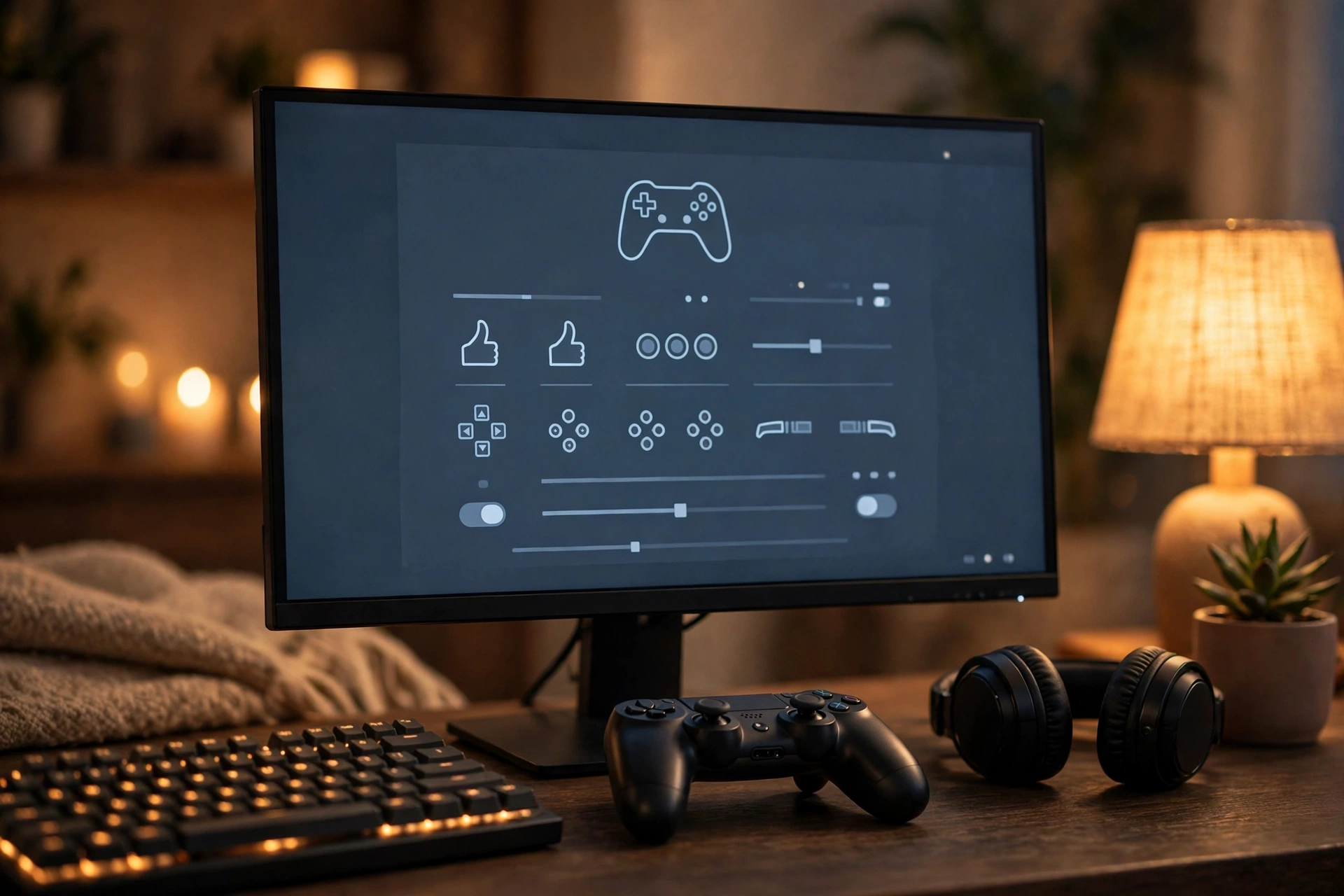
If you use DS4Windows or BetterJoy, Fix 2 alone may not be enough. These tools work by creating a virtual Xbox controller that games can read. The problem is that your real controller stays visible to Windows too. Games that check both devices get every press twice, once from the real pad and once from the virtual one.
HidHide fixes this. It is a small driver that hides your real controller from games while still letting DS4Windows or BetterJoy see it. The game then sees only the virtual controller, and the double input stops. The DS4Windows team documents this exact problem and recommends HidHide as the fix: https://kanuan.github.io/DS4WSite/guides/solving-double-input/
Here is how to set it up:
- Install HidHide. It comes with the DS4Windows installer, or you can install it from the HidHide Configuration Client.
- Open the HidHide Configuration Client and go to the Devices tab.
- Tick the box next to your controller, then tick Enable device hiding at the bottom of the window. That second box is the one people forget, and nothing works without it.
- Go to the Applications tab and add the tool that needs to see the controller, such as DS4Windows.exe or BetterJoyForCemu.exe.
- Restart your PC, then launch your tool before you open the game.
The same setup fixes double input on a Switch Pro Controller on PC. BetterJoy turns the Pro Controller into a virtual Xbox pad, and HidHide stops games from seeing the real one at the same time. A detailed walkthrough of that setup is here: https://kasoukuukan.com/en/2026/08/14/procon-pc-optimization-betterjoy-hidhide-en/
After you change HidHide settings, close and reopen your game. In stubborn cases, restart Windows once so the driver change takes full effect. If you are setting up DS4Windows for the first time, our DS4Windows troubleshooting guide covers the install and the common errors: https://game-padtester.com/ds4windows-not-detecting-controller/
Fix 4: Update Firmware and Drivers
Old firmware is a quiet cause of double input. Controller makers ship updates that fix input bugs, and a controller that missed an update can send repeated or messy signals.
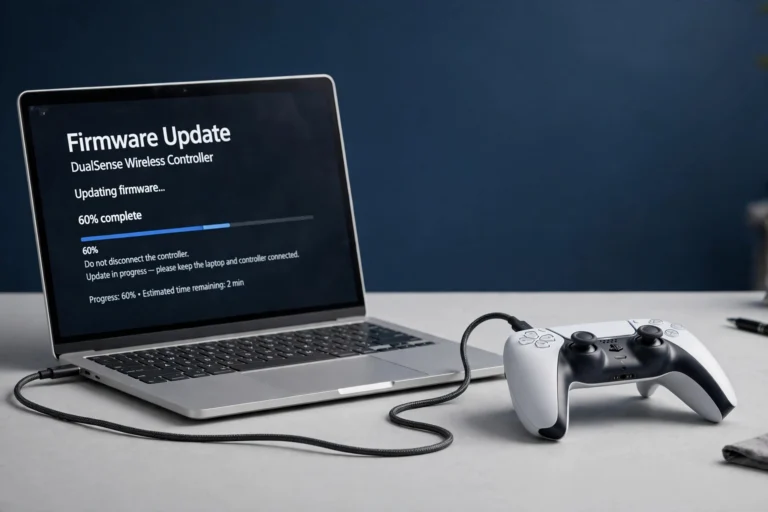
For an Xbox controller, update the firmware with the Xbox Accessories app on PC or on your Xbox console. Plug the controller in with a USB cable, open the app, and install any update it offers. Our step by step guide covers both Windows 10 and Windows 11: https://game-padtester.com/how-to-update-xbox-controller-firmware-on-pc/
For a PS5 DualSense, update it on a PS5 console from Settings, then Accessories, then Wireless Controller. On PC, use the official PS5 firmware updater app from Sony. For a Switch Pro Controller, update it from the Switch itself under System Settings, then Controllers and Sensors, then Update Controllers.
On Windows, also refresh the controller drivers. Open Device Manager, find your controller under Human Interface Devices or Xbox Peripherals, right-click it, and choose Uninstall device. Then unplug the controller and plug it back in. Windows will install a fresh driver. While you are there, update your Bluetooth driver too, since an old Bluetooth driver can corrupt the wireless signal and cause repeated presses.
Fix 5: Switch to a Wired Connection
Bluetooth adds a layer of trouble that a cable removes. If your double input only happens over Bluetooth, a wired test will tell you in seconds.
Plug your controller into your PC or console with a good USB cable and play for a few minutes. If the double input stops, the wireless link is the problem. The cause is usually interference, a weak signal, or a bad pairing.
To fix the wireless link, remove the controller from your Bluetooth devices and pair it again from scratch. Move closer to the PC or console, and move your Wi-Fi router, phone, and wireless headset further from the controller. A 2.4 GHz Wi-Fi network sitting right next to your controller is a common source of repeated inputs. If you play on a laptop, try a different USB port for your Bluetooth adapter, and keep metal objects away from the line between the controller and the receiver.
If the double input happens on cable too, the problem is not the wireless link. Go back to Fix 2 and Fix 3, or move on to Fix 6. A wired link also cuts input delay, and our guide on reducing input lag explains the rest of that setup: https://game-padtester.com/how-to-reduce-controller-input-lag-on-pc/
Fix 6: Clean the Button or Stick
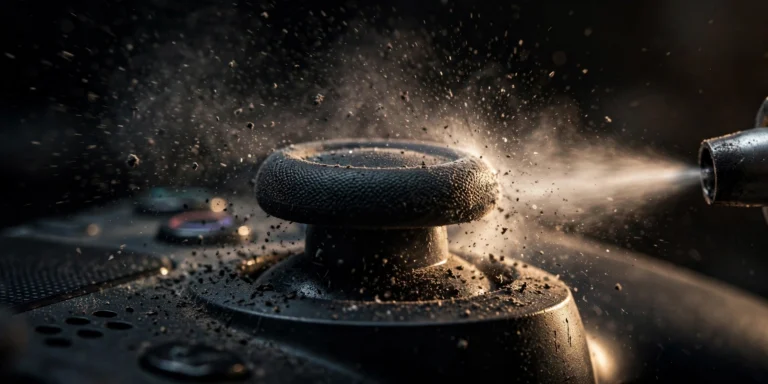
If only one button double presses while the rest work fine, the problem is almost always that button. Dust, crumbs, or sticky residue under the button can make the contact bounce, so one press fires twice. This is the hardware kind of double input, and cleaning fixes it more often than people expect.
Here is how to clean it without opening the controller:
- Turn the controller off and unplug it.
- Hold it with the problem button facing down so dust falls out, not in.
- Give short bursts of compressed air around the edges of the button.
- Press the button firmly about 20 times. This works loose dirt out of the contact.
- Blow it out with compressed air once more.
- Test the button again on our gamepad tester.
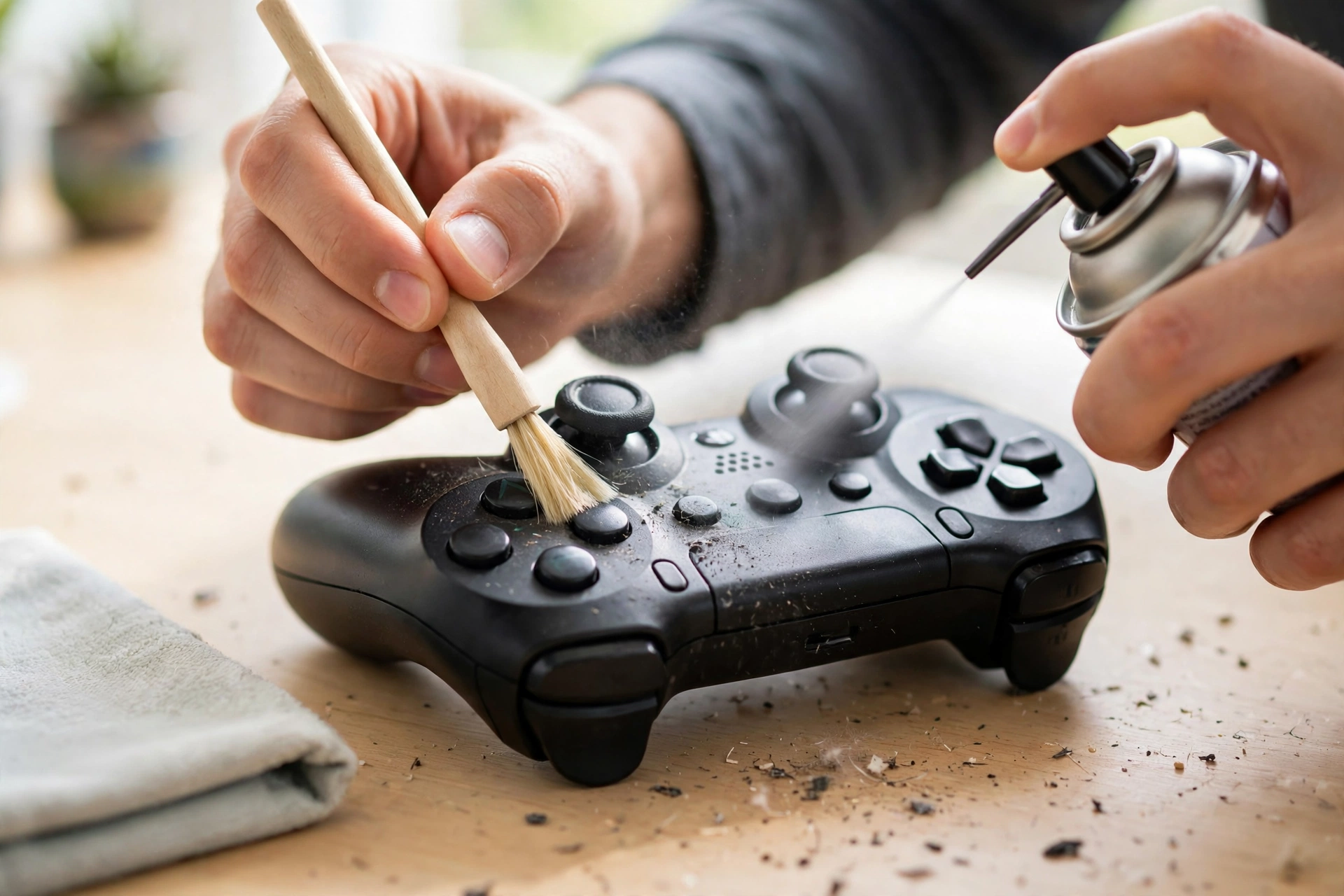
For a sticky button, wipe around its edge with a soft cloth that is barely damp with water. Never spray cleaner or pour liquid into the controller, and never use a sharp tool to pry under a button. If the button still double presses after cleaning, the contact switch itself is worn out. At that point the fix is a replacement button or a repair, not more cleaning.
Thumbsticks can double input too. If a stick registers two small moves for one push, dirt around the stick base is often the cause, and the same compressed air routine helps. If the stick also drifts on its own, recalibrate it. Our calibration guide walks through the Windows tool step by step: https://game-padtester.com/how-to-calibrate-xbox-controller-on-pc/
Fix 7: Reset and Re-Pair on Console
If your double input happens on a console, not a PC, a full reset and fresh pairing clears the bad data that causes it.
For an Xbox controller, hold the Xbox button for 10 seconds until the controller turns off. Remove the batteries or unplug the USB cable, wait 30 seconds, then power it back on and pair it again. Also power cycle the console itself by holding its power button until it shuts down, waiting a minute, and turning it back on. This clears short-lived input glitches on both sides.
For a PS5 DualSense, find the small reset pinhole on the back of the controller, near the Sony logo. Push a paperclip into it and hold for 5 seconds, then pair the controller to the console again with a USB cable. For a Switch Pro Controller, press the small SYNC button once to clear the pairing, then pair it again from the Switch menu. Nintendo support has the pairing steps if you need them: https://www.nintendo.com/us/support/
After the reset, test the controller in a game you know well. If the double input is gone, the old pairing was corrupt. If it comes back after a day or two, check for interference near your console using Fix 5, since a weak signal can corrupt a fresh pairing all over again.
Double Input in One Game Only?
If the double input happens in one game but every other game is fine, the problem is that game, not your controller. The best known case is EA FC and older FIFA titles. Their menus skip two slots on every D-pad press because the game reads your controller through DirectInput and XInput at the same time.
For EA FC and FIFA, the fix is the same idea as Fix 3. Use DS4Windows or XOutput to turn your pad into a single virtual Xbox controller, hide the real controller with HidHide, and turn Steam Input off for that game. Close and reopen the game after you change the setup. The menu skipping should stop right away.
Other games can double bind inputs. Check the in-game controls menu and look for one action assigned to two inputs at once, such as Jump on both A and a stick click. Remove the extra binding. Also check for a double press or turbo setting in the game options and turn it off. If a game update caused the problem, check the game forums to see if other players report the same bug, since a patch may already be on the way.
When to Repair or Replace Your Controller
Some double input is hardware damage, and no setting will fix it. Here is how to know you have reached that point.
You have hardware damage if the double input happens on every device you test, wired and wireless, in the gamepad tester, after cleaning, and after a firmware update. If only one button does it and cleaning did not help, that button contact is worn out. If several buttons do it at once and the controller has been dropped or soaked, the board itself may be damaged.
Before you pay for a repair, check your warranty. Xbox controllers carry a 90 day warranty from Microsoft, and PlayStation controllers carry a one year warranty from Sony. If your controller is still covered, contact the maker for a free repair or replacement. Do not open the controller yourself while it is under warranty, since opening it can void the coverage.
Out of warranty, a local repair shop can swap a single button switch for much less than a new controller. Compare that cost with a new pad first. If your controller is old and several buttons are failing, a new controller is usually the better spend. Keep the old one for parts, or recycle it through the maker’s trade in program if one is available in your area.
FAQs
Why does my controller press buttons twice?
Most of the time, the game is seeing your controller twice. A tool like DS4Windows or Steam Input creates a virtual controller, and the game reads both the real one and the virtual one. Turn off one input layer, or hide the real controller with HidHide, and the double presses stop. If only one button does it, that button is dirty or worn.
Why is my Xbox controller detected as two controllers?
Windows can list your Xbox controller twice when two input layers are active, for example Steam Input and a third party mapper running together, or a virtual controller from DS4Windows next to the real pad. Microsoft support threads report the same problem, and the fix is to run only one mapper and hide the extra device. Close extra mapper tools, turn off Steam Input for the game, and check Device Manager for duplicate entries.
Why does my controller double input only in menus?
Menu skipping is a known bug in some games, most famously EA FC and FIFA, where the game reads your controller through two input systems at once. Fix it by hiding the real controller with HidHide so the game sees only one virtual Xbox controller, and turn Steam Input off for that game. It is rarely a hardware fault when gameplay is fine and only menus skip.
Does HidHide work with Xbox controllers?
HidHide works with any controller Windows sees as a HID device, including Xbox controllers. But Xbox controllers rarely need it, since most games read them through XInput directly and no virtual copy is created. HidHide matters most for PlayStation and Switch Pro controllers on PC, where DS4Windows or BetterJoy creates the virtual copy that causes the double input.
Can a worn button cause double input?
Yes. A worn contact switch can bounce when you press it, sending two signals for one press. This is called contact bounce, and it gets worse over time. Cleaning helps if dirt is the cause, but a truly worn switch needs to be replaced. Test the button on our gamepad tester first. If it double fires there on every device, it is the button, not your software.
Controller double input looks like a broken controller, but a controller double input fix usually starts with one test: find out whether the fault is hardware or software. Start with the tester, then run only one input layer and hide the real controller with HidHide. Those two steps fix the problem for most PC players, and a firmware update plus a wired test covers most of the rest.
If one button still double presses after cleaning and testing on other devices, that button is worn and needs a repair or a replacement. And if your controller misbehaves in other ways too, such as phantom movement or inputs that never arrive, our guides on ghost inputs (https://game-padtester.com/how-to-fix-controller-ghost-inputs/) and stick calibration (https://game-padtester.com/how-to-calibrate-xbox-controller-on-pc/) cover those next steps.